
Autocadmcp
What is Autocadmcp
AutoCadMcp is a plugin designed to connect AutoCAD with AI assistants through the Model Context Protocol (MCP). It allows AI tools to programmatically access AutoCAD, automate command execution, and retrieve information.
Use cases
Use cases for AutoCadMcp include automating repetitive drawing tasks, generating designs based on AI instructions, and enhancing productivity by allowing voice commands or chat-based interactions with AutoCAD.
How to use
To use the AutoCadMcp plugin, first select ‘AutoCAD Debug’ in VS Code and start debugging. Then, launch AutoCAD and load ‘AutoCADMcpPlugin.dll’ using the ‘NETLOAD’ command. Finally, type ‘STARTMCP’ in the command line to start the MCP server.
Key features
Key features of AutoCadMcp include seamless integration with AI assistants like GitHub Copilot and Claude, the ability to automate AutoCAD commands, and easy configuration for different AI tools.
Where to use
AutoCadMcp can be used in various fields such as architecture, engineering, and design, where AutoCAD is commonly utilized for drafting and modeling.
Clients Supporting MCP
The following are the main client software that supports the Model Context Protocol. Click the link to visit the official website for more information.





Overview
What is Autocadmcp
AutoCadMcp is a plugin designed to connect AutoCAD with AI assistants through the Model Context Protocol (MCP). It allows AI tools to programmatically access AutoCAD, automate command execution, and retrieve information.
Use cases
Use cases for AutoCadMcp include automating repetitive drawing tasks, generating designs based on AI instructions, and enhancing productivity by allowing voice commands or chat-based interactions with AutoCAD.
How to use
To use the AutoCadMcp plugin, first select ‘AutoCAD Debug’ in VS Code and start debugging. Then, launch AutoCAD and load ‘AutoCADMcpPlugin.dll’ using the ‘NETLOAD’ command. Finally, type ‘STARTMCP’ in the command line to start the MCP server.
Key features
Key features of AutoCadMcp include seamless integration with AI assistants like GitHub Copilot and Claude, the ability to automate AutoCAD commands, and easy configuration for different AI tools.
Where to use
AutoCadMcp can be used in various fields such as architecture, engineering, and design, where AutoCAD is commonly utilized for drafting and modeling.
Clients Supporting MCP
The following are the main client software that supports the Model Context Protocol. Click the link to visit the official website for more information.
Content
AutoCAD MCP Plugin
Project Purpose
AutoCAD MCP Plugin is a plugin to connect AutoCAD and AI assistants (such as GitHub Copilot or Claude) via the Model Context Protocol (MCP). It enables AI tools to programmatically access AutoCAD, automate command execution, and retrieve information.
How to Use the Plugin
- In VS Code, select
AutoCAD DebugfromRun and Debugand start debugging. - Launch AutoCAD and load
AutoCADMcpPlugin.dllusing theNETLOADcommand. - Type
STARTMCPin the command line to start the MCP server.
How to Connect via MCP
Connecting with GitHub Copilot
- Start the MCP server (AutoCadMcp) from
.github/mcp.json.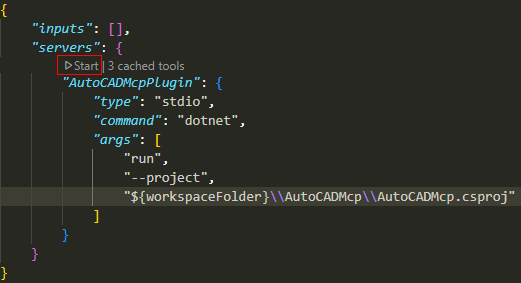
- Switch Copilot Chat to Agent mode and confirm that the AutoCADMcp server is added from the wrench icon at the top left.
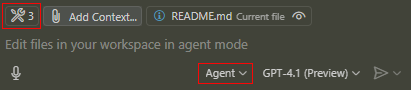
- Give instructions such as “Draw a circle in AutoCAD” in Copilot Chat, and AutoCAD will be operated via the MCP server.
Reference: https://docs.github.com/en/copilot/customizing-copilot/extending-copilot-chat-with-mcp
Connecting with Claude Desktop
- Build the solution to create the
AutoCadMcpexecutable. - Refer to Claude Desktop MCP connection guide and open the MCP config file.
- Specify the built executable for the server:
{
  "mcpServers": {
    "AutoCADMcp": {
      "command": "\\path\\to\\AutoCadMcp.exe",
    }
  }
}
- Restart Claude Desktop and confirm that the MCP server is added to the tools.
- Give instructions such as “Draw a circle in AutoCAD” and AutoCAD will be operated via the MCP server.
Notes
- Stop the server with the
StopMcpcommand. - Pay attention to the startup order of the plugin and MCP server.
- For details on extension and adding events, refer to the documentation in the project.
Dev Tools Supporting MCP
The following are the main code editors that support the Model Context Protocol. Click the link to visit the official website for more information.







