
Documentation Mcp
What is Documentation Mcp
Documentation-MCP is a Model Context Protocol (MCP) server that allows Claude to search and access documentation from popular libraries like LangChain, LlamaIndex, and OpenAI directly within conversations.
Use cases
Use cases include enhancing AI assistants with documentation retrieval capabilities, providing developers with quick access to library documentation during coding, and facilitating learning and research in AI-related fields.
How to use
To use Documentation-MCP, install the uv package manager, clone the project, set up a virtual environment, install dependencies, and configure your Serper API key in a .env file.
Key features
Key features include a documentation search tool, support for libraries like LangChain, LlamaIndex, and OpenAI, smart extraction of relevant information, and configurable results based on user needs.
Where to use
Documentation-MCP can be used in AI development environments, educational platforms, and any application requiring quick access to documentation from various AI libraries.
Clients Supporting MCP
The following are the main client software that supports the Model Context Protocol. Click the link to visit the official website for more information.





Overview
What is Documentation Mcp
Documentation-MCP is a Model Context Protocol (MCP) server that allows Claude to search and access documentation from popular libraries like LangChain, LlamaIndex, and OpenAI directly within conversations.
Use cases
Use cases include enhancing AI assistants with documentation retrieval capabilities, providing developers with quick access to library documentation during coding, and facilitating learning and research in AI-related fields.
How to use
To use Documentation-MCP, install the uv package manager, clone the project, set up a virtual environment, install dependencies, and configure your Serper API key in a .env file.
Key features
Key features include a documentation search tool, support for libraries like LangChain, LlamaIndex, and OpenAI, smart extraction of relevant information, and configurable results based on user needs.
Where to use
Documentation-MCP can be used in AI development environments, educational platforms, and any application requiring quick access to documentation from various AI libraries.
Clients Supporting MCP
The following are the main client software that supports the Model Context Protocol. Click the link to visit the official website for more information.
Content
Documentation MCP Server 📚🔍
A Model Context Protocol (MCP) server that enables Claude to search and access documentation from popular libraries like LangChain, LlamaIndex, and OpenAI directly within conversations.
What is MCP? 🤔
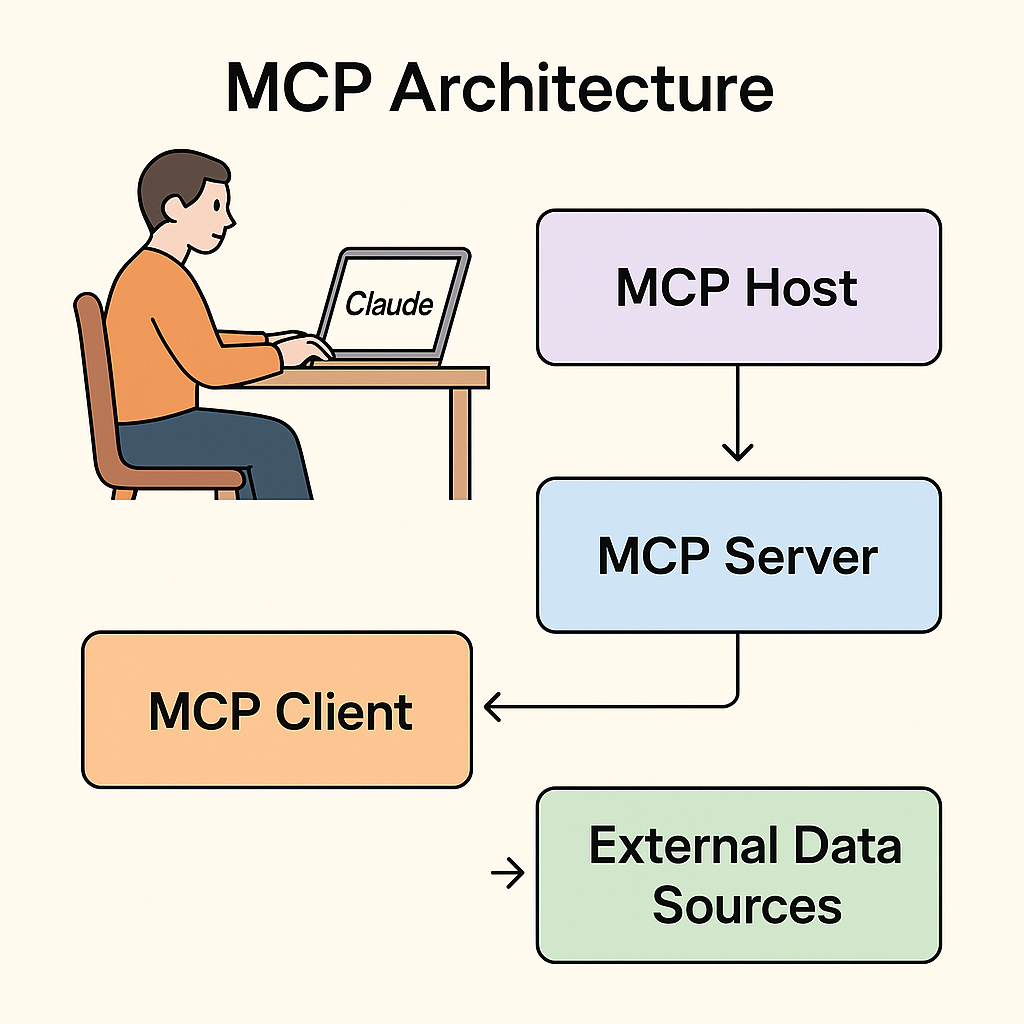
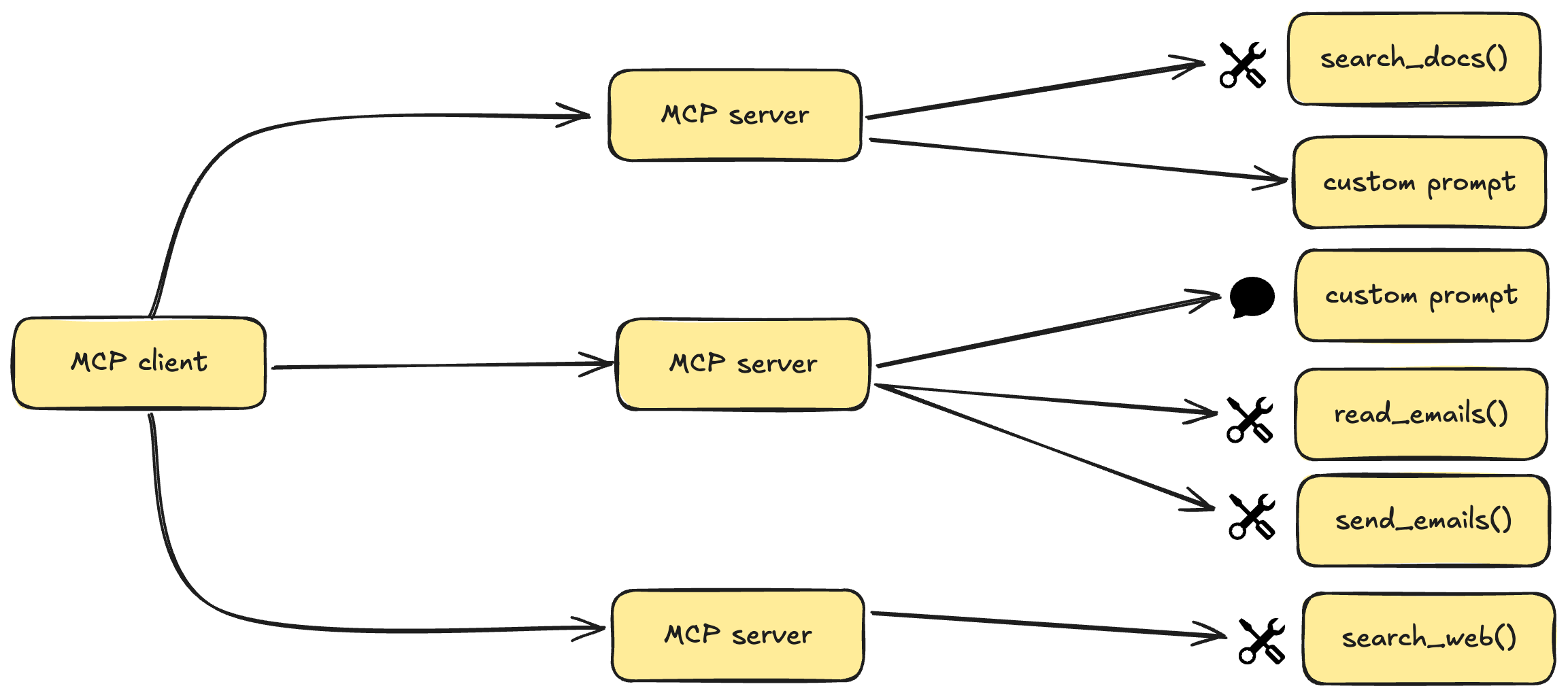
MCP (Model Context Protocol) is an open protocol that standardizes how applications provide context to Large Language Models. Think of it as a universal connector that lets AI assistants like Claude access external data sources and tools.
Features ✨
- Documentation Search Tool: Search through documentation of popular AI libraries
- Supported Libraries:
- LangChain 🔗
- LlamaIndex 🦙
- OpenAI 🤖
- Smart Extraction: Intelligently parses HTML content to extract the most relevant information
- Configurable Results: Limit the amount of text returned based on your needs
How It Works 🛠️
- The server uses the Serper API to perform Google searches with site-specific queries
- It fetches the content from the search results
- BeautifulSoup extracts the most relevant text from main content areas
- Claude can access this information through the
get_docstool
System Requirements 🖥️
- Python 3.11 or higher
uvpackage manager- A Serper API key
Setup Instructions 🚀
1. Install uv Package Manager
curl -LsSf https://astral.sh/uv/install.sh | sh
2. Clone and Set Up the Project
# Clone or download the project
cd documentation

# Create and activate virtual environment
uv venv
# On Windows:
.venv\Scripts\activate
# On macOS/Linux:
source .venv/bin/activate

# Install dependencies
uv pip install -e .
3. Configure the Serper API Key
Create a .env file in the project directory with your Serper API key:
SERPER_API_KEY=your_serper_api_key_here
You can get a Serper API key by signing up at serper.dev.
4. Configure Claude Desktop
Edit your Claude Desktop configuration file at:
-
Windows:
/C:/Users/[Your Username]/AppData/Roaming/Claude/claude_desktop_config.json -
macOS:
~/Library/Application Support/Claude/claude_desktop_config.json
Add the following to the mcpServers section:
Replace /ABSOLUTE/PATH/TO/YOUR/documentation with the absolute path to your project directory.
5. Restart Claude Desktop
Close and reopen Claude Desktop to apply the new configuration.
Using the Documentation Tool 🧩
Once connected, you can ask Claude to use the documentation tool:
“Can you look up information about vector stores in LangChain documentation?”
Claude will use the get_docs tool to search for relevant information and provide you with documentation excerpts.
Tool Parameters 📋
The get_docs tool accepts the following parameters:
query: The search term (e.g., “vector stores”, “embedding models”)library: Which library to search (langchain, llama-index, or openai)max_chars: Maximum characters to return (default: 1000)
Troubleshooting 🛠️
- Claude can’t find the server: Verify the path in
/C:/Users/fcbsa/AppData/Roaming/Claude/claude_desktop_config.jsonis correct - Search returns no results: Check your Serper API key and internet connection
- Timeout errors: The server might be experiencing connectivity issues or rate limits
License 📜
This project is provided as an educational example of MCP server implementation.
Acknowledgements 🙏
- Built using the MCP SDK
- Powered by Serper API for Google search integration
- Uses BeautifulSoup4 for HTML parsing
- Inspired by the growing MCP community
This MCP server enhances Claude’s capabilities by providing direct access to documentation resources. Explore, learn, and build better AI applications with contextual knowledge from the docs!
Dev Tools Supporting MCP
The following are the main code editors that support the Model Context Protocol. Click the link to visit the official website for more information.







