
Fea Mcp
What is Fea Mcp
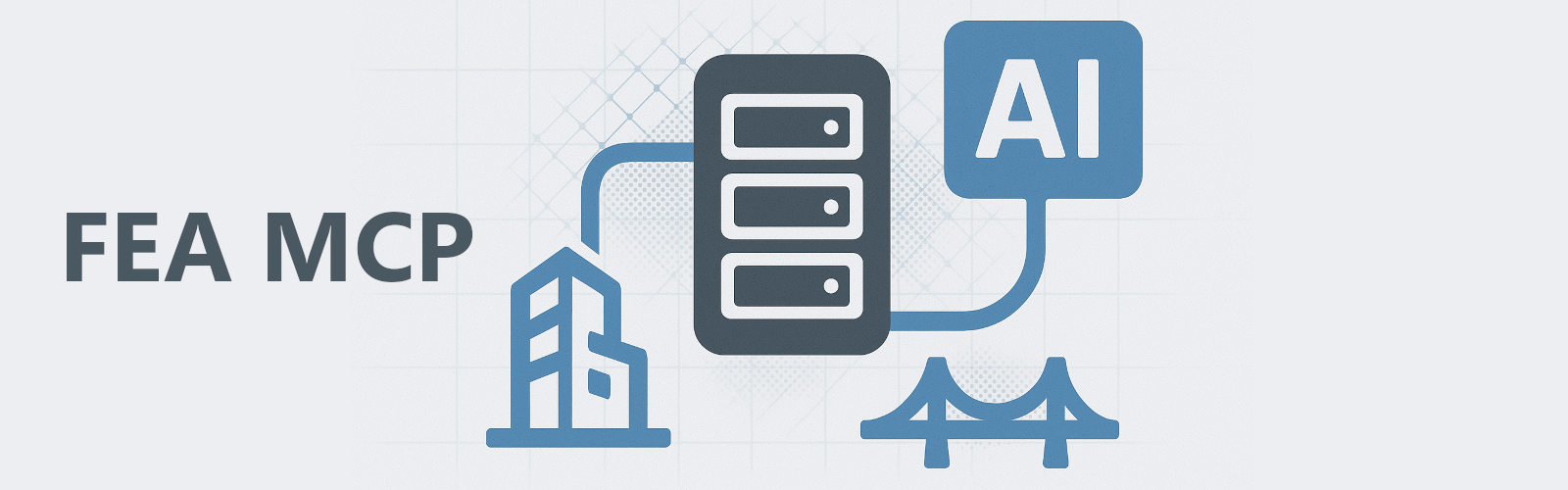
FEA-MCP is a Finite Element Analysis Model Context Protocol Server designed for AI integration with various FEA software packages like ETABS and LUSAS. It provides a unified API interface for modeling, analysis, and post-processing in FEA.
Use cases
Use cases for FEA-MCP include automating the modeling process in structural analysis, performing simulations with different FEA software, and integrating AI-driven analysis workflows for enhanced efficiency and accuracy.
How to use
To use FEA-MCP, install the required Python libraries using pip, download the repository, and configure the server as needed. Ensure that the necessary FEA software is installed on a Windows operating system.
Key features
Key features include a software-agnostic interface for connecting to different FEA software, geometric modeling capabilities, and support for multiple software packages. It allows users to create geometric entities and manage model units.
Where to use
FEA-MCP can be used in various fields such as civil engineering, structural analysis, and any domain requiring finite element modeling and analysis, particularly where integration with AI is beneficial.
Clients Supporting MCP
The following are the main client software that supports the Model Context Protocol. Click the link to visit the official website for more information.





Overview
What is Fea Mcp
FEA-MCP is a Finite Element Analysis Model Context Protocol Server designed for AI integration with various FEA software packages like ETABS and LUSAS. It provides a unified API interface for modeling, analysis, and post-processing in FEA.
Use cases
Use cases for FEA-MCP include automating the modeling process in structural analysis, performing simulations with different FEA software, and integrating AI-driven analysis workflows for enhanced efficiency and accuracy.
How to use
To use FEA-MCP, install the required Python libraries using pip, download the repository, and configure the server as needed. Ensure that the necessary FEA software is installed on a Windows operating system.
Key features
Key features include a software-agnostic interface for connecting to different FEA software, geometric modeling capabilities, and support for multiple software packages. It allows users to create geometric entities and manage model units.
Where to use
FEA-MCP can be used in various fields such as civil engineering, structural analysis, and any domain requiring finite element modeling and analysis, particularly where integration with AI is beneficial.
Clients Supporting MCP
The following are the main client software that supports the Model Context Protocol. Click the link to visit the official website for more information.
Content
FEA-MCP Server
An Finite Element Analysis Model Context Protocol Server for AI
🚀 Overview
The FEA-MCP Server provides a unified API interface for interacting with various Finite Element Analysis (FEA) software packages. It enables AI control of FEA modelling, analysis, and post-processing through a consistent interface, regardless of the underlying software implementation (currently ETABS and LUSAS are supported).
✨ Supported Features
- Multiple Software: Supports mainstream FEA software including:
- Geometric Modelling:
- Create Point/Joint
- Create Line/Frame/Beam/Column
- Create Volume/Solid
- Sweep Points/Lines/Surfaces (LUSAS only)
- Get modelled Points/Lines/Surfaces/Volumes
- Select objects (LUSAS only)
- Other:
- Read model units
🖥️ MCP Tools
The server provides the following main API functions:
get_units: Returns the model unitscreate_objects_by_coordinates: Batch-creates various geometric objects (points, lines/frames, surfaces/areas, volumes/solids)get_all_geometries: Returns all the modelled geometric objects (points, lines/frames, surfaces/areas, volumes/solids)get_points: Returns all the modelled points
(the following are only available for ETABS)
get_frames: Returns all the modelled framesget_areas: Returns all the modelled areas
(the following are only available for LUSAS)
get_lines: Returns all the modelled linesget_surfaces: Returns all the modelled surfacesget_volumes: Returns all the modelled volumessweep_points: Sweeps points to create linessweep_lines: Sweeps lines to create surfacessweep_surfaces: Sweeps surfaces to create volumesselect: Select modelled objects
🎯 Future Work
- Model Management: Define materials, sections, loads, and boundary conditions
- Analysis Control: Run simulations and retrieve results
- Coordinate System Support: Work with multiple coordinate systems
⚙️ Installation
Requirements
Required python libraries:
pywin32>=228    # Windows COM interface support
comtypes>=1.4.0 # Windows COM interface support
mcp>=0.1.0      # Model Control Protocol library
System Requirements:
- Windows operating system
- Installed FEA software (ETABS, LUSAS)
Guide
-
Install the required python libraries from command line:
pip install pywin32 comtypes mcp //or pip install -r requirements. txt -
Download this repository and save the extracted files locally (e.g. at
C:\your_path_to_the_extracted_server\FEA-MCP\). -
(Optional) Edit the MCP server configuration file, located at
src/config.json(see configuration section). By default the server is set to use LUSAS v21.1. -
Install Claude Desktop (or other AI client with MCP support).
-
Configure Claude Desktop to launch the MCP Server automatically (see Claude Desktop section).
-
You are good to go!
Configuration
The configuration file is located at src/config.json and contains the following main settings:
{
  "server": {
    "name": "FEA MCP",
    "version": "1.0.0"
  },
  "fea": {
    "software": "LUSAS",
    "version": "21.1"
  }
}- server: Server name and version information
- fea:
software: FEA software (ETABS, LUSAS)version: software version (e.g. 21.1 for LUSAS)
🤖 AI Clients
5ire
Open 5ire > Tools > New, input the following info and then click Save:
| Input | Value |
|---|---|
| Tool Key | fea |
| Description | Finite Elements Analysis connection server (ETABS, LUSAS) |
| Command | python C:\your_path_to_the_extracted_server\FEA-MCP\src\server.py |
Caution: update the path! (single slashes)
Then turn on the server and you are good to go!
Claude Desktop
Open Claude Desktop and navigate to File > Settings > Developer > Edit Config, edit claude_desktop_config.json and add the following JSON.
{
  "mcpServers": {
    "fea": {
      "command": "python",
      "args": [
        "C:\\your_path_to_the_extracted_server\\FEA-MCP\\src\\server.py"
      ]
    }
  }
}
Caution: update the path and use double backslash!
Then restart Claude Desktop (from the tray icon, right click > Quit).
Visual Studio Code - GitHub Copilot
The MCP server is already setup in .vscode\mcp.json. Open the repository folder in visual studio, select .vscode\mcp.json and click “Start” above the server name (more info here).
🐞 Bugs
Google’s Gemini seems to crash when the create_objects_by_coordinates tool is enabled.
🐛 Debug
You can test and debug the MCP server using the MCP Inspector by running the following command:
npx @modelcontextprotocol/inspector mcp run src\server.py
Dev Tools Supporting MCP
The following are the main code editors that support the Model Context Protocol. Click the link to visit the official website for more information.







