Remote Mcp Server For Claude Desktop
What is Remote Mcp Server For Claude Desktop
Remote-MCP-Server-for-Claude-Desktop is a tool that allows users to communicate with a remote MCP server hosted on a Linux machine using the Win10 Claude Desktop application.
Use cases
Use cases include remote data processing, collaborative software development, and accessing cloud-based services from a local environment.
How to use
To use Remote-MCP-Server-for-Claude-Desktop, follow these steps: 1. Download a port forwarding tool (like Termius or VSCode). 2. Deploy the MCP server on the remote Linux server. 3. Use port forwarding to map the remote server’s port to your local port. 4. Configure Claude Desktop to access the local port for communication.
Key features
Key features include the ability to run an MCP server on a remote Linux machine, port forwarding capabilities, and seamless integration with Win10 Claude Desktop for remote communication.
Where to use
Remote-MCP-Server-for-Claude-Desktop is ideal for software development, remote application testing, and any scenario where local applications need to interact with remote services.
Clients Supporting MCP
The following are the main client software that supports the Model Context Protocol. Click the link to visit the official website for more information.





Overview
What is Remote Mcp Server For Claude Desktop
Remote-MCP-Server-for-Claude-Desktop is a tool that allows users to communicate with a remote MCP server hosted on a Linux machine using the Win10 Claude Desktop application.
Use cases
Use cases include remote data processing, collaborative software development, and accessing cloud-based services from a local environment.
How to use
To use Remote-MCP-Server-for-Claude-Desktop, follow these steps: 1. Download a port forwarding tool (like Termius or VSCode). 2. Deploy the MCP server on the remote Linux server. 3. Use port forwarding to map the remote server’s port to your local port. 4. Configure Claude Desktop to access the local port for communication.
Key features
Key features include the ability to run an MCP server on a remote Linux machine, port forwarding capabilities, and seamless integration with Win10 Claude Desktop for remote communication.
Where to use
Remote-MCP-Server-for-Claude-Desktop is ideal for software development, remote application testing, and any scenario where local applications need to interact with remote services.
Clients Supporting MCP
The following are the main client software that supports the Model Context Protocol. Click the link to visit the official website for more information.
Content
Background
This is a tutorial for using Win10 Claude Desktop to communicate with the remote mcp server on the remote linux server.
Tutorial
Steps:
-
Download a port forwarding tool (e.g., Termius or VSCode).
-
Deploy the MCP server on the remote server (e.g., on port 127.0.0.1:8080 of the remote server).
-
Use port forwarding to map the remote server’s port to your local port (e.g., map 127.0.0.1:8080 on the remote server to 127.0.0.1:8081 on your local machine).
-
Allow Claude Desktop to access the local port 127.0.0.1:8081. This setup enables it to communicate with the MCP server on the remote server as if it were local.
1. Environment
SSH your remote linux server, then create environment for mcp:
conda create -n mcp_demo python=3.10
conda activate mcp_demo
pip install mcp openai python-dotenv mcp[cli]
2.Use VSCode for Port Forwarding
SSH your server. Create any Python file (e.g. weatherSSE.py) and typing the following MCP server code in the highlighted section:
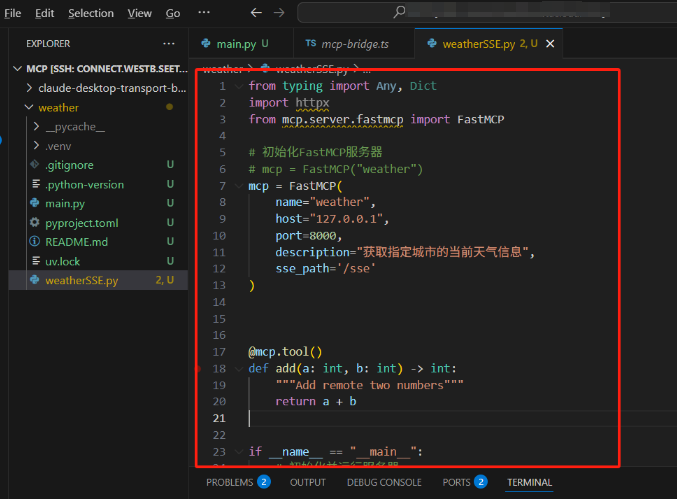
from typing import Any, Dict
import httpx
from mcp.server.fastmcp import FastMCP

mcp = FastMCP(
    name="weather",
    host="127.0.0.1",
    port=8000,
    description="simple add function",
    sse_path='/sse'
)

@mcp.tool()
def add(a: int, b: int) -> int:
    """Add remote two numbers"""
    return a + b

if __name__ == "__main__":
    # init and start server
    try:
        print("Starting server...")
        mcp.run(transport='sse')
    except Exception as e:
        print(f"Error: {e}")
then run:
python weatherSSE.py
if anything work successfully, you will see the server is running on the 127.0.0.1:8080:

and you can see VSCode automatically mapped 127.0.0.1:8000 on the remote server to 127.0.0.1:8001 on the local machine.
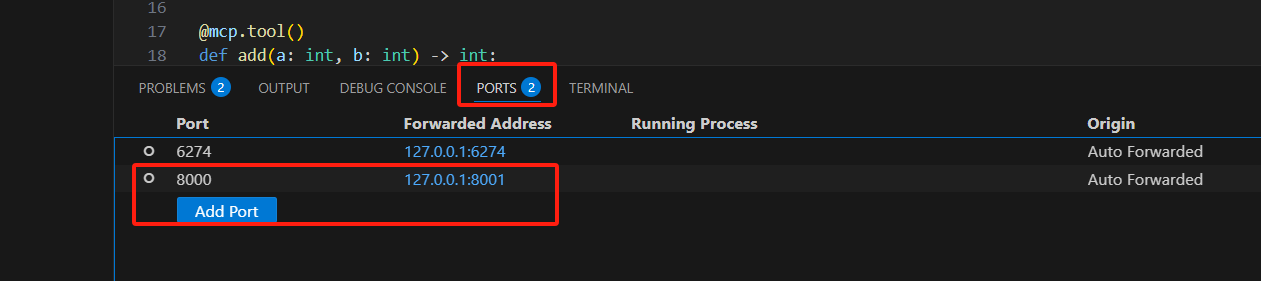
Now go back to your Windows Claude Desktop, click File->Setting->Developer->Edit Config, and edit the json file:
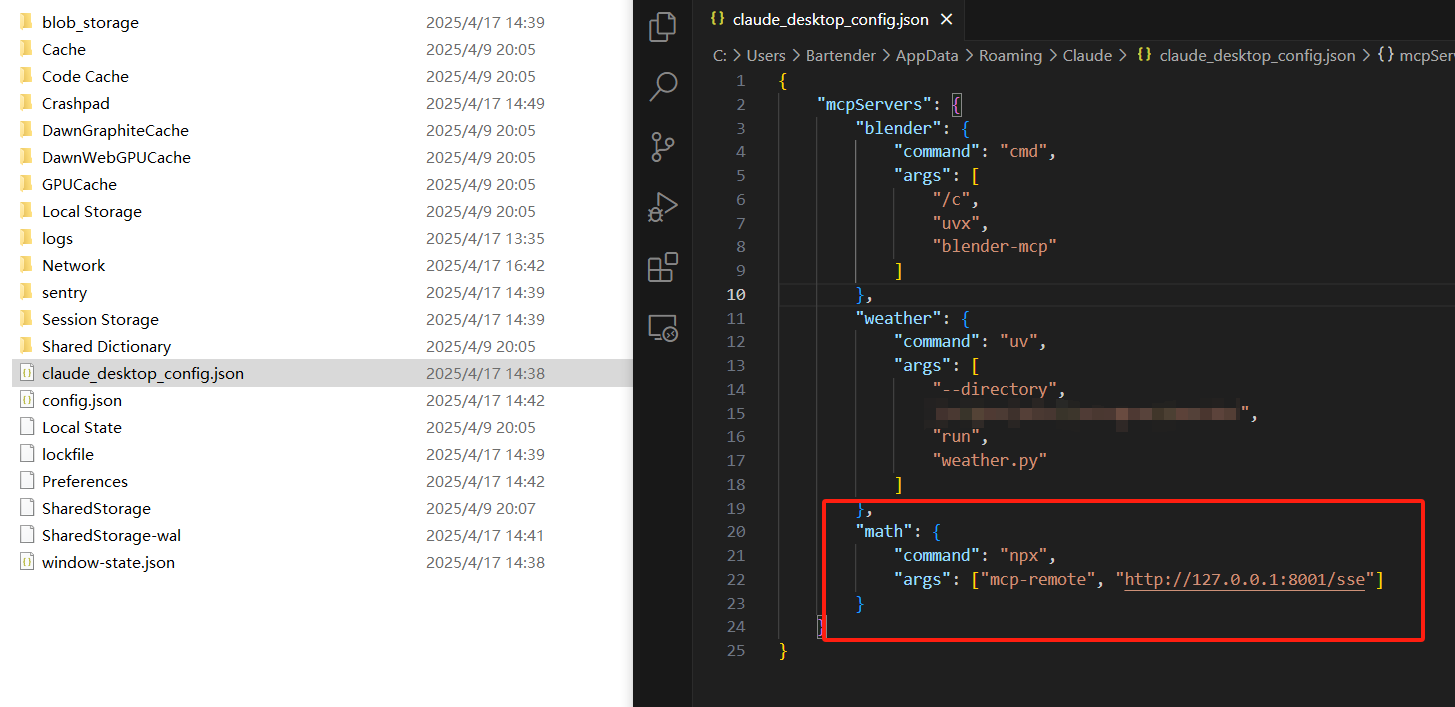
"math": {
            "command": "npx",
            "args": ["mcp-remote", "http://127.0.0.1:8001/sse"]
        }
now you can ask the Claude Desktop question:
Use a tool to help me calculate: if a = 1 and b = 2, what is a + b?
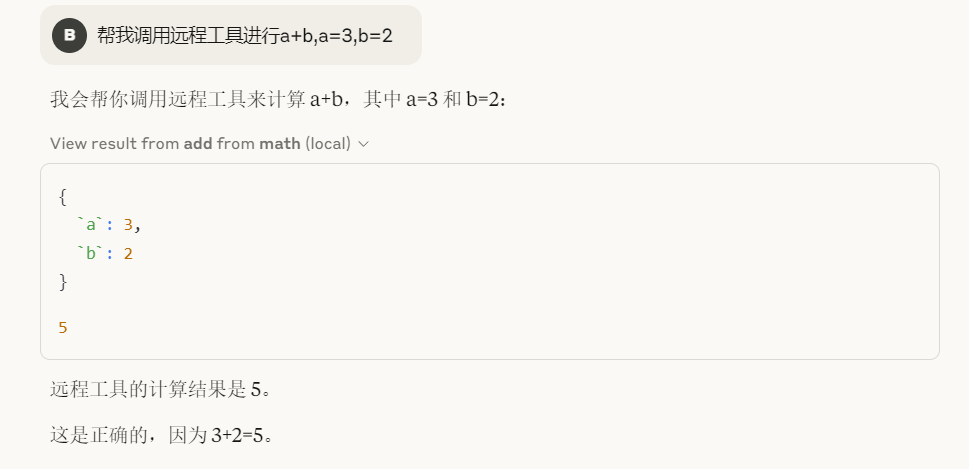
Claude Desktop successfully invoked the tool deployed on the server hosted on the Linux machine.
Due to port forwarding, accessing 127.0.0.1:8081 locally is equivalent to accessing the MCP server at 127.0.0.1:8080 on the remote server.
(Optional)Use Termius for Port Forwarding
If VSCode cannot automatically perform port forwarding for you, you can use a free tool like Termius(https://www.termius.com/) to achieve port forwarding.
Create your new host, fill in your SSH connection details:
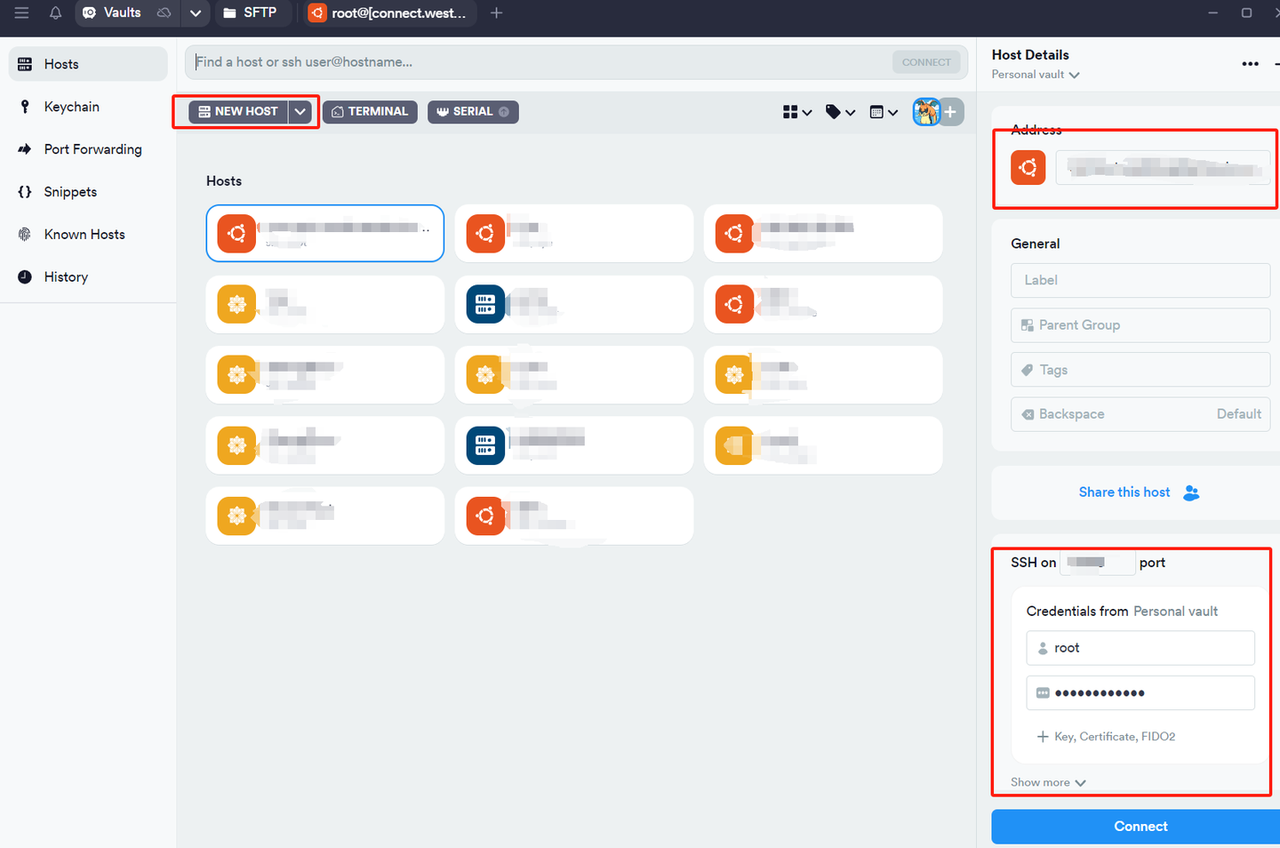
(Here, we assume that you have already set up the MCP environment and written the MCP server code.)
Click Port Forwarding, create a port forwarding rul,fill in the required information:
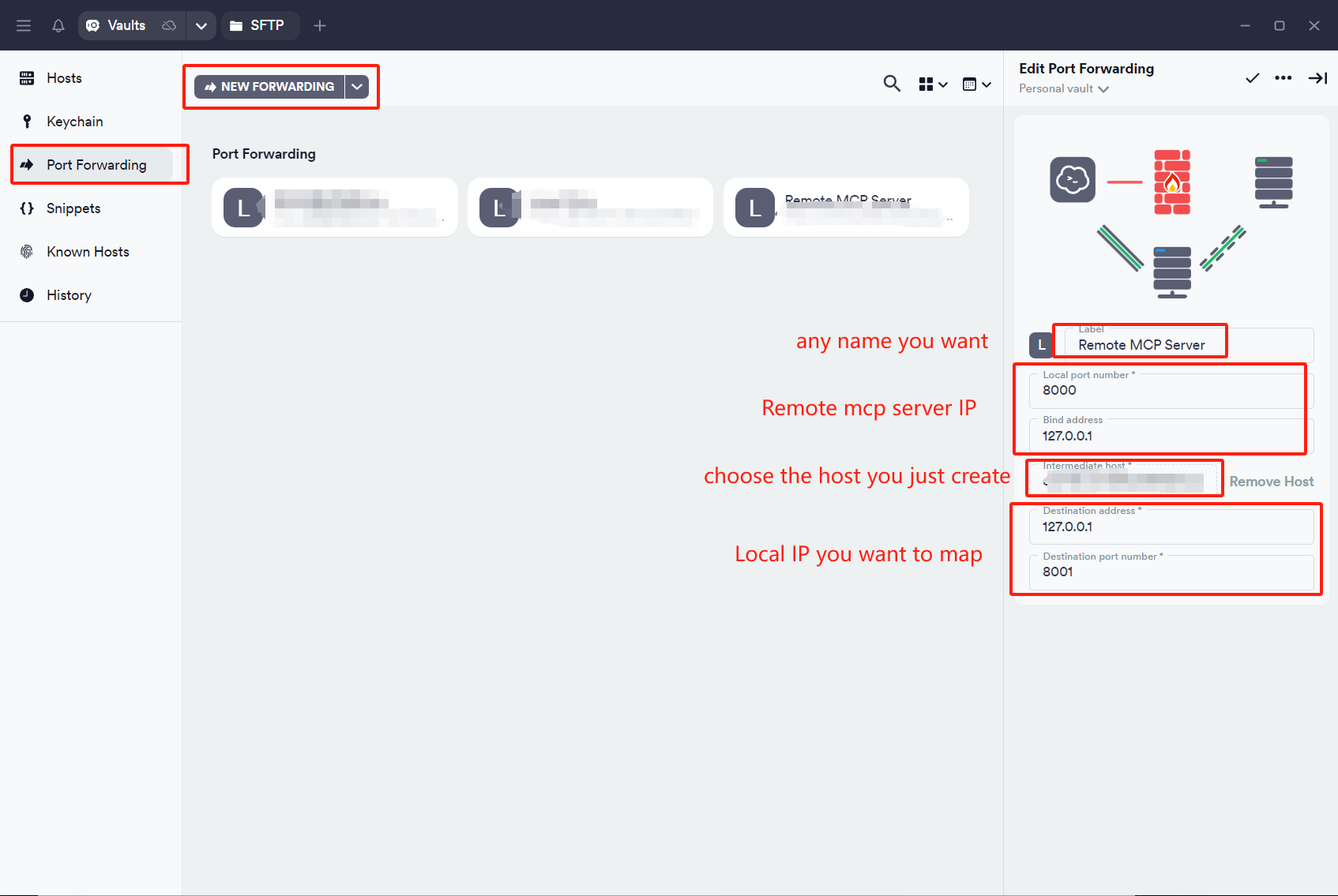
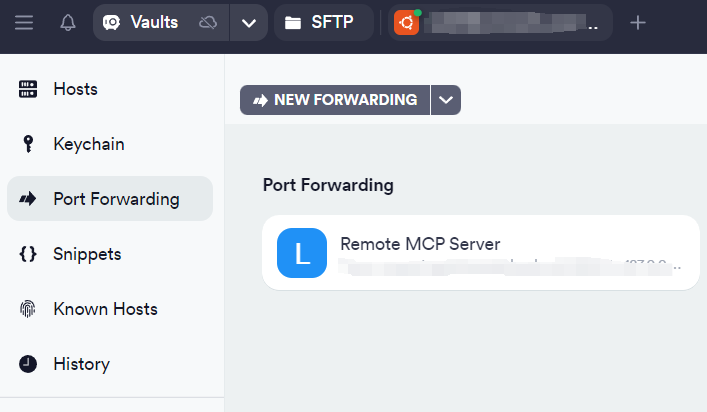
Double-click the rule to activate it. If the rule icon turns blue, it indicates that the rule is working:
now you can ask the Claude Desktop question:
Use a tool to help me calculate: if a = 1 and b = 2, what is a + b?
Dev Tools Supporting MCP
The following are the main code editors that support the Model Context Protocol. Click the link to visit the official website for more information.