
Second Me Mcp
What is Second Me Mcp
MCP Client is a chat application that utilizes the OpenAI GPT model along with the MCP tool service, enabling automatic intent recognition and local tool functionality. It facilitates seamless interaction between users and various services through natural language processing.
Use cases
The MCP Client can be used for diverse applications such as customer support automation, interactive chatbots, personal assistants, and other scenarios where user queries need to be processed and responded to effectively. It is particularly beneficial in environments that require tool integration via chat interfaces.
How to use
To use the MCP Client, first configure the OpenAI API key in the .env file. Next, define the MCP servers in the config.json file by specifying the appropriate command and arguments. Once configured, run the client using the command ‘python mcp_openai_client.py.’ Upon successful launch, users can start querying or requesting access to tools.
Key features
Key features of the MCP Client include automatic recognition of user intents, support for OpenAI function calling, and the capability to dynamically extend tool functionalities. It integrates local tools with AI-driven responses, enhancing user interaction.
Where to use
This client can be utilized in various settings such as customer service platforms, interactive gaming interfaces, educational tools, and any situation where real-time interaction and automation through chat interfaces are required, making it versatile for multiple industries.
Clients Supporting MCP
The following are the main client software that supports the Model Context Protocol. Click the link to visit the official website for more information.





Overview
What is Second Me Mcp
MCP Client is a chat application that utilizes the OpenAI GPT model along with the MCP tool service, enabling automatic intent recognition and local tool functionality. It facilitates seamless interaction between users and various services through natural language processing.
Use cases
The MCP Client can be used for diverse applications such as customer support automation, interactive chatbots, personal assistants, and other scenarios where user queries need to be processed and responded to effectively. It is particularly beneficial in environments that require tool integration via chat interfaces.
How to use
To use the MCP Client, first configure the OpenAI API key in the .env file. Next, define the MCP servers in the config.json file by specifying the appropriate command and arguments. Once configured, run the client using the command ‘python mcp_openai_client.py.’ Upon successful launch, users can start querying or requesting access to tools.
Key features
Key features of the MCP Client include automatic recognition of user intents, support for OpenAI function calling, and the capability to dynamically extend tool functionalities. It integrates local tools with AI-driven responses, enhancing user interaction.
Where to use
This client can be utilized in various settings such as customer service platforms, interactive gaming interfaces, educational tools, and any situation where real-time interaction and automation through chat interfaces are required, making it versatile for multiple industries.
Clients Supporting MCP
The following are the main client software that supports the Model Context Protocol. Click the link to visit the official website for more information.
Content
MCP Client
Overview
This is a chat client built on OpenAI GPT model and MCP tool service, which supports automatic recognition of user intent and calling local tool functions. Support OpenAI function calling and dynamically extending tool functionality.
Requirements
Python Version
- Python 3.12
Required Packages
openaimcp(Multi-Component Platform client library)python-dotenv
Quick start
Configuration
1. Fill in the OpenAI API key in the.env file:
OPENAI_API_KEY=your_api_key_here
2. Define MCP servers in config.json:
{
  "mcpServers": {
    "mindverse": {
      "command": "python",
      "args": ["{Local Path}/Second-Me/mcp/mcp_public.py"]
    }
  }
}
The default configuration is for the MCP service of SecondME. Before using the MCP service of SecondME, please ensure that you have downloaded the latest version of the code and completed registration. After completing the above steps, fill in the local computer path to the corresponding configuration item to start using.
Usage
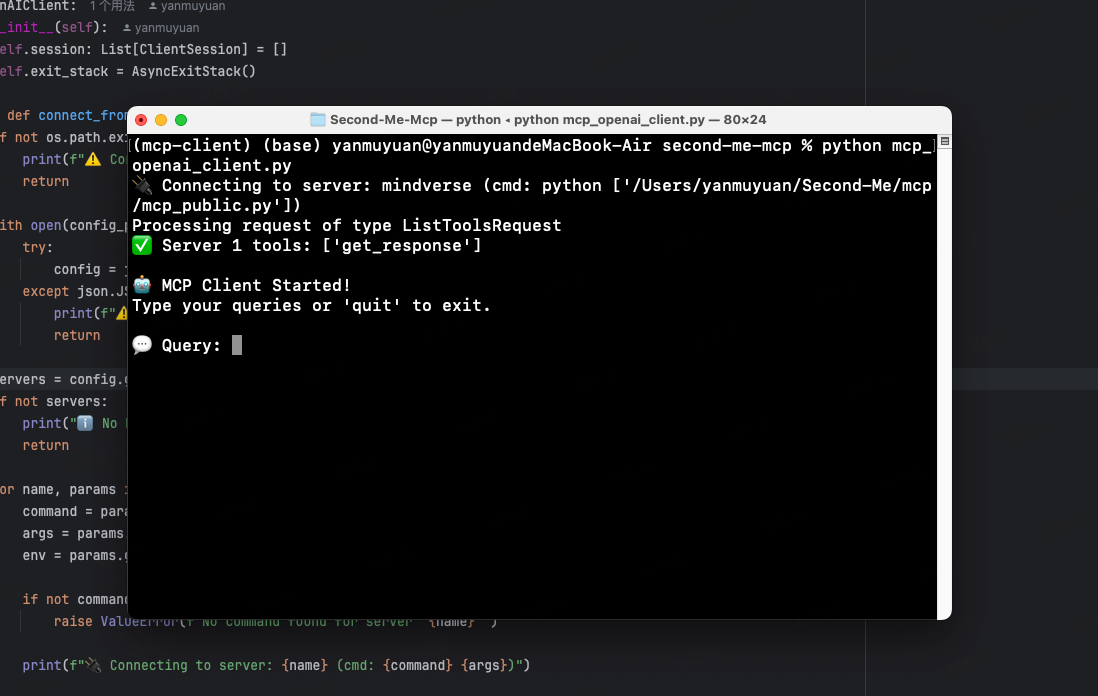
python mcp_openai_client.py
When the following image appears, it proves that the client is running normally.
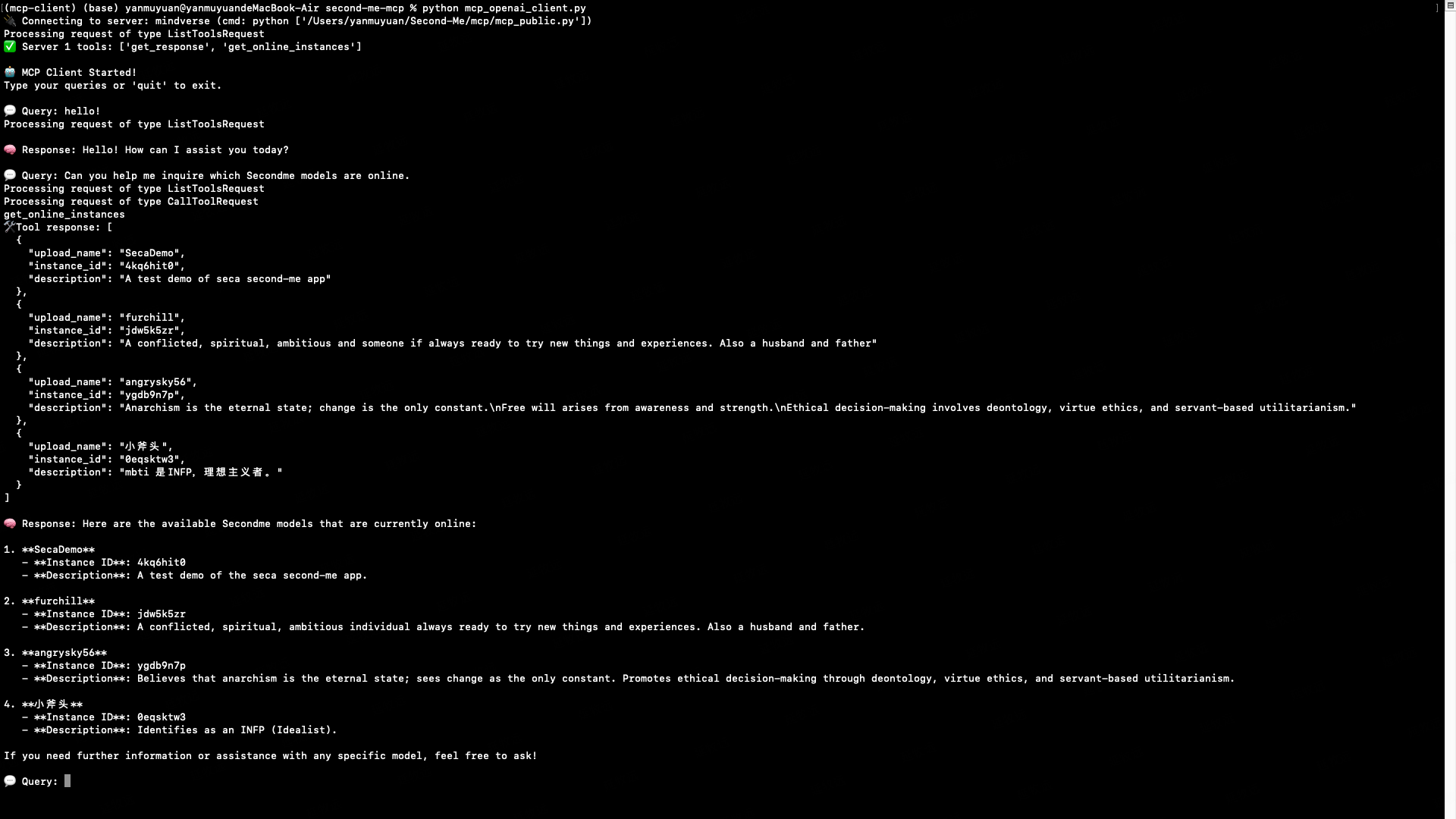
Next, you can ask questions or request access to tools.
Dev Tools Supporting MCP
The following are the main code editors that support the Model Context Protocol. Click the link to visit the official website for more information.







