
Turbo Mcp Client
What is Turbo Mcp Client
Turbo-MCP-Client is a FastAPI-based application that provides a web interface for interacting with Multiple Control Protocol (MCP) servers while utilizing OpenAI’s API for processing messages.
Use cases
Use cases include managing multiple MCP servers for data processing, utilizing OpenAI’s capabilities for enhanced message handling, and providing a user-friendly interface for developers and end-users.
How to use
To use Turbo-MCP-Client, clone the repository, install the dependencies, set up environment variables, create a configuration file, and start the application using uvicorn.
Key features
Key features include the ability to connect to multiple MCP servers simultaneously, process messages through OpenAI’s API, interact via a web-based chat interface, and configure API license keys.
Where to use
Turbo-MCP-Client can be used in various fields such as software development, AI integration, and any application requiring interaction with multiple MCP servers.
Clients Supporting MCP
The following are the main client software that supports the Model Context Protocol. Click the link to visit the official website for more information.





Overview
What is Turbo Mcp Client
Turbo-MCP-Client is a FastAPI-based application that provides a web interface for interacting with Multiple Control Protocol (MCP) servers while utilizing OpenAI’s API for processing messages.
Use cases
Use cases include managing multiple MCP servers for data processing, utilizing OpenAI’s capabilities for enhanced message handling, and providing a user-friendly interface for developers and end-users.
How to use
To use Turbo-MCP-Client, clone the repository, install the dependencies, set up environment variables, create a configuration file, and start the application using uvicorn.
Key features
Key features include the ability to connect to multiple MCP servers simultaneously, process messages through OpenAI’s API, interact via a web-based chat interface, and configure API license keys.
Where to use
Turbo-MCP-Client can be used in various fields such as software development, AI integration, and any application requiring interaction with multiple MCP servers.
Clients Supporting MCP
The following are the main client software that supports the Model Context Protocol. Click the link to visit the official website for more information.
Content
Turbo MCP Client 🚀
A FastAPI-based application that provides a web interface for interacting with Models Context Protocol (MCP) servers while utilizing OpenAI’s API for processing messages.
Overview
This application allows users to:
- Connect to multiple MCP servers simultaneously
- Process messages through OpenAI’s API
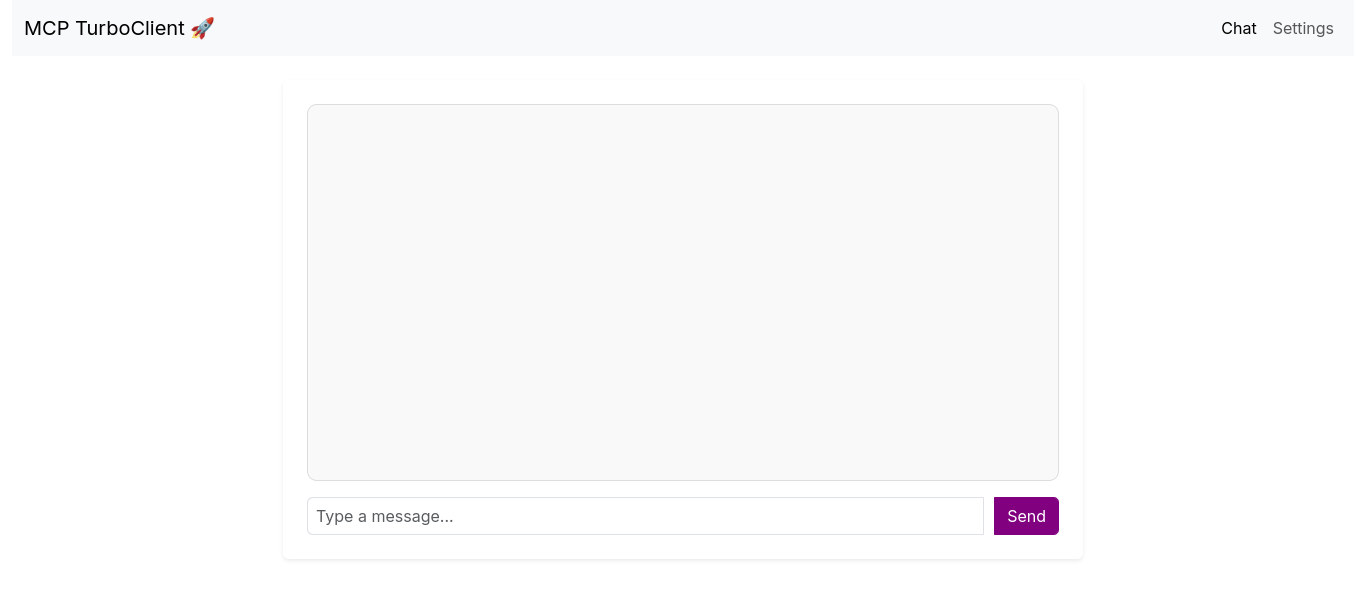
- Interact with the system via a web-based chat interface
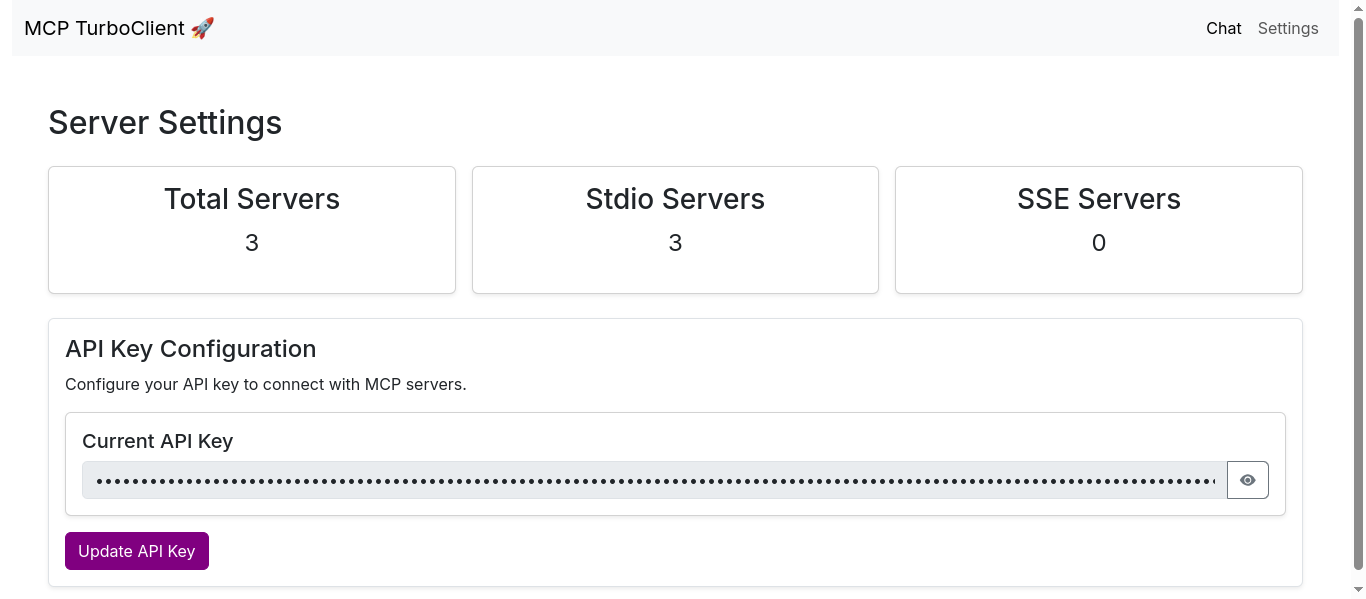
- Configure and store API license keys
Tech Stack
Client: html, css, js, bootstrap, animatedjs
Server: FastAPI, Openai, MCP
Features
- Connect multiple servers at a time
- Use websocket any where you want
Screenshots
Installation
-
Clone the repository:
git clone https://github.com/techspawn/Turbo-MCP-Client.git cd openai-mcp -
Install dependencies:
uv pip install -r requirements.txt -
Set up your environment variables:
export MODEL_NAME="gpt-4o" # or your preferred OpenAI model
Environment Variables
To run this project, you will need to add the following environment variables to your .env file
MODEL_NAME=gpt-4o
Configuration
-
Create a
config.jsonfile in the root directory:{ "mcpServers": { "server1": { "command": "your_command", "args": [ "arg1", "arg2" ] }, "server2": { "command": "another_command", "args": [ "arg1", "arg2" ] } } } -
Initialize the SQLite database:
import sqlite3 conn = sqlite3.connect("mcp_config.db") cursor = conn.cursor() cursor.execute("CREATE TABLE IF NOT EXISTS config (license_key TEXT)") conn.commit() conn.close() -
Configure your OpenAI API key through the web interface.
Usage
-
Start the application:
uvicorn main:app --reload -
Open your browser and navigate to
http://localhost:8000 -
Enter your OpenAI API key in the web interface to save it to the database
-
Use the chat interface to send messages that will be processed through the MCP servers and OpenAI
Usage
-
Start the application:
uvicorn main:app --reload -
Open your browser and navigate to
http://localhost:8000 -
Enter your OpenAI API key in the web interface to save it to the database
-
Use the chat interface to send messages that will be processed through the MCP servers and OpenAI
Project Structure
├── images/                    # Directory for storing image assets
│   ├── chat_window.png        # Screenshot of the chat window
│   └── setting_page.png       # Screenshot of the settings page
├── models/                    # Contains Python modules related to data models
│   ├── __init__.py            # Makes the 'models' directory a Python package
│   ├── client.py              # Defines client-related logic (e.g., API client, user handling)
│   ├── config.py              # Handles application configuration settings
│   └── py.typed               # Indicates that this package supports type hints
├── static/                    # Placeholder for static assets (CSS, JavaScript, images)
├── templates/                 # Directory for HTML templates
│   ├── base.html              # Base template for consistent layout across pages
│   ├── chat.html              # Template for the chat interface
│   └── settings.html          # Template for the settings page
├── .env                       # Environment variables (e.g., API keys, credentials)
├── .gitignore                 # Specifies files to be ignored by Git
├── .python-version            # Defines the Python version for this project
├── config.json                # JSON configuration file for application settings
├── database.py                # Handles database connection and operations
├── folder_structure.txt        # Text file describing the project structure
├── LICENSE                    # License file specifying usage terms
├── main.py                     # Entry point of the application
├── mcp_config.db               # SQLite database file or config storage
├── pyproject.toml              # Python project metadata and dependency management
├── README.md                   # Project documentation and setup instructions
├── requirements.txt            # List of required dependencies
└── uv.lock                     # Lock file for package versions (possibly from `uv` or another package manager)
API Endpoints
GET /: Main chat interfacePOST /get_settings: Save OpenAI API license keyWebSocket /chat: Real-time chat communication
Contributing
Contributions are always welcome!
See contributing.md for ways to get started.
Support
For support, email [email protected]
License
Dev Tools Supporting MCP
The following are the main code editors that support the Model Context Protocol. Click the link to visit the official website for more information.







