
Ae Mcp
What is Ae Mcp
ae-mcp is a powerful integration of the Model Context Protocol (MCP) for Adobe After Effects, allowing AI assistants to interact with and control After Effects through a standardized interface.
Use cases
Use cases include automating repetitive tasks in After Effects, creating dynamic animations with AI assistance, and managing complex projects more efficiently.
How to use
To use ae-mcp, integrate it with your Adobe After Effects setup, configure the necessary tools via configuration files, and utilize the provided functionalities to manage projects, compositions, and layers.
Key features
Key features include an extensible architecture for adding new tools, rich functionality for controlling compositions, layers, and effects, and compliance with any MCP-compatible AI model, such as Claude.
Where to use
ae-mcp can be used in various fields including video production, animation, and any creative projects that require automation and enhanced control over After Effects.
Clients Supporting MCP
The following are the main client software that supports the Model Context Protocol. Click the link to visit the official website for more information.





Overview
What is Ae Mcp
ae-mcp is a powerful integration of the Model Context Protocol (MCP) for Adobe After Effects, allowing AI assistants to interact with and control After Effects through a standardized interface.
Use cases
Use cases include automating repetitive tasks in After Effects, creating dynamic animations with AI assistance, and managing complex projects more efficiently.
How to use
To use ae-mcp, integrate it with your Adobe After Effects setup, configure the necessary tools via configuration files, and utilize the provided functionalities to manage projects, compositions, and layers.
Key features
Key features include an extensible architecture for adding new tools, rich functionality for controlling compositions, layers, and effects, and compliance with any MCP-compatible AI model, such as Claude.
Where to use
ae-mcp can be used in various fields including video production, animation, and any creative projects that require automation and enhanced control over After Effects.
Clients Supporting MCP
The following are the main client software that supports the Model Context Protocol. Click the link to visit the official website for more information.
Content
After Effects MCP Integration 🚀


A powerful, extensible Model Context Protocol (MCP) integration for Adobe After Effects. This project enables AI assistants to directly interact with and control After Effects through a standardized interface.
📸 Screenshots
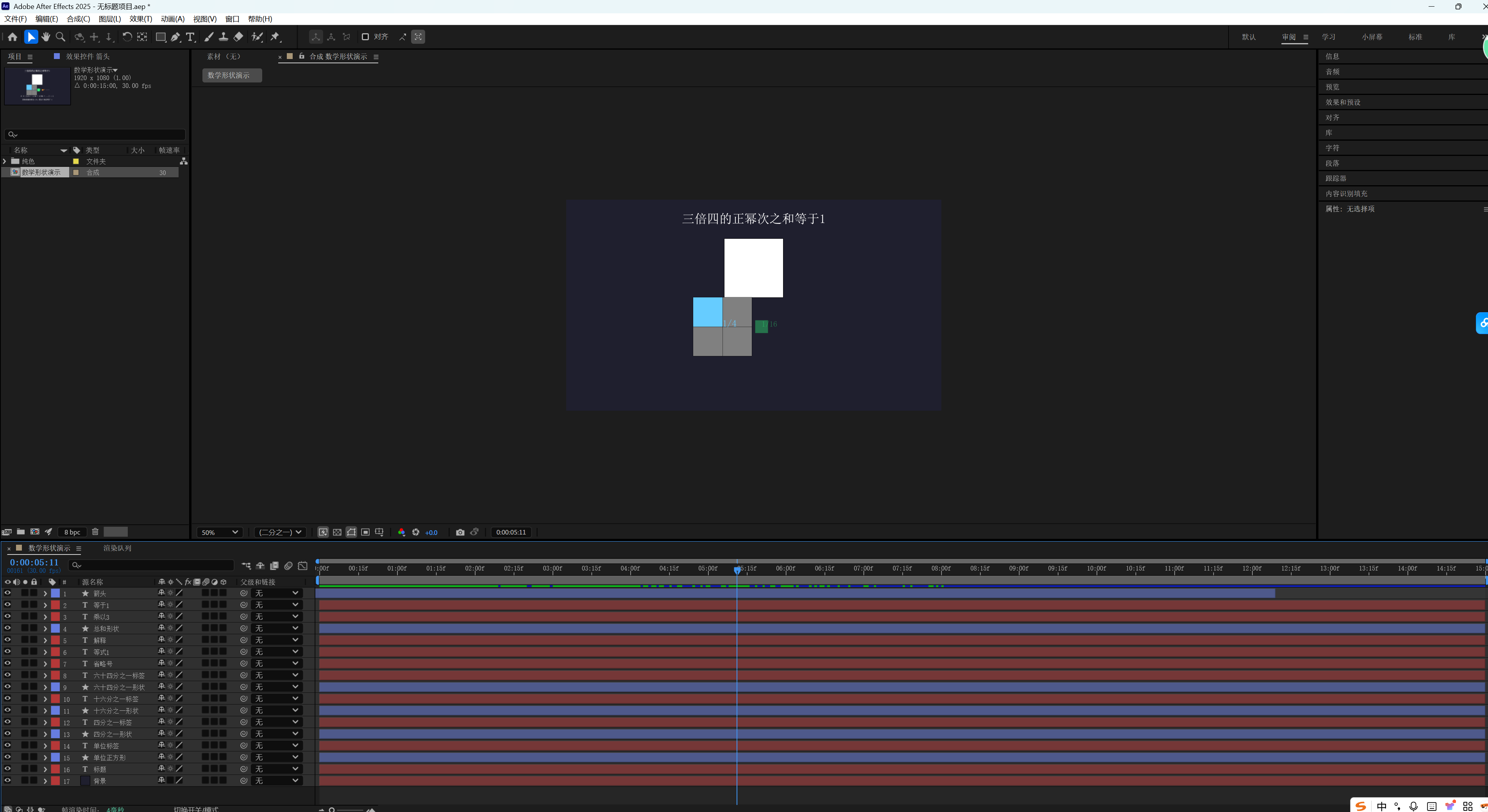
After Effects Integration
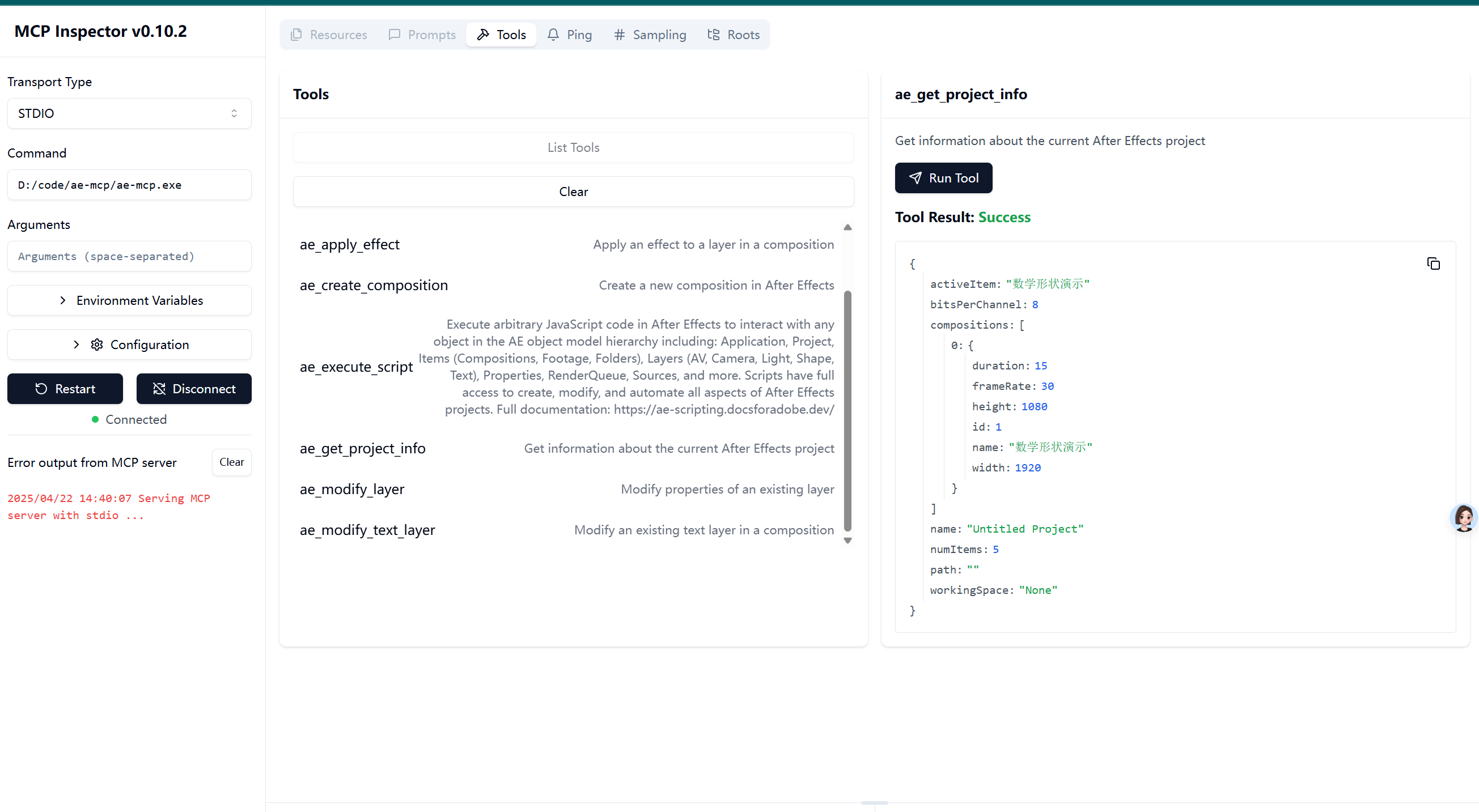
MCP Tool Inspector
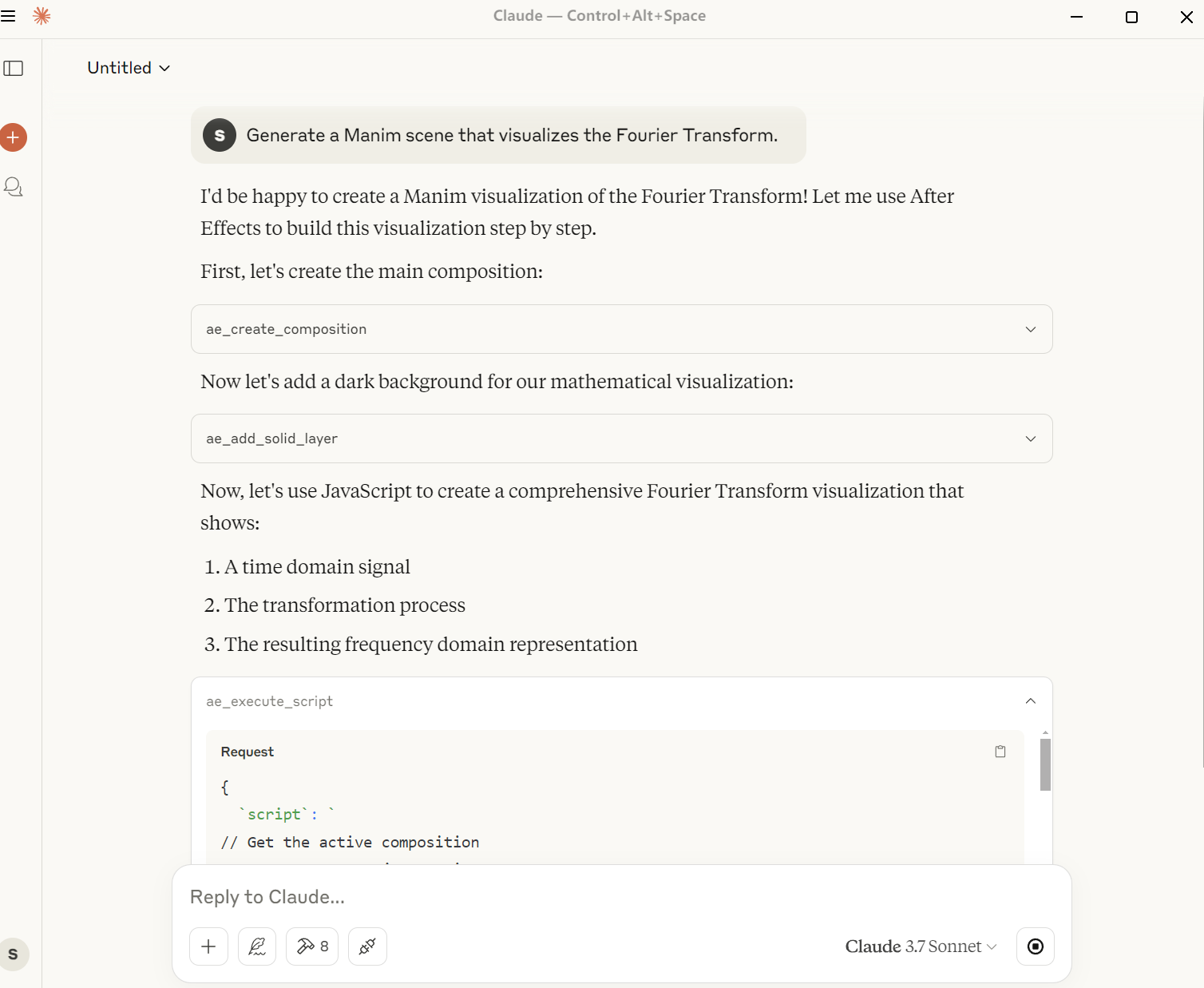
Claude Integration
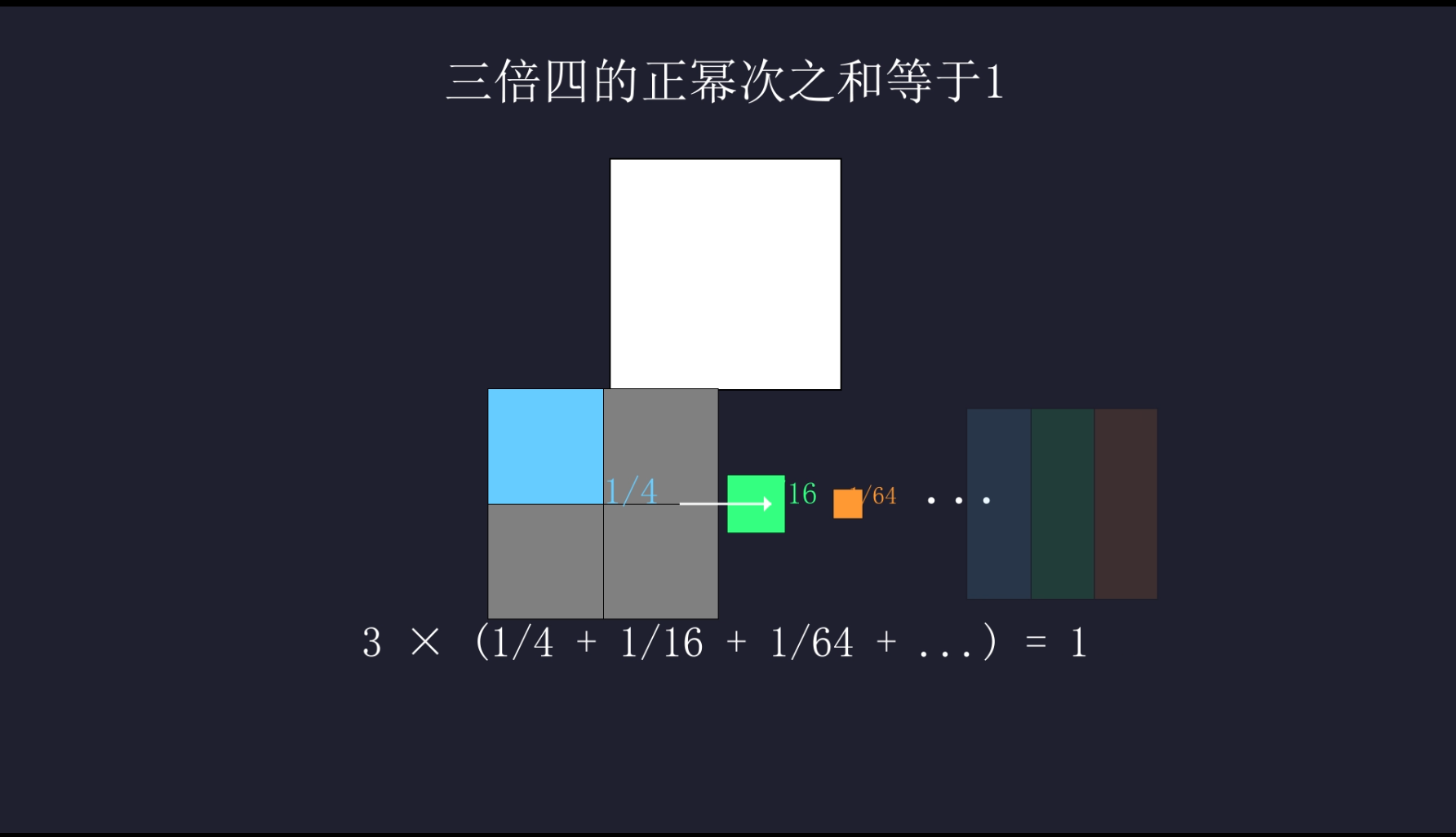
🎬 Demo Video
Check out the demo video below to see the integration in action:
✨ Features
- Extensible Architecture: Easily add new tools through configuration files
- Rich After Effects Functionality: Control compositions, layers, effects, and more
- MCP Compliant: Works with any MCP-compatible AI model, including Claude
🛠️ Tools
This integration provides a comprehensive set of tools for After Effects:
| Category | Capabilities |
|---|---|
| Project | Get project information, list compositions, manage project properties |
| Compositions | Create new compositions with custom dimensions, frame rates, and durations |
| Text Layers | Add and modify text layers with font controls, tracking, justification, colors, and styling |
| Solid Layers | Create solid layers with custom colors, dimensions, and 3D properties |
| Shape Layers | Create custom and preset shape layers (rectangles, ellipses, polygons, stars) with full control over vertices, tangents, and feathering |
| Layer Properties | Set position, scale, rotation, opacity, and other transformation properties |
| Effects | Browse effect categories, view available effects with details (BPC support, GPU acceleration), and apply them to layers with customizable parameters |
| Scripting | Execute arbitrary ExtendScript code for advanced customization |
| Manim Integration | Create mathematical animations using Manim and import them as transparent WebP layers |
Each tool implements After Effects functionality via ExtendScript and exposes a clean Go API that follows the MCP specification.
🚀 Getting Started
Prerequisites
- Adobe After Effects (CC 2020 or later recommended)
- Go/Go+ runtime (for the MCP server)
- Python 3.7+ and pip (for Manim)
- Basic knowledge of After Effects and MCP
Installation
-
Clone this repository:
git clone https://github.com/sunqirui1987/ae-mcp.git cd ae-mcp -
Install Python and pip:
- Windows:
# 1. Download Python # Visit https://www.python.org/downloads/ # Click "Download Python 3.x.x" (latest version) # 2. Run the installer # - Check "Add Python to PATH" # - Choose "Customize installation" # - Select all optional features # - Choose "Install for all users" # - Set installation path (e.g., C:\Python3x) # 3. Verify installation # Open Command Prompt (cmd) or PowerShell and run: python --version pip --version # 4. Install required Windows dependencies # Install Microsoft Visual C++ Build Tools # Download from: https://visualstudio.microsoft.com/visual-cpp-build-tools/ # During installation, select "Desktop development with C++" # 5. Install ffmpeg # Method 1: Using Chocolatey (recommended) # First install Chocolatey from https://chocolatey.org/install # Note: Run Command Prompt or PowerShell as Administrator # Right-click on Command Prompt/PowerShell and select "Run as Administrator" choco install ffmpeg choco install miktex # Method 2: Manual installation (if you don't have admin rights) # 1. Download ffmpeg from https://github.com/BtbN/FFmpeg-Builds/releases # Choose: ffmpeg-master-latest-win64-gpl.zip # 2. Extract the zip file to a location like C:\ffmpeg # 3. Add the bin folder to your PATH environment variable: # - Open System Properties > Advanced > Environment Variables # - Under User variables, find PATH # - Add new entry: C:\ffmpeg\bin # 4. Verify installation: ffmpeg -version # 6. Install additional Python packages pip install wheel pip install pycairo pip install manim - macOS:
# Using Homebrew brew install python brew install ffmpeg # Verify installation python3 --version pip3 --version ffmpeg -version - Linux:
# Ubuntu/Debian
sudo apt update
sudo apt install python3 python3-pip ffmpeg

# Fedora
sudo dnf install python3 python3-pip ffmpeg

# Verify installation
python3 --version
pip3 --version
ffmpeg -version
- Windows:
-
Install dependencies:
gop mod tidy gop build ./cmd/ae-mcp/pip install manim -
Install Manim:
# Install Manim and its dependencies pip install manim # For Windows users, you might need to install additional dependencies: pip install pycairo pip install manim -
Install the After Effects ExtendScript:
- Open After Effects
- Go to File > Scripts > Run Script File…
- Select the
js/ae-mcp.jsxfile
Running the MCP Server
To use with Claude or other AI assistants, add the following MCP configuration:
{
  "mcpServers": {
    "aftereffects": {
      "command": "/path/to/your/ae-mcp.exe",
      "args": []
    }
  }
}
Note: Replace
/path/to/your/ae-mcp.exewith the actual path to the ae-mcp executable on your system. For example, if you cloned the repository toC:/projects/ae-mcp, the path would beC:/projects/ae-mcp/ae-mcp.exe.
For Claude Desktop: Go to Claude > Settings > Developer > Edit Config and add the above configuration.
For Cursor: Go to Settings > MCP > Add Server to add the configuration.
The server will start and listen for connections from AI models.
🎬 Using with Claude
Once the MCP server is running and configured in Claude, you’ll be able to interact with After Effects using natural language commands.
Example Commands
Here are some examples of what you can ask Claude to do:
- “Create a new composition named ‘Intro Animation’ with 1920x1080 resolution”
- “Add a text layer with the message ‘Welcome!’ and center it”
- “Apply a Gaussian Blur effect to the text layer with a blur radius of 15”
- “Create a simple logo animation with a bounce effect”
- “Add a solid layer and apply a Glow effect to it”
- “Create a star shape with 5 points and make it spin”
- “Draw a custom shape path in the form of a wave”
- “Show me all the blur effects available in After Effects”
- “Apply a Color Balance effect to the background layer”
- “Add camera movement that slowly zooms in on the text”
- “Export the composition as an MP4 file”
- “Create a Manim animation showing a rotating cube and add it as a layer”
- “Generate a mathematical equation animation using Manim and import it”
Capabilities
- Get project and composition information
- Create and modify compositions
- Add and manipulate various layer types (text, solid, shape, etc.)
- Browse and apply effects with detailed parameter control
- Control animation and keyframes
- Manage project assets and media
🤝 Contributing
Contributions are welcome! Please feel free to submit a Pull Request.
📄 License
This project is licensed under the MIT License - see the LICENSE file for details.
📞 Support
For questions and support, please open an issue in the GitHub repository.
Dev Tools Supporting MCP
The following are the main code editors that support the Model Context Protocol. Click the link to visit the official website for more information.







