
Ai Engineer Neo4j Memory Demo
What is Ai Engineer Neo4j Memory Demo
ai-engineer-neo4j-memory-demo is a demonstration project showcasing the capabilities of the Neo4j Memory MCP server, designed to integrate with Claude Desktop for enhanced memory management.
Use cases
Use cases include enhancing conversational AI systems with memory capabilities, managing knowledge graphs for organizations, and facilitating dynamic information retrieval in customer support applications.
How to use
To use ai-engineer-neo4j-memory-demo, install the uv Python Package Manager, set up a Neo4j database instance (either cloud-hosted or local), and configure Claude Desktop to connect to the Neo4j Memory MCP server with your database credentials.
Key features
Key features include integration with Claude Desktop, memory retrieval and update mechanisms, and the ability to manage complex relationships and observations within a Neo4j database.
Where to use
ai-engineer-neo4j-memory-demo can be used in fields such as artificial intelligence, data management, and any application requiring advanced memory handling and relationship mapping.
Clients Supporting MCP
The following are the main client software that supports the Model Context Protocol. Click the link to visit the official website for more information.





Overview
What is Ai Engineer Neo4j Memory Demo
ai-engineer-neo4j-memory-demo is a demonstration project showcasing the capabilities of the Neo4j Memory MCP server, designed to integrate with Claude Desktop for enhanced memory management.
Use cases
Use cases include enhancing conversational AI systems with memory capabilities, managing knowledge graphs for organizations, and facilitating dynamic information retrieval in customer support applications.
How to use
To use ai-engineer-neo4j-memory-demo, install the uv Python Package Manager, set up a Neo4j database instance (either cloud-hosted or local), and configure Claude Desktop to connect to the Neo4j Memory MCP server with your database credentials.
Key features
Key features include integration with Claude Desktop, memory retrieval and update mechanisms, and the ability to manage complex relationships and observations within a Neo4j database.
Where to use
ai-engineer-neo4j-memory-demo can be used in fields such as artificial intelligence, data management, and any application requiring advanced memory handling and relationship mapping.
Clients Supporting MCP
The following are the main client software that supports the Model Context Protocol. Click the link to visit the official website for more information.
Content
AI Engineer Neo4j Memory MCP Demo
This is a short demo of the Neo4j Memory MCP server.
This file descibes how to configure Claude Desktop with agentic memory courtesy of the Neo4j Memory MCP Server.
Set Up
Install uv Python Package Manager
The Neo4j Memory MCP Server is written in Python and managed by uv. Follow the directions on this page to properly install.
Neo4j Database
Create a Neo4j database instance by either
- Navigating to the Neo4j Aura Console to create a cloud hosted Neo4j Aura instance
- Downloading Neo4j Desktop and creating a local Neo4j instance
Claude Desktop
Download Claude Desktop
- navigate to Settings -> Developer -> Edit Config
- Add the Neo4j Memory MCP server to the config file
You may replace the config values with your own database credentials
{
  "mcpServers": {
    "neo4j-memory-store": {
      "command": "uvx",
      "args": [
        "[email protected]"
      ],
      "env": {
        "NEO4J_URL": "bolt://localhost:7687",
        "NEO4J_USERNAME": "neo4j",
        "NEO4J_PASSWORD": "password",
        "NEO4J_DATABASE": "neo4j"
      }
    }
  }
}- Navigate to Settings -> General -> Claude Settings -> Configure
- In the personal preferences section - paste this text:
Follow these steps for each interaction:

1. Memory Retrieval:
   - Always begin your chat by saying only "Remembering..." and retrieve all relevant information from your knowledge graph
   - Always refer to your knowledge graph as your "memory"

2. Memory Update:
   - If any new information was gathered during the interaction, update your memory as follows:
     a) Create entities for recurring organizations, people, and significant events
     b) Connect them to the current entities using relations
     b) Store facts about them as observations
This text is a modified version of the system prompt Anthropic recommends for their memory MCP server.
Demo
Begin a conversation with Claude Desktop.
Each interaction should be automatically logged in the Neo4j database you’ve configured.
These memories may be used between different conversations with Claude and even accessed by other clients such as Cursor or Windsurf, if they are configured with the same Neo4j instance.
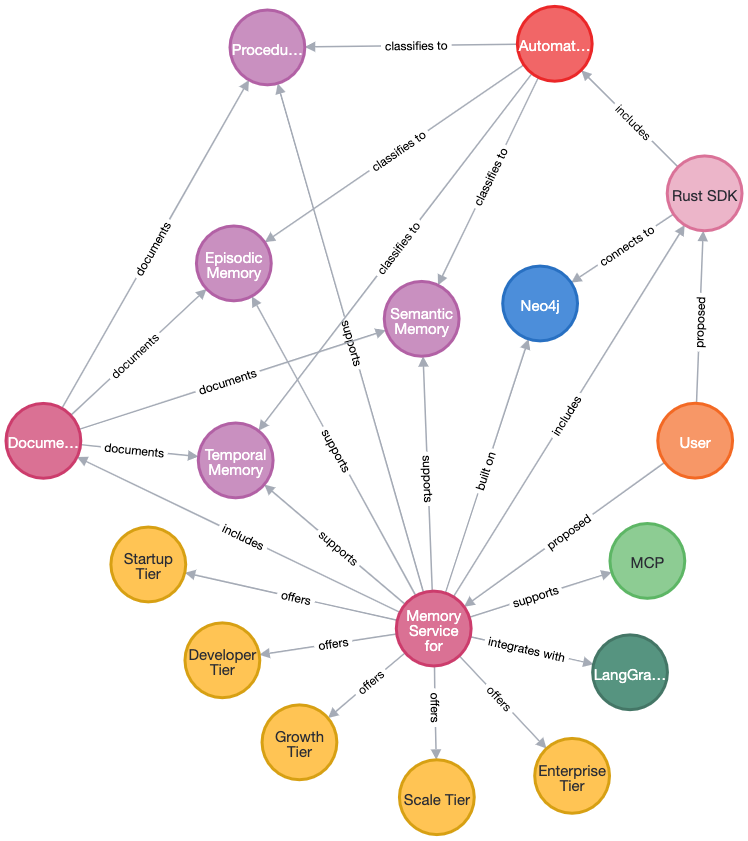
Example Knowledge Graph
This knowledge graph contains the semantic memories of our conversation.
Dev Tools Supporting MCP
The following are the main code editors that support the Model Context Protocol. Click the link to visit the official website for more information.







