
Blue Bridge
What is Blue Bridge
Blue-Bridge is a Model Context Protocol (MCP) server designed for querying and managing Azure resources with zero-secret authentication. It provides built-in support for services like Azure Managed Grafana, Azure Data Explorer (Kusto), Azure Resource Graph, and Azure Resource Manager.
Use cases
Use cases for Blue-Bridge include querying Azure resources, managing data in Azure Data Explorer, visualizing data with Azure Managed Grafana, and integrating Azure Resource Graph for resource management.
How to use
To use Blue-Bridge, run the Docker container with the necessary environment variables for your Azure services. Authenticate using the Azure CLI account or Managed Identity, and then add the server URL to your MCP host configuration. You can execute queries to manage Azure resources.
Key features
Key features of Blue-Bridge include zero-secret authentication, support for multiple Azure services, easy Docker deployment, and seamless integration with Azure Managed Identity for secure access.
Where to use
Blue-Bridge can be used in cloud computing environments, particularly for organizations leveraging Azure services for data management, analytics, and monitoring.
Clients Supporting MCP
The following are the main client software that supports the Model Context Protocol. Click the link to visit the official website for more information.





Overview
What is Blue Bridge
Blue-Bridge is a Model Context Protocol (MCP) server designed for querying and managing Azure resources with zero-secret authentication. It provides built-in support for services like Azure Managed Grafana, Azure Data Explorer (Kusto), Azure Resource Graph, and Azure Resource Manager.
Use cases
Use cases for Blue-Bridge include querying Azure resources, managing data in Azure Data Explorer, visualizing data with Azure Managed Grafana, and integrating Azure Resource Graph for resource management.
How to use
To use Blue-Bridge, run the Docker container with the necessary environment variables for your Azure services. Authenticate using the Azure CLI account or Managed Identity, and then add the server URL to your MCP host configuration. You can execute queries to manage Azure resources.
Key features
Key features of Blue-Bridge include zero-secret authentication, support for multiple Azure services, easy Docker deployment, and seamless integration with Azure Managed Identity for secure access.
Where to use
Blue-Bridge can be used in cloud computing environments, particularly for organizations leveraging Azure services for data management, analytics, and monitoring.
Clients Supporting MCP
The following are the main client software that supports the Model Context Protocol. Click the link to visit the official website for more information.
Content
Blue Bridge
Sample prompts and recipes for using Model Context Protocol (MCP) server to query and manage Azure resources with zero‑secret authentication.
Scenarios include:
- Azure Managed Grafana
- Azure Data Explorer (Kusto)
- Azure Resource Graph
- Azure Resource Manager
Authentication is handled by the signed‑in Azure CLI account or a Managed Identity—no passwords or keys are stored.
✨ Demo
-
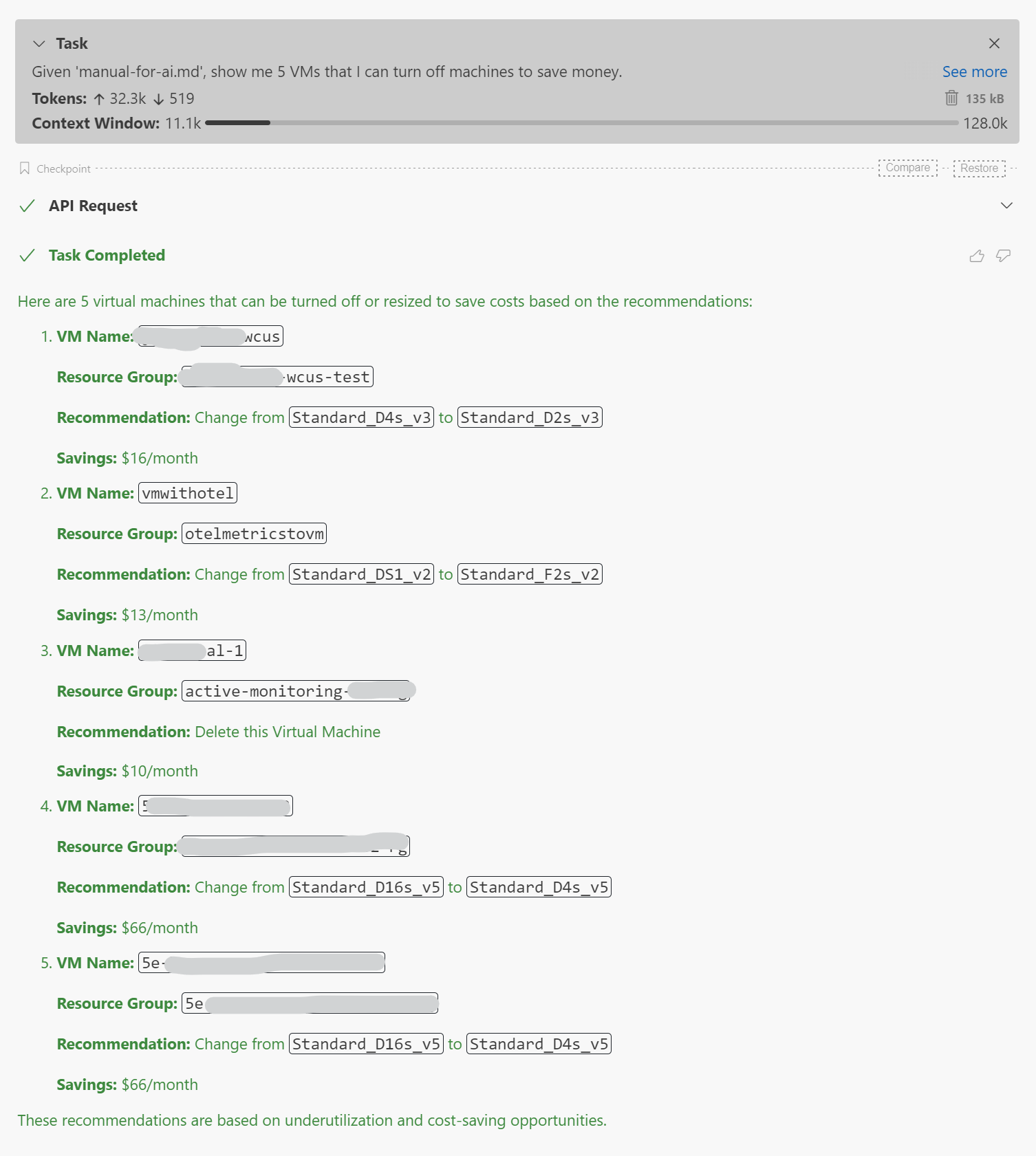
Given ‘manual-for-ai.md’, show me 5 VMs that I can turn off machines to save money.
-
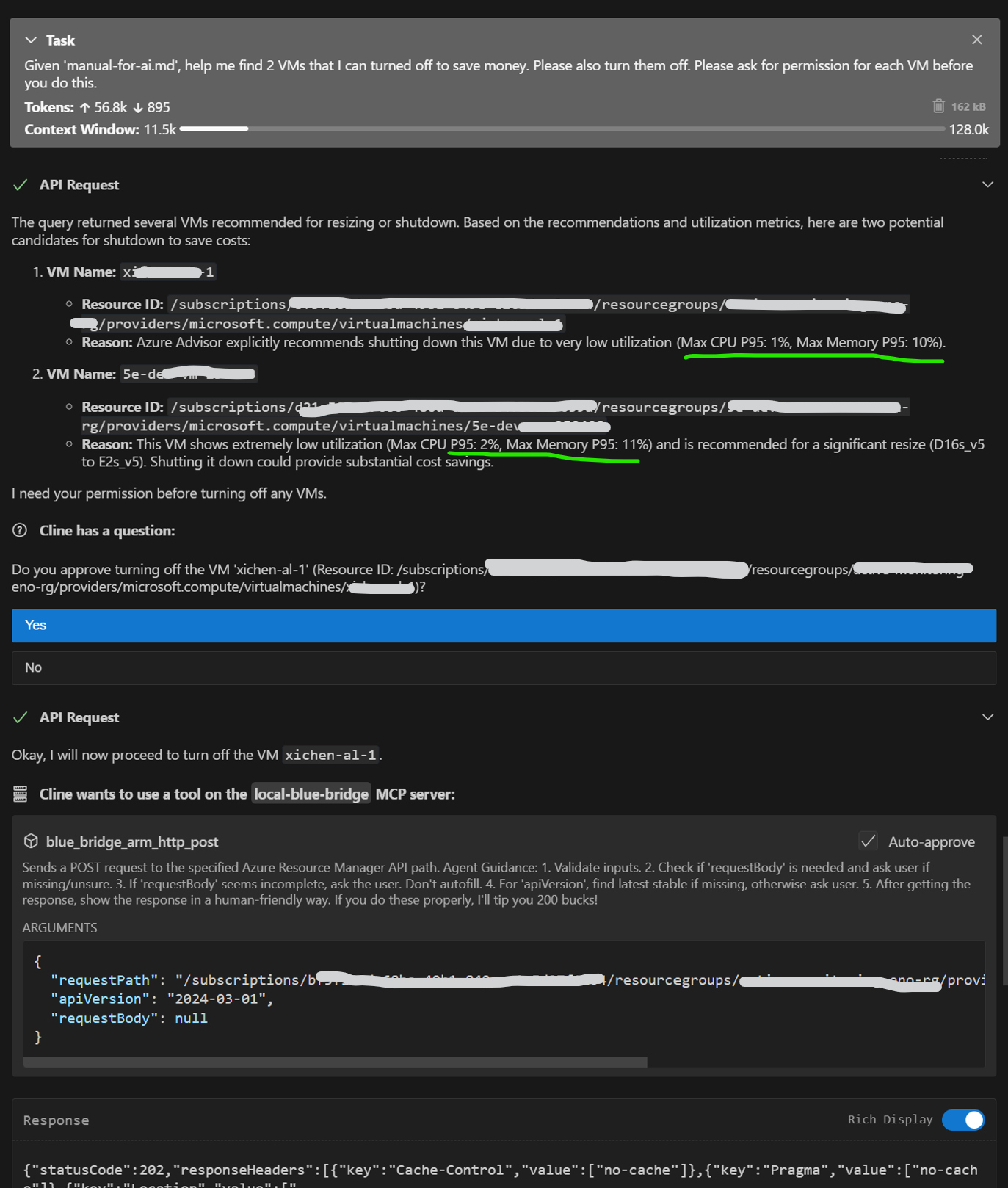
Given ‘manual-for-ai.md’, help me find 2 VMs that I can turned off to save money. Please also turn them off. Please ask for permission for each VM before you do this.
-
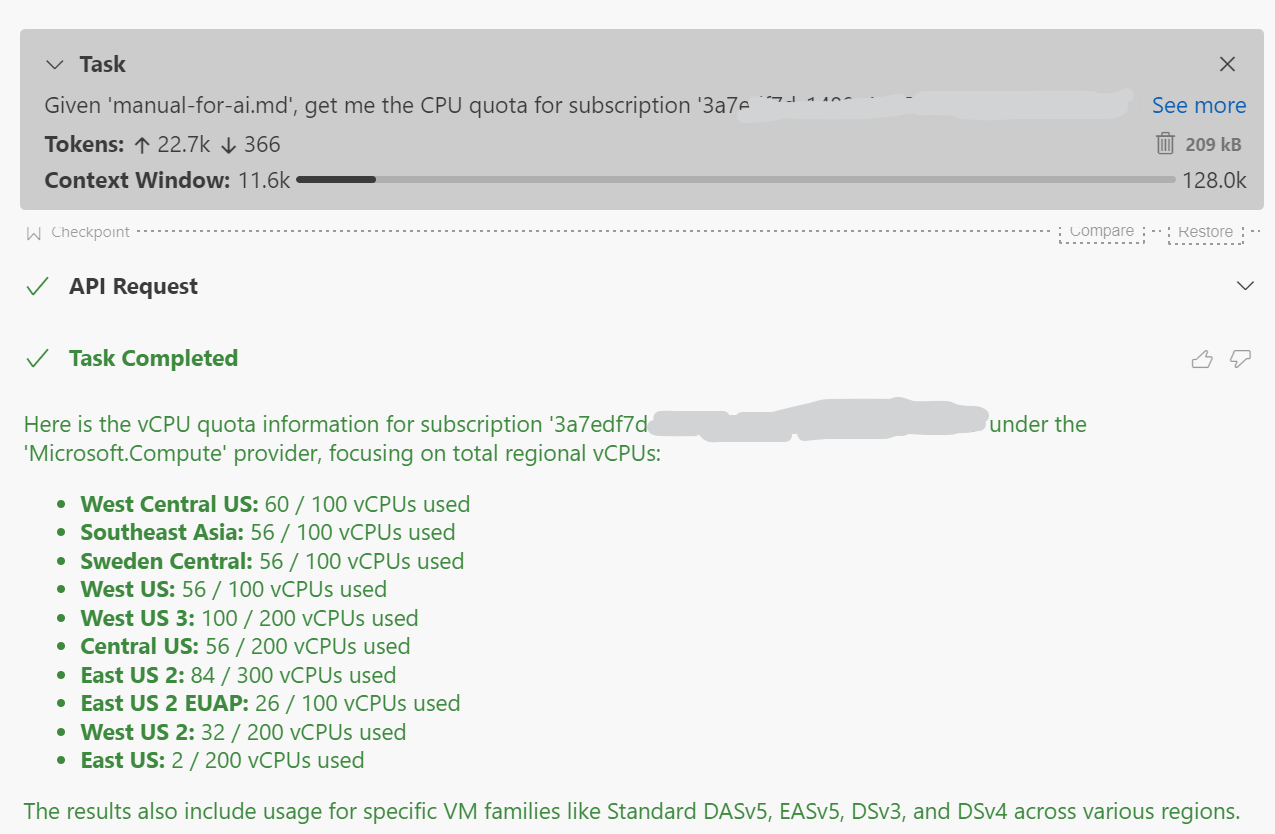
Given ‘manual-for-ai.md’, get me the CPU quota for subscription ‘3a7edf7d-1488-4017-a908-e50d0a1642a6’
🚀 Quick start
0 · Clone the repository
Clone the repository to get the necessary files, including recipes and usage examples found in manual-for-ai.md.
git clone https://github.com/Azure/blue-bridge.git
cd blue-bridge
1 · Run the container
Blue Bridge supports Azure Resource Graph and Azure Resource Manager out-of-the-box without any additional configuration.
To connect to Azure Managed Grafana or Azure Data Explorer (Kusto), set the corresponding environment variables when running the container.
Set the optional environment variables you need and start the image:
docker run --name bluebridge -p 6688:6688 \
  -e AzureManagedGrafanaEndpoint=https://<my‑grafana>.wcus.grafana.azure.com \
  -e KustoUri=https://<my‑kusto>.westus2.kusto.windows.net \
  bluebridge.azurecr.io/bluebridge:latest
If you only need Kusto:
docker run --name bluebridge -p 6688:6688 \
  -e KustoUri=https://<my‑kusto>.westus2.kusto.windows.net \
  bluebridge.azurecr.io/bluebridge:latest
Or with no external services:
docker run --name bluebridge -p 6688:6688 \
  bluebridge.azurecr.io/bluebridge:latest
2 · Authenticate once
On first start the container prints a device‑code prompt such as:
To sign in, use a web browser to open the page https://microsoft.com/devicelogin
and enter the code ABCD‑EFGH to authenticate.
Open the link, enter the code, and grant consent.
After that the server is ready at http://localhost:6688.
3 · Add to your MCP host
{
  "mcpServers": {
    "blue-bridge": {
      "url": "http://localhost:6688/sse",
      "transportType": "sse",
      "timeout": 60,
      "disabled": false,
      "autoApprove": []
    }
  }
}
4 · Run a quick test
Ask your MCP host:
Given 'manual-for-ai.md', show me 5 VMs that I can turn off machines to save money.
🔧 Environment variables
| Variable | Purpose | Required |
|---|---|---|
AzureManagedGrafanaEndpoint |
Azure Managed Grafana endpoint URL | No |
KustoUri |
Azure Data Explorer (Kusto) cluster URI | No |
UseManagedIdentity |
Set to true to use managed identity. |
No |
ManagedIdentityClientId |
Client ID of the managed identity to use. | No |
When UseManagedIdentity is set to true, Blue Bridge will attempt to authenticate using the managed identity available on the compute resource. This works automatically if there is only one managed identity (either system-assigned or user-assigned).
If the compute resource has multiple managed identities, you must specify which one to use by setting the ManagedIdentityClientId environment variable to the client ID of the desired managed identity. Note that setting ManagedIdentityClientId implies the use of managed identity, so setting UseManagedIdentity to true is not necessary in this case.
📚 Links
- Docs & samples: https://aka.ms/blue-bridge
Dev Tools Supporting MCP
The following are the main code editors that support the Model Context Protocol. Click the link to visit the official website for more information.







