
Canon Mcp
What is Canon Mcp
canon-mcp is a command-line interface (CLI) tool written in TypeScript that allows users to interact with Canon cameras using the Canon Camera Control API (CCAPI). It serves as a translation of an original Python script.
Use cases
Use cases for canon-mcp include remotely checking camera status, downloading images during a shoot, managing storage contents, and automating image transfer for photographers and videographers.
How to use
To use canon-mcp, clone the repository, install dependencies using npm, and configure environment variables if necessary. You can run the script using ts-node for direct execution or build it first to run the JavaScript version.
Key features
Key features include checking camera connection status, making requests to CCAPI endpoints, listing storage and directory contents, downloading specific files, retrieving battery information, and continuously syncing new images.
Where to use
canon-mcp can be used in photography, videography, and any application that requires remote control of Canon cameras, particularly in studio settings or during events.
Clients Supporting MCP
The following are the main client software that supports the Model Context Protocol. Click the link to visit the official website for more information.





Overview
What is Canon Mcp
canon-mcp is a command-line interface (CLI) tool written in TypeScript that allows users to interact with Canon cameras using the Canon Camera Control API (CCAPI). It serves as a translation of an original Python script.
Use cases
Use cases for canon-mcp include remotely checking camera status, downloading images during a shoot, managing storage contents, and automating image transfer for photographers and videographers.
How to use
To use canon-mcp, clone the repository, install dependencies using npm, and configure environment variables if necessary. You can run the script using ts-node for direct execution or build it first to run the JavaScript version.
Key features
Key features include checking camera connection status, making requests to CCAPI endpoints, listing storage and directory contents, downloading specific files, retrieving battery information, and continuously syncing new images.
Where to use
canon-mcp can be used in photography, videography, and any application that requires remote control of Canon cameras, particularly in studio settings or during events.
Clients Supporting MCP
The following are the main client software that supports the Model Context Protocol. Click the link to visit the official website for more information.
Content
Canon MCP
This MCP server helps you to control Canon cameras that support CCAPI through natural language commands processed by Large Language Models (LLMs). Interact with your Canon camera using conversational language instead of traditional interfaces.
⚠️ This project is currently under active development. Features and documentation may be incomplete or subject to change.
Features
Connecting to camera
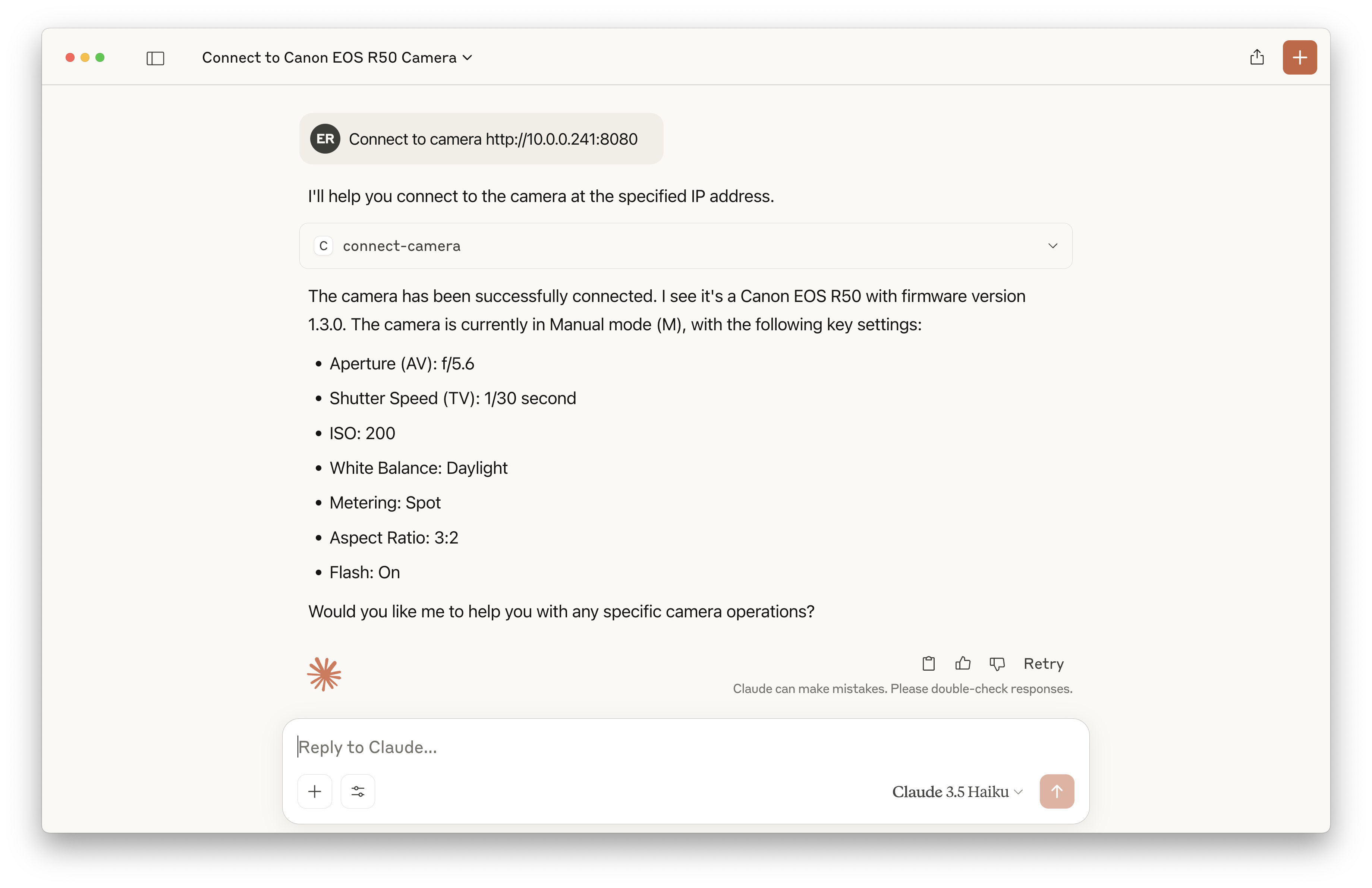
connect to camera http://10.0.0.241:8080
Livestream
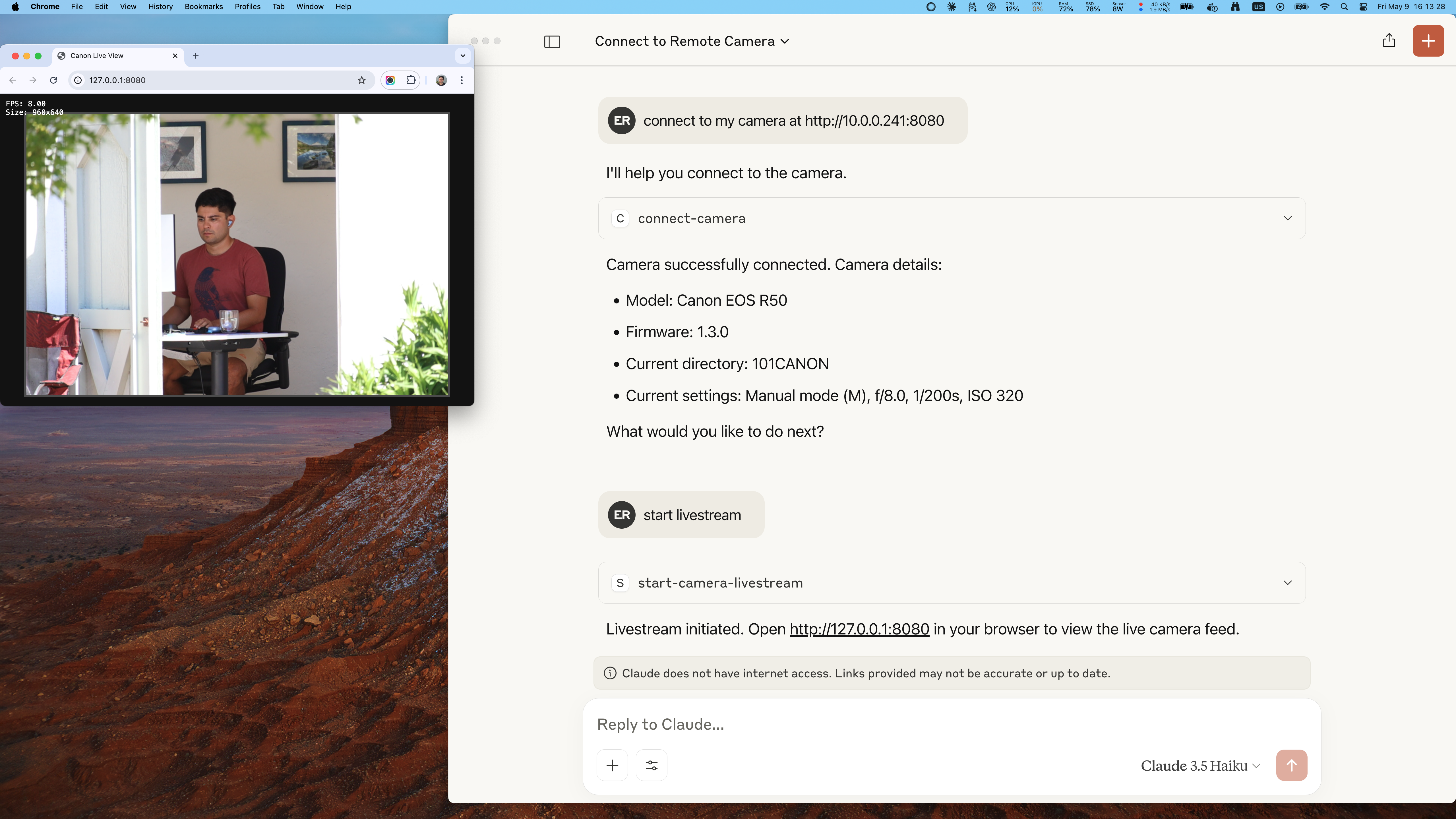
start livestream
Take photos at intervals
take 10 photos 10 seconds apart
Adjust shooting settings
set iso 320

set tv 1/4000
Available tools
-
connect-camera
Connect to a Canon camera via CCAPI. -
take-photo
Take a photo with the camera using the current shooting settings. -
get-shooting-settings
Get all of the present values and ability values of the shooting parameters that can be acquired and supported by the Canon camera. -
change-shooting-mode
Change shooting mode of the camera (e.g. “m” for Manual, “av” for Aperture Priority, “tv” for Shutter Priority, “p” for Program AE, “fv” for Flexible Priority, “a+” for Scene Intelligent Auto, “c3/c2/c1” for Custom Modes, “bulb” for Bulb). -
set-aperture-setting
Set the aperture (AV) setting. -
set-shutter-speed-setting
Set the shutter speed (TV) setting. -
set-iso-setting
Set the ISO setting. -
get-autofocus-setting
Get the present value of the AF operation setting. -
set-autofocus-setting
Set the AF operation setting. -
get-battery-status
Get battery status information. -
get-storage-status
Get storage status. -
get-temperature-status
Get temperature status. -
get-datetime-setting
Get date and time setting. -
get-lens-information
Get lens information. -
restore-dial-mode
Restore dial mode. -
get-last-photo
Get the last photo from the camera. The photo is saved to the output directory. -
get-live-view-image
Get live view image of the camera. This does not take a photo. -
start-interval-photos
Start taking photos at regular intervals. -
get-interval-photos-status
Get status of interval photos. -
stop-interval-photos
Stop taking photos at regular intervals. -
get-owner-name
Get the owner name set in the camera. -
set-owner-name
Set the owner name in the camera. -
get-shutter-mode
Get the shutter mode release of the camera. -
set-shutter-mode
Set the shutter mode release of the camera. -
get-color-temperature
Get the color temperature of the camera. -
set-color-temperature
Set the color temperature of the camera. -
set-white-balance
Set the white balance of the camera. -
execute-autofocus
Execute autofocus. This API only issues a focusing instruction and does not return the focusing results. For the focusing results, check the focus frame information in the Live View incidental information. -
start-camera-livestream
Start livestream in a browser. -
stop-camera-livestream
Stop livestream in a browser.
Requirements
You MUST activate CCAPI on your camera using a firmware developed by Canon.
Here are some resources to learn how to do it:
- https://developercommunity.usa.canon.com/s/article/How-to-Capture-an-Image-with-CCAPI
- https://developercommunity.usa.canon.com/s/article/Introduction-to-Camera-Control-API-CCAPI
Installation
Clone the repo
$ git clone [email protected]:ediardo/canon-mcp-server.git
# or
$ git clone https://github.com/ediardo/canon-mcp-server.git
Build the project
$ npm install

$ npm run build

$ npm run build-container
Add the MCP server to your config file
{
  "mcpServers": {
    "canon": {
      "command": "node",
      "args": [
        "/ABSOLUTE/PATH/TO/REPO/build/mcp.js"
      ]
    }
  }
}
Replace /ABSOLUTE/PATH/TO/REPO with the path where you cloned the project.
Dev Tools Supporting MCP
The following are the main code editors that support the Model Context Protocol. Click the link to visit the official website for more information.







