
Chatlab
What is Chatlab
Chatlab is a chat application designed for integration tests, utilizing the llama-stack-client, Llama, Ollama, and MCP tools.
Use cases
Use cases for Chatlab include conducting integration tests for AI applications, developing and testing chatbots, and providing interactive demonstrations of language models.
How to use
To use Chatlab, install the required tools like Ollama and LLama-Stack, set up a virtual environment, clone the repository, install dependencies, and run the Gradio application to access the interface in your browser.
Key features
Key features of Chatlab include model inference capabilities through Ollama, a streamlined setup process with LLama-Stack, and an interactive user interface powered by Gradio.
Where to use
Chatlab can be used in various fields such as software development for testing AI models, educational purposes for demonstrating AI capabilities, and research for exploring natural language processing.
Clients Supporting MCP
The following are the main client software that supports the Model Context Protocol. Click the link to visit the official website for more information.





Overview
What is Chatlab
Chatlab is a chat application designed for integration tests, utilizing the llama-stack-client, Llama, Ollama, and MCP tools.
Use cases
Use cases for Chatlab include conducting integration tests for AI applications, developing and testing chatbots, and providing interactive demonstrations of language models.
How to use
To use Chatlab, install the required tools like Ollama and LLama-Stack, set up a virtual environment, clone the repository, install dependencies, and run the Gradio application to access the interface in your browser.
Key features
Key features of Chatlab include model inference capabilities through Ollama, a streamlined setup process with LLama-Stack, and an interactive user interface powered by Gradio.
Where to use
Chatlab can be used in various fields such as software development for testing AI models, educational purposes for demonstrating AI capabilities, and research for exploring natural language processing.
Clients Supporting MCP
The following are the main client software that supports the Model Context Protocol. Click the link to visit the official website for more information.
Content
Installation and Setup Guide
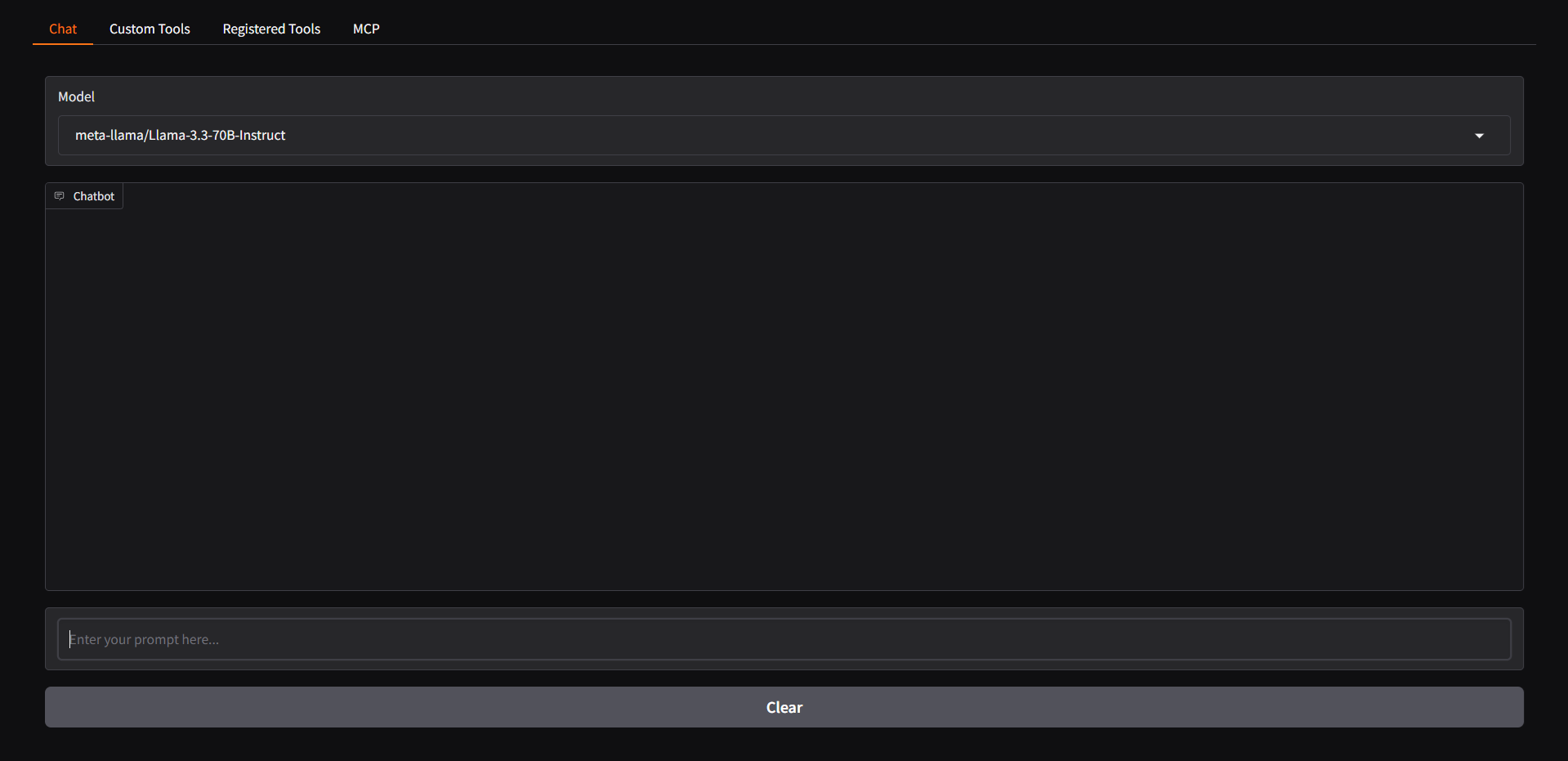
This document provides step-by-step instructions for setting up the development environment and running the application.
Screenshot
Prerequisites
Before starting, ensure that you have all the necessary tools installed on your system.
Installation Steps
1. Installing and Running Ollama (skip if you will use Together.ai API)
Ollama is required to provide model inference capabilities.
- Download and install Ollama from https://ollama.com/
- Start the Ollama service with the command:
ollama serveollama pull llama3.2:3b
2. Setting Up LLama-Stack
LLama-Stack will be used to manage our inference environment.
- Install the
uvpackage manager - Set up a virtual environment (venv)
- Run the following command inside the virtual environment:
orINFERENCE_MODEL=llama3.2:3b llama stack build --template ollama --image-type venv --runINFERENCE_MODEL=meta-llama/Llama-3.3-70B-Instruct llama stack build --template together --image-type venv --run
3. Project Setup
Clone this repository and install the necessary dependencies:
-
Clone the repository:
git clone [https://github.com/ricardoborges/chatlab.git] cd [chatlab] -
Create a virtual environment and install dependencies:
uv venv
uv pip install -r myproject.toml
4. Running the Application
Create togetherAI account if you won’t start Ollama local service. So, you would first get an API key from Together if you dont have one already.
How to get your API key:
https://docs.google.com/document/d/1Vg998IjRW_uujAPnHdQ9jQWvtmkZFt74FldW2MblxPY/edit?tab=t.0
You will need this env variables in your .env file:
TAVILY_SEARCH_API_KEY=
TOGETHER_API_KEY=
Or just ignore and set DEFAULT_STACK=“Ollama” in main.py (if you will run local Ollama service)
Start the Gradio application with the following command:
gradio main.py
After running this command, the application interface will be available in your browser.
Troubleshooting
If you encounter any issues during installation, check:
- That the Ollama service is running
- That the virtual environment was activated correctly
- That all dependencies were successfully installed
Additional Resources
For more information about LLama-Stack, refer to the official documentation.
Dev Tools Supporting MCP
The following are the main code editors that support the Model Context Protocol. Click the link to visit the official website for more information.







