
Cs2 Rcon Mcp
What is Cs2 Rcon Mcp
cs2-rcon-mcp is a Model Context Protocol server designed for managing Counter-Strike 2 game servers via RCON, allowing for remote control and monitoring through a standardized protocol.
Use cases
Use cases for cs2-rcon-mcp include remote server management, real-time server monitoring, executing game commands, and facilitating communication between game clients and servers.
How to use
To use cs2-rcon-mcp, install it using pip, run the server with ‘python -m rcon_mcp’, and execute RCON commands such as ‘rcon
Key features
Key features include natural language management of CS2 servers, RCON command execution, server status monitoring, SSE-based communication, and Docker support for easy deployment.
Where to use
cs2-rcon-mcp is primarily used in gaming environments, specifically for managing Counter-Strike 2 servers, making it suitable for game server administrators and developers.
Clients Supporting MCP
The following are the main client software that supports the Model Context Protocol. Click the link to visit the official website for more information.





Overview
What is Cs2 Rcon Mcp
cs2-rcon-mcp is a Model Context Protocol server designed for managing Counter-Strike 2 game servers via RCON, allowing for remote control and monitoring through a standardized protocol.
Use cases
Use cases for cs2-rcon-mcp include remote server management, real-time server monitoring, executing game commands, and facilitating communication between game clients and servers.
How to use
To use cs2-rcon-mcp, install it using pip, run the server with ‘python -m rcon_mcp’, and execute RCON commands such as ‘rcon
Key features
Key features include natural language management of CS2 servers, RCON command execution, server status monitoring, SSE-based communication, and Docker support for easy deployment.
Where to use
cs2-rcon-mcp is primarily used in gaming environments, specifically for managing Counter-Strike 2 servers, making it suitable for game server administrators and developers.
Clients Supporting MCP
The following are the main client software that supports the Model Context Protocol. Click the link to visit the official website for more information.
Content
CS2 RCON MCP



A Model Context Protocol server for CS2 RCON management.
Description
This project provides a Model Context Protocol (MCP) server interface for managing CS2 game servers via RCON. It allows remote control and monitoring of CS2 servers through a standardized protocol.
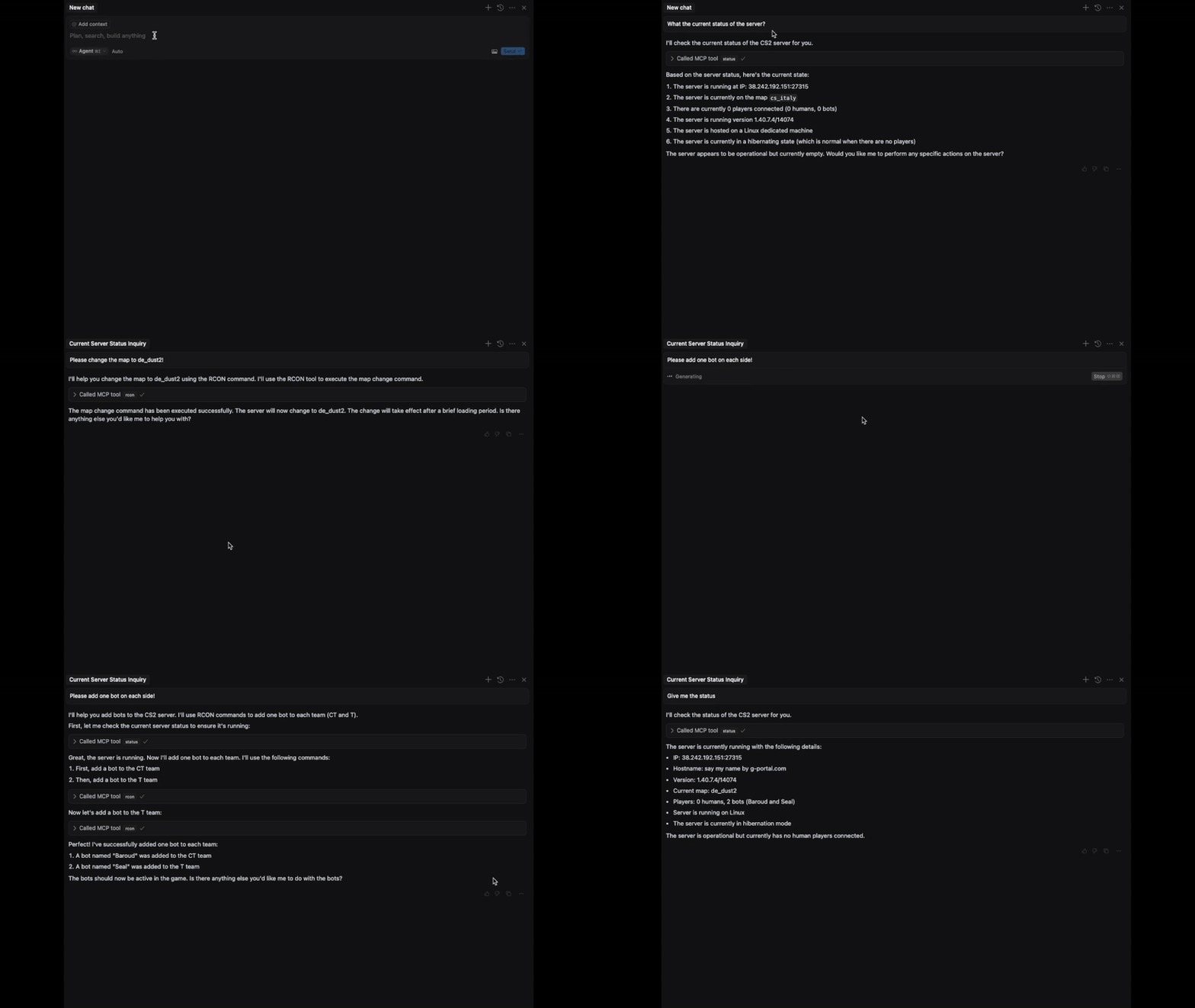
Features
- Manage your CS2 server in natural language
- RCON command execution
- Manage workshop maps (host, list, change) - Explore Workshop Maps
- SSE-based communication
- Docker support
Available Tools
| Tool | Short Description |
|---|---|
rcon |
Execute any RCON command |
status |
Get current server status |
list_workshop_maps |
List all workshop maps on the server |
host_workshop_map |
Host a workshop map by its ID |
workshop_changelevel |
Change the map to a given workshop map |
Installation
Environment Variables
HOST: CS2 server IPSERVER_PORT: CS2 server portRCON_PASSWORD: RCON password
Docker (recommended)
Pull the Docker image from GitHub Container Registry:
docker pull ghcr.io/v9rt3x/cs2-rcon-mcp:latest
Docker Environment Variables
When running with Docker, you can set the environment variables in two ways:
-
Directly in the command:
docker run -p 8080:8080 \ -e HOST=your_server_ip \ -e SERVER_PORT=your_server_port \ -e RCON_PASSWORD=your_password \ ghcr.io/v9rt3x/cs2-rcon-mcp:latest -
Using a
.server-envfile:
Create a file named.server-envwith the following content:HOST=your_server_ip SERVER_PORT=your_server_port RCON_PASSWORD=your_passwordThen run the container like this:
docker run -p 8080:8080 --env-file .server-env ghcr.io/v9rt3x/cs2-rcon-mcp:latest
This provides users with an alternative method to set environment variables, making it easier to manage sensitive information like passwords.
Connecting from Visual Studio Code (GitHub Copilot)
To configure Visual Studio Code to work with the MCP server, follow these steps:
-
Start the MCP Server: Ensure that your MCP server is running before attempting to connect from VS Code.
-
Open Visual Studio Code: Launch VS Code and ensure that you have the GitHub Copilot extension installed and configured.
-
Configure GitHub Copilot:
- Change the mode from “Ask” to “Agent” mode.
-
Add MCP Server Configuration:
- Click on the toolbox icon in the upper left corner of the Copilot prompt.
- Select “Add MCP Server” and choose the option for HTTP - server-sent events.
-
Enter the Server URL:
- For the URL, input:
http://localhost:8080/cs2server/sse. This is the endpoint for the MCP server’s SSE connection.
- For the URL, input:
Alternative: Connecting from Cursor (or any other MCP-Client)
- Start the MCP server
- Configure Cursor’s MCP settings by creating or updating
~/.cursor/mcp.json:{ "mcpServers": { "cs2server": { "url": "http://localhost:8080/cs2server/sse" } } } - In Cursor, open the MCP panel (usually in the sidebar)
- The server should automatically connect using the configured URL
Once connected, you can manage your server in natural language.
Example prompts:
- “Add 5 bots to the server and start a competitive match on de_dust2”
- “What’s the current server status? How many players are connected and what map are we on?”
Happy fragging! 😊
Dev Tools Supporting MCP
The following are the main code editors that support the Model Context Protocol. Click the link to visit the official website for more information.







