
Daytona Mcp Interpreter
What is Daytona Mcp Interpreter
Daytona MCP Interpreter is a Model Context Protocol server that allows AI assistants to execute Python code and shell commands in secure, ephemeral Daytona sandboxes.
Use cases
Use cases include executing scripts for data processing, running machine learning models, testing code snippets, and providing interactive coding environments for users.
How to use
To use Daytona MCP Interpreter, install the required dependencies, set up environment variables for authentication and configuration, and run the server using the provided commands. Python code and shell commands can then be executed within the created sandboxes.
Key features
Key features include Python code execution in sandboxed environments, shell command execution, file management (upload/download), Git repository cloning, and web preview generation for running servers.
Where to use
Daytona MCP Interpreter can be used in fields such as AI development, data analysis, educational platforms, and any application requiring secure code execution in isolated environments.
Clients Supporting MCP
The following are the main client software that supports the Model Context Protocol. Click the link to visit the official website for more information.





Overview
What is Daytona Mcp Interpreter
Daytona MCP Interpreter is a Model Context Protocol server that allows AI assistants to execute Python code and shell commands in secure, ephemeral Daytona sandboxes.
Use cases
Use cases include executing scripts for data processing, running machine learning models, testing code snippets, and providing interactive coding environments for users.
How to use
To use Daytona MCP Interpreter, install the required dependencies, set up environment variables for authentication and configuration, and run the server using the provided commands. Python code and shell commands can then be executed within the created sandboxes.
Key features
Key features include Python code execution in sandboxed environments, shell command execution, file management (upload/download), Git repository cloning, and web preview generation for running servers.
Where to use
Daytona MCP Interpreter can be used in fields such as AI development, data analysis, educational platforms, and any application requiring secure code execution in isolated environments.
Clients Supporting MCP
The following are the main client software that supports the Model Context Protocol. Click the link to visit the official website for more information.
Content
Daytona MCP Interpreter
A Model Context Protocol server that provides Python code execution capabilities in ephemeral Daytona sandboxes.
Overview
Daytona MCP Interpreter enables AI assistants like Claude to execute Python code and shell commands in secure, isolated environments. It implements the Model Context Protocol (MCP) standard to provide tools for:
- Python code execution in sandboxed environments
- Shell command execution
- File management (upload/download)
- Git repository cloning
- Web preview generation for running servers
All execution happens in ephemeral Daytona workspaces that are automatically cleaned up after use.
Installation
- Install uv if you haven’t already:
curl -LsSf https://astral.sh/uv/install.sh | sh
- Create and activate virtual environment.
If you have an existing env, deactivate and remove it first:
deactivate
rm -rf .venv
Create and activate a new virtual environment:
uv venv
source .venv/bin/activate
(On Windows: .venv\Scripts\activate)
- Install dependencies:
uv add "mcp[cli]" pydantic python-dotenv "daytona-sdk>=0.10.5"
Note: This project requires daytona-sdk version 0.10.5 or higher. Earlier versions have incompatible FileSystem API.
Environment Variables
Configure these environment variables for proper operation:
MCP_DAYTONA_API_KEY: Required API key for Daytona authenticationMCP_DAYTONA_SERVER_URL: Server URL (default: https://app.daytona.io/api)MCP_DAYTONA_TIMEOUT: Request timeout in seconds (default: 180.0)MCP_DAYTONA_TARGET: Target region (default: eu)MCP_VERIFY_SSL: Enable SSL verification (default: false)
Development
Run the server directly:
uv run src/daytona_mcp_interpreter/server.py
Or if uv is not in your path:
/Users/USER/.local/bin/uv run ~LOCATION/daytona-mcp-interpreter/src/daytona_mcp_interpreter/server.py
Use MCP Inspector to test the server:
npx @modelcontextprotocol/inspector \
  uv \
  --directory . \
  run \
  src/daytona_mcp_interpreter/server.py
View logs:
tail -f /tmp/daytona-interpreter.log
Integration with Claude Desktop

- Configure in Claude Desktop (or other MCP-compatible clients):
On MacOS, edit: ~/Library/Application Support/Claude/claude_desktop_config.json
On Windows, edit: %APPDATA%\Claude\claude_desktop_config.json
{
  "mcpServers": {
    "daytona-interpreter": {
      "command": "/Users/USER/.local/bin/uv",
      "args": [
        "--directory",
        "/Users/USER/dev/daytona-mcp-interpreter",
        "run",
        "src/daytona_mcp_interpreter/server.py"
      ],
      "env": {
        "PYTHONUNBUFFERED": "1",
        "MCP_DAYTONA_API_KEY": "api_key",
        "MCP_DAYTONA_SERVER_URL": "api_server_url",
        "MCP_DAYTONA_TIMEOUT": "30.0",
        "MCP_VERIFY_SSL": "false",
        "PATH": "/usr/local/bin:/usr/bin:/bin:/usr/sbin:/sbin"
      }
    }
  }
}- Restart Claude Desktop
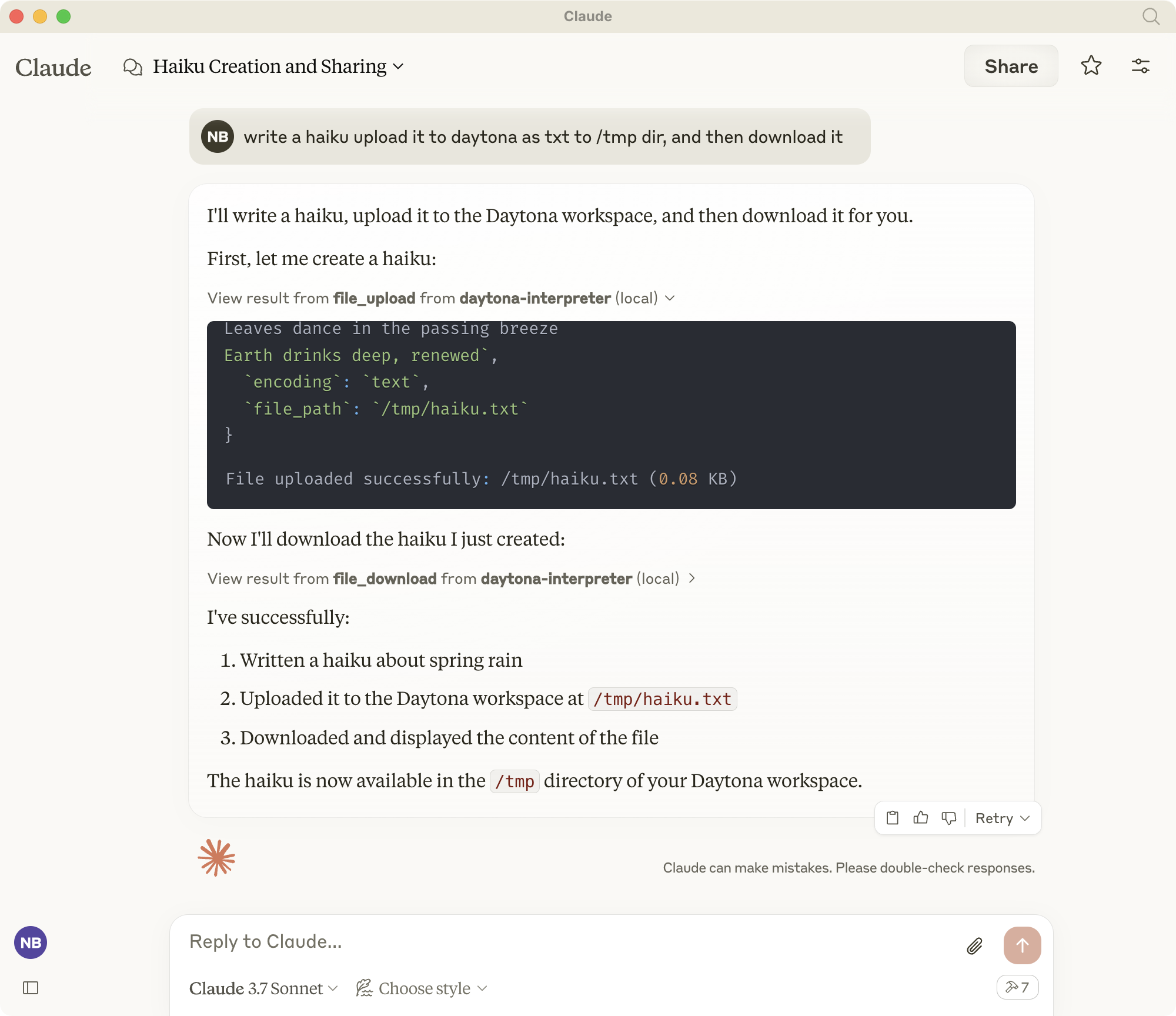
- The Daytona Python interpreter tools will be available in Claude
Available Tools
Shell Exec
Executes shell commands in the Daytona workspace.
# Example: List files
ls -la

# Example: Install a package
pip install pandas
File Download
Downloads files from the Daytona workspace with smart handling for large files.
Basic Usage:
file_download(file_path="/path/to/file.txt")
Advanced Usage:
# Set custom file size limit
file_download(file_path="/path/to/large_file.csv", max_size_mb=10.0)

# Download partial content for large files
file_download(file_path="/path/to/large_file.csv", download_option="download_partial", chunk_size_kb=200)

# Convert large file to text
file_download(file_path="/path/to/large_file.pdf", download_option="convert_to_text")

# Compress file before downloading
file_download(file_path="/path/to/large_file.bin", download_option="compress_file")

# Force download despite size
file_download(file_path="/path/to/large_file.zip", download_option="force_download")
File Upload
Uploads files to the Daytona workspace. Supports both text and binary files.
Basic Usage:
# Upload a text file
file_upload(file_path="/workspace/example.txt", content="Hello, World!")
Advanced Usage:
# Upload a text file with specific path
file_upload(
    file_path="/workspace/data/config.json",
    content='{"setting": "value", "enabled": true}'
)

# Upload a binary file using base64 encoding
import base64
with open("local_image.png", "rb") as f:
    base64_content = base64.b64encode(f.read()).decode('utf-8')

file_upload(
    file_path="/workspace/images/uploaded.png",
    content=base64_content,
    encoding="base64"
)

# Upload without overwriting existing files
file_upload(
    file_path="/workspace/important.txt",
    content="New content",
    overwrite=False
)
Git Clone
Clones a Git repository into the Daytona workspace for analysis and code execution.
Basic Usage:
git_clone(repo_url="https://github.com/username/repository.git")
Advanced Usage:
# Clone a specific branch
git_clone(
    repo_url="https://github.com/username/repository.git",
    branch="develop"
)

# Clone to a specific directory with full history
git_clone(
    repo_url="https://github.com/username/repository.git",
    target_path="my_project",
    depth=0  # 0 means full history
)

# Clone with Git LFS support for repositories with large files
git_clone(
    repo_url="https://github.com/username/large-files-repo.git",
    lfs=True
)
Web Preview
Generates a preview URL for web servers running inside the Daytona workspace.
Basic Usage:
# Generate a preview link for a web server running on port 3000
web_preview(port=3000)
Advanced Usage:
# Generate a preview link with a descriptive name
web_preview(
    port=8080,
    description="React Development Server"
)

# Generate a link without checking if server is running
web_preview(
    port=5000,
    check_server=False
)
Example:
# First run a simple web server using Python via the shell
shell_exec(command="python -m http.server 8000 &")

# Then generate a preview link for the server
web_preview(port=8000, description="Python HTTP Server")
Dev Tools Supporting MCP
The following are the main code editors that support the Model Context Protocol. Click the link to visit the official website for more information.







