
Egnyte Mcp Server
What is Egnyte Mcp Server
The egnyte-mcp-server is an MCP (Model Context Protocol) server that connects to your Egnyte domain, providing document search and retrieval functionalities for AI agents like Cursor, Claude, or OpenAI.
Use cases
Use cases for the egnyte-mcp-server include automating document retrieval for AI agents, enhancing productivity by integrating document search capabilities into AI workflows, and enabling real-time context queries for business intelligence applications.
How to use
To use the egnyte-mcp-server, clone the repository, install the necessary dependencies including the Egnyte SDK, set up your environment variables, and utilize the provided tools to search for documents by name within your Egnyte domain.
Key features
Key features of the egnyte-mcp-server include secure real-time access to Egnyte content, document search by name, retrieval of relevant documents, and seamless integration of enterprise content into generative AI workflows.
Where to use
The egnyte-mcp-server can be used in various fields such as enterprise content management, AI-driven workflows, and any application requiring secure access to document storage and retrieval.
Clients Supporting MCP
The following are the main client software that supports the Model Context Protocol. Click the link to visit the official website for more information.





Overview
What is Egnyte Mcp Server
The egnyte-mcp-server is an MCP (Model Context Protocol) server that connects to your Egnyte domain, providing document search and retrieval functionalities for AI agents like Cursor, Claude, or OpenAI.
Use cases
Use cases for the egnyte-mcp-server include automating document retrieval for AI agents, enhancing productivity by integrating document search capabilities into AI workflows, and enabling real-time context queries for business intelligence applications.
How to use
To use the egnyte-mcp-server, clone the repository, install the necessary dependencies including the Egnyte SDK, set up your environment variables, and utilize the provided tools to search for documents by name within your Egnyte domain.
Key features
Key features of the egnyte-mcp-server include secure real-time access to Egnyte content, document search by name, retrieval of relevant documents, and seamless integration of enterprise content into generative AI workflows.
Where to use
The egnyte-mcp-server can be used in various fields such as enterprise content management, AI-driven workflows, and any application requiring secure access to document storage and retrieval.
Clients Supporting MCP
The following are the main client software that supports the Model Context Protocol. Click the link to visit the official website for more information.
Content
Egnyte MCP Server
An MCP (Model Context Protocol) server that connects to your Egnyte domain and exposes document search and retrieval functionality for use in AI agents like Cursor, Claude, or OpenAI.
This server uses Egnyte’s public APIs and Python SDK to support secure, real-time access to your Egnyte content, enabling smart AI-driven workflows while respecting existing permissions.
📚 About
Model Context Protocol (MCP) is a framework to help AI agents securely query external systems for real-time context.
The Egnyte MCP Server allows agents to:
- Search for documents by name
- Retrieve relevant documents from Egnyte
- Seamlessly integrate enterprise content into generative AI workflows
🛠️ Tools Implemented
| Tool Name | Description |
|---|---|
search_for_document_by_name |
Searches for a document in your Egnyte domain using its filename. |
📋 Requirements
- Python 3.11+
- Egnyte API access token - Register on https://developers.egnyte.com/member/register to get API key for your Egnyte account
- An Egnyte domain with files to test
Installing Prerequisites
🔧 Installation
1. Clone the Repository
git clone https://github.com/egnyte/egnyte-mcp-server.git
cd egnyte-mcp-server
2. Install uv (Python environment & dependency manager)
Mac/Linux:
curl -LsSf https://astral.sh/uv/install.sh | sh
Windows (PowerShell):
irm https://astral.sh/uv/install.ps1 | iex
3. Install Egnyte SDK
uv pip install egnyte
📄 Egnyte SDK Documentation
🔗 Egnyte SDK GitHub
4. Setting up Environment Variables
- Create a
.envFile
Create a .env file inside the root directory with the following content:
DOMAIN=your-egnyte-domain.egnyte.com
ACCESS_TOKEN=your-access-token-here
- Update with Your Credentials
-
Replace
your-egnyte-domain.egnyte.comwith your actual Egnyte domain. -
Replace
your-access-token-herewith your actual Egnyte API access token.This
.envfile is necessary for the server to authenticate and connect securely to your Egnyte domain.
🚀 Running the MCP Server
uv run server.py --python 3.11
This will start the MCP server locally and make the tools available to MCP-compliant clients.
⚡ Setting up MCP Clients
This is a sample MCP (Model Context Protocol) client that connects to a locally running MCP server using fastmcp.
It uses Python Stdio Transport to communicate with the server and call specific tools by name.
How it works
- Connects to the MCP server (
server.py) via Python Stdio. - Lists available tools exposed by the server.
- Calls a specific tool by its name, with provided arguments.
- The response is returned based on the tool execution.
Prerequisites
- Python 3.11+
fastmcplibrary installed:uv pip install fastmcp- MCP server (
server.py) running locally .envfile configured
Usage
- Ensure the MCP server is running first.
- Run the client using the command:
python client.py
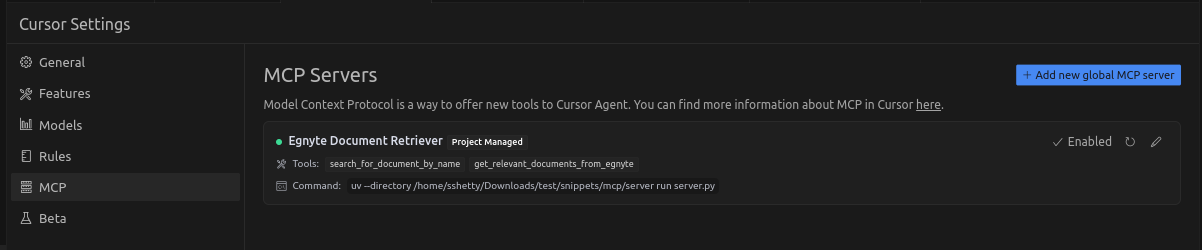
Cursor IDE Setup
- Open Cursor → Settings → MCP
- Click “Add new global MCP server”
- Add the following configuration:
{
  "mcpServers": {
    "Egnyte Document Retriever": {
      "command": "uv",
      "args": [
        "--directory",
        "/path/to/egnyte-mcp-server",
        "run",
        "server.py"
      ]
    }
  }
}
✅ Replace /path/to/egnyte-mcp-server with your actual directory path.
- Save and enable the server in the MCP settings.
🖼️ Example Screenshots
Cursor MCP Server Configuration
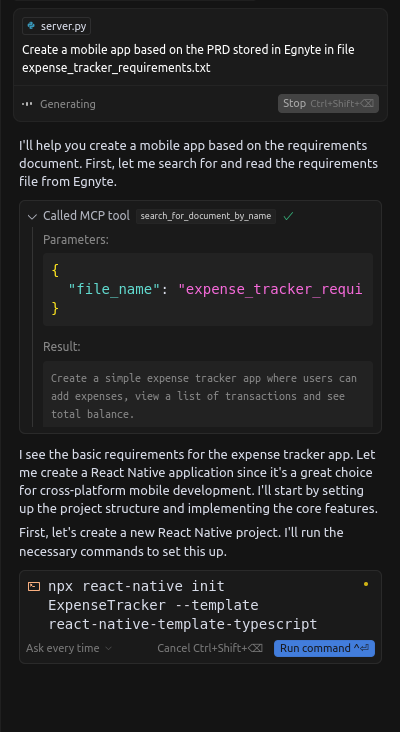
Cursor MCP Query in Action
Claude Desktop Setup
To connect Egnyte’s MCP server to Claude Desktop:
- Launch Claude Desktop and open MCP tool configuration
- Go to Settings → MCP Tools → Add New Server
- Add the following configuration:
{
  "mcpServers": {
    "egnyte": {
      "command": "python3",
      "args": [
        "server.py"
      ],
      "cwd": "/Users/yourname/path/to/egnyte-mcp-server",
      "env": {
        "DOMAIN": "your-egnyte-domain.egnyte.com",
        "ACCESS_TOKEN": "your-access-token"
      }
    }
  }
}
✅ Replace /Users/yourname/path/to/egnyte-mcp-server with your actual directory path.
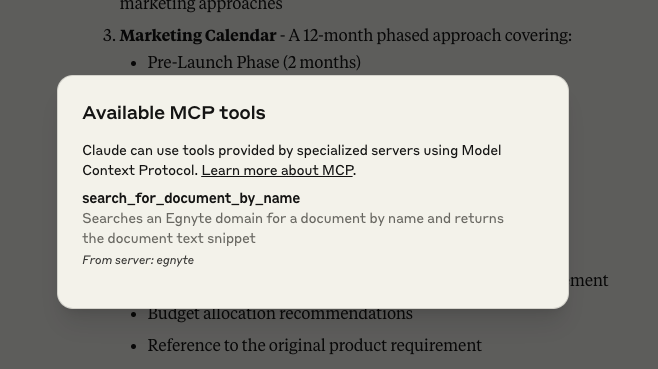
- Save and Start - Claude should detect the server, list search_for_document_by_name under “Available MCP tools,” and be able to call it with filenames.
🖼️ Example Screenshots
Claude MCP Server Configuration
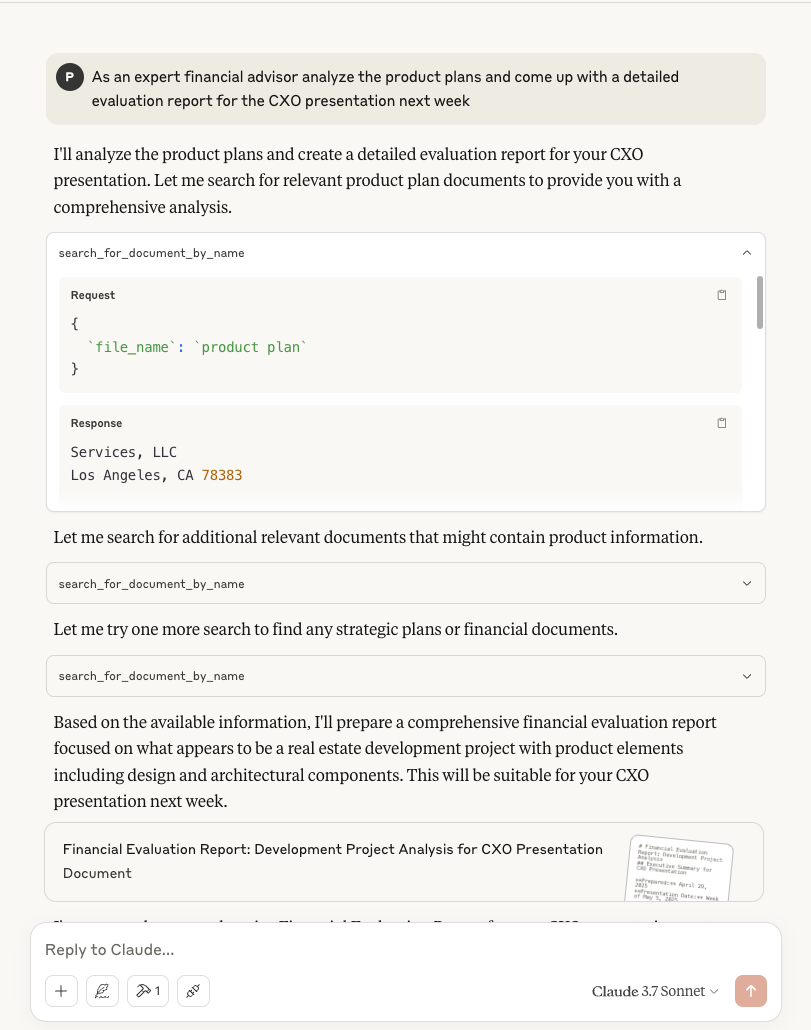
Claude MCP Query in Action
📈 Roadmap
- ✅ File search by name
- ✅ Retrieve relevant documents
- 🔜 Hybrid search (structured + content)
- 🔜 Document text extraction
#Helping with development
Please report any problems you find to [email protected] or [email protected]
If you’d like to fix something yourself, please fork this repository, commit the fixes and updates to tests, then set up a pull request with information what you’re fixing.
🔗 Helpful Links
Dev Tools Supporting MCP
The following are the main code editors that support the Model Context Protocol. Click the link to visit the official website for more information.







