
Feedback Collector
What is Feedback Collector
The feedback_collector is a tool designed to optimize the efficiency of Cursor AI tool calls by collecting user feedback in both text and image formats while utilizing a dark theme design.
Use cases
Use cases include collecting user feedback after task completion in customer support scenarios, gathering insights during product testing phases, and enhancing AI training by continuously engaging users for their input.
How to use
To use feedback_collector, simply integrate it into your workflow after completing tasks with the Cursor AI. It allows for continuous feedback collection, ensuring that the maximum quota of 25 tool calls per request is utilized effectively.
Key features
Key features include support for both text and image feedback, a user-friendly dark theme interface, and the ability to maximize tool call utilization to enhance the efficiency of AI interactions.
Where to use
feedback_collector can be used in various fields such as customer service, product development, and any domain where user feedback is essential for improving AI interactions and overall service efficiency.
Clients Supporting MCP
The following are the main client software that supports the Model Context Protocol. Click the link to visit the official website for more information.





Overview
What is Feedback Collector
The feedback_collector is a tool designed to optimize the efficiency of Cursor AI tool calls by collecting user feedback in both text and image formats while utilizing a dark theme design.
Use cases
Use cases include collecting user feedback after task completion in customer support scenarios, gathering insights during product testing phases, and enhancing AI training by continuously engaging users for their input.
How to use
To use feedback_collector, simply integrate it into your workflow after completing tasks with the Cursor AI. It allows for continuous feedback collection, ensuring that the maximum quota of 25 tool calls per request is utilized effectively.
Key features
Key features include support for both text and image feedback, a user-friendly dark theme interface, and the ability to maximize tool call utilization to enhance the efficiency of AI interactions.
Where to use
feedback_collector can be used in various fields such as customer service, product development, and any domain where user feedback is essential for improving AI interactions and overall service efficiency.
Clients Supporting MCP
The following are the main client software that supports the Model Context Protocol. Click the link to visit the official website for more information.
Content
MCP Feedback Collector
中文版本 | English Version
A feedback collection tool that supports text and image feedback with a dark theme design.
🌐 Web Version Available
The MCP Feedback Collector (Web Version) is specifically designed for development scenarios where you connect to remote servers via SSH. The Web version solves the limitations of traditional local GUI feedback collection methods in remote development environments.
🔄 Project Relationship
- This Project: Traditional local GUI feedback collection tool
- Web Version: Designed specifically for remote development environments
- Choose the right tool based on your needs:
- If you develop locally and prefer native GUI, use this project
- If you develop on remote servers via SSH or prefer web interfaces, use the web version
🎯 Problems Solved
- Remote Development Limitations: SSH connections cannot use local GUI interfaces
- Server Environment Compatibility: Perfect for headless server environments
- Web-based Interface: Access feedback collection through any web browser
Interface Preview
| Chinese Interface | English Interface |
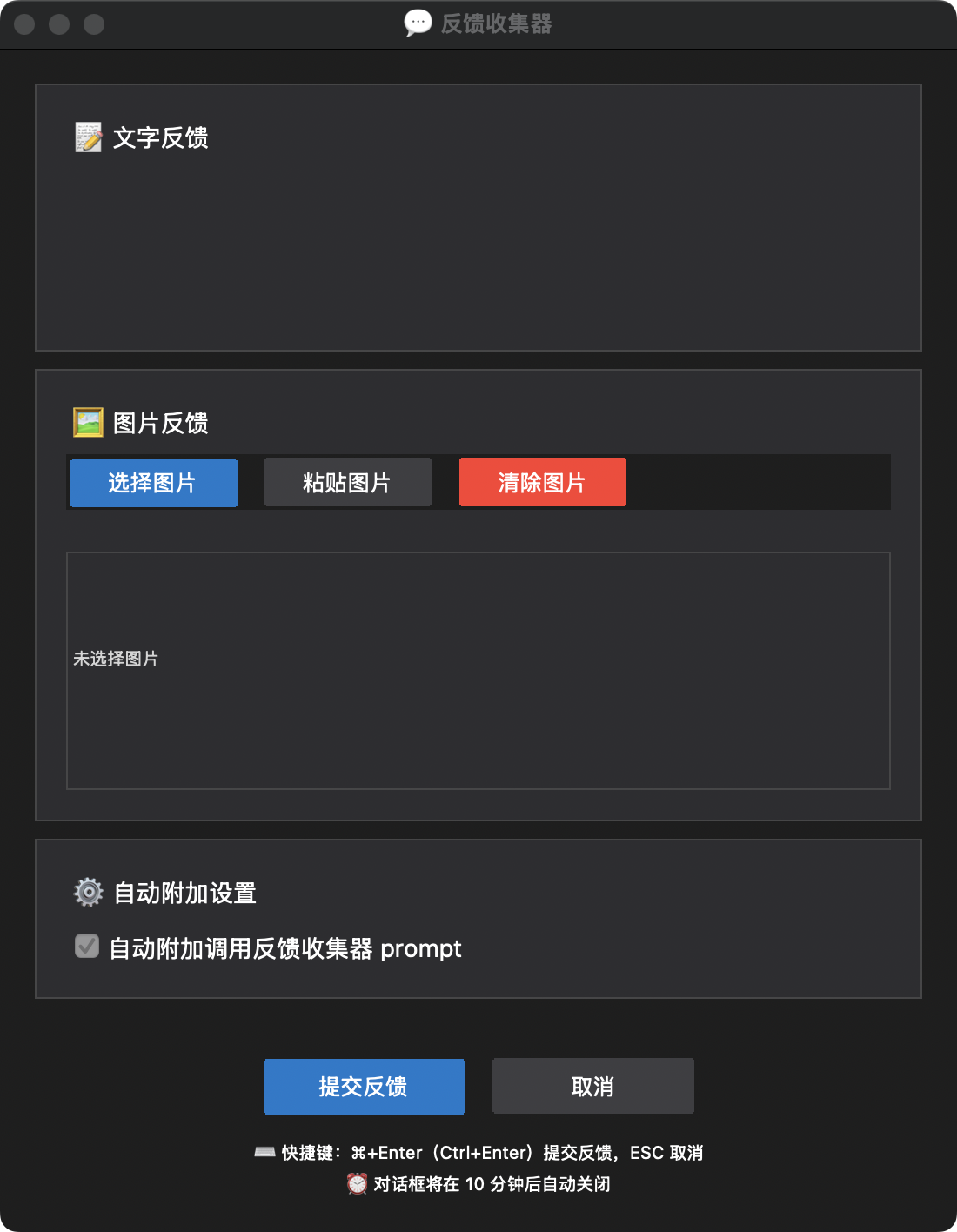 |
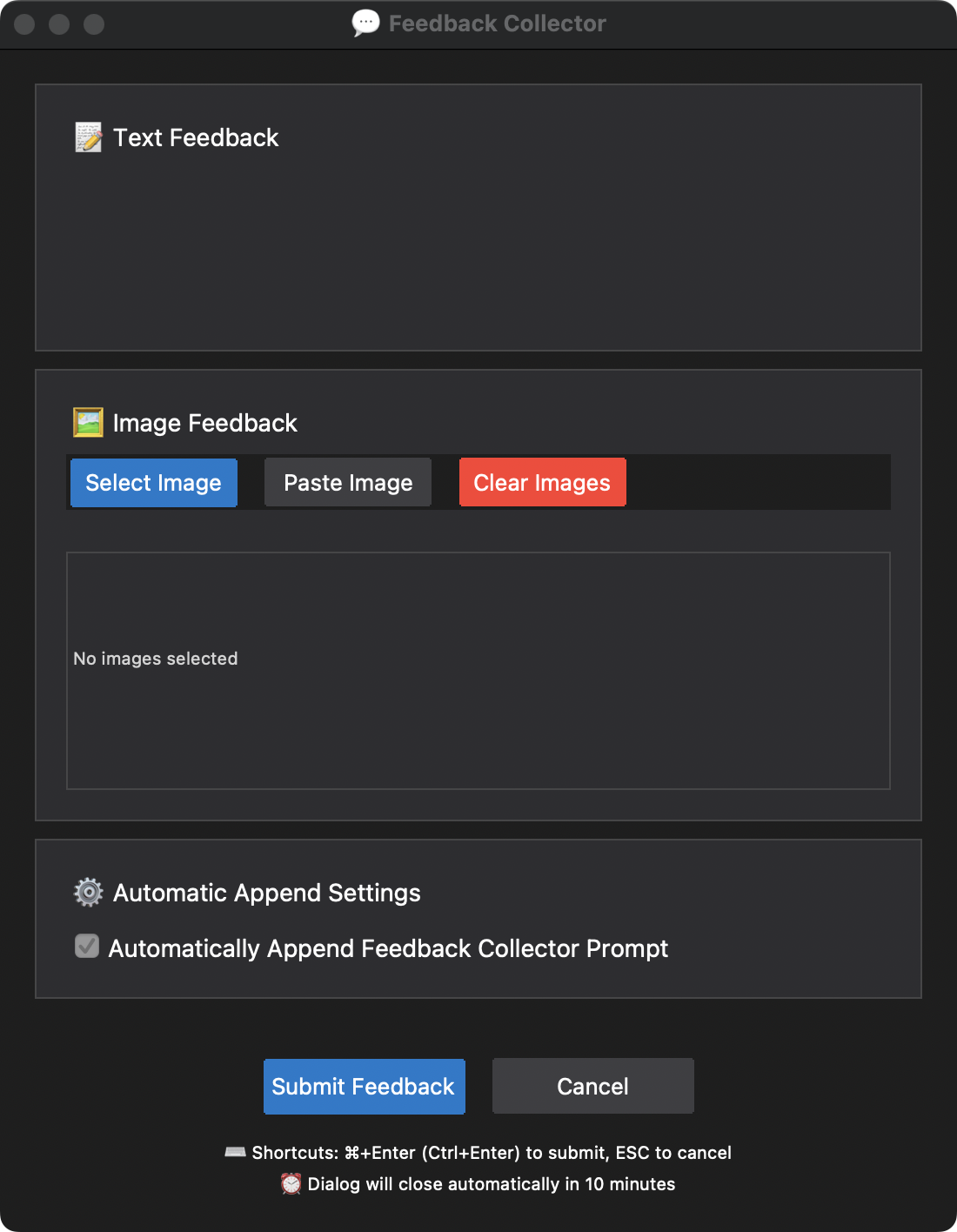 |
Why Do You Need This Tool?
When using Cursor, you may have noticed that AI assistants often stop after completing a single task, even though a single request can still use many more tool calls. This leads to resource waste, as each request can theoretically call up to 25 tools.
The core purpose of this MCP tool is:
- 🔄 Continue Conversations: In a single fast Request, ensure the AI actively calls this MCP tool to collect feedback after completing tasks (instead of simply terminating the conversation), allowing for subsequent tasks
- 🔥 Maximize Utilization: Let each fast Request fully utilize the 25 tool calls quota
- 💰 Optimize Costs: Maximize the value return of each fast Request
Before vs After Comparison
Before |
After |
|
|---|---|---|
| Workflow | Input in Agent mode: Complete <Task 1> ⬇ Task completed, this fast request ends |
Input in Agent mode: Complete <Task 1> ⬇ Task completed, call feedback collector for feedback ⬇ Input in MCP tool: Complete <Task 2> ⬇ Task completed, call feedback collector for feedback ⬇ Input in MCP tool: Complete <Task 3> ⬇ Task completed, call feedback collector for feedback ⬇ … ⬇ until reaching 25 tool call limit |
| Request Consumption | Consumes 1 Request |
Consumes 1 Request |
Features
- 🎨 Dark Theme Interface: Dark color scheme consistent with Cursor editor
- 📝 Multi-line Text Feedback: Support for multi-line text input and editing
- 🖼️ Image Feedback Support: Support for image selection and clipboard pasting, including image thumbnail display and deletion
- 🌍 Chinese/English Interface Toggle: Support for interface language switching
- ⌨️ Keyboard Shortcuts: Quick submit (⌘+Enter/Ctrl+Enter) and cancel (ESC) operations
System Requirements
- Python 3.8+
- tkinter (usually installed with Python)
- Environment with GUI support
Installation
- Clone Repository
git clone <repository-url>
cd feedback_collector
- Create Virtual Environment
conda create -n feedback_collector python=3.11
conda activate feedback_collector
- Install Dependencies
pip install -r requirements.txt
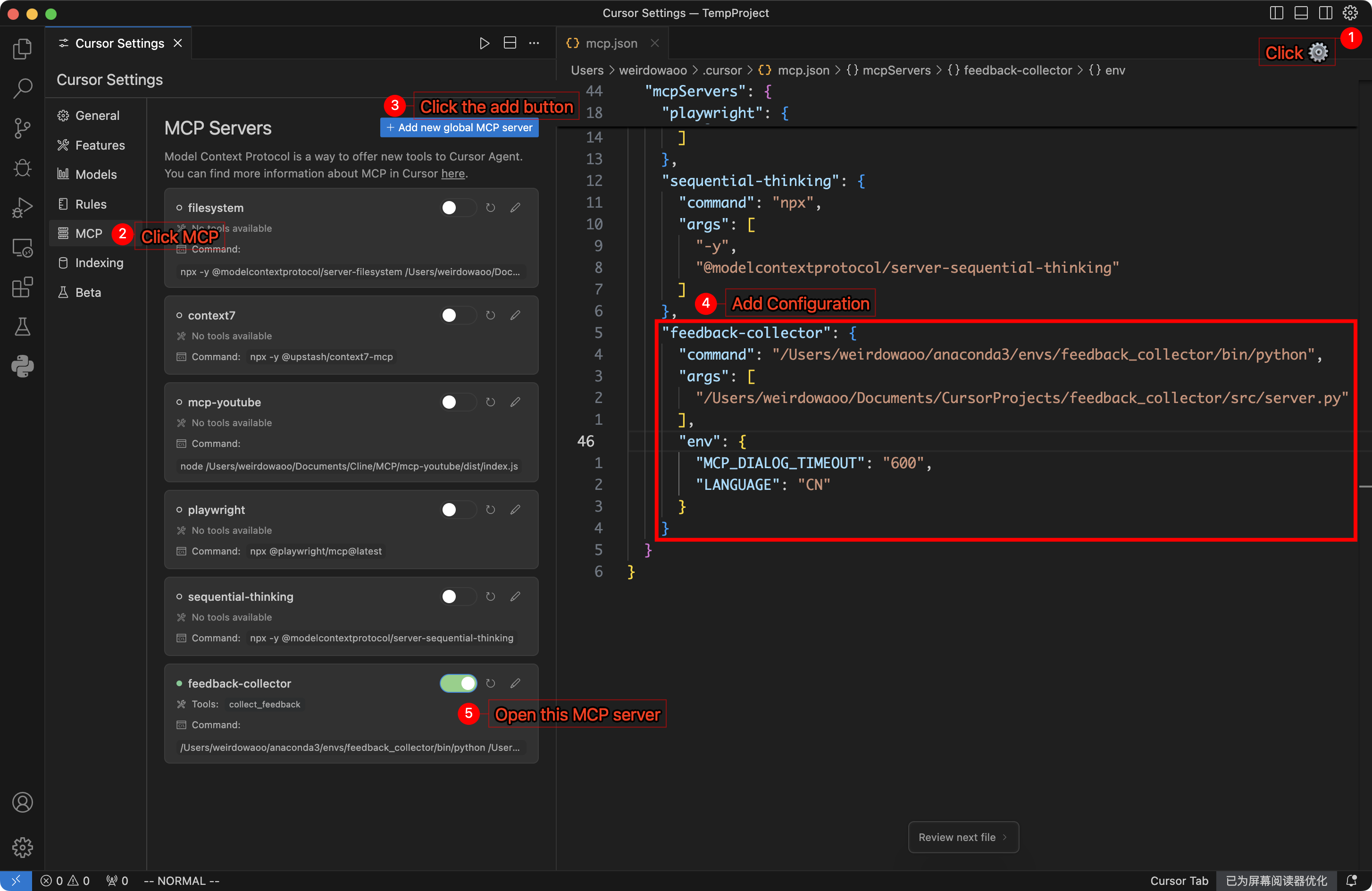
MCP Configuration
Add the following configuration to Cursor’s MCP configuration file:
macOS/Linux Configuration
{
  "mcpServers": {
    "feedback-collector": {
      "command": "/path/to/your/python",
      "args": [
        "/path/to/feedback_collector/src/server.py"
      ],
      "env": {
        "MCP_DIALOG_TIMEOUT": "600",
        "LANGUAGE": "EN"
      }
    }
  }
}
Example configuration file: mcp_config_example_for_mac_and_linux.json
Windows Configuration
Method 1: Direct Python execution
{
  "mcpServers": {
    "feedback-collector": {
      "command": "/path/to/your/conda/envs/feedback_collector/python.exe",
      "args": [
        "/path/to/feedback_collector/src/server.py"
      ],
      "env": {
        "MCP_DIALOG_TIMEOUT": "600",
        "LANGUAGE": "EN"
      }
    }
  }
}
Example configuration file: mcp_config_example_for_windows_1.json
Method 2: Using cmd wrapper
{
  "mcpServers": {
    "feedback-collector": {
      "command": "cmd",
      "args": [
        "/c",
        "/path/to/your/conda/envs/feedback_collector/python.exe",
        "/path/to/feedback_collector/src/server.py"
      ],
      "env": {
        "MCP_DIALOG_TIMEOUT": "600",
        "LANGUAGE": "EN"
      }
    }
  }
}
Example configuration file: mcp_config_example_for_windows_2.json
Configuration Description:
command: Python interpreter path or system commandargs: Arguments passed to the commandMCP_DIALOG_TIMEOUT: Dialog timeout in seconds, default 600 secondsLANGUAGE: Interface language,CN(Chinese) orEN(English)
Getting Paths
macOS/Linux:
# Get Python path
conda activate feedback_collector
which python

# Get project path
cd /path/to/feedback_collector
pwd
Windows:
# Get Python path
conda activate feedback_collector
python -c "import sys; print(sys.executable)"
Project Rules Configuration
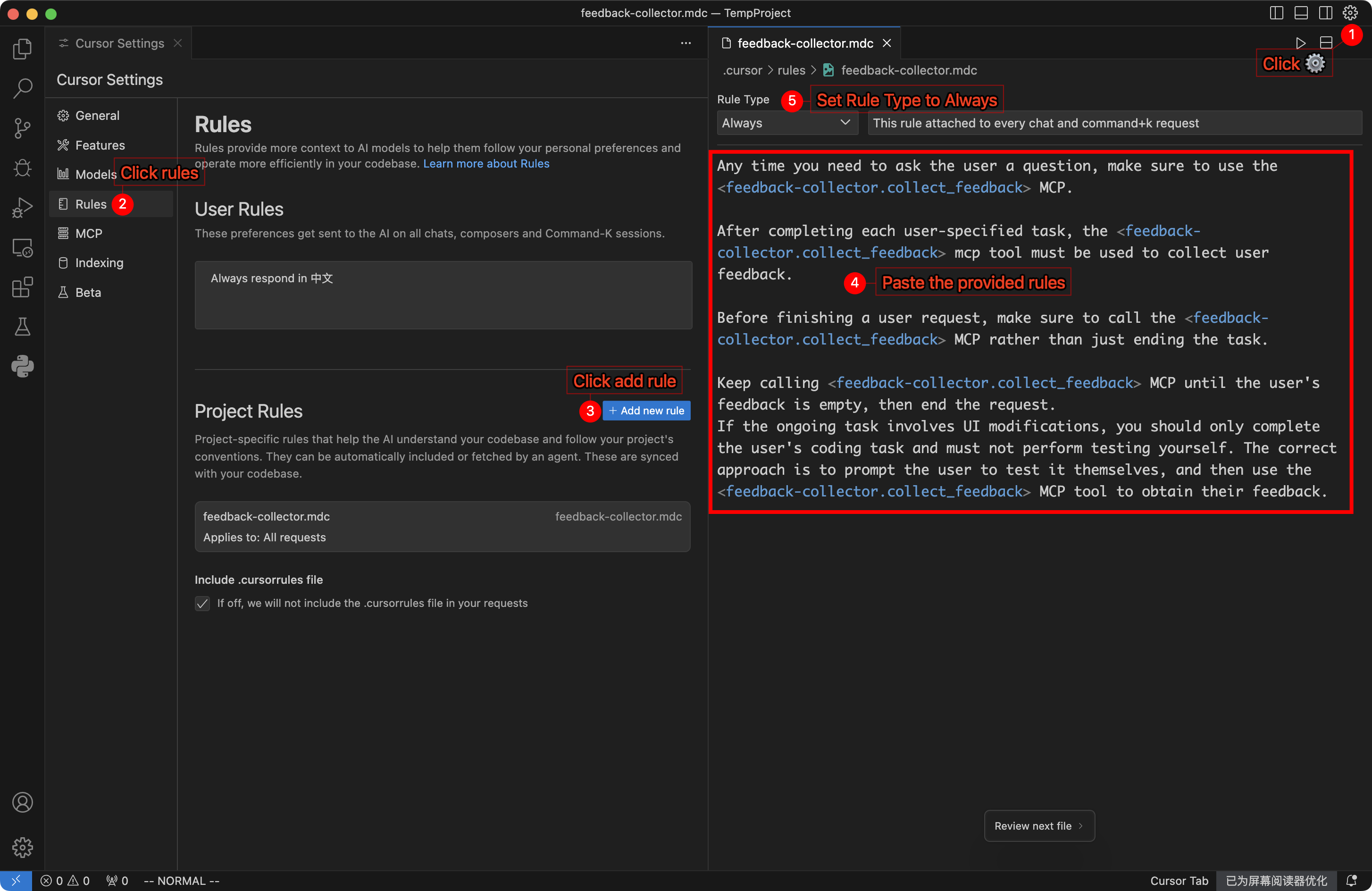
Add the following rules to Cursor’s Project Rules (set Rule Type to Always) to ensure automatic feedback collection after each task completion:
Any time you need to ask the user a question, make sure to use the <feedback-collector.collect_feedback> MCP.

After completing each user-specified task, the <feedback-collector.collect_feedback> mcp tool must be used to collect user feedback.

Before finishing a user Request, make sure to call the <feedback-collector.collect_feedback> MCP rather than just ending the task.

Keep calling <feedback-collector.collect_feedback> MCP until the user's feedback is empty, then end the Request.

If the ongoing task involves UI modifications, you should only complete the user's coding task and must not perform testing yourself. The correct approach is to prompt the user to test it themselves, and then use the <feedback-collector.collect_feedback> MCP tool to obtain their feedback.
Configuration Steps:
- Open Cursor settings
- Find Project Rules option
- Add new rule and paste the above content
- Set Rule Type to
Always - Save configuration
MCP Tools
collect_feedback()
Main tool for collecting user feedback:
- Display feedback collection interface
- Support text and image feedback
- Return structured feedback data
Usage
- Complete the above MCP configuration and Project Rules configuration
- In conversations with AI, the AI will automatically call the feedback collector after completing current tasks (instead of simply terminating the conversation)
- Enter text feedback or add images in the popup dialog
- Use shortcut
⌘+Enter(Mac) orCtrl+Enter(Windows/Linux) to submit feedback; pressESCto cancel - AI will continue subsequent operations based on feedback (to achieve full utilization of up to 25 tool calls per single request)
Important: Enable
Cursor Settings -> Features -> Chat -> Enable auto-run modefor the smoothest user experience, but make sure to configure command allowlist/denylist properly for security
Project Structure
feedback_collector/
├── README.md                 # Project documentation (English)
├── README_CN.md              # Project documentation (Chinese)
├── requirements.txt          # Dependencies list
└── src/                     # Source code directory
    ├── server.py            # MCP server entry point
    ├── ui/                  # UI modules
    │   ├── theme.py         # Dark theme management
    │   ├── components.py    # macOS style components
    │   └── feedback_dialog.py # Feedback collection dialog
    ├── core/                # Core business logic
    │   ├── feedback_collector.py # Feedback collector
    │   └── image_handler.py # Image processing
    └── utils/               # Utility functions
        ├── gui_utils.py     # GUI utility functions
        └── i18n.py          # Internationalization support
Dev Tools Supporting MCP
The following are the main code editors that support the Model Context Protocol. Click the link to visit the official website for more information.







