
Figma Mcp Cursor
What is Figma Mcp Cursor
figma-mcp-cursor is a project that integrates Cursor AI with Figma using the Model Context Protocol (MCP), enabling communication between Cursor and Figma for reading and modifying design elements programmatically.
Use cases
Use cases for figma-mcp-cursor include automating design updates, creating custom design tools, and enhancing collaboration between designers and developers by allowing programmatic access to design assets.
How to use
To use figma-mcp-cursor, install Bun, set up the MCP in your Cursor project, start the WebSocket server, and install the Figma plugin. Follow the setup instructions provided in the README for detailed steps.
Key features
Key features include seamless integration between Cursor and Figma, real-time communication via WebSocket, and the ability to programmatically read and modify Figma designs.
Where to use
figma-mcp-cursor can be used in design and development environments where Figma is utilized, particularly in collaborative design workflows that require automation and enhanced functionality.
Clients Supporting MCP
The following are the main client software that supports the Model Context Protocol. Click the link to visit the official website for more information.





Overview
What is Figma Mcp Cursor
figma-mcp-cursor is a project that integrates Cursor AI with Figma using the Model Context Protocol (MCP), enabling communication between Cursor and Figma for reading and modifying design elements programmatically.
Use cases
Use cases for figma-mcp-cursor include automating design updates, creating custom design tools, and enhancing collaboration between designers and developers by allowing programmatic access to design assets.
How to use
To use figma-mcp-cursor, install Bun, set up the MCP in your Cursor project, start the WebSocket server, and install the Figma plugin. Follow the setup instructions provided in the README for detailed steps.
Key features
Key features include seamless integration between Cursor and Figma, real-time communication via WebSocket, and the ability to programmatically read and modify Figma designs.
Where to use
figma-mcp-cursor can be used in design and development environments where Figma is utilized, particularly in collaborative design workflows that require automation and enhanced functionality.
Clients Supporting MCP
The following are the main client software that supports the Model Context Protocol. Click the link to visit the official website for more information.
Content
Cursor Talk to Figma MCP
This project implements a Model Context Protocol (MCP) integration between Cursor AI and Figma, allowing Cursor to communicate with Figma for reading designs and modifying them programmatically.
Project Structure
src/talk_to_figma_mcp/- TypeScript MCP server for Figma integrationsrc/cursor_mcp_plugin/- Figma plugin for communicating with Cursorsrc/socket.ts- WebSocket server that facilitates communication between the MCP server and Figma plugin
Get Started
- Install Bun if you haven’t already:
curl -fsSL https://bun.sh/install | bash
2.Run setup, this will also install MCP in your Cursor’s active project
bun setup
3.Start the Websocket server
bun socket
4.MCP server
bunx cursor-talk-to-figma-mcp
5.Install Figma Plugin
Quick Video Tutorial
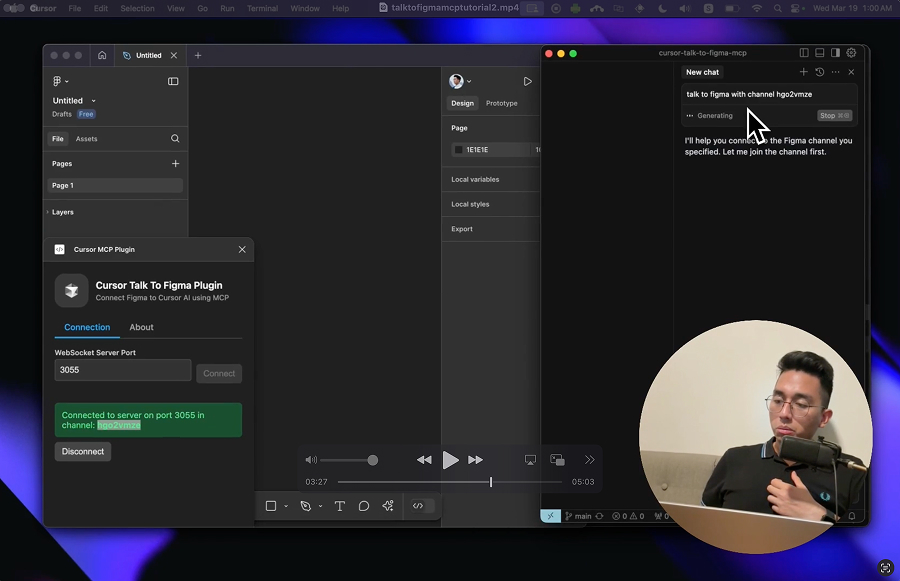
Manual Setup and Installation
MCP Server: Integration with Cursor
Add the server to your Cursor MCP configuration in ~/.cursor/mcp.json:
{
  "mcpServers": {
    "TalkToFigma": {
      "command": "bunx",
      "args": [
        "cursor-talk-to-figma-mcp"
      ]
    }
  }
}
WebSocket Server
Start the WebSocket server:
bun socket
Figma Plugin
- In Figma, go to Plugins > Development > New Plugin
- Choose “Link existing plugin”
- Select the
src/cursor_mcp_plugin/manifest.jsonfile - The plugin should now be available in your Figma development plugins
Windows + WSL Guide
- Install bun via powershell
powershell -c "irm bun.sh/install.ps1|iex"
2.Uncomment the hostname 0.0.0.0 in src/socket.ts
// uncomment this to allow connections in windows wsl
hostname: "0.0.0.0",
3.Start the websocket
bun socket
Usage
- Start the WebSocket server
- Install the MCP server in Cursor
- Open Figma and run the Cursor MCP Plugin
- Connect the plugin to the WebSocket server by joining a channel using
join_channel - Use Cursor to communicate with Figma using the MCP tools
MCP Tools
The MCP server provides the following tools for interacting with Figma:
Document & Selection
get_document_info- Get information about the current Figma documentget_selection- Get information about the current selectionget_node_info- Get detailed information about a specific nodeget_nodes_info- Get detailed information about multiple nodes by providing an array of node IDs
Creating Elements
create_rectangle- Create a new rectangle with position, size, and optional namecreate_frame- Create a new frame with position, size, and optional namecreate_text- Create a new text node with customizable font properties
Modifying text content
set_text_content- Set the text content of an existing text node
Styling
set_fill_color- Set the fill color of a node (RGBA)set_stroke_color- Set the stroke color and weight of a nodeset_corner_radius- Set the corner radius of a node with optional per-corner control
Layout & Organization
move_node- Move a node to a new positionresize_node- Resize a node with new dimensionsdelete_node- Delete a nodeclone_node- Create a copy of an existing node with optional position offset
Components & Styles
get_styles- Get information about local stylesget_local_components- Get information about local componentsget_team_components- Get information about team componentscreate_component_instance- Create an instance of a component
Export & Advanced
export_node_as_image- Export a node as an image (PNG, JPG, SVG, or PDF)execute_figma_code- Execute arbitrary JavaScript code in Figma (use with caution)
Connection Management
join_channel- Join a specific channel to communicate with Figma
Development
Building the Figma Plugin
-
Navigate to the Figma plugin directory:
cd src/cursor_mcp_plugin
-
Edit code.js and ui.html
Best Practices
When working with the Figma MCP:
- Always join a channel before sending commands
- Get document overview using
get_document_infofirst - Check current selection with
get_selectionbefore modifications - Use appropriate creation tools based on needs:
create_framefor containerscreate_rectanglefor basic shapescreate_textfor text elements
- Verify changes using
get_node_info - Use component instances when possible for consistency
- Handle errors appropriately as all commands can throw exceptions
License
MIT
Dev Tools Supporting MCP
The following are the main code editors that support the Model Context Protocol. Click the link to visit the official website for more information.







