
Flux
What is Flux
Flux is an AI-based tool designed to enhance the capabilities of the MCP server for AO (Artificial Optimization). It integrates seamlessly with existing tools and editors, allowing users to run and create AO code using natural language.
Use cases
Use cases for Flux include automating code generation, simplifying the testing of AO code, integrating with various AI tools to enhance productivity, and developing complex applications that require natural language processing capabilities.
How to use
Flux can be used in two ways: Local Setup, where users install it on their machine, or Remote Setup, where it can be used without local installation. For Local Setup, users need to ensure Node.js is installed, copy the provided code into their Cursor settings, and run it. For Remote Setup, users simply add the provided code in the Cursor settings.
Key features
Key features of Flux include the ability to run AO code using natural language, create and run custom AO blueprints, integrate with existing AI development tools like Cursor and Windsurf, test code in real-time, and create complex handlers.
Where to use
Flux is primarily used in software development environments, particularly those focused on AI and optimization tasks. It is suitable for developers looking to streamline their workflow and enhance their coding efficiency.
Clients Supporting MCP
The following are the main client software that supports the Model Context Protocol. Click the link to visit the official website for more information.





Overview
What is Flux
Flux is an AI-based tool designed to enhance the capabilities of the MCP server for AO (Artificial Optimization). It integrates seamlessly with existing tools and editors, allowing users to run and create AO code using natural language.
Use cases
Use cases for Flux include automating code generation, simplifying the testing of AO code, integrating with various AI tools to enhance productivity, and developing complex applications that require natural language processing capabilities.
How to use
Flux can be used in two ways: Local Setup, where users install it on their machine, or Remote Setup, where it can be used without local installation. For Local Setup, users need to ensure Node.js is installed, copy the provided code into their Cursor settings, and run it. For Remote Setup, users simply add the provided code in the Cursor settings.
Key features
Key features of Flux include the ability to run AO code using natural language, create and run custom AO blueprints, integrate with existing AI development tools like Cursor and Windsurf, test code in real-time, and create complex handlers.
Where to use
Flux is primarily used in software development environments, particularly those focused on AI and optimization tasks. It is suitable for developers looking to streamline their workflow and enhance their coding efficiency.
Clients Supporting MCP
The following are the main client software that supports the Model Context Protocol. Click the link to visit the official website for more information.
Content
Flux
AI based AO tool calling on steroids that integrates with your existing tools and editor using a MCP server.
https://github.com/user-attachments/assets/3484e2db-e7cb-479a-84a2-0b399e1149ac
Features Implemented
- Run AO code using just natural language
- Create and run custom AO code/blueprints completely using natural language
- Integrates with your existing AI dev tools like Cursor, Windsurf, Claude, and anything that supports MCP tool calling
- Can test out all the code it pushes to an process
- Can create and test complex handlers
Features to be implemented
- Inetgration with AO ecosystem tools
- Better code generation capabilities by adding more context about AO
Tech stack
- AO
- Arweave
- MCP typescript sdk
- Typescript
- Node.js
Installation
There are currently two ways to install and use Flux, right now it has been tested significantly only on Cursor so we will be showing how to install FLux in Cursor -
-
Local Setup - For users who want everything to be present locally, no remote servers involved
- Make sure you have latest stable version of NODE.js installed - Node.js download
- Open Cursor and go to Settings > Cursor Settings > MCP > Add new MCP tool
- Paste this code in the file
- if you did everything correctly you will be able to see the flux MCP loaded with all the tools, and its ready to be used in Cursor (PS: You might have to reload the MCP multiple times or restart Cursor)!
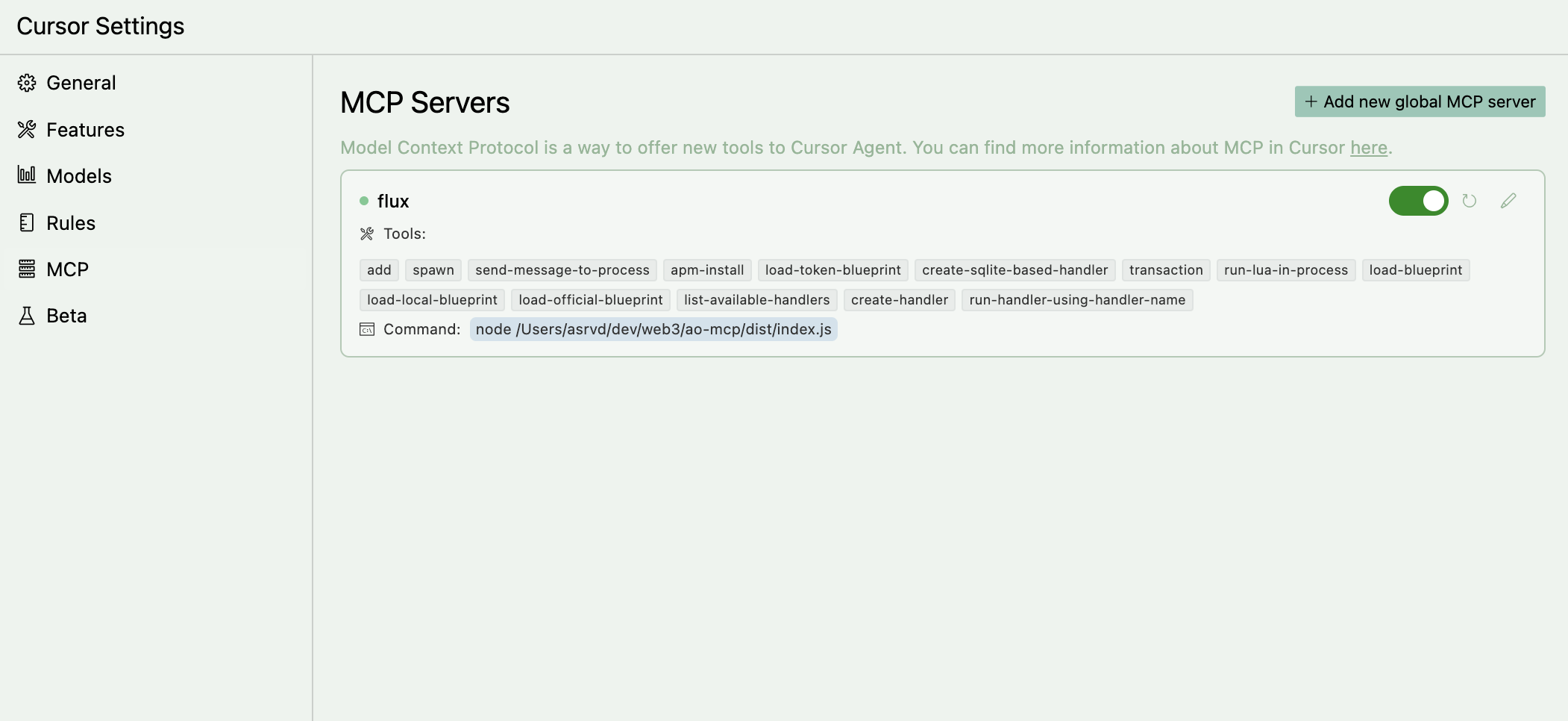
-
Remote Setup - For users who want to use Flux without installing anything locally
- Open Cursor and go to Settings > Cursor Settings > MCP > Add new MCP tool
- Paste this code in the file
- if you did everything correctly you will be able to see the flux MCP loaded with all the tools, and its ready to be used in Cursor (PS: You might have to reload the MCP multiple times or restart Cursor)!
Usage
We would suggest you add the llms.txt for AO docs in cursor first and use it as a context before you start using the MCP server. If you don’t know how to do it, checkoout this documentation on how to add docs to cursor.
The more context you give to cursor, the more acurate the responses will be.
Now add these custom rules in your Cursor project to make sure Cursor doesn’t hallucinate or give wrong responses. You can add these rules in the Settings > Cursor Settings > Rules > Add new rule.
For adding json capabilities ONLY IF NEEDED, you need to add a line "local json = require("json")" on top of file. BUT DONT USE IT UNLESS NEEDED. SIMPLE THINGS CAN BE DONE USING AO PROCESS STATE

Always use Send instead of msg.reply

Always make sure a handler is sending out a response/reply (using Send) and send it as data as well instaed of just returning using tags

Never add any tags by yourself, always add tags when needed or instructed by user, also {"Action":"Eval"} tag is for running lua in an ao process and {"Action" : "action_name"} is for running a handler

Never add the "Type" tag to anything, thats reserved for internal ao specifications

Always use Handler.utils whever possible when creating a handler, for example --
    Handlers.add(
        "pingpong",
        Handlers.utils.hasMatchingTag("Action", "Ping"),
        function (msg)
            Handlers.utils.reply("Pong")(msg) -- or use Send() here
        end
    )
Now you can start using the Flux MCP server in Cursor Agents.
Support
If you find any issues with the Server or encounter any bugs, please let us know by opening an issue or mailing us @ [email protected]
Dev Tools Supporting MCP
The following are the main code editors that support the Model Context Protocol. Click the link to visit the official website for more information.







