
Hangfire Mcp
What is Hangfire Mcp
Hangfire MCP is a server that allows you to enqueue background jobs using the Hangfire framework. It utilizes the IBackgroundJobClient interface to manage job scheduling and execution.
Use cases
Common use cases for Hangfire MCP include sending emails, processing data asynchronously, generating reports, and performing scheduled maintenance tasks.
How to use
To use Hangfire MCP, you need to set up a web application with the necessary configurations. You can create a builder, configure Hangfire with PostgreSQL storage, and add Hangfire MCP services. Finally, you can map the MCP server and run the application.
Key features
Key features of Hangfire MCP include seamless integration with Hangfire, support for PostgreSQL storage, and the ability to enqueue jobs dynamically using custom tools.
Where to use
Hangfire MCP can be used in various fields where background job processing is required, such as web applications, data processing systems, and any environment needing scheduled tasks.
Clients Supporting MCP
The following are the main client software that supports the Model Context Protocol. Click the link to visit the official website for more information.





Overview
What is Hangfire Mcp
Hangfire MCP is a server that allows you to enqueue background jobs using the Hangfire framework. It utilizes the IBackgroundJobClient interface to manage job scheduling and execution.
Use cases
Common use cases for Hangfire MCP include sending emails, processing data asynchronously, generating reports, and performing scheduled maintenance tasks.
How to use
To use Hangfire MCP, you need to set up a web application with the necessary configurations. You can create a builder, configure Hangfire with PostgreSQL storage, and add Hangfire MCP services. Finally, you can map the MCP server and run the application.
Key features
Key features of Hangfire MCP include seamless integration with Hangfire, support for PostgreSQL storage, and the ability to enqueue jobs dynamically using custom tools.
Where to use
Hangfire MCP can be used in various fields where background job processing is required, such as web applications, data processing systems, and any environment needing scheduled tasks.
Clients Supporting MCP
The following are the main client software that supports the Model Context Protocol. Click the link to visit the official website for more information.
Content
Hangfire MCP 
Enqueue background jobs using Hangfire MCP server.
Motivation
Interaction with Hangfire using Hangfire MCP Server allows you to enqueue jobs from any client that supports MCP protocol.
For example, you can use Hangfire MCP directly from VS Code in Agent Mode and enqueue jobs. It makes possible to execute any kind of code without writing additional code.
Here is MCP Server configuration for VS Code:
{
  "servers": {
    "hangfire-mcp": {
      "url": "http://localhost:3001"
    }
  }
}
Code Example
Here is how it works:
sequenceDiagram
    participant User as User
    participant MCPHangfire as MCP Hangfire
    participant IBackgroundJobClient as IBackgroundJobClient
    participant Database as Database
    participant HangfireServer as Hangfire Server

    User->>MCPHangfire: Enqueue Job
    MCPHangfire->>IBackgroundJobClient: Send Job Message
    IBackgroundJobClient->>Database: Store Job Message
    HangfireServer->>Database: Fetch Job Message
    HangfireServer->>HangfireServer: Process Job
Standalone Mode
It is a regular MCP packaged as .NET global tool. Here is how to setup it as an MCP server in VSCode.
dotnet tool install --global --add-source Nall.HangfireMCP
Configuration:
{
  "servers": {
    "hangfire-mcp-standalone": {
      "type": "stdio",
      "command": "HangfireMCP",
      "args": [
        "--stdio"
      ],
      "env": {
        "HANGFIRE_JOBS_ASSEMBLY": "path/to/Jobs.dll",
        "HANGFIRE_JOBS_MATCH_EXPRESSION": "[?IsInterface && contains(Name, 'Job')]",
        "HANGFIRE_CONNECTION_STRING": "Host=localhost;Port=5432;Username=postgres;Password=postgres;Database=hangfire"
      }
    }
  }
}
Aspire
var builder = DistributedApplication.CreateBuilder(args);

var postgresServer = builder
    .AddPostgres("postgres-server")
    .WithDataVolume()
    .WithLifetime(ContainerLifetime.Persistent);

var postgresDatabase = postgresServer.AddDatabase("hangfire");

builder.AddProject<Projects.Web>("server")
    .WithReference(postgresDatabase)
    .WaitFor(postgresDatabase);

var mcp = builder
    .AddProject<Projects.HangfireMCP_Standalone>("hangfire-mcp")
    .WithEnvironment("HANGFIRE_JOBS_ASSEMBLY", "path/to/Jobs.dll")
    .WithEnvironment("HANGFIRE_JOBS_MATCH_EXPRESSION", "[?IsInterface && contains(Name, 'Job')]")
    .WithReference(postgresDatabase)
    .WaitFor(postgresDatabase);

builder
    .AddMCPInspector()
    .WithSSE(mcp)
    .WaitFor(mcp);

builder.Build().Run();
As result, the jobs are dynamically loaded from the specified assembly and can be enqueued using MCP protocol. The rules for matching job names can be specified using HANGFIRE_JOBS_MATCH_EXPRESSION environment variable. For example, the expression [?IsInterface && contains(Name, 'Job')] will match all interfaces that contain “Job” in their name. It is a JMESPath expression, so you can define how to match job names according to your needs.
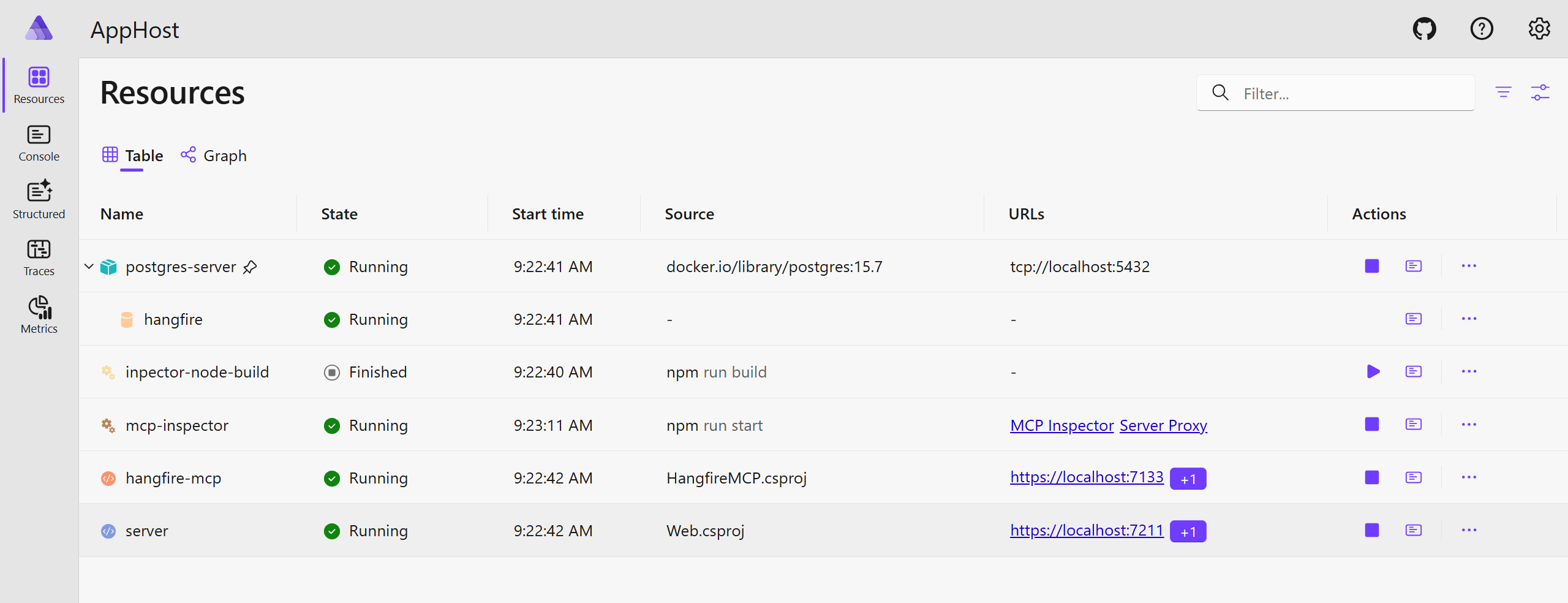
Custom Setup (as Code) Mode
You can create your own MCP server and use this project as starting point. You can extend it with your own tools and features. Here is an example of how to set up Hangfire MCP server in a custom project.
Aspire
var builder = DistributedApplication.CreateBuilder(args);

var postgresServer = builder
    .AddPostgres("postgres-server")
    .WithDataVolume()
    .WithLifetime(ContainerLifetime.Persistent);

var postgresDatabase = postgresServer.AddDatabase("hangfire");

builder.AddProject<Projects.Web>("server")
    .WithReference(postgresDatabase)
    .WaitFor(postgresDatabase);

var mcp = builder
    .AddProject<Projects.HangfireMCP>("hangfire-mcp")
    .WithReference(postgresDatabase)
    .WaitFor(postgresDatabase);

builder
    .AddMCPInspector()
    .WithSSE(mcp)
    .WaitFor(mcp);

builder.Build().Run();
MCP Server
var builder = WebApplication.CreateBuilder(args);

builder.WithMcpServer(args).WithToolsFromAssembly();
builder.Services.AddHangfire(cfg => cfg.UsePostgreSqlStorage(options =>
    options.UseNpgsqlConnection(builder.Configuration.GetConnectionString("hangfire")))
);
builder.Services.AddHangfireMcp();
builder.Services.AddTransient<HangfireTool>();
var app = builder.Build();
app.MapMcpServer(args);
app.Run();
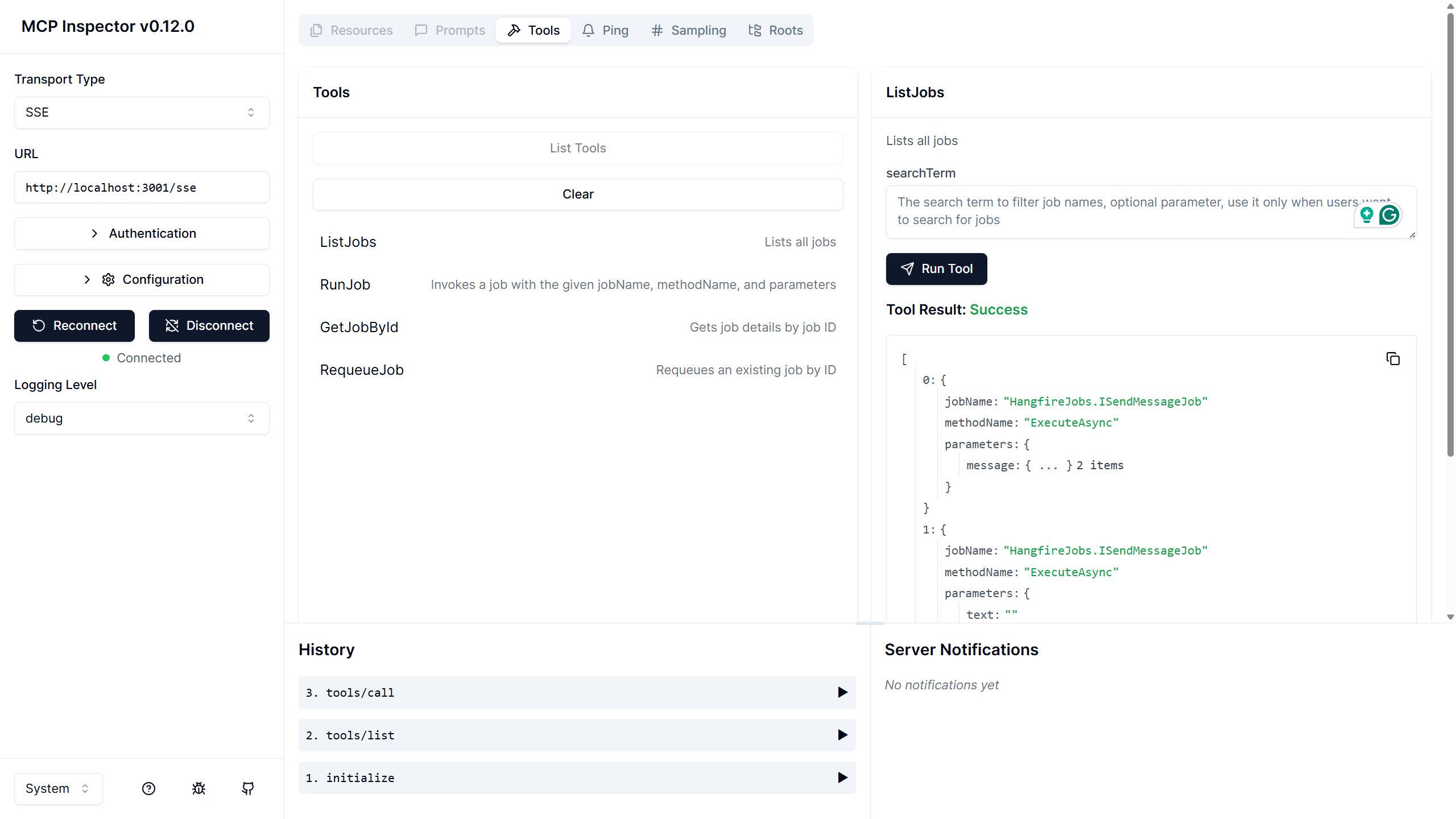
Here is an example of the Hangfire tool:
[McpServerToolType]
public class HangfireTool(IHangfireDynamicScheduler scheduler)
{
    [McpServerTool(Name = "RunJob")]
    public string Run(
        [Required] string jobName,
        [Required] string methodName,
        Dictionary<string, object>? parameters = null
    )
    {
        var descriptor = new JobDescriptor(jobName, methodName, parameters);
        return scheduler.Enqueue(descriptor, typeof(ITimeJob).Assembly);
    }
}
Tools
Dev Tools Supporting MCP
The following are the main code editors that support the Model Context Protocol. Click the link to visit the official website for more information.







