
Ifly Workflow Mcp Server
What is Ifly Workflow Mcp Server
ifly-workflow-mcp-server is a simple implementation of the Model Context Protocol (MCP) server using iFlytek, designed to facilitate the integration of AI workflows with external data sources and tools.
Use cases
Use cases include automating customer inquiries, integrating data from multiple sources, and orchestrating complex business processes.
How to use
To use ifly-workflow-mcp-server, users can create workflows by defining nodes and their connections. The server automatically executes the workflows based on predefined rules without manual intervention.
Key features
Key features include support for 14 types of workflow nodes, robust variable input/output capabilities, and automatic execution of workflows upon triggering.
Where to use
ifly-workflow-mcp-server can be used in various business scenarios that require intelligent workflow scheduling, such as customer service automation, data processing, and task management.
Clients Supporting MCP
The following are the main client software that supports the Model Context Protocol. Click the link to visit the official website for more information.





Overview
What is Ifly Workflow Mcp Server
ifly-workflow-mcp-server is a simple implementation of the Model Context Protocol (MCP) server using iFlytek, designed to facilitate the integration of AI workflows with external data sources and tools.
Use cases
Use cases include automating customer inquiries, integrating data from multiple sources, and orchestrating complex business processes.
How to use
To use ifly-workflow-mcp-server, users can create workflows by defining nodes and their connections. The server automatically executes the workflows based on predefined rules without manual intervention.
Key features
Key features include support for 14 types of workflow nodes, robust variable input/output capabilities, and automatic execution of workflows upon triggering.
Where to use
ifly-workflow-mcp-server can be used in various business scenarios that require intelligent workflow scheduling, such as customer service automation, data processing, and task management.
Clients Supporting MCP
The following are the main client software that supports the Model Context Protocol. Click the link to visit the official website for more information.
Content

The fastest way to build workflows with an AI agent platform!

iFlytek Workflow MCP Server
The Model Context Protocol (MCP) is an open protocol designed for effortless integration between LLM applications and external data sources or tools, offering a standardized framework to seamlessly provide LLMs with the context they require.
This a simple implementation of an MCP server using iFlytek. It enables calling iFlytek workflows through MCP tools.
Features
Functional Overview
This system is built on the iFlytek MCP server and enables intelligent workflow scheduling, making it suitable for various business scenarios.
- Workflow Structure: Composed of multiple nodes, supporting 14 types of nodes (including basic, tool, logic, and transformation types).
- Core Components: By default, the workflow includes a Start Node (user input) and an End Node (output result).
- Execution Mode: Once triggered, the workflow executes automatically according to predefined sequences and rules, requiring no manual intervention.
Core Capabilities
Robust Node Support
- 14 types of workflow nodes to meet diverse business requirements.
- Supports complex variable I/O, enabling flexible data transmission.
Advanced Orchestration Modes
- Sequential Execution: Tasks execute one after another in order.
- Parallel Execution: Multiple tasks run simultaneously to enhance efficiency.
- Loop Execution: Supports iterative loops for handling repetitive tasks.
- Nested Execution: Allows embedding sub-workflows within workflows, improving reusability.
- Utilizes the Hook Mechanism to enable streaming output, ensuring real-time processing.
Multiple Development Paradigms
- Single-turn, single-branch: Linear execution of simple tasks.
- Single-turn, multi-branch: Supports branching logic to handle complex processes.
- Single-turn loop: Manages looped tasks to enhance automation.
- Multi-turn interaction: Supports context memory for dynamic conversations.
Capability Expansion
- Multi-Model Support: Based on the Model of Models (MoM) hybrid application architecture, providing multiple model choices at critical workflow stages. This allows for flexible model combinations, improving task adaptability.
Usage with MCP client
Prepare config.yaml
Before using the mcp server, you should prepare a config.yaml to save your workflow info. The example config like this:
- flow_id: 'flow id'              # required
  name: 'flow name'               # optional, if not set, obtain the name from the cloud.
  description: 'flow description' # optional, if not set, obtain the description from the cloud.
  api_key: 'API Key:API Secret'   # required
Get workflow authentication information
-
Publish a workflow
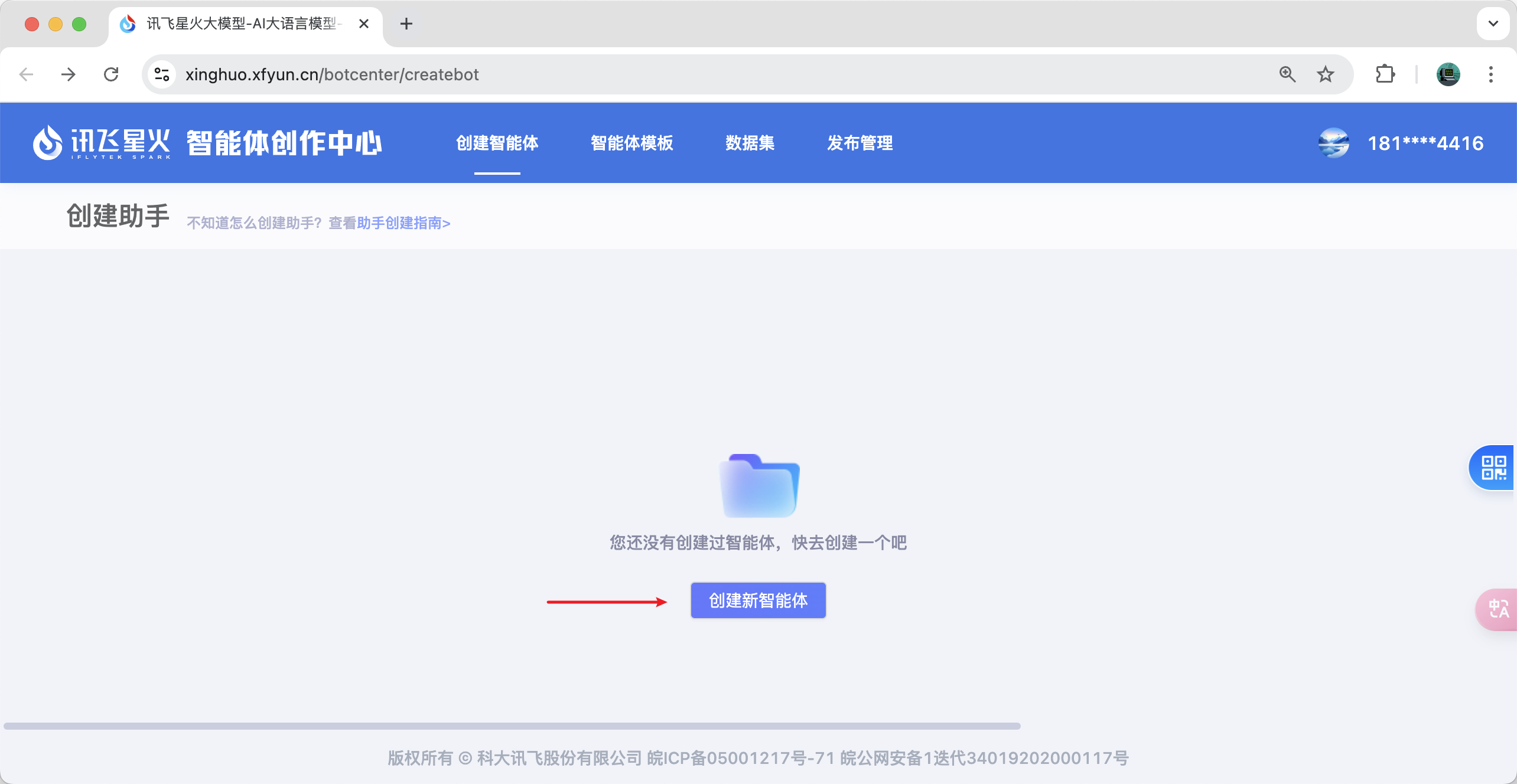
- Step 1. Debug the workflow you just created.
- Step 2. Engage in a conversation with your workflow and ensure the conversation is successful.
- Step 3. You can now click the publish button.
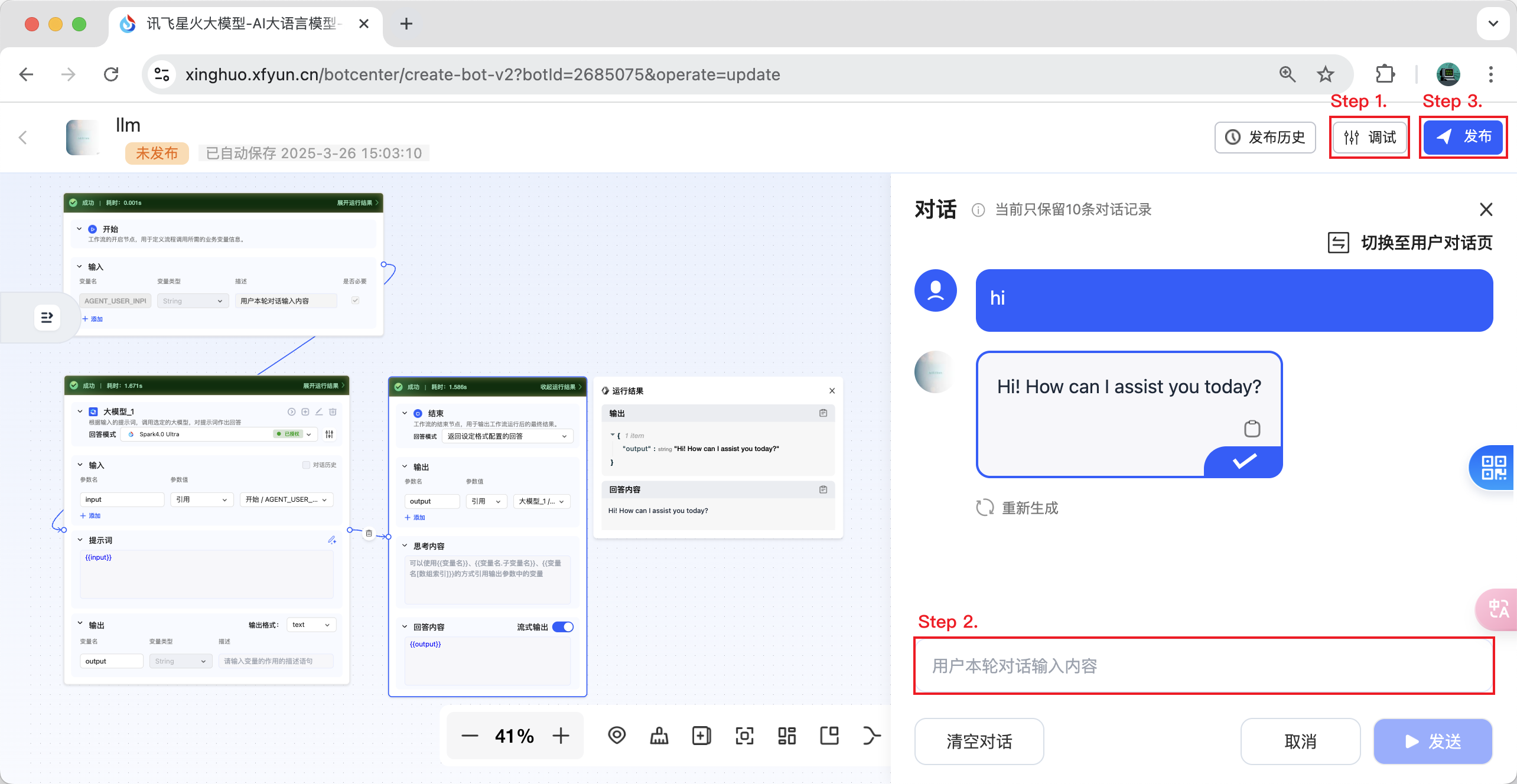
- Step 4. Select “Publish as API” and click the “Configure” button.
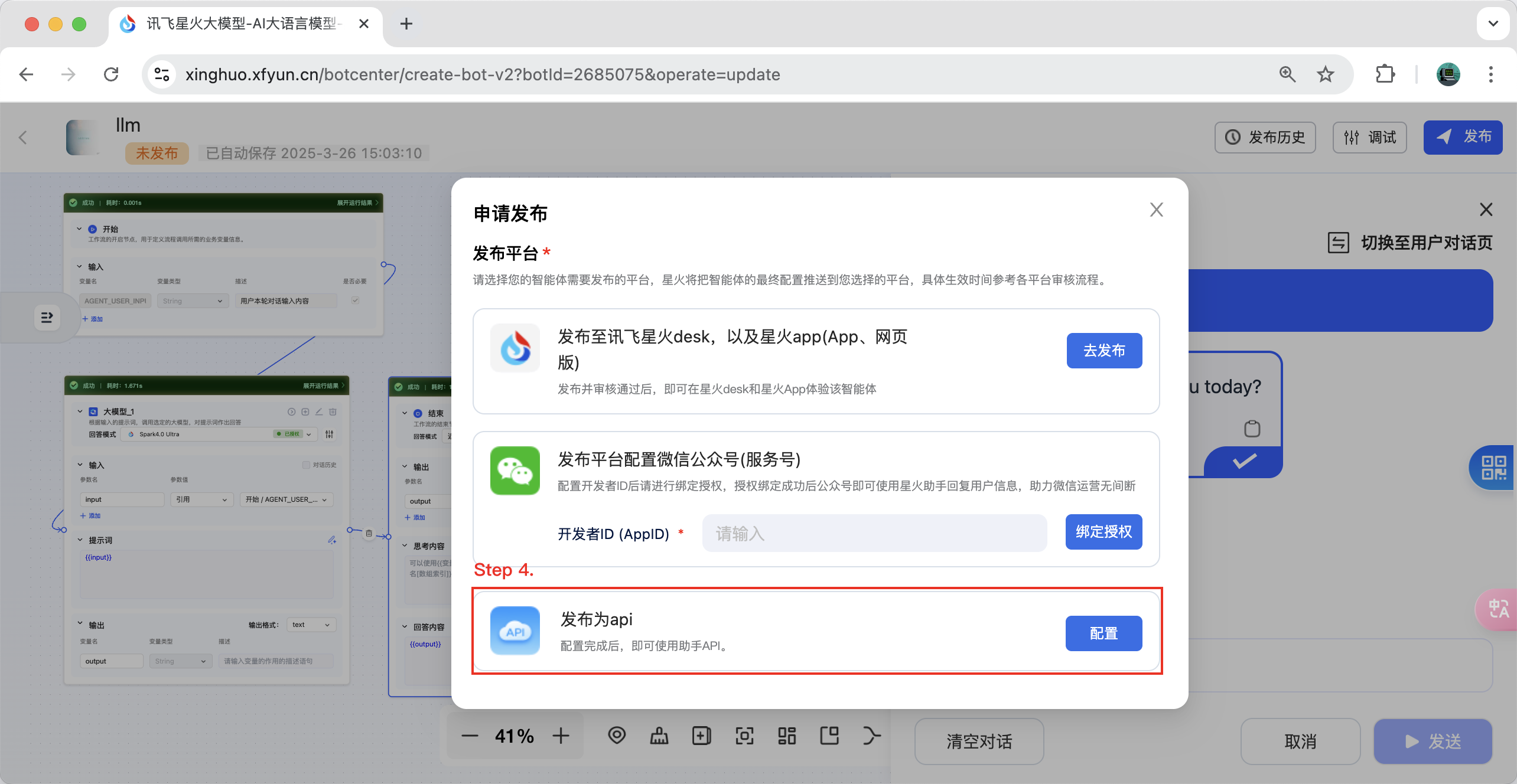
- Step 5. Select the application you need to bind and bind it. Now you can retrieve the corresponding workflow ID and authentication information. Enjoy!
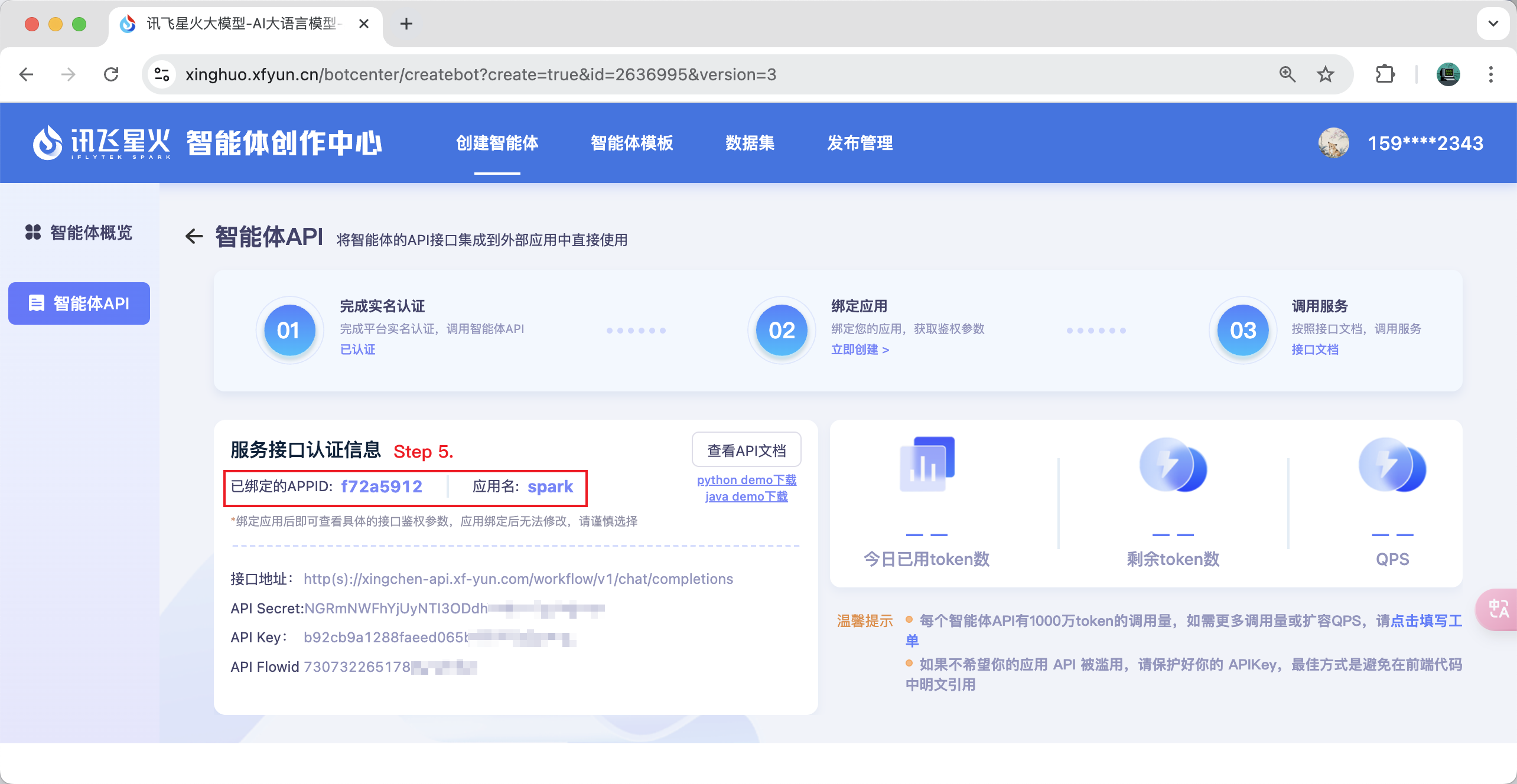
Note: If you find that you are unable to select an app, you can go to https://www.xfyun.cn to apply.
Manual Installation
To add a persistent client, add the following to your claude_desktop_config.json or mcp.json file:
{
  "mcpServers": {
    "ifly-workflow-mcp-server": {
      "command": "uvx",
      "args": [
        "--from",
        "git+https://github.com/iflytek/ifly-workflow-mcp-server",
        "ifly_workflow_mcp_server"
      ],
      "env": {
        "CONFIG_PATH": "$CONFIG_PATH"
      }
    }
  }
}
Example config:
{
  "mcpServers": {
    "ifly-workflow-mcp-server": {
      "command": "uvx",
      "args": [
        "--from",
        "git+https://github.com/iflytek/ifly-workflow-mcp-server",
        "ifly_workflow_mcp_server"
      ],
      "env": {
        "CONFIG_PATH": "/Users/hygao1024/Projects/config.yaml"
      }
    }
  }
}
Dev Tools Supporting MCP
The following are the main code editors that support the Model Context Protocol. Click the link to visit the official website for more information.







