
Illumio Mcp Server
What is Illumio Mcp Server
Illumio MCP Server is the first Model Context Protocol (MCP) server designed for cybersecurity, providing an interface to interact with Illumio’s Policy Compute Engine (PCE). It allows for programmatic access to workload management, label operations, and traffic flow analysis.
Use cases
Use cases include managing workloads in cloud environments, automating security policies, performing traffic flow analysis for security audits, and integrating with other security tools for enhanced visibility.
How to use
To use Illumio MCP Server, clone the repository and install the dependencies using Python 3.8 or higher. Configure the server with your PCE credentials and run it using the ‘uv’ command to manage workloads and perform security analyses.
Key features
Key features include workload management (create, update, delete workloads), label operations (create, update, delete labels), traffic summary retrieval, security analysis, and PCE health checks.
Where to use
Illumio MCP Server is primarily used in cybersecurity environments where workload management and traffic analysis are crucial for maintaining security posture and compliance.
Clients Supporting MCP
The following are the main client software that supports the Model Context Protocol. Click the link to visit the official website for more information.





Overview
What is Illumio Mcp Server
Illumio MCP Server is the first Model Context Protocol (MCP) server designed for cybersecurity, providing an interface to interact with Illumio’s Policy Compute Engine (PCE). It allows for programmatic access to workload management, label operations, and traffic flow analysis.
Use cases
Use cases include managing workloads in cloud environments, automating security policies, performing traffic flow analysis for security audits, and integrating with other security tools for enhanced visibility.
How to use
To use Illumio MCP Server, clone the repository and install the dependencies using Python 3.8 or higher. Configure the server with your PCE credentials and run it using the ‘uv’ command to manage workloads and perform security analyses.
Key features
Key features include workload management (create, update, delete workloads), label operations (create, update, delete labels), traffic summary retrieval, security analysis, and PCE health checks.
Where to use
Illumio MCP Server is primarily used in cybersecurity environments where workload management and traffic analysis are crucial for maintaining security posture and compliance.
Clients Supporting MCP
The following are the main client software that supports the Model Context Protocol. Click the link to visit the official website for more information.
Content

Illumio MCP Server
A Model Context Protocol (MCP) server that provides an interface to interact with Illumio PCE (Policy Compute Engine). This server enables programmatic access to Illumio workload management, label operations, and traffic flow analysis.
What can it do?
Use conversational AI to talk to your PCE:
- Create, update and delete workloads
- Create, update and delete labels
- Get traffic summaries and do security analysis on them
- Get PCE health
Prerequisites
- Python 3.8+
- Access to an Illumio PCE instance
- Valid API credentials for the PCE
Installation
- Clone the repository:
git clone [repository-url]
cd illumio-mcp
- Install dependencies:
pip install -r requirements.txt
Configuration
You should run this using the uv command, which makes it easier to pass in environment variables and run it in the background.
Using uv and Claude Desktop
On MacOS: ~/Library/Application\ Support/Claude/claude_desktop_config.json
On Windows: %APPDATA%/Claude/claude_desktop_config.json
Add the following to the custom_settings section:
Features
Resources
Resources are not finished yet and I will look into that later.
illumio://workloads- Get workloads from the PCEillumio://labels- Get all labels from PCE
Tools
Workload Management
get-workloads- Retrieve all workloads from PCEcreate-workload- Create an unmanaged workload with specified name, IP addresses, and labelsupdate-workload- Update an existing workload’s propertiesdelete-workload- Remove a workload from PCE by name
Label Operations
create-label- Create a new label with key-value pairdelete-label- Remove an existing label by key-value pairget-labels- Retrieve all labels from PCE
Traffic Analysis
-
get-traffic-flows- Get detailed traffic flow data with comprehensive filtering options:- Date range filtering
- Source/destination filtering
- Service (port/protocol) filtering
- Policy decision filtering
- Workload and IP list query options
- Results limiting
-
get-traffic-flows-summary- Get summarized traffic flow information with the same filtering capabilities as get-traffic-flows
Policy Management
get-rulesets- Get rulesets from the PCE with optional filtering:- Filter by name
- Filter by enabled status
IP Lists Management
get-iplists- Get IP lists from the PCE with optional filtering:- Filter by name
- Filter by description
- Filter by IP ranges
Connection Testing
check-pce-connection- Verify PCE connectivity and credentials
Event Management
get-events- Get events from the PCE with optional filtering:- Filter by event type (e.g., ‘system_task.expire_service_account_api_keys’)
- Filter by severity (emerg, alert, crit, err, warning, notice, info, debug)
- Filter by status (success, failure)
- Limit number of results returned
Error Handling
The server implements comprehensive error handling and logging:
- PCE connection issues
- API authentication failures
- Resource creation/update failures
- Invalid input validation
All errors are logged with full stack traces and returned as formatted error messages to the client.
Development
Running Tests
Testing is not implemented yet.
python -m pytest tests/
Debug Mode
Set logging level to DEBUG in the code or environment for detailed operation logs.
Contributing
- Fork the repository
- Create a feature branch
- Commit your changes
- Push to the branch
- Create a Pull Request
License
This project is licensed under the GPL-3.0 License. See the LICENSE file for details.
Support
For support, please create an issue.
Examples
Visual Examples
All the examples below were generated by Claude Desktop 3.5 Sonnet and with data obtained through this MCP server. I found out that rendering the data to react components is resulting in beautiful visualizations and results.
Application Analysis
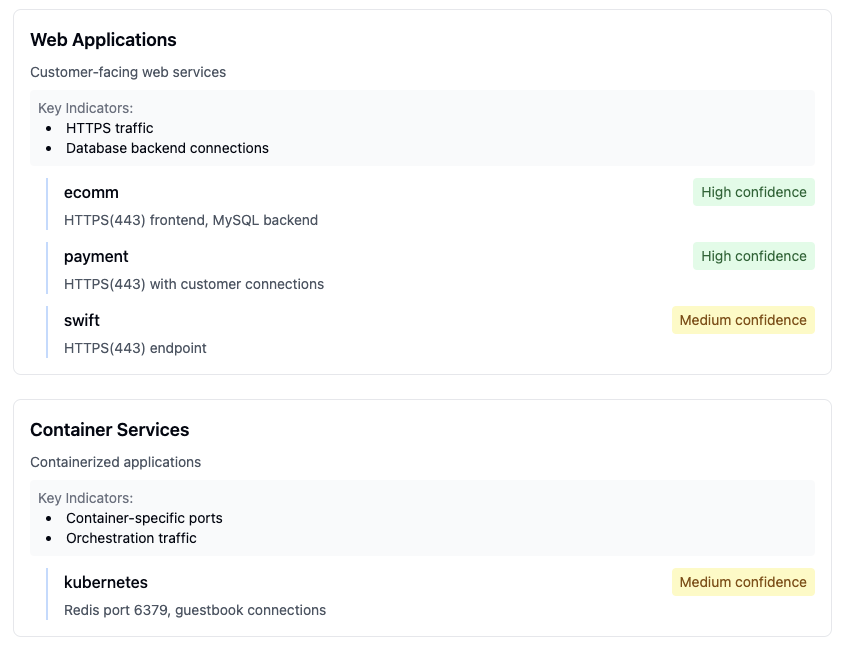
Detailed view of application communication patterns and dependencies
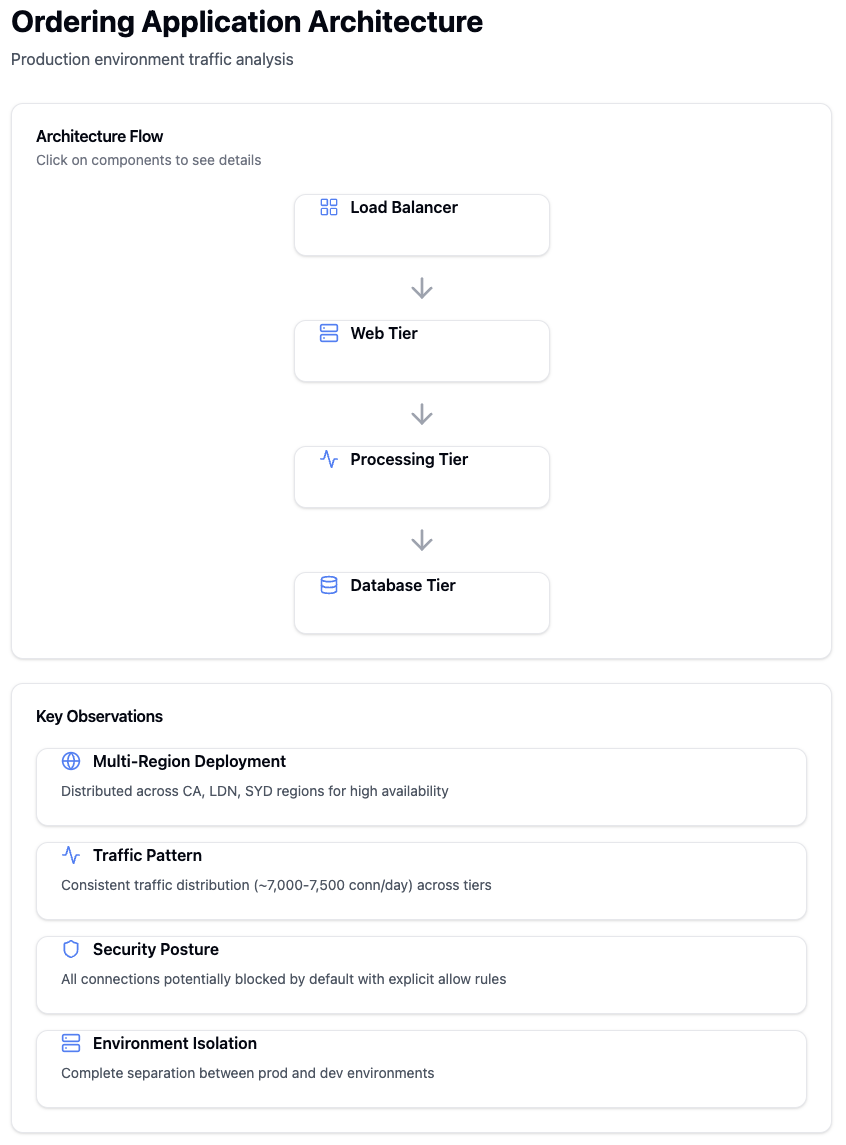
Analysis of traffic patterns between different application tiers
Infrastructure Insights
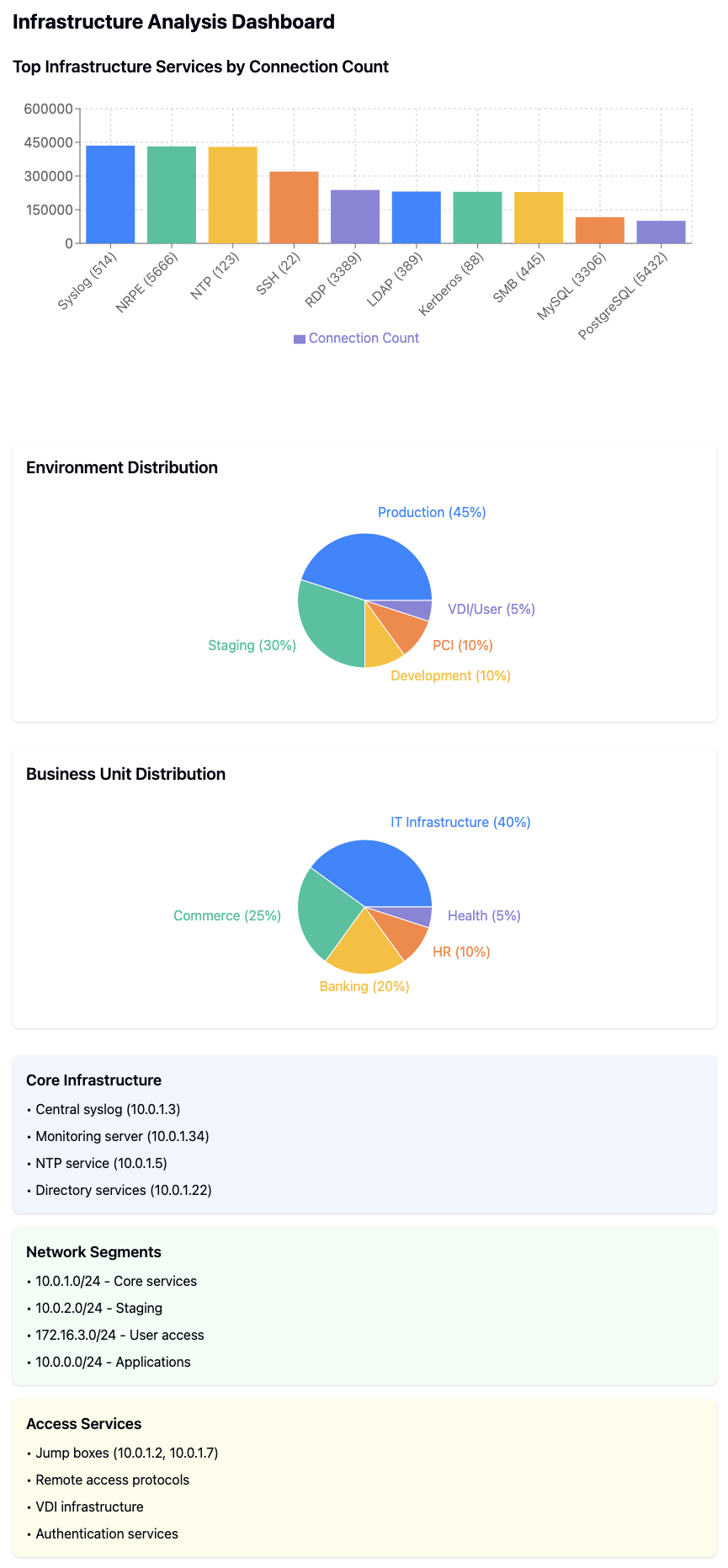
Overview dashboard showing key infrastructure metrics and status
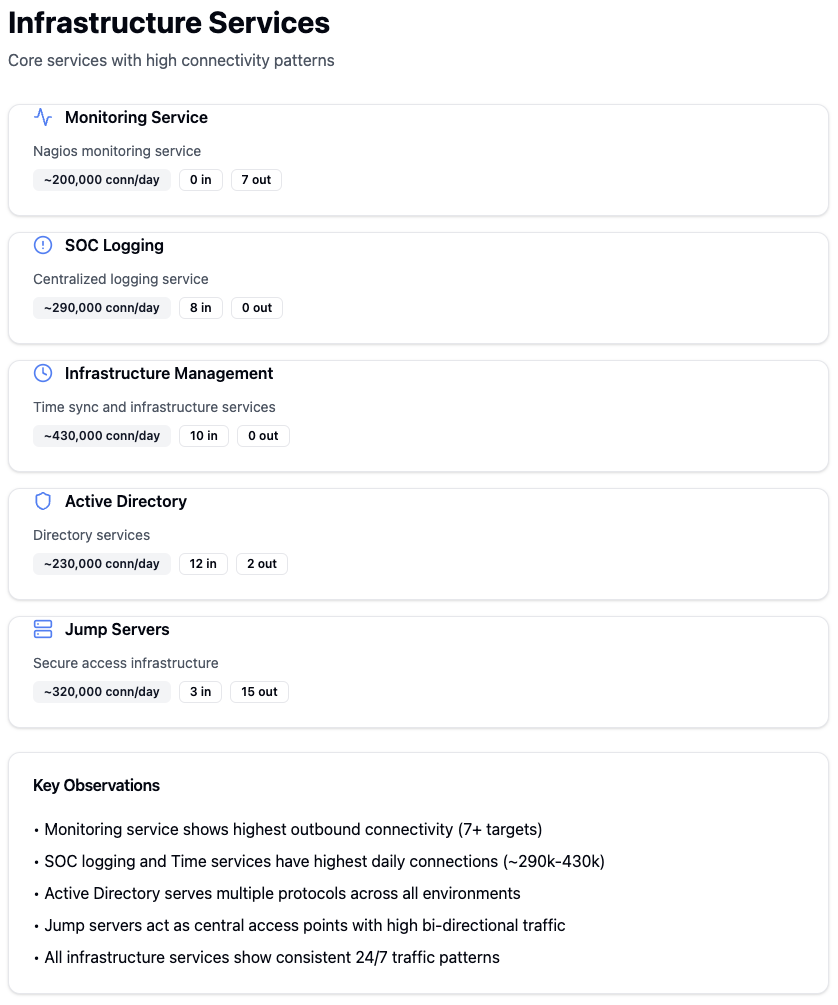
Detailed analysis of infrastructure service communications
Security Assessment
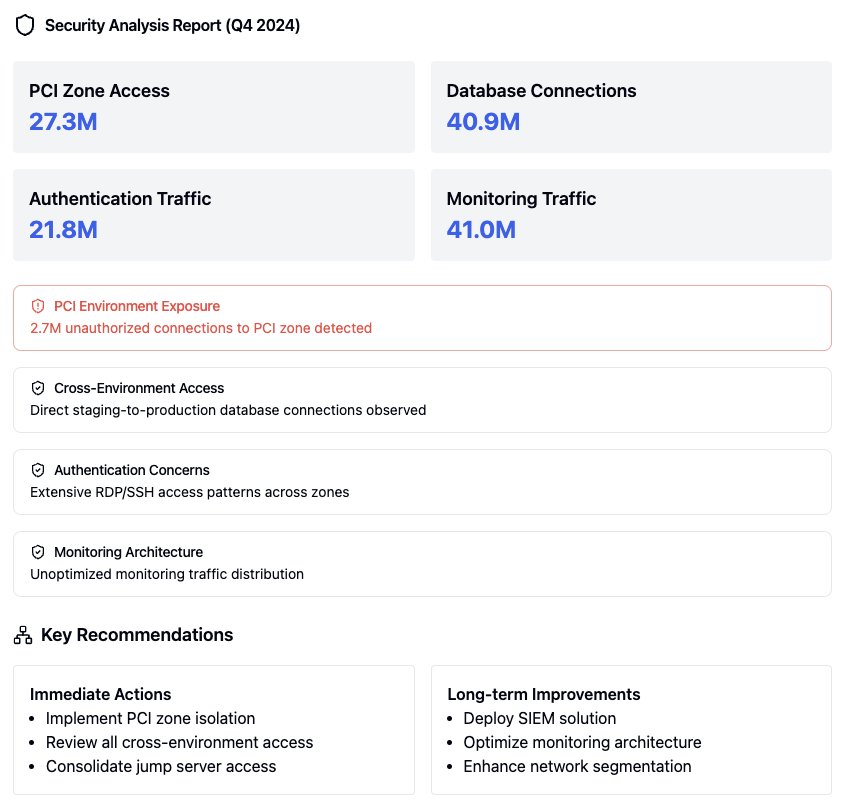
Comprehensive security analysis report
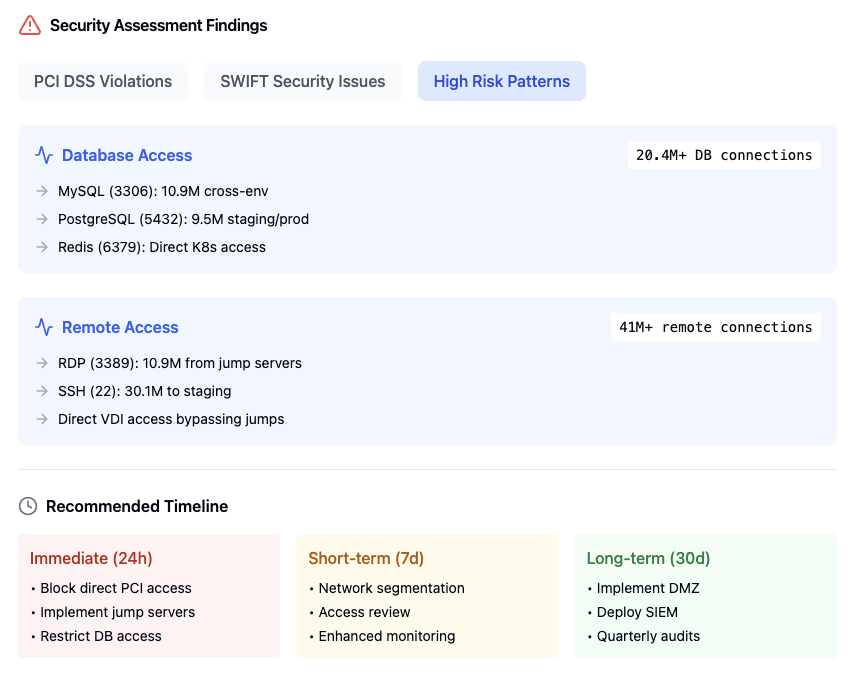
Security assessment findings for high-risk vulnerabilities
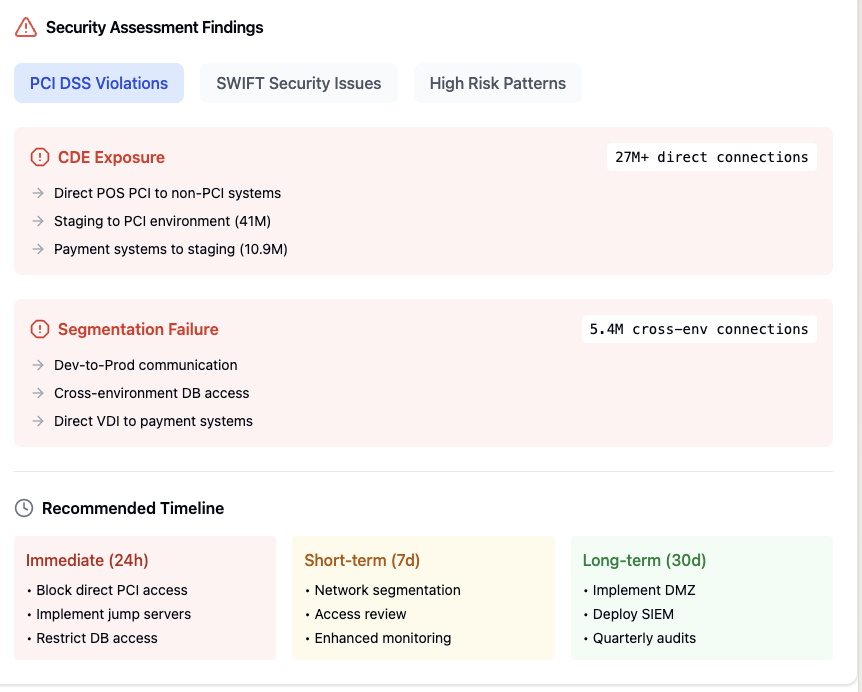
PCI compliance assessment findings
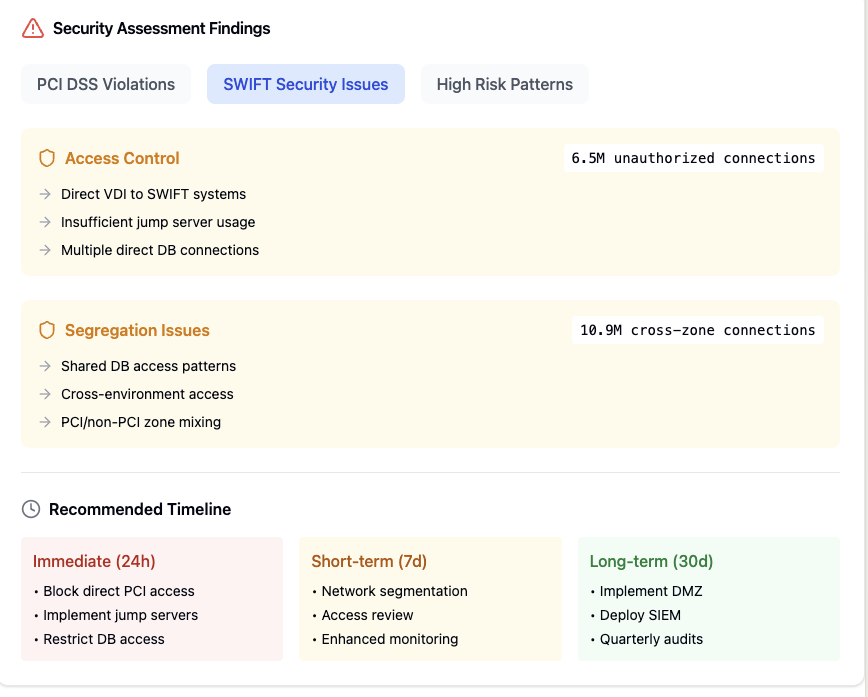
SWIFT compliance assessment findings
Remediation Planning
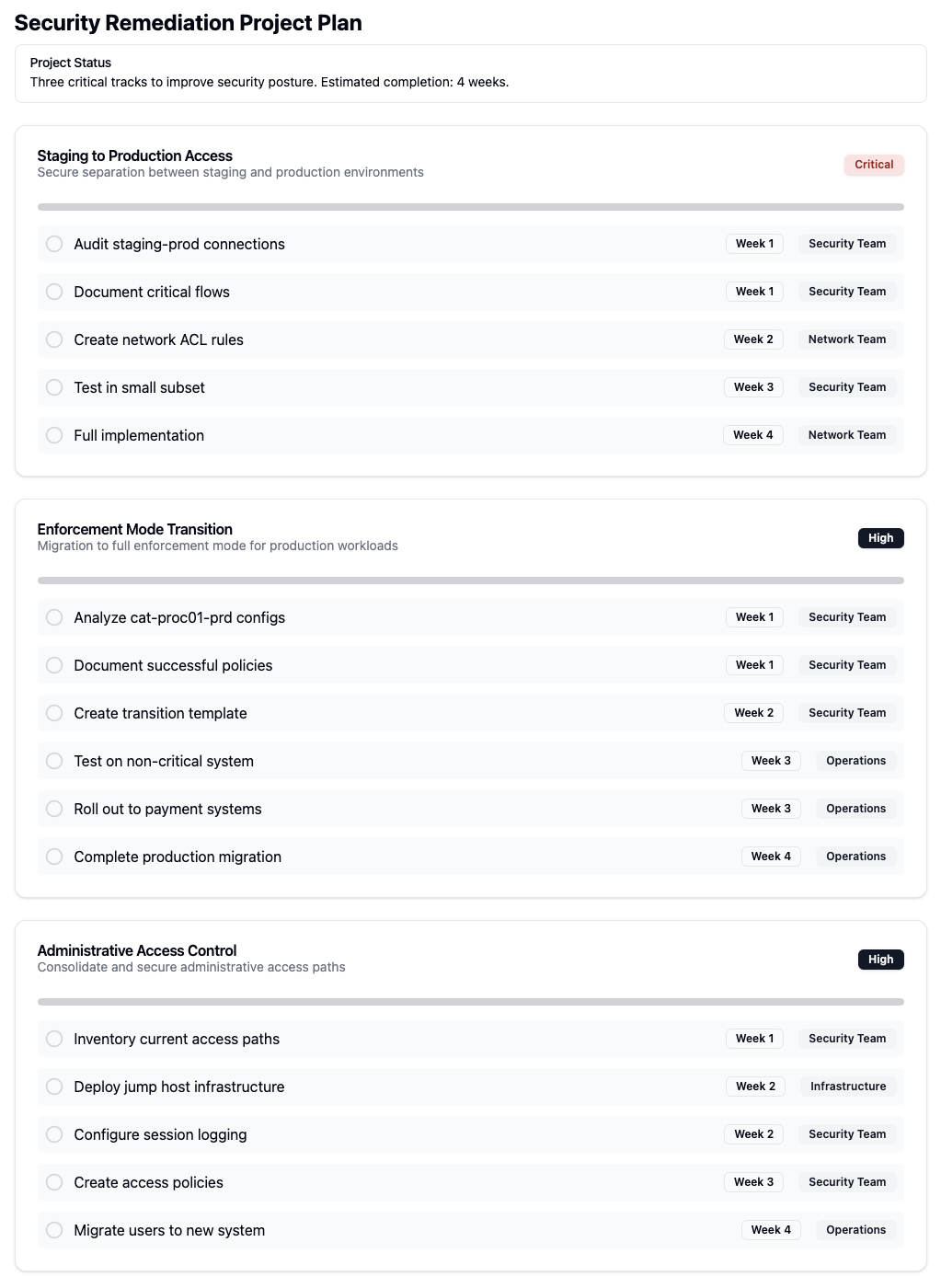
Overview of security remediation planning
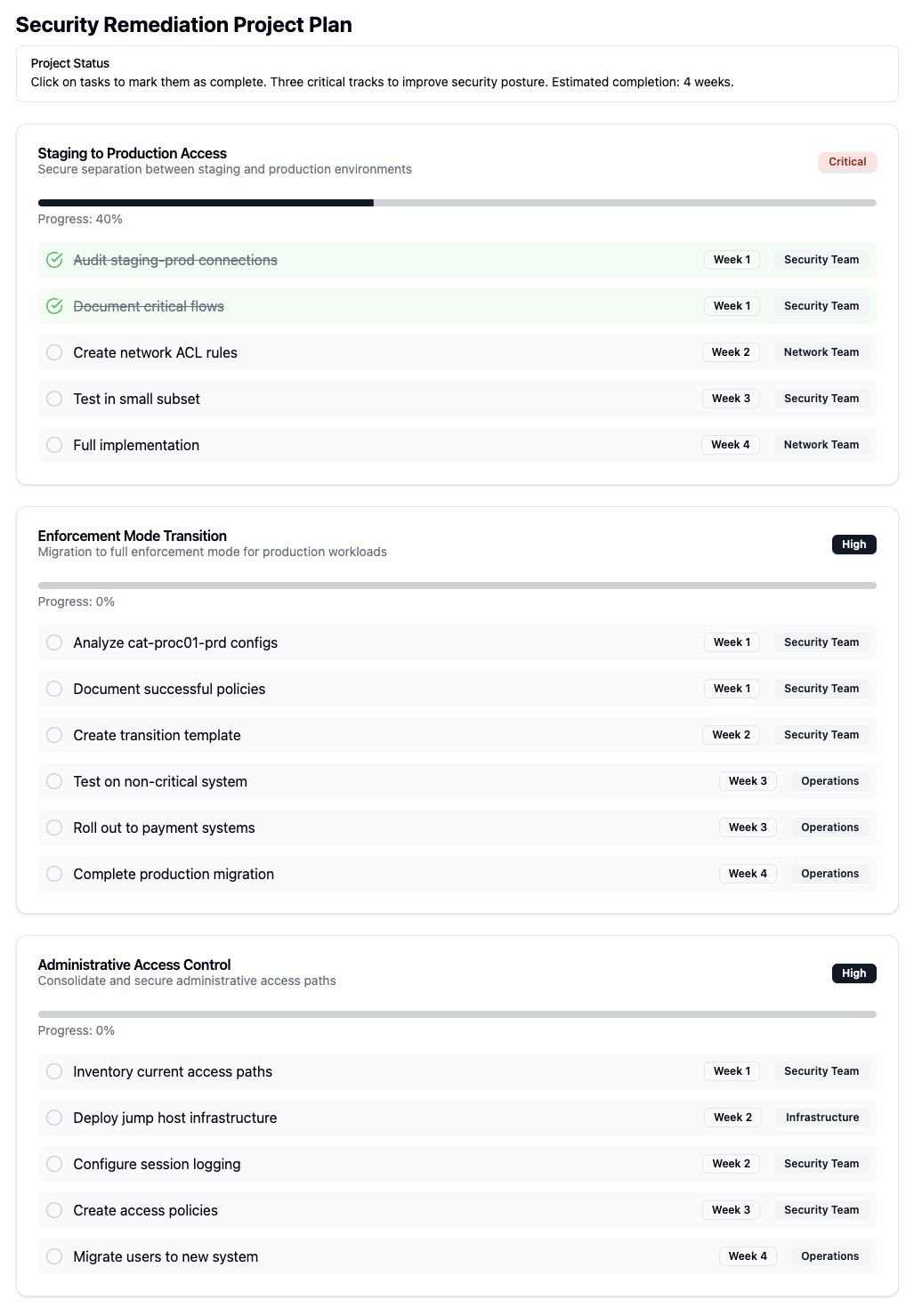
Detailed steps for security remediation implementation
Policy Management
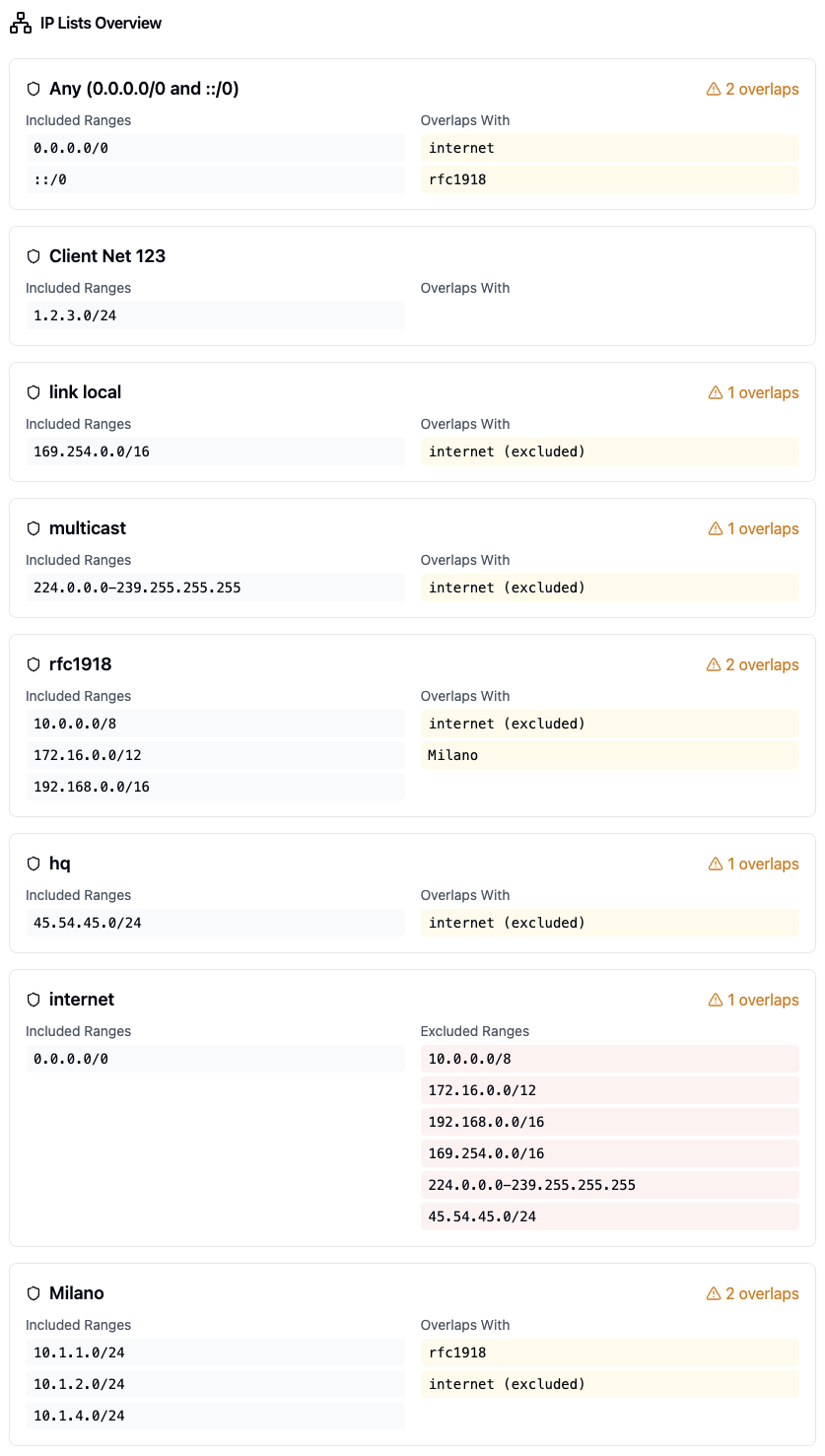
Management interface for IP lists
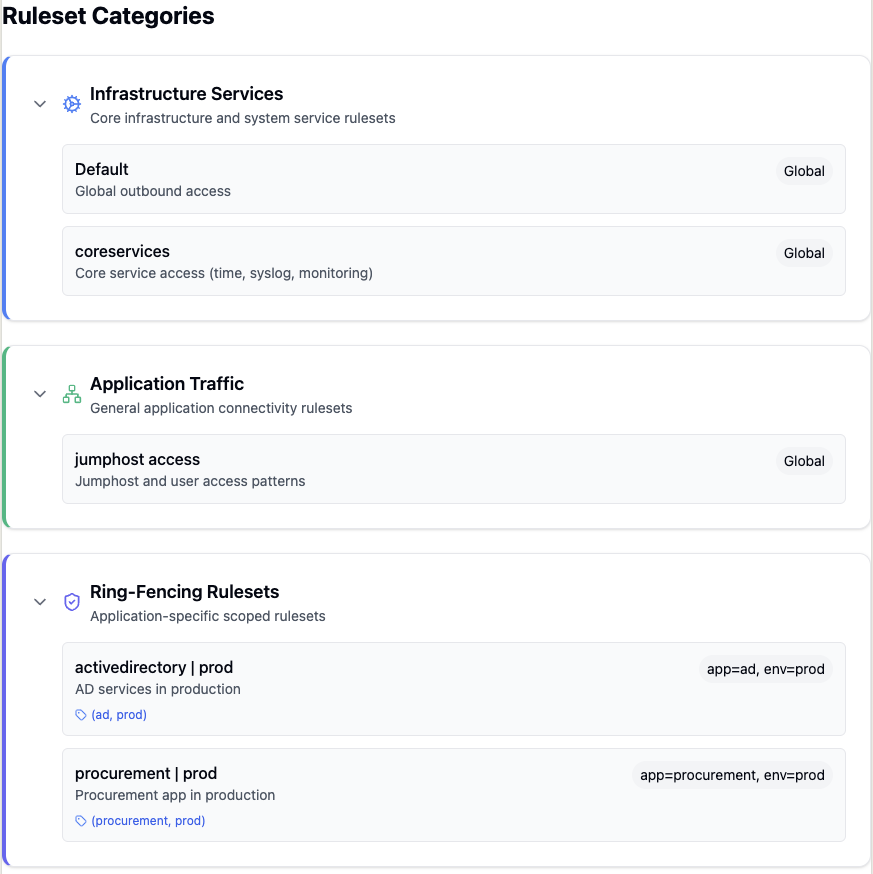
Overview of ruleset categories and organization
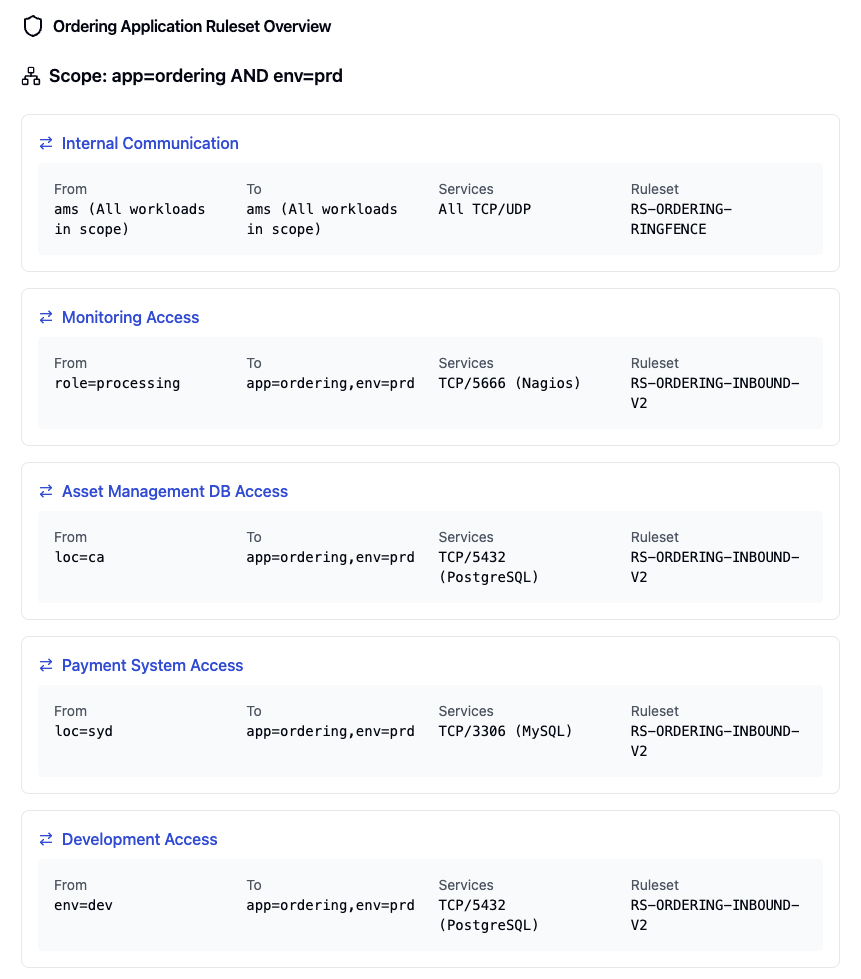
Configuration of application ruleset ordering
Workload Management
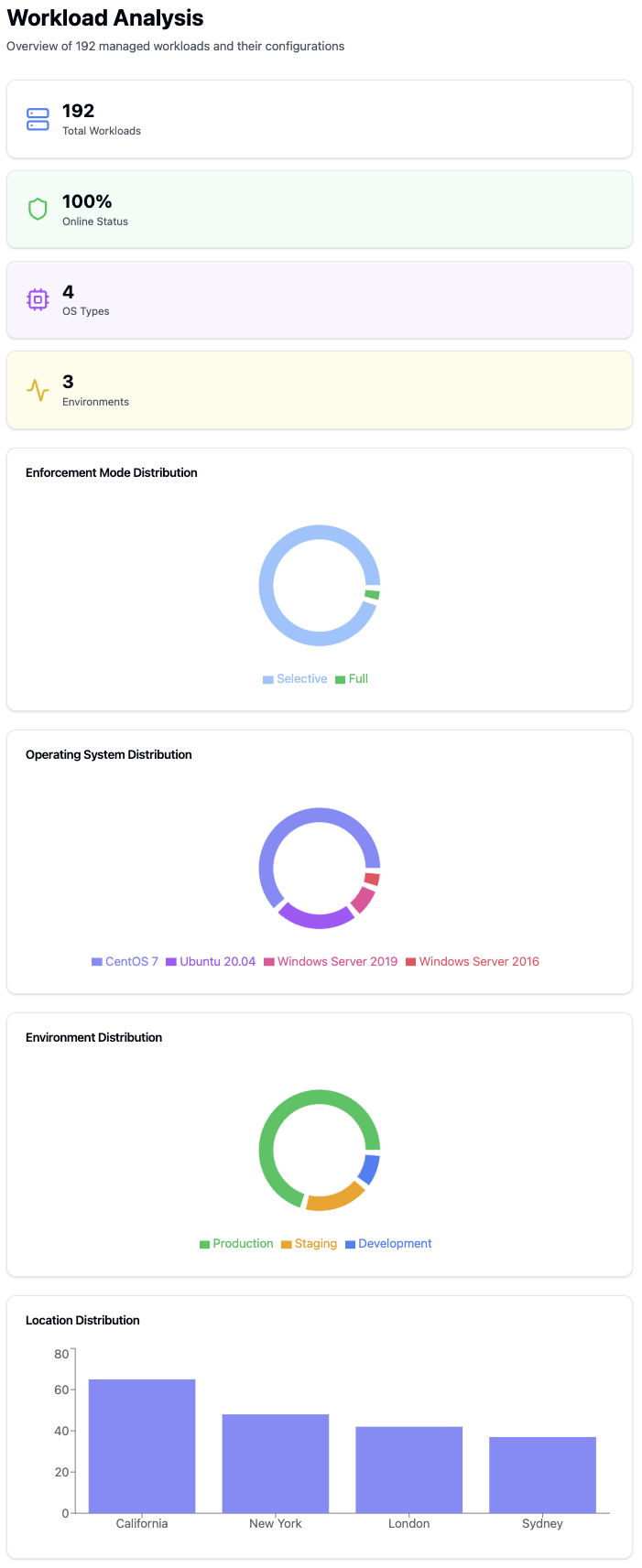
Detailed workload analysis and metrics
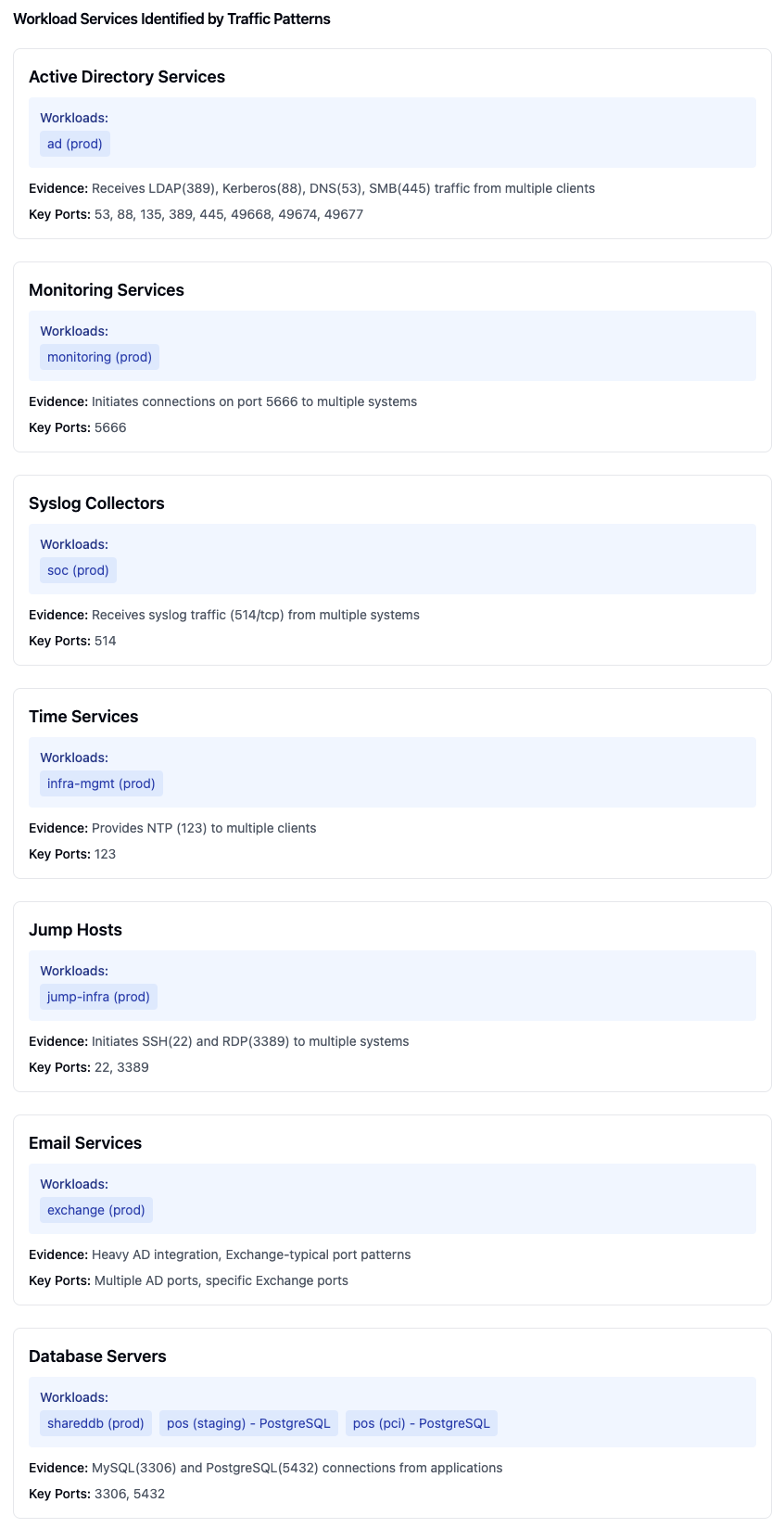
Identification and analysis of workload traffic patterns
Label Management
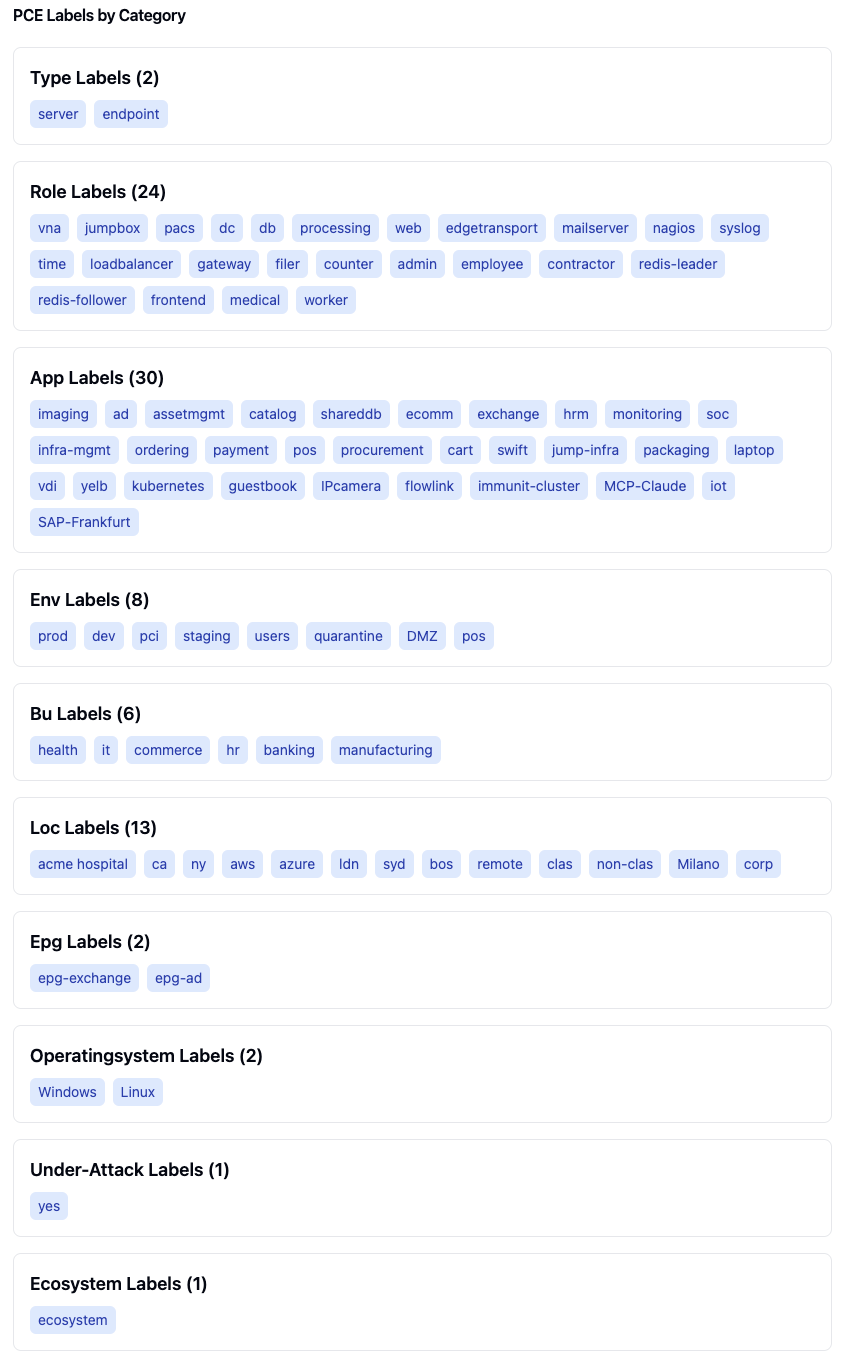
Organization of PCE labels by type and category
Service Analysis
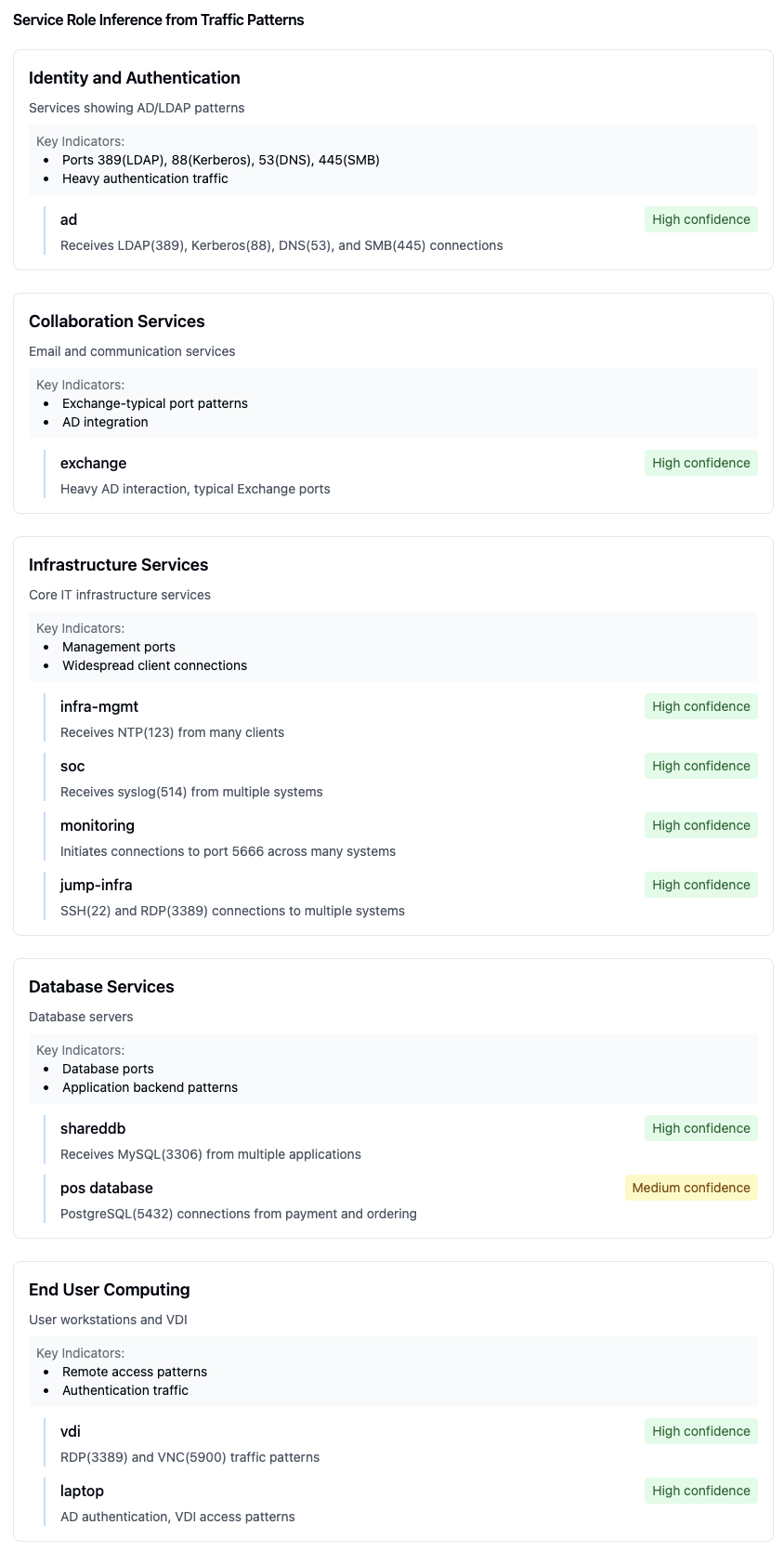
Automatic inference of service roles based on traffic patterns
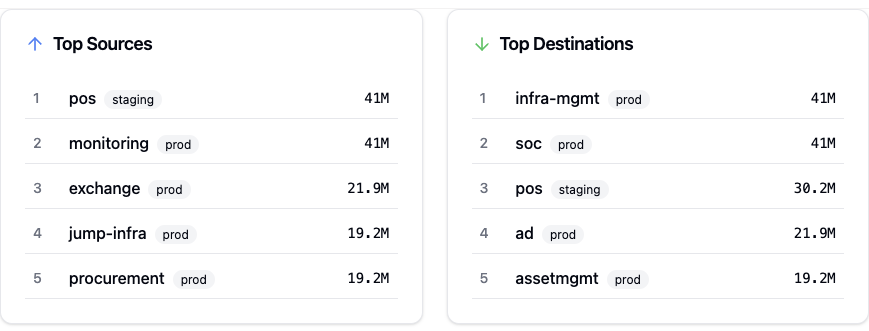
Analysis of top 5 traffic sources and destinations
Project Planning
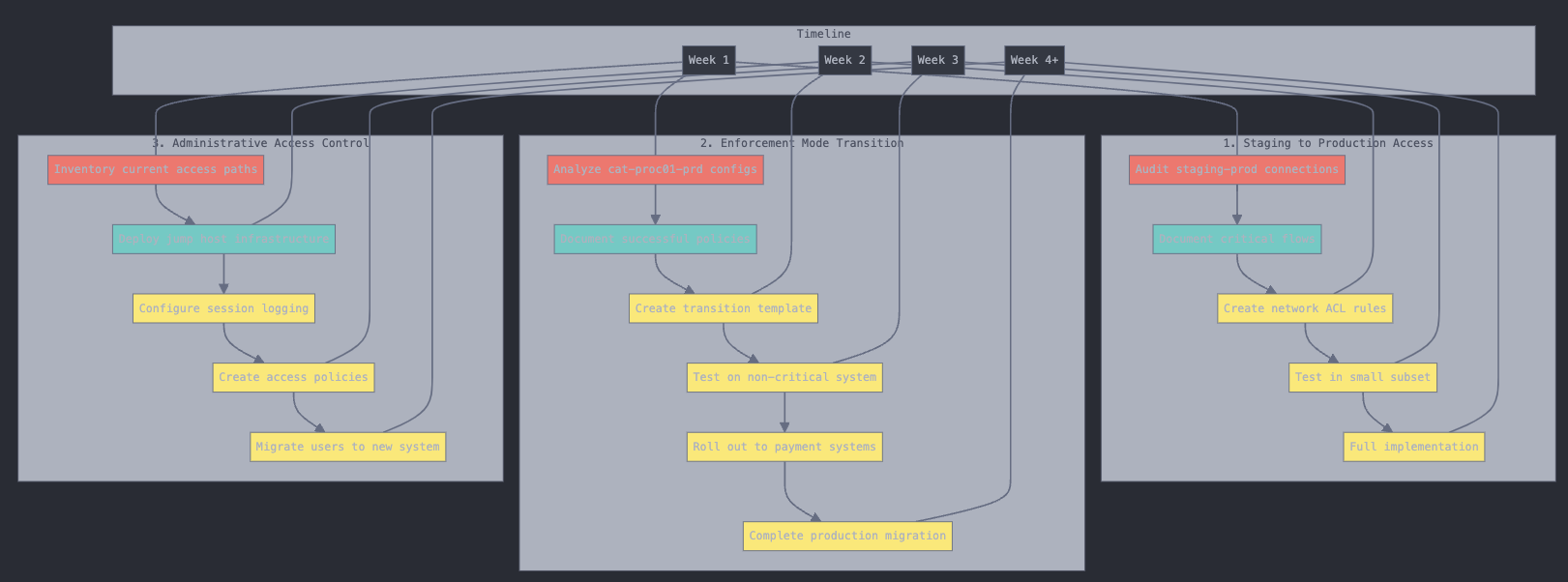
Project implementation timeline and milestones
Available Prompts
Ringfence Application
The ringfence-application prompt helps create security policies to isolate and protect applications by controlling inbound and outbound traffic.
Required Arguments:
application_name: Name of the application to ringfenceapplication_environment: Environment of the application to ringfence
Features:
- Creates rules for inter-tier communication within the application
- Uses traffic flows to identify required external connections
- Implements inbound traffic restrictions based on source applications
- Creates outbound traffic rules for necessary external communications
- Handles both intra-scope (same app/env) and extra-scope (external) connections
- Creates separate rulesets for remote application connections
Analyze Application Traffic
The analyze-application-traffic prompt provides detailed analysis of application traffic patterns and connectivity.
Required Arguments:
application_name: Name of the application to analyzeapplication_environment: Environment of the application to analyze
Analysis Features:
- Orders traffic by inbound and outbound flows
- Groups by application/environment/role combinations
- Identifies relevant label types and patterns
- Displays results in a React component format
- Shows protocol and port information
- Attempts to identify known service patterns (e.g., Nagios on port 5666)
- Categorizes traffic into infrastructure and application types
- Determines internet exposure
- Displays Illumio role, application, and environment labels
How to use MCP prompts
Step1: Click “Attach from MCP” button in the interface

Step 2: Choose from installed MCP servers
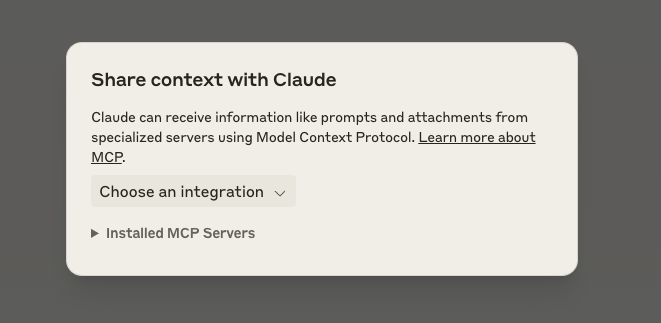
Step 3: Fill in required prompt arguments:
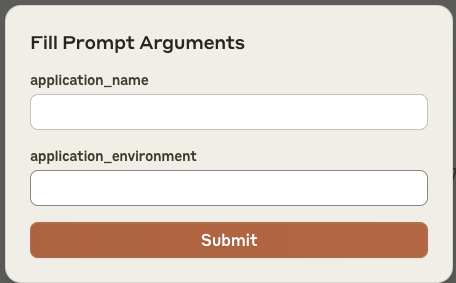
Step 4: Click Submit to send the configured prompt
How prompts work
- The MCP server sends the configured prompt to Claude
- Claude receives context through the Model Context Protocol
- Allows specialized handling of Illumio-specific tasks
This workflow enables automated context sharing between Illumio systems and Claude for application traffic analysis and ringfencing tasks.
Docker
The application is available as a Docker container from the GitHub Container Registry.
Pull the container
docker pull ghcr.io/alexgoller/illumio-mcp-server:latest
You can also use a specific version by replacing latest with a version number:
docker pull ghcr.io/alexgoller/illumio-mcp-server:1.0.0
Run with Claude Desktop
To use the container with Claude Desktop, you’ll need to:
- Create an environment file (e.g.
~/.illumio-mcp.env) with your PCE credentials:
PCE_HOST=your-pce-host
PCE_PORT=your-pce-port
PCE_ORG_ID=1
API_KEY=your-api-key
API_SECRET=your-api-secret
- Add the following configuration to your Claude Desktop config file:
On MacOS (~/Library/Application Support/Claude/claude_desktop_config.json):
{
  "mcpServers": {
    "illumio-mcp-docker": {
      "command": "docker",
      "args": [
        "run",
        "-i",
        "--init",
        "--rm",
        "-v",
        "/Users/YOUR_USERNAME/tmp:/var/log/illumio-mcp",
        "-e",
        "DOCKER_CONTAINER=true",
        "-e",
        "PYTHONWARNINGS=ignore",
        "--env-file",
        "/Users/YOUR_USERNAME/.illumio-mcp.env",
        "illumio-mcp:latest"
      ]
    }
  }
}
Make sure to:
- Replace
YOUR_USERNAMEwith your actual username - Create the log directory (e.g.
~/tmp) - Adjust the paths according to your system
Run Standalone
You can also run the container directly:
docker run -i --init --rm \
  -v /path/to/logs:/var/log/illumio-mcp \
  -e DOCKER_CONTAINER=true \
  -e PYTHONWARNINGS=ignore \
  --env-file ~/.illumio-mcp.env \
  ghcr.io/alexgoller/illumio-mcp-server:latest
Docker Compose
For development or testing, you can use Docker Compose. Create a docker-compose.yml file:
version: '3'
services:
  illumio-mcp:
    image: ghcr.io/alexgoller/illumio-mcp-server:latest
    init: true
    volumes:
      - ./logs:/var/log/illumio-mcp
    environment:
      - DOCKER_CONTAINER=true
      - PYTHONWARNINGS=ignore
    env_file:
      - ~/.illumio-mcp.env
Then run:
docker-compose up
Known Issues
When running the container, you may see syntax warnings from the Illumio SDK’s regular expressions. These warnings don’t affect functionality and are automatically suppressed in the container.
If you’re seeing the warnings when running the container, you can manually suppress them by adding:
docker run \
  -e PYTHONWARNINGS=ignore \
  ... other environment variables ...
  ghcr.io/alexgoller/illumio-mcp-server:latest
Or in docker-compose.yml:
services:
  illumio-mcp:
    environment:
      - PYTHONWARNINGS=ignore
      # ... other environment variables ...
Claude Desktop Configuration
For Claude Desktop users, add this configuration to your Claude Desktop config file:
{
  "mcpServers": {
    "illumio-mcp-docker": {
      "command": "docker",
      "args": [
        "run",
        "-i",
        "--init",
        "--rm",
        "-v",
        "/Users/YOUR_USERNAME/tmp:/var/log/illumio-mcp",
        "-e",
        "DOCKER_CONTAINER=true",
        "-e",
        "PYTHONWARNINGS=ignore",
        "--env-file",
        "/Users/YOUR_USERNAME/.illumio-mcp.env",
        "illumio-mcp:latest"
      ]
    }
  }
}
Make sure to:
- Replace
YOUR_USERNAMEwith your actual username - Create a log directory at
~/tmp(or adjust the path as needed) - Create an environment file at
~/.illumio-mcp.envwith your PCE credentials:
PCE_HOST=your-pce-host
PCE_PORT=your-pce-port
PCE_ORG_ID=1
API_KEY=your-api-key
API_SECRET=your-api-secret
The configuration:
- Uses Docker to run the container
- Mounts a local directory for logs
- Suppresses Python warnings
- Loads PCE credentials from an environment file
- Enables proper container cleanup with
--initand--rm
Dev Tools Supporting MCP
The following are the main code editors that support the Model Context Protocol. Click the link to visit the official website for more information.







