
Iodapp
What is Iodapp
iodapp is a desktop application designed to facilitate the discovery and installation of MCP servers within the Claude Desktop Application.
Use cases
Use cases for iodapp include quickly setting up various MCP servers for research, development, or personal projects, making it ideal for users who need to manage multiple servers efficiently.
How to use
To use iodapp, first install the Claude Desktop Application and the IOD Application. Open iodapp, click ‘go to website’ to access the IOD website, search for your desired MCP server, and click ‘Install’. Complete any required configuration, then click ‘Auto-Install’ to install the server in your Claude Desktop Application.
Key features
Key features of iodapp include one-click installation of MCP servers, user-friendly interface, and the ability to handle server configurations seamlessly.
Where to use
undefined
Clients Supporting MCP
The following are the main client software that supports the Model Context Protocol. Click the link to visit the official website for more information.





Overview
What is Iodapp
iodapp is a desktop application designed to facilitate the discovery and installation of MCP servers within the Claude Desktop Application.
Use cases
Use cases for iodapp include quickly setting up various MCP servers for research, development, or personal projects, making it ideal for users who need to manage multiple servers efficiently.
How to use
To use iodapp, first install the Claude Desktop Application and the IOD Application. Open iodapp, click ‘go to website’ to access the IOD website, search for your desired MCP server, and click ‘Install’. Complete any required configuration, then click ‘Auto-Install’ to install the server in your Claude Desktop Application.
Key features
Key features of iodapp include one-click installation of MCP servers, user-friendly interface, and the ability to handle server configurations seamlessly.
Where to use
undefined
Clients Supporting MCP
The following are the main client software that supports the Model Context Protocol. Click the link to visit the official website for more information.
Content
IOD App
IOD App is a desktop application enabling one-click install of MCP servers in your Claude Desktop Application.
Usage
Prerequisites
Instructions
- Open the IOD App and click on the “go to website” button.

this will open the IOD website in another window.
-
In the IOD website window search for the MCP server you are interested in.
-
Click on the “Install” button next to it.

Some servers requires some configuration to be provided. A form will be displayed for you to complete any missing information.
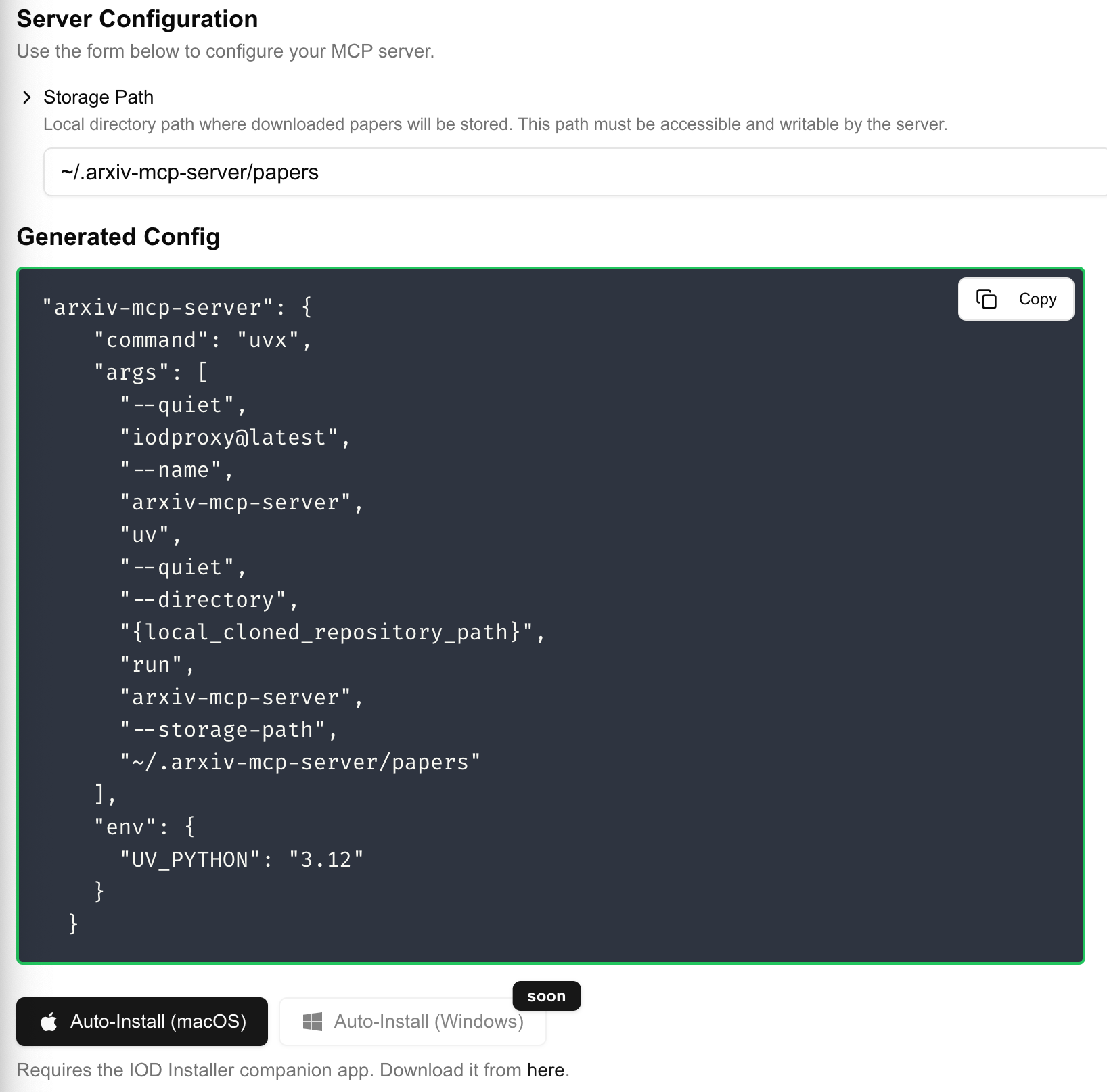
In that instance for the arxiv mcp server a storage path to a folder is required. Note that a default value is provided and works in most cases.
- Finally click on the ‘Auto-Install’ button at the bottom of the form. This will trigger the iod application to install the MCP server for you in your Claude Desktop Application.
Once the server is installed by iod, the application should show a success notification. The Claude Desktop App will restart to complete the installation.
Contributions
We welcome contributions to this project. Please feel free to open a PR or an issue if you have any suggestions or improvements.
Dev Tools Supporting MCP
The following are the main code editors that support the Model Context Protocol. Click the link to visit the official website for more information.







