
Mcp Android Server Python
What is Mcp Android Server Python
mcp-android-server-python is a server implementation of the Model Context Protocol (MCP) designed for automating Android devices using uiautomator2. It allows integration with AI agents to control Android devices through natural language commands.
Use cases
Use cases for mcp-android-server-python include AI agents interacting with real devices, automated quality assurance testing, Android bot frameworks, and device management and monitoring.
How to use
To use mcp-android-server-python, ensure you have Python 3.13 or higher, Android Debug Bridge (adb) installed, and a compatible Android device connected with USB debugging enabled. Follow the installation instructions in the README to set up the server and start automating your Android device.
Key features
Key features include the ability to start and manage apps, retrieve installed apps, perform UI interactions like tapping and swiping, get device information, capture screenshots, unlock or sleep the screen, and run diagnostics.
Where to use
mcp-android-server-python can be used in fields such as automated testing, AI-driven device control, remote management, and UI automation for Android applications.
Clients Supporting MCP
The following are the main client software that supports the Model Context Protocol. Click the link to visit the official website for more information.





Overview
What is Mcp Android Server Python
mcp-android-server-python is a server implementation of the Model Context Protocol (MCP) designed for automating Android devices using uiautomator2. It allows integration with AI agents to control Android devices through natural language commands.
Use cases
Use cases for mcp-android-server-python include AI agents interacting with real devices, automated quality assurance testing, Android bot frameworks, and device management and monitoring.
How to use
To use mcp-android-server-python, ensure you have Python 3.13 or higher, Android Debug Bridge (adb) installed, and a compatible Android device connected with USB debugging enabled. Follow the installation instructions in the README to set up the server and start automating your Android device.
Key features
Key features include the ability to start and manage apps, retrieve installed apps, perform UI interactions like tapping and swiping, get device information, capture screenshots, unlock or sleep the screen, and run diagnostics.
Where to use
mcp-android-server-python can be used in fields such as automated testing, AI-driven device control, remote management, and UI automation for Android applications.
Clients Supporting MCP
The following are the main client software that supports the Model Context Protocol. Click the link to visit the official website for more information.
Content


MCP Android Agent
This project provides an MCP (Model Context Protocol) server for automating Android devices using uiautomator2. It’s designed to be easily plugged into AI agents like GitHub Copilot Chat, Claude, or Open Interpreter to control Android devices through natural language.
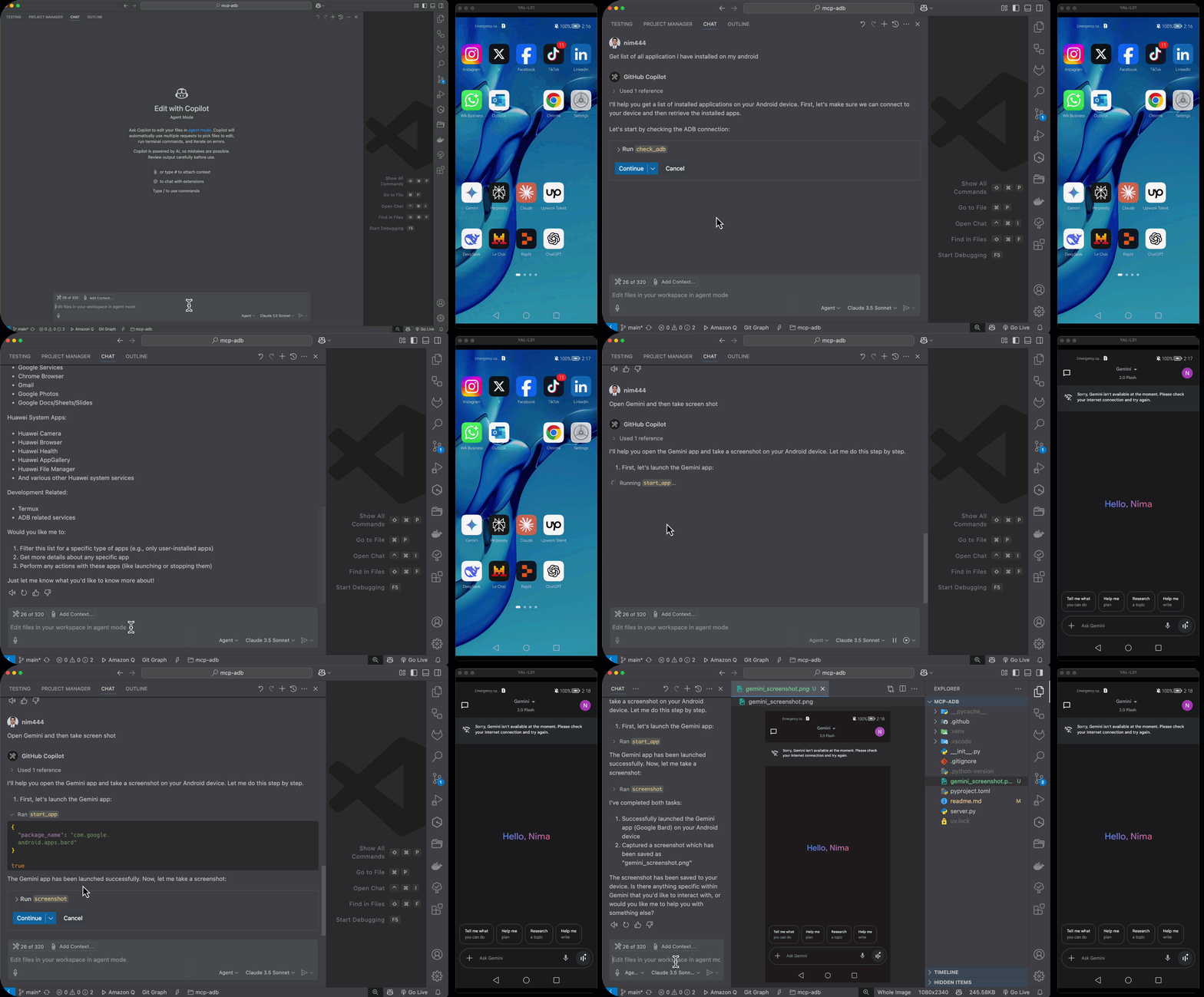
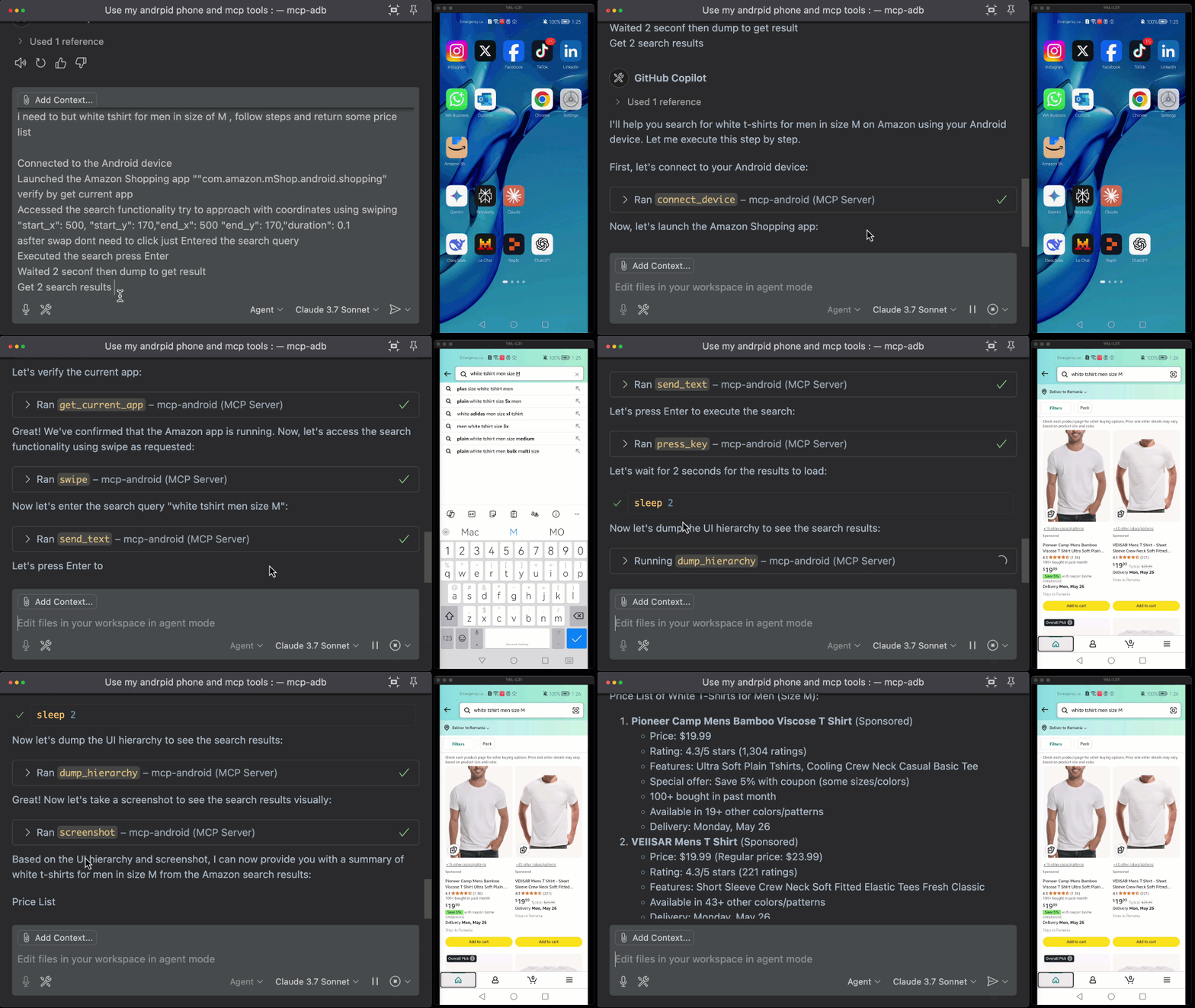
Quick Demo
Requirements
- Python 3.13 or higher
- Android Debug Bridge (adb) installed and in PATH
- Connected Android device with USB debugging enabled
- uiautomator2 compatible Android device
Features
- Start, stop, and manage apps by package name
- Retrieve installed apps and current foreground app
- Tap, swipe, scroll, drag, and perform UI interactions
- Get device info, screen resolution, battery status, and more
- Capture screenshots or last toast messages
- Programmatically unlock, wake, or sleep the screen
- Clear app data and wait for activities
- Includes a health check and
adbdiagnostic tool
Use Cases
Perfect for:
- AI agents that need to interact with real devices
- Remote device control setups
- Automated QA tools
- Android bot frameworks
- UI testing and automation
- Device management and monitoring
Installation
1. Clone the repo
git clone https://github.com/nim444/mcp-android.git
cd mcp-android
2. Create and activate virtual environment
# Using uv (https://github.com/astral-sh/uv)
uv venv
source .venv/bin/activate  # On Windows: .venv\\Scripts\\activate
3. Install dependencies
uv pip install
Running the Server
Option 1: Using uvicorn (Recommended)
uvicorn server:app --factory --host 0.0.0.0 --port 8000
Option 2: Using MCP stdio (For AI agent integration)
python server.py
Usage
An MCP client is needed to use this server. The Claude Desktop app is an example of an MCP client. To use this server with Claude Desktop:
Locate your Claude Desktop configuration file
- Windows:
%APPDATA%\Claude\claude_desktop_config.json - macOS:
~/Library/Application Support/Claude/claude_desktop_config.json
Add the Android MCP server configuration to the mcpServers section
{
  "mcpServers": {
    "mcp-android": {
      "type": "stdio",
      "command": "bash",
      "args": [
        "-c",
        "cd /path/to/mcp-adb && source .venv/bin/activate && python -m server"
      ]
    }
  }
}
Replace /path/to/mcp-adb with the absolute path to where you cloned this repository. For example: /Users/username/Projects/mcp-adb
Using with VS Code
You can also use this MCP server with VS Code’s agent mode (requires VS Code 1.99 or newer). To set up:
- Create a
.vscode/mcp.jsonfile in your workspace:
{
  "servers": {
    "mcp-android": {
      "type": "stdio",
      "command": "bash",
      "args": [
        "-c",
        "cd /path/to/mcp-adb && source .venv/bin/activate && python -m server"
      ]
    }
  }
}
Replace /path/to/mcp-adb with the absolute path to where you cloned this repository.
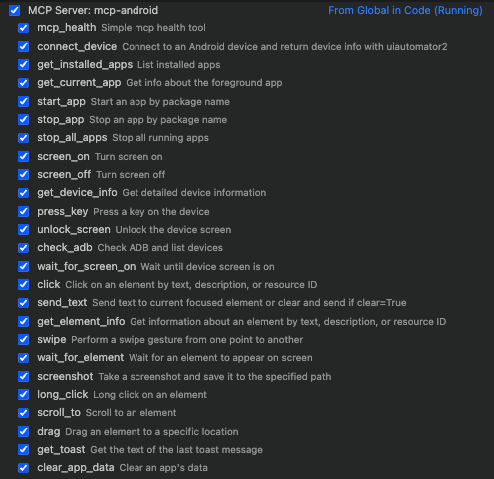
After adding the configuration, you can manage the server using:
- Command Palette →
MCP: List Serversto view and manage configured servers - Command Palette →
MCP: Start Serverto start the server - The server’s tools will be available in VS Code’s agent mode chat
UI Inspector
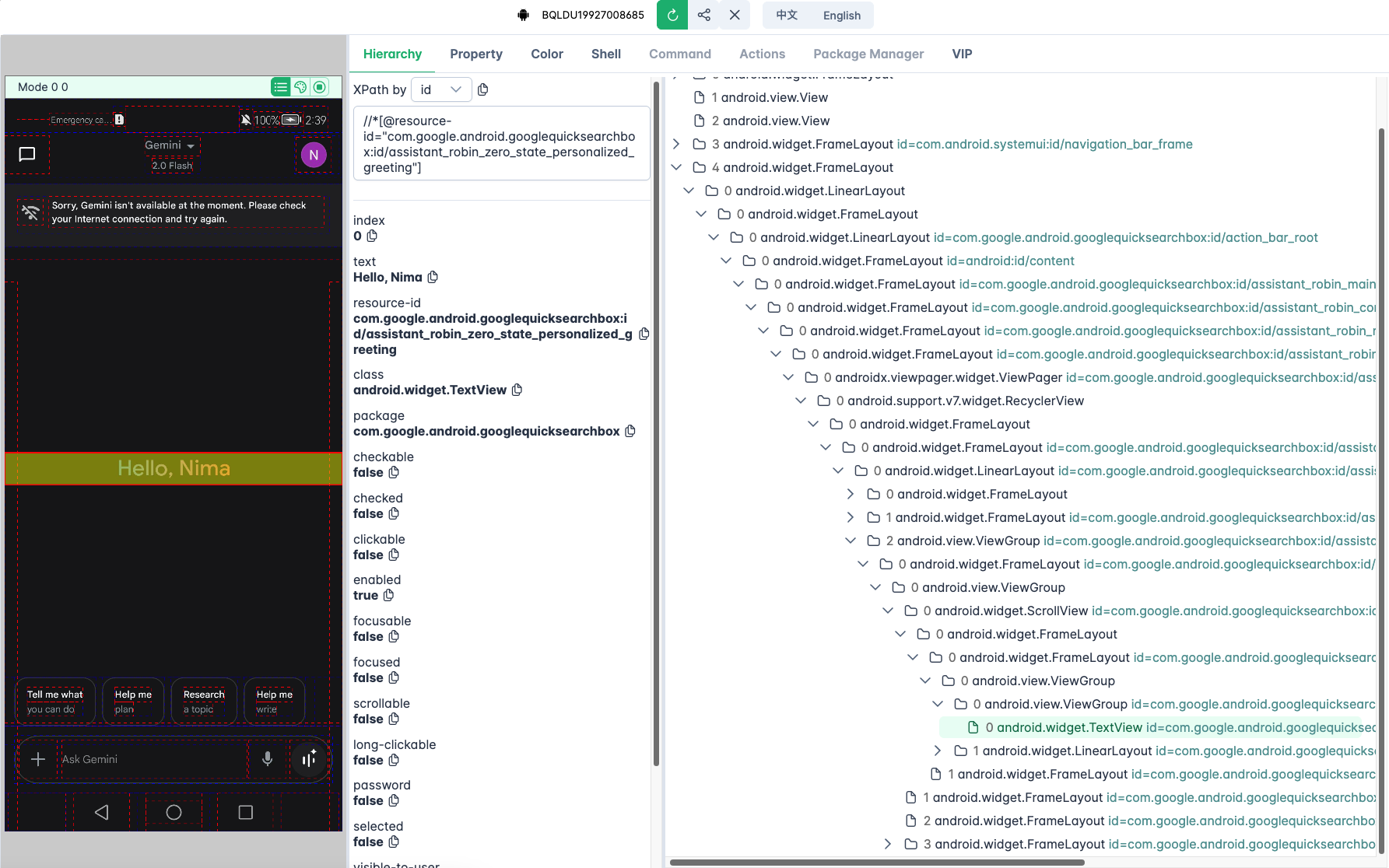
The project includes support for uiauto.dev, a powerful UI inspection tool for viewing and analyzing your device’s interface structure.
- Install the UI inspector:
uv pip install uiautodev
- Start the inspector:
uiauto.dev
- Open your browser and navigate to https://uiauto.dev
Available MCP Tools
| Tool Name | Description |
|---|---|
mcp_health |
Check if the MCP server is running properly |
connect_device |
Connect to an Android device and get basic info |
get_installed_apps |
List all installed apps with version and package info |
get_current_app |
Get info about the app currently in the foreground |
start_app |
Start an app by its package name |
stop_app |
Stop an app by its package name |
stop_all_apps |
Stop all currently running apps |
screen_on |
Turn on the screen |
screen_off |
Turn off the screen |
get_device_info |
Get detailed device info: serial, resolution, battery, etc. |
press_key |
Simulate hardware key press (e.g. home, back, menu, etc.) |
unlock_screen |
Unlock the screen (turn on and swipe if necessary) |
check_adb |
Check if ADB is installed and list connected devices |
wait_for_screen_on |
Wait asynchronously until the screen is turned on |
click |
Tap on an element by text, resourceId, or description |
long_click |
Perform a long click on an element |
send_text |
Input text into currently focused field (optionally clearing before) |
get_element_info |
Get info on UI elements (text, bounds, clickable, etc.) |
swipe |
Swipe from one coordinate to another |
wait_for_element |
Wait for an element to appear on screen |
screenshot |
Take and save a screenshot from the device |
scroll_to |
Scroll until a given element becomes visible |
drag |
Drag an element to a specific screen location |
get_toast |
Get the last toast message shown on screen |
clear_app_data |
Clear user data/cache of a specified app |
wait_activity |
Wait until a specific activity appears |
dump_hierarchy |
Dump the UI hierarchy of the current screen as XML |
License
This project is licensed under the MIT License - see the LICENSE file for details.
Dev Tools Supporting MCP
The following are the main code editors that support the Model Context Protocol. Click the link to visit the official website for more information.







