
Mcp Client Jupyter Chat
What is Mcp Client Jupyter Chat
mcp-client-jupyter-chat is a JupyterLab extension that enables chat functionality with AI models while supporting the Model Context Protocol (MCP). It integrates AI capabilities and allows for interactive tool usage through MCP servers.
Use cases
Use cases include interactive data analysis, educational tutoring, AI-assisted programming, and collaborative research where users can engage with AI models in real-time.
How to use
To use mcp-client-jupyter-chat, install the extension via pip with the command ‘pip install mcp_client_jupyter_chat’. After installation, configure your AI models in JupyterLab’s Settings Editor under the ‘MCP Chat’ section, providing necessary API keys and model names.
Key features
Key features include seamless integration with AI models (currently supporting Anthropi), real-time streaming of responses with step-by-step reasoning, support for MCP server tools with interactive execution, rich content display, and an interactive chat interface.
Where to use
mcp-client-jupyter-chat can be used in various fields such as data science, machine learning, educational environments, and any domain that requires interactive AI-driven chat functionalities.
Clients Supporting MCP
The following are the main client software that supports the Model Context Protocol. Click the link to visit the official website for more information.





Overview
What is Mcp Client Jupyter Chat
mcp-client-jupyter-chat is a JupyterLab extension that enables chat functionality with AI models while supporting the Model Context Protocol (MCP). It integrates AI capabilities and allows for interactive tool usage through MCP servers.
Use cases
Use cases include interactive data analysis, educational tutoring, AI-assisted programming, and collaborative research where users can engage with AI models in real-time.
How to use
To use mcp-client-jupyter-chat, install the extension via pip with the command ‘pip install mcp_client_jupyter_chat’. After installation, configure your AI models in JupyterLab’s Settings Editor under the ‘MCP Chat’ section, providing necessary API keys and model names.
Key features
Key features include seamless integration with AI models (currently supporting Anthropi), real-time streaming of responses with step-by-step reasoning, support for MCP server tools with interactive execution, rich content display, and an interactive chat interface.
Where to use
mcp-client-jupyter-chat can be used in various fields such as data science, machine learning, educational environments, and any domain that requires interactive AI-driven chat functionalities.
Clients Supporting MCP
The following are the main client software that supports the Model Context Protocol. Click the link to visit the official website for more information.
Content
mcp_client_jupyter_chat


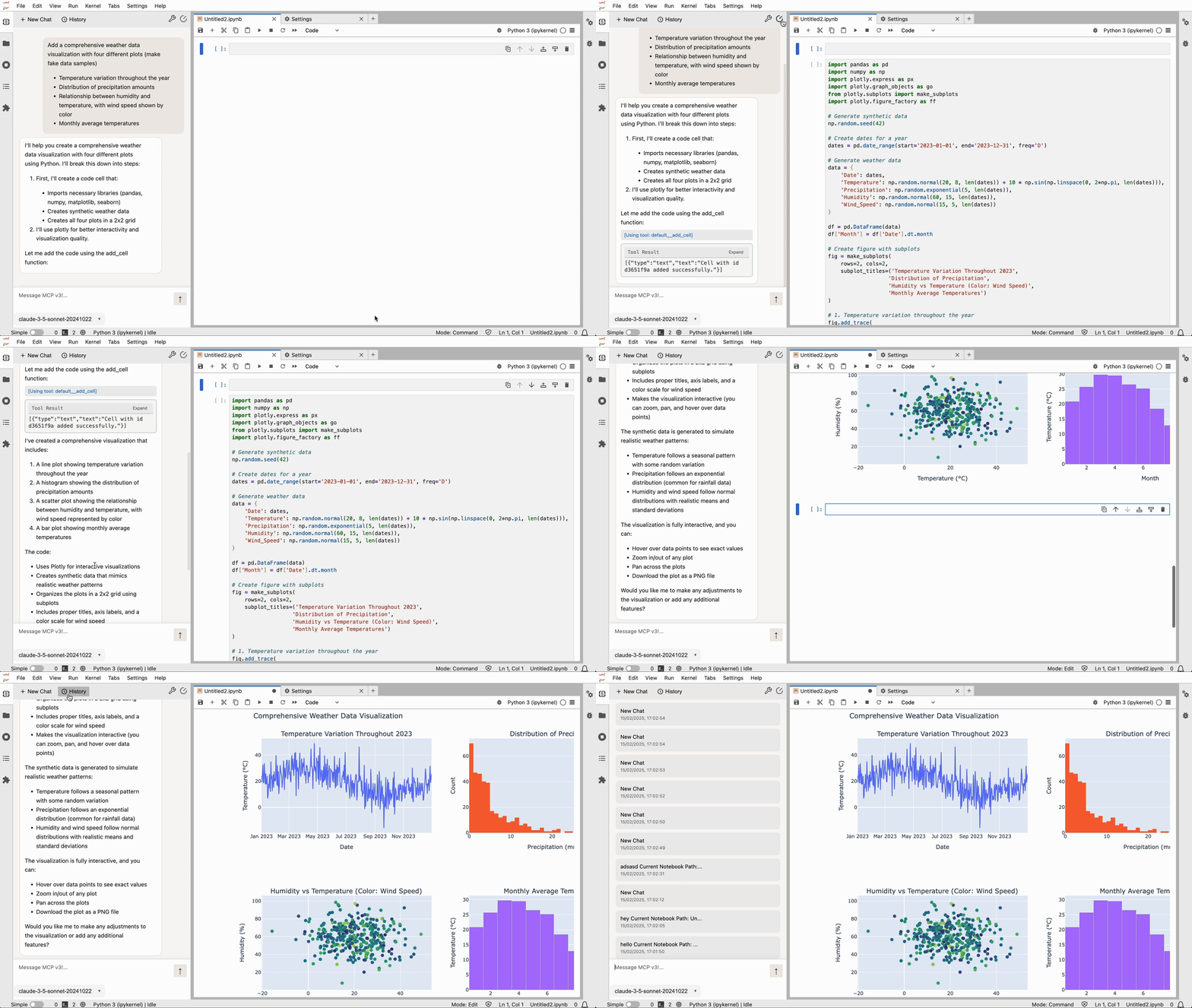
A JupyterLab extension for Chat with AI supporting Model Context Protocol (MCP). This extension integrates AI and provides interactive tool usage capabilities through MCP servers.
Demo
Features
- Seamless integration with AI models (Currently supported models are Anthropi. More models are coming soon.
) - Real-time streaming of responses with step-by-step reasoning
- Support for MCP server tools with interactive execution:
- Rich content display
- Interactive chat interface
Requirements
- JupyterLab >= 4.0.0
- An Anthropic API key for Claude access
- Running MCP server(s) for tool integration (optional)
Model Configuration
The extension supports multiple Claude models through the Anthropic API. You’ll need to:
- Obtain an Anthropic API key from Anthropic’s website
- Configure your models in JupyterLab’s Settings Editor under the “MCP Chat” section
- For each model, provide:
- Name (e.g., “gpt-4”)
- API Key
- Set as default (optional)
Install
To install the extension, execute:
pip install mcp_client_jupyter_chat
Uninstall
To remove the extension, execute:
pip uninstall mcp_client_jupyter_chat
Contributing
Development install
Note: You will need NodeJS to build the extension package.
The jlpm command is JupyterLab’s pinned version of
yarn that is installed with JupyterLab. You may use
yarn or npm in lieu of jlpm below.
# Clone the repo to your local environment
# Change directory to the mcp_client_jupyter_chat directory
# Install package in development mode
pip install -e "."
# Link your development version of the extension with JupyterLab
jupyter labextension develop . --overwrite
# Rebuild extension Typescript source after making changes
jlpm build
You can watch the source directory and run JupyterLab at the same time in different terminals to watch for changes in the extension’s source and automatically rebuild the extension.
# Watch the source directory in one terminal, automatically rebuilding when needed
jlpm watch
# Run JupyterLab in another terminal
jupyter lab
With the watch command running, every saved change will immediately be built locally and available in your running JupyterLab. Refresh JupyterLab to load the change in your browser (you may need to wait several seconds for the extension to be rebuilt).
By default, the jlpm build command generates the source maps for this extension to make it easier to debug using the browser dev tools. To also generate source maps for the JupyterLab core extensions, you can run the following command:
jupyter lab build --minimize=False
Development uninstall
pip uninstall mcp_client_jupyter_chat
In development mode, you will also need to remove the symlink created by jupyter labextension develop
command. To find its location, you can run jupyter labextension list to figure out where the labextensions
folder is located. Then you can remove the symlink named mcp-client-jupyter-chat within that folder.
Testing the extension
Frontend tests
This extension is using Jest for JavaScript code testing.
To execute them, execute:
jlpm
jlpm test
Integration tests
This extension uses Playwright for the integration tests (aka user level tests).
More precisely, the JupyterLab helper Galata is used to handle testing the extension in JupyterLab.
More information are provided within the ui-tests README.
Packaging the extension
See RELEASE
Dev Tools Supporting MCP
The following are the main code editors that support the Model Context Protocol. Click the link to visit the official website for more information.







