
Mcp Configuration Manager
What is Mcp Configuration Manager
MCP Configuration Manager is a powerful desktop application designed for managing Model Context Protocol (MCP) server configurations. It features an intuitive user interface that simplifies the process of creating, editing, and managing configurations for AI applications compatible with MCP.
Use cases
Use cases for MCP Configuration Manager include managing configurations for AI applications like Claude, creating and switching between different configuration profiles, and ensuring that configurations are backed up and easily editable.
How to use
To use MCP Configuration Manager, clone the repository from GitHub, install the required dependencies using npm, and start the development server. You can then run the Electron app in development mode to access the configuration management features.
Key features
Key features include a visual configuration editor, profile management, automatic backups, MCP Inspector integration, a raw JSON editor, client integration for restarting MCP clients, persistent storage using SQLite, and cross-platform compatibility across Windows, macOS, and Linux.
Where to use
MCP Configuration Manager is suitable for use in environments where AI systems interact with local servers, particularly in applications that utilize the Model Context Protocol to enhance AI capabilities.
Clients Supporting MCP
The following are the main client software that supports the Model Context Protocol. Click the link to visit the official website for more information.





Overview
What is Mcp Configuration Manager
MCP Configuration Manager is a powerful desktop application designed for managing Model Context Protocol (MCP) server configurations. It features an intuitive user interface that simplifies the process of creating, editing, and managing configurations for AI applications compatible with MCP.
Use cases
Use cases for MCP Configuration Manager include managing configurations for AI applications like Claude, creating and switching between different configuration profiles, and ensuring that configurations are backed up and easily editable.
How to use
To use MCP Configuration Manager, clone the repository from GitHub, install the required dependencies using npm, and start the development server. You can then run the Electron app in development mode to access the configuration management features.
Key features
Key features include a visual configuration editor, profile management, automatic backups, MCP Inspector integration, a raw JSON editor, client integration for restarting MCP clients, persistent storage using SQLite, and cross-platform compatibility across Windows, macOS, and Linux.
Where to use
MCP Configuration Manager is suitable for use in environments where AI systems interact with local servers, particularly in applications that utilize the Model Context Protocol to enhance AI capabilities.
Clients Supporting MCP
The following are the main client software that supports the Model Context Protocol. Click the link to visit the official website for more information.
Content
 MCP Configuration Manager
A powerful desktop application for managing Model Context Protocol (MCP) server configurations with an intuitive user interface.

Note: This project is related to the MCP Workflows Marketplace
What is MCP?
The Model Context Protocol (MCP) enables communication between AI systems and locally running servers that provide additional tools and resources to extend AI capabilities. This configuration manager helps you create, edit, and manage MCP server configurations for Claude and other MCP-compatible AI applications.
Features
- Visual Configuration Editor: Create and manage MCP server configurations with an intuitive UI
- Profile Management: Create, switch between, and remix different configuration profiles
- Automatic Backups: Keep historical versions of your configurations
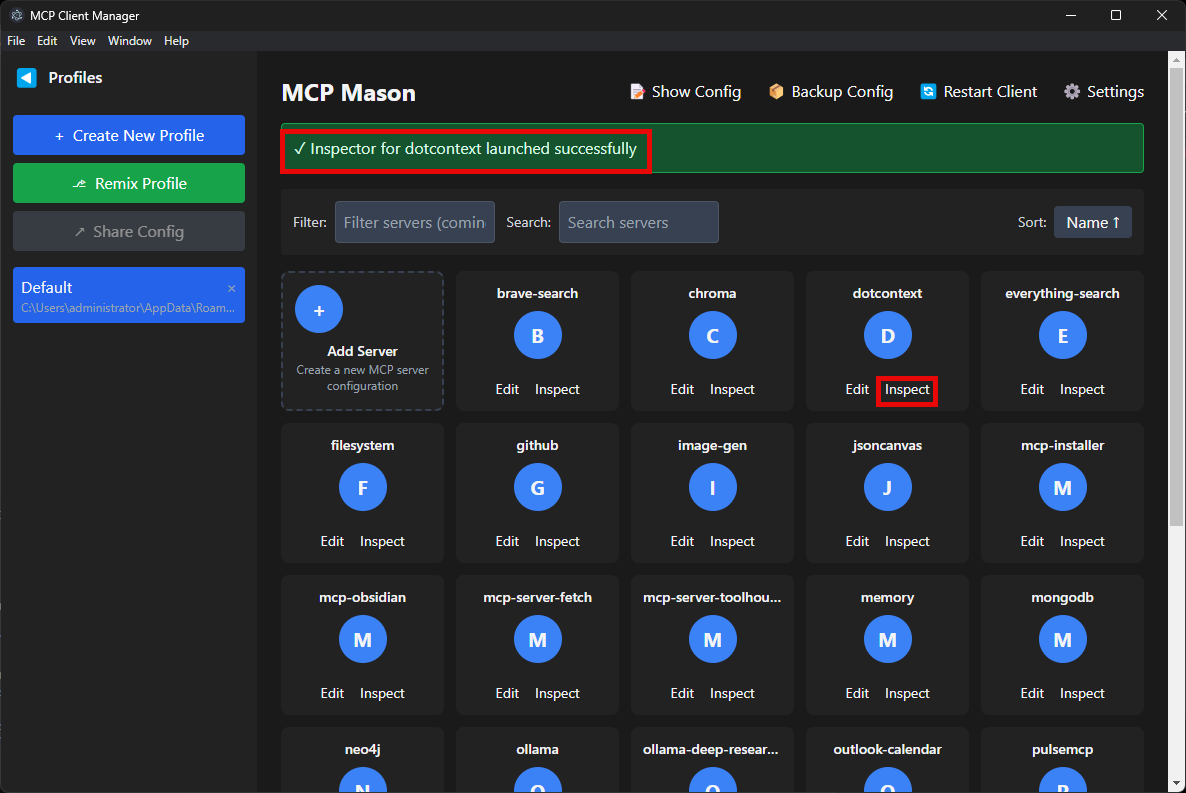
- MCP Inspector Integration: Launch and interact with MCP server inspectors
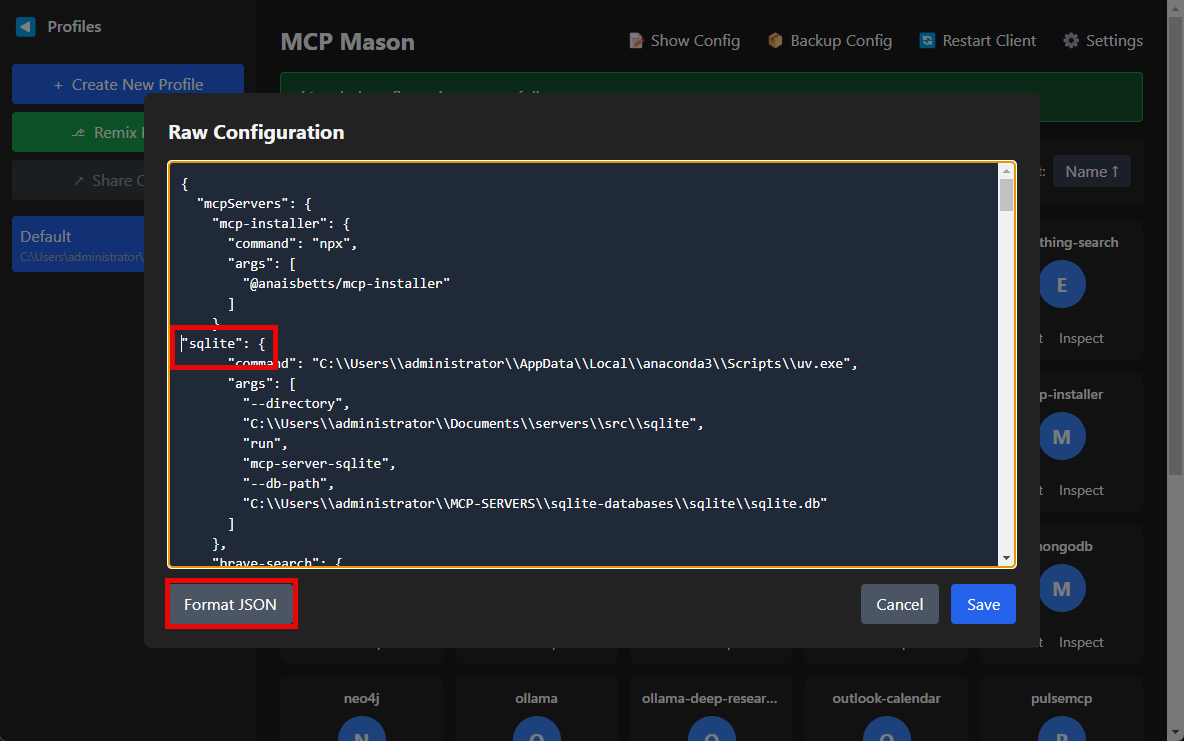
- Raw JSON Editor: View and edit the raw configuration JSON
- Client Integration: Restart Claude or other MCP clients directly from the app
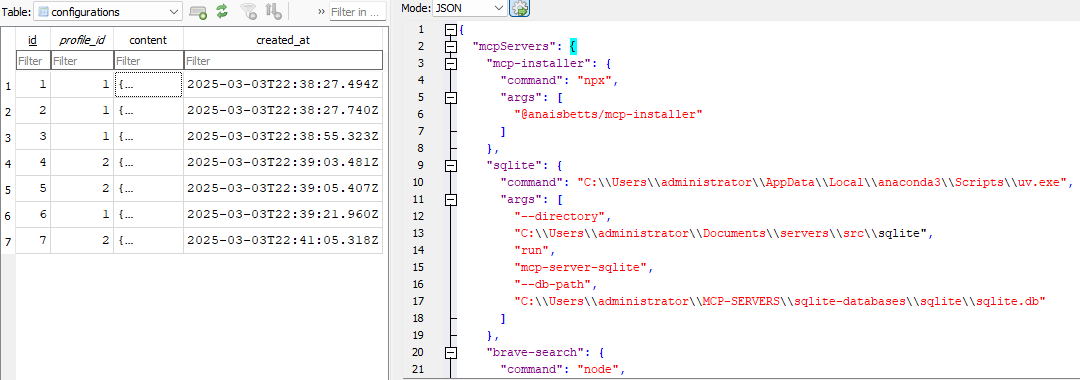
- SQLite Database: Persistent storage of profiles and configurations
- Cross-Platform: Works on Windows, macOS, and Linux
Installation
Prerequisites
- Node.js 16+ and npm
Setup
- Clone the repository:
git clone https://github.com/yourusername/mcp-configuration-manager.git
cd mcp-configuration-manager
- Install dependencies:
npm install
Development
Start the development server:
npm start
Run the Electron app in development mode:
npm run electron:dev
This will start both the React development server and the Electron application.
Building
Build the application for production:
npm run build
This creates:
- Web assets in the
builddirectory - Compiled Electron main and preload scripts
For a distributable package:
npm run electron:build
Project Structure
/src- React application source files/components- React components/types- TypeScript type definitions
/electron- Electron main process code/database- SQLite database implementation
/public- Static assets/assets- Application assets (icons, etc.)/SCREENSHOTS- Application screenshots
Configuration Format
The application manages MCP server configurations in JSON format:
{
  "mcpServers": {
    "server-name": {
      "command": "node",
      "args": [
        "path/to/server.js"
      ],
      "env": {
        "API_KEY": "your-api-key"
      }
    }
  }
}
Usage Guide
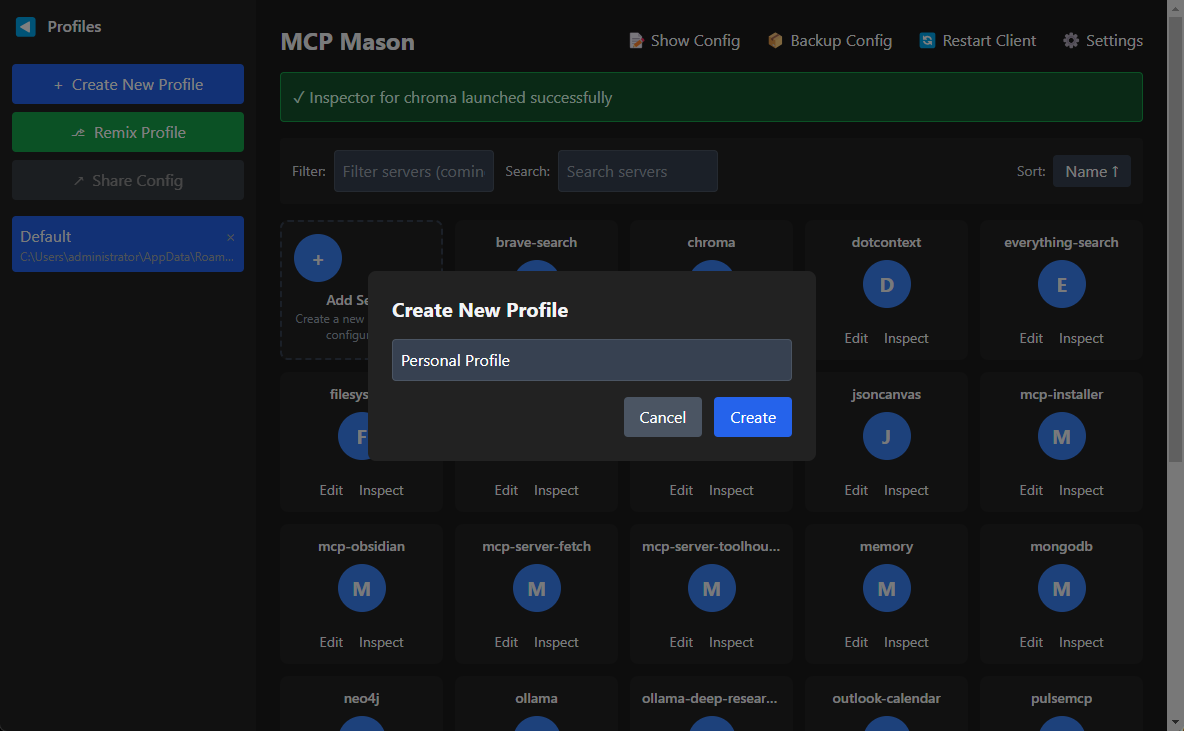
Creating a New Profile
- Click the profile sidebar toggle (▶) to expand it
- Click “Create New Profile”
- Enter a name for your profile
- The new profile will be created with default paths
Adding an MCP Server
- Click the “Add Server” card in the main view
- Enter the server details:
- Name: A unique identifier for the server
- Command: The executable to run (e.g.,
node,python) - Arguments: Command-line arguments (e.g., path to server script)
- Environment Variables: Key-value pairs for configuration
Editing Raw Configuration
- Click “Show Config” in the top menu
- Edit the JSON configuration directly
- Click “Save” to apply changes
Inspecting an MCP Server
- Click “Inspect” on a server card
- The inspector will launch in a new window
- Use the inspector to debug and monitor the server
Restarting the MCP Client
- Click “Restart Client” in the top menu
- Confirm the restart
- The MCP client (e.g., Claude) will restart with the new configuration
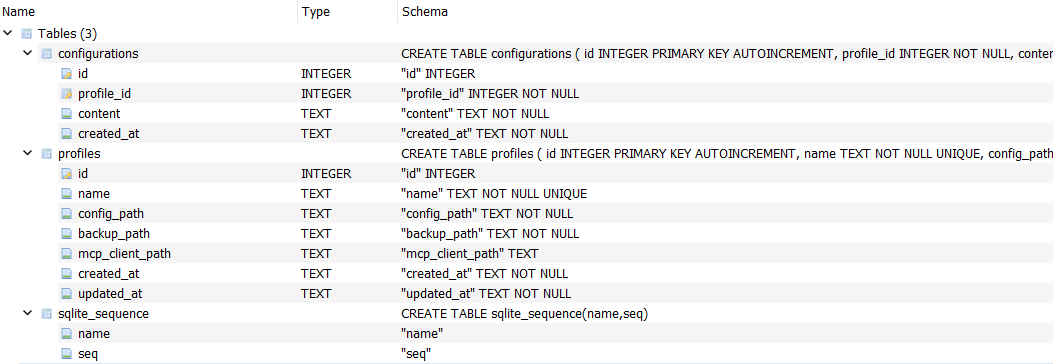
Database Structure
The application uses SQLite to store profiles and configurations:
Troubleshooting
Configuration Not Loading
- Ensure the configuration file exists at the specified path
- Check that the JSON format is valid
- Verify that the
mcpServersobject is present in the configuration
MCP Server Not Starting
- Confirm the command and arguments are correct
- Check that any required environment variables are set
- Look for error messages in the application logs
Client Not Restarting
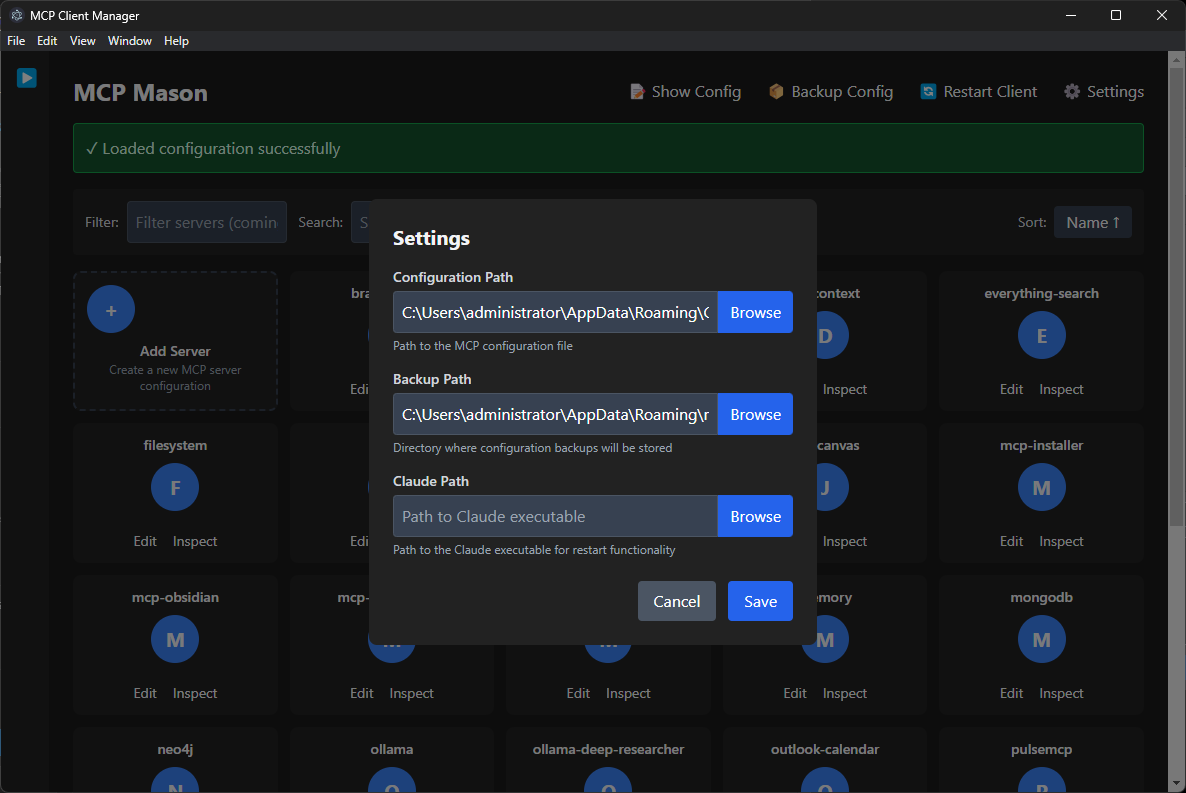
- Ensure the client path is correctly set in the settings
- Check that the client is installed and accessible
- Try manually restarting the client if automatic restart fails
Contributing
Contributions are welcome! Please feel free to submit a Pull Request.
License
This project is licensed under the MIT License - see the LICENSE file for details.
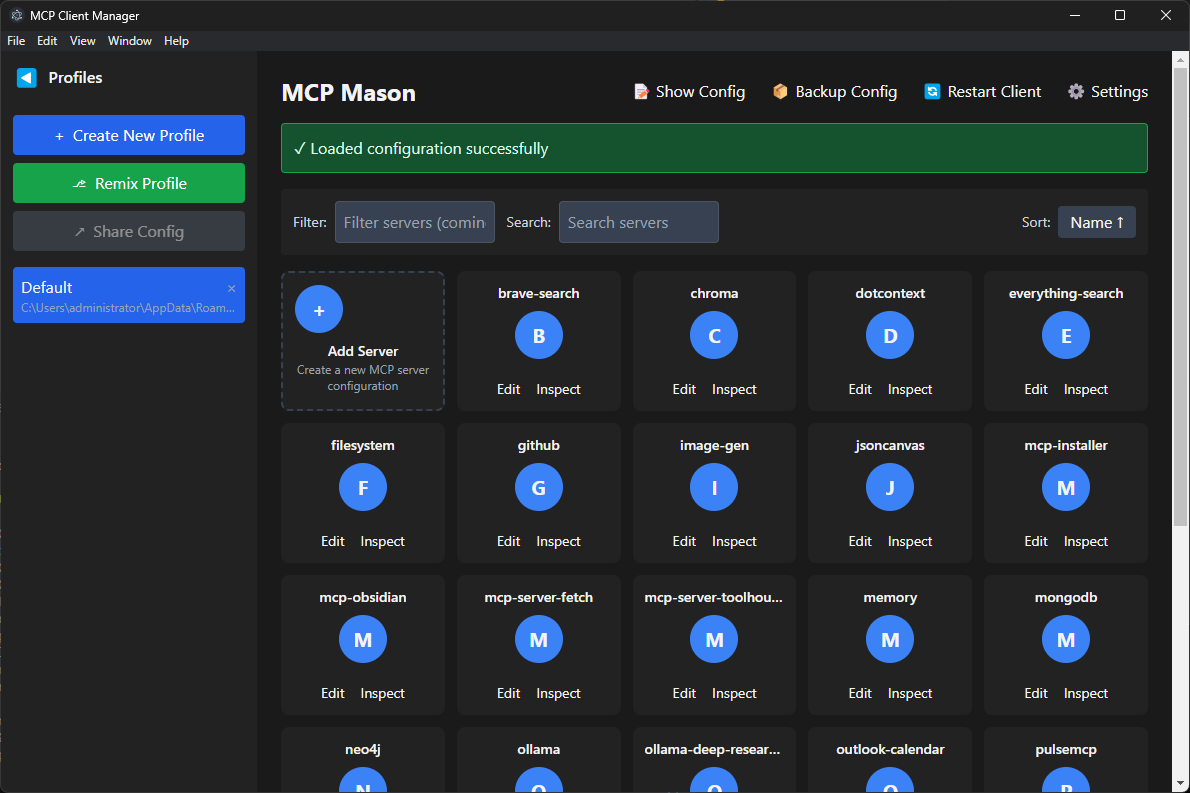
Screenshots
Main Interface with Profiles
Creating a New Profile
Configuration Settings
JSON Syntax Editor
Built-in Inspector
MCP Configuration Structure
Dev Tools Supporting MCP
The following are the main code editors that support the Model Context Protocol. Click the link to visit the official website for more information.







