
Mcp Ssh
What is Mcp Ssh
mcp-ssh is a Model Context Protocol (MCP) agent designed for managing and controlling SSH connections through a standardized STDIO interface, utilizing native SSH commands for optimal reliability and compatibility.
Use cases
Use cases for mcp-ssh include executing remote commands on servers, managing multiple SSH connections efficiently, automating file transfers, and integrating SSH operations into MCP-compatible applications.
How to use
To use mcp-ssh, clone the repository, navigate to the directory, and follow the provided commands to execute SSH operations. It automatically discovers SSH hosts from your configuration files.
Key features
Key features include reliable SSH operations using native commands, automatic discovery of SSH hosts, full support for SSH agents and authentication methods, file upload and download capabilities via SCP, batch command execution, and comprehensive error handling.
Where to use
mcp-ssh can be utilized in various fields such as DevOps, system administration, remote server management, and any environment requiring secure SSH connections and file transfers.
Clients Supporting MCP
The following are the main client software that supports the Model Context Protocol. Click the link to visit the official website for more information.





Overview
What is Mcp Ssh
mcp-ssh is a Model Context Protocol (MCP) agent designed for managing and controlling SSH connections through a standardized STDIO interface, utilizing native SSH commands for optimal reliability and compatibility.
Use cases
Use cases for mcp-ssh include executing remote commands on servers, managing multiple SSH connections efficiently, automating file transfers, and integrating SSH operations into MCP-compatible applications.
How to use
To use mcp-ssh, clone the repository, navigate to the directory, and follow the provided commands to execute SSH operations. It automatically discovers SSH hosts from your configuration files.
Key features
Key features include reliable SSH operations using native commands, automatic discovery of SSH hosts, full support for SSH agents and authentication methods, file upload and download capabilities via SCP, batch command execution, and comprehensive error handling.
Where to use
mcp-ssh can be utilized in various fields such as DevOps, system administration, remote server management, and any environment requiring secure SSH connections and file transfers.
Clients Supporting MCP
The following are the main client software that supports the Model Context Protocol. Click the link to visit the official website for more information.
Content
MCP SSH Agent
A Model Context Protocol (MCP) server for managing and controlling SSH connections. This server integrates seamlessly with Claude Desktop and other MCP-compatible clients to provide AI-powered SSH operations.
Overview
This MCP server provides SSH operations through a clean, standardized interface that can be used by MCP-compatible language models like Claude Desktop. The server automatically discovers SSH hosts from your ~/.ssh/config and ~/.ssh/known_hosts files and executes commands using native SSH tools for maximum reliability.
Quick Start
Installation via npx (Recommended)
npx @aiondadotcom/mcp-ssh
Integration with Claude Desktop
To use this MCP server with Claude Desktop, add the following configuration to your MCP settings file:
On macOS: ~/Library/Application Support/Claude/claude_desktop_config.json
On Windows: %APPDATA%/Claude/claude_desktop_config.json
{
  "mcpServers": {
    "mcp-ssh": {
      "command": "npx",
      "args": [
        "@aiondadotcom/mcp-ssh"
      ]
    }
  }
}
After adding this configuration, restart Claude Desktop. The SSH tools will be available for use in your conversations with Claude.
Alternative Installation Methods
Global Installation
npm install -g @aiondadotcom/mcp-ssh
Local Development
git clone https://github.com/aiondadotcom/mcp-ssh.git
cd mcp-ssh
npm install
npm start
Example Usage
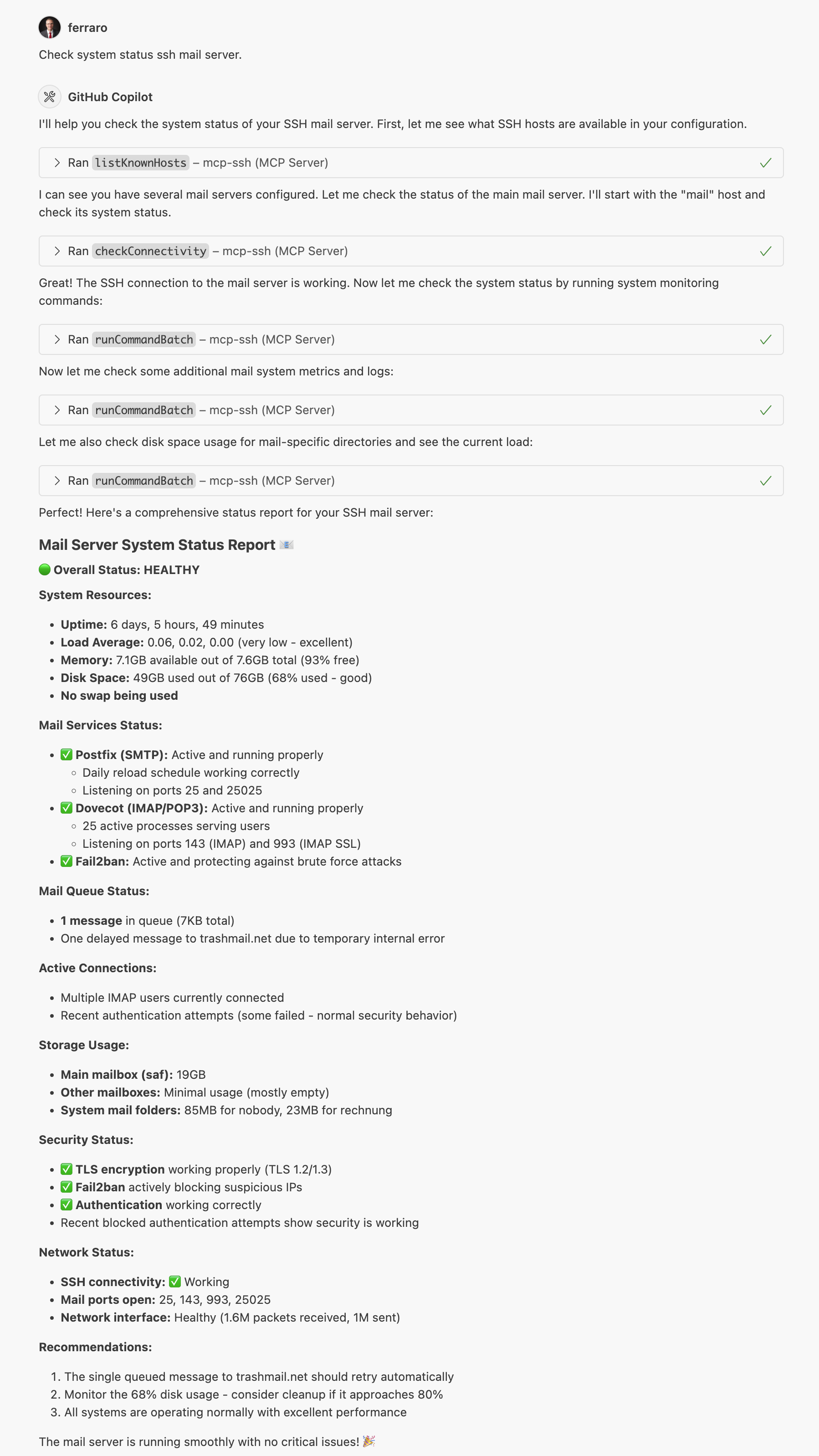
The screenshot above shows the MCP SSH Agent in action, demonstrating how it integrates with MCP-compatible clients to provide seamless SSH operations.
Integration with Claude
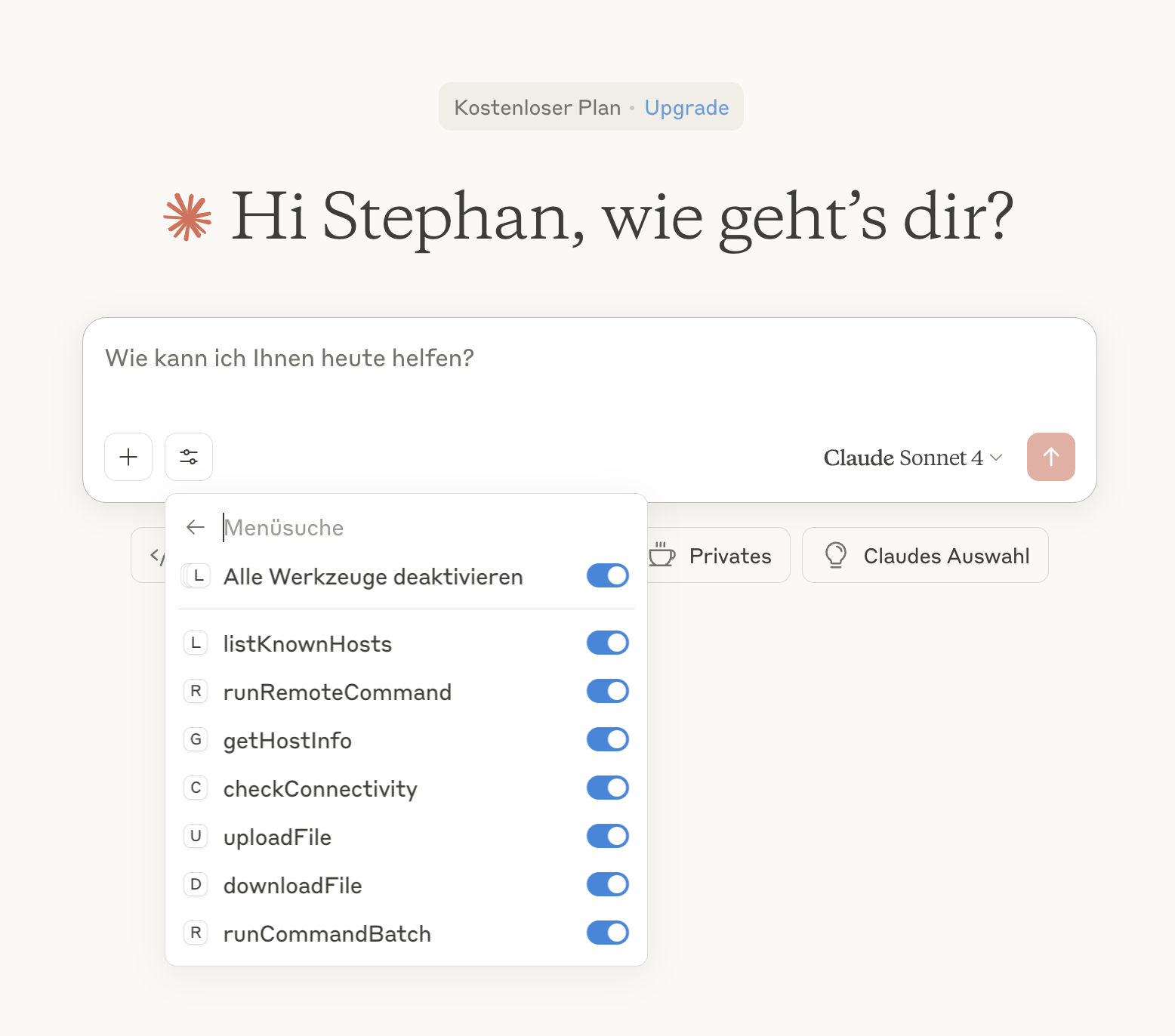
This screenshot demonstrates the MCP SSH Agent integrated with Claude, showing how the AI assistant can directly manage SSH connections and execute remote commands through the MCP protocol.
Key Features
- Reliable SSH: Uses native
ssh/scpcommands instead of JavaScript SSH libraries - Automatic Discovery: Finds hosts from SSH config and known_hosts files
- Full SSH Support: Works with SSH agents, keys, and all authentication methods
- File Operations: Upload and download files using
scp - Batch Commands: Execute multiple commands in sequence
- Error Handling: Comprehensive error reporting with timeouts
Functions
The agent provides the following MCP tools:
- listKnownHosts() - Lists all known SSH hosts, prioritizing entries from ~/.ssh/config first, then additional hosts from ~/.ssh/known_hosts
- runRemoteCommand(hostAlias, command) - Executes a command on a remote host using
ssh - getHostInfo(hostAlias) - Returns detailed configuration for a specific host
- checkConnectivity(hostAlias) - Tests SSH connectivity to a host
- uploadFile(hostAlias, localPath, remotePath) - Uploads a file to the remote host using
scp - downloadFile(hostAlias, remotePath, localPath) - Downloads a file from the remote host using
scp - runCommandBatch(hostAlias, commands) - Executes multiple commands sequentially
Configuration Examples
Claude Desktop Integration
Here’s how your Claude Desktop configuration should look:
{
  "mcpServers": {
    "mcp-ssh": {
      "command": "npx",
      "args": [
        "@aiondadotcom/mcp-ssh"
      ]
    }
  }
}
Manual Server Configuration
If you prefer to run the server manually or integrate it with other MCP clients:
{
  "servers": {
    "mcp-ssh": {
      "command": "npx",
      "args": [
        "@aiondadotcom/mcp-ssh"
      ]
    }
  }
}
Requirements
- Node.js 18 or higher
- SSH client installed (
sshandscpcommands available) - SSH configuration files (
~/.ssh/configand~/.ssh/known_hosts)
Usage with Claude Desktop
Once configured, you can ask Claude to help you with SSH operations like:
- “List all my SSH hosts”
- “Check connectivity to my production server”
- “Run a command on my web server”
- “Upload this file to my remote server”
- “Download logs from my application server”
Claude will use the MCP SSH tools to perform these operations safely and efficiently.
Usage
The agent runs as a Model Context Protocol server over STDIO. When installed via npm, you can use it directly:
# Run via npx (recommended)
npx @aiondadotcom/mcp-ssh

# Or if installed globally
mcp-ssh

# For development - run with debug output
npm start
The server communicates via clean JSON over STDIO, making it perfect for MCP clients like Claude Desktop.
Advanced Configuration
Environment Variables
MCP_SILENT=true- Disable debug output (automatically set when used as MCP server)
SSH Configuration
The agent reads from standard SSH configuration files:
~/.ssh/config- SSH client configuration~/.ssh/known_hosts- Known host keys
Make sure your SSH keys are properly configured and accessible via SSH agent or key files.
Example ~/.ssh/config
Here’s an example SSH configuration file that demonstrates various connection scenarios:
# Global settings - keep connections alive
ServerAliveInterval 55

# Production server with jump host
Host prod
    Hostname 203.0.113.10
    Port 22022
    User deploy
    IdentityFile ~/.ssh/id_prod_rsa

# Root access to production (separate entry)
Host root@prod
    Hostname 203.0.113.10
    Port 22022
    User root
    IdentityFile ~/.ssh/id_prod_rsa

# Archive server accessed through production jump host
Host archive
    Hostname 2001:db8:1f0:cafe::1
    Port 22077
    User archive-user
    ProxyJump prod

# Web servers with specific configurations
Host web1.example.com
    Hostname 198.51.100.15
    Port 22022
    User root
    IdentityFile ~/.ssh/id_ed25519

Host web2.example.com
    Hostname 198.51.100.25
    Port 22022
    User root
    IdentityFile ~/.ssh/id_ed25519

# Database server with custom key
Host database
    Hostname 203.0.113.50
    Port 22077
    User dbadmin
    IdentityFile ~/.ssh/id_database_rsa
    IdentitiesOnly yes

# Mail servers
Host mail1
    Hostname 198.51.100.88
    Port 22078
    User mailuser

Host root@mail1
    Hostname 198.51.100.88
    Port 22078
    User root

# Monitoring server
Host monitor
    Hostname 203.0.113.100
    Port 22077
    User monitoring
    IdentityFile ~/.ssh/id_monitor_ed25519
    IdentitiesOnly yes

# Load balancers
Host lb-a
    Hostname 198.51.100.200
    Port 22077
    User root

Host lb-b
    Hostname 198.51.100.201
    Port 22077
    User root
This configuration demonstrates:
- Global settings:
ServerAliveIntervalto keep connections alive - Custom ports: Non-standard SSH ports for security
- Multiple users: Different user accounts for the same host (e.g.,
prodandroot@prod) - Jump hosts: Using
ProxyJumpto access servers through bastion hosts - IPv6 addresses: Modern networking support
- Identity files: Specific SSH keys for different servers
- Security options:
IdentitiesOnly yesto use only specified keys
How MCP SSH Agent Uses Your Configuration
The MCP SSH agent automatically discovers and uses your SSH configuration:
- Host Discovery: All hosts from
~/.ssh/configare automatically available - Native SSH: Uses your system’s
sshcommand, so all config options work - Authentication: Respects your SSH agent, key files, and authentication settings
- Jump Hosts: Supports complex proxy chains and bastion host setups
- Port Forwarding: Can work with custom ports and connection options
Example Usage with Claude Desktop:
- “List my SSH hosts” → Shows all configured hosts including
prod,archive,web1.example.com, etc. - “Connect to archive server” → Uses the ProxyJump configuration automatically
- “Run ‘df -h’ on web1.example.com” → Connects with the correct user, port, and key
- “Upload file to database server” → Uses the specific identity file and port configuration
Troubleshooting
Common Issues
- Command not found: Ensure
sshandscpare installed and in your PATH - Permission denied: Check SSH key permissions and SSH agent
- Host not found: Verify host exists in
~/.ssh/configor~/.ssh/known_hosts - Connection timeout: Check network connectivity and firewall settings
Debug Mode
Run with debug output to see detailed operation logs:
# Enable debug mode
MCP_SILENT=false npx @aiondadotcom/mcp-ssh
SSH Key Setup Guide
For the MCP SSH Agent to work properly, you need to set up SSH key authentication. Here’s a complete guide:
1. Creating SSH Keys
Generate a new SSH key pair (use Ed25519 for better security):
# Generate Ed25519 key (recommended)
ssh-keygen -t ed25519 -C "[email protected]"

# Or generate RSA key (if Ed25519 is not supported)
ssh-keygen -t rsa -b 4096 -C "[email protected]"
Important: When prompted for a passphrase, leave it empty (press Enter). The MCP SSH Agent cannot handle password-protected keys as it runs non-interactively.
Enter passphrase (empty for no passphrase): [Press Enter]
Enter same passphrase again: [Press Enter]
This creates two files:
~/.ssh/id_ed25519(private key) - Keep this secret!~/.ssh/id_ed25519.pub(public key) - This gets copied to servers
2. Installing Public Key on Remote Servers
Copy your public key to the remote server’s authorized_keys file:
# Method 1: Using ssh-copy-id (easiest)
ssh-copy-id user@hostname

# Method 2: Manual copy
cat ~/.ssh/id_ed25519.pub | ssh user@hostname "mkdir -p ~/.ssh && cat >> ~/.ssh/authorized_keys"

# Method 3: Copy and paste manually
cat ~/.ssh/id_ed25519.pub
# Then SSH to the server and paste into ~/.ssh/authorized_keys
3. Server-Side SSH Configuration
To enable secure key-only authentication on your SSH servers, edit /etc/ssh/sshd_config:
# Edit SSH daemon configuration
sudo nano /etc/ssh/sshd_config
Add or modify these settings:
# Enable public key authentication
PubkeyAuthentication yes
AuthorizedKeysFile .ssh/authorized_keys

# Disable password authentication (security best practice)
PasswordAuthentication no
ChallengeResponseAuthentication no
UsePAM no

# Root login options (choose one):
# Option 1: Allow root login with SSH keys only (recommended for admin access)
PermitRootLogin prohibit-password

# Option 2: Completely disable root login (most secure, but less flexible)
# PermitRootLogin no

# Optional: Restrict SSH to specific users
AllowUsers deploy root admin

# Optional: Change default port for security
Port 22022
After editing, restart the SSH service:
# On Ubuntu/Debian
sudo systemctl restart ssh

# On CentOS/RHEL/Fedora
sudo systemctl restart sshd

# On macOS
sudo launchctl unload /System/Library/LaunchDaemons/ssh.plist
sudo launchctl load /System/Library/LaunchDaemons/ssh.plist
4. Setting Correct Permissions
SSH is very strict about file permissions. Set them correctly:
On your local machine:
chmod 700 ~/.ssh
chmod 600 ~/.ssh/id_ed25519
chmod 644 ~/.ssh/id_ed25519.pub
chmod 644 ~/.ssh/config
chmod 644 ~/.ssh/known_hosts
On the remote server:
chmod 700 ~/.ssh
chmod 600 ~/.ssh/authorized_keys
5. Testing SSH Key Authentication
Test your connection before using with MCP SSH Agent:
# Test connection
ssh -i ~/.ssh/id_ed25519 user@hostname

# Test with verbose output for debugging
ssh -v -i ~/.ssh/id_ed25519 user@hostname

# Test specific configuration
ssh -F ~/.ssh/config hostname
6. Multiple Keys for Different Servers
You can create different keys for different servers:
# Create specific keys
ssh-keygen -t ed25519 -f ~/.ssh/id_production -C "production-server"
ssh-keygen -t ed25519 -f ~/.ssh/id_staging -C "staging-server"
Then configure them in ~/.ssh/config:
Host production
    Hostname prod.example.com
    User deploy
    IdentityFile ~/.ssh/id_production
    IdentitiesOnly yes

Host staging
    Hostname staging.example.com
    User deploy
    IdentityFile ~/.ssh/id_staging
    IdentitiesOnly yes
Security Best Practices
SSH Key Security
- Never use password-protected keys with MCP SSH Agent
- Never share private keys - they should stay on your machine only
- Use Ed25519 keys when possible (more secure than RSA)
- Create separate keys for different environments/purposes
- Regularly rotate keys (every 6-12 months)
Server Security
- Disable password authentication completely
- Use non-standard SSH ports to reduce automated attacks
- Limit SSH access to specific users with
AllowUsers - Choose appropriate root login policy:
PermitRootLogin prohibit-password- Allows root access with SSH keys only (recommended for admin tasks)PermitRootLogin no- Completely disables root login (most secure, but requires sudo access)
- Enable SSH key-only authentication for all accounts
- Consider using jump hosts for additional security layers
Network Security
- Use VPN or bastion hosts for production servers
- Implement fail2ban to block brute force attempts
- Monitor SSH logs regularly
- Use SSH key forwarding carefully (disable when not needed)
Contributing
Contributions are welcome! Please feel free to submit a Pull Request.
License
MIT License - see LICENSE file for details.
Project Structure
mcp-ssh/
├── server-simple.mjs          # Main MCP server implementation
├── package.json               # Dependencies and scripts
├── README.md                  # Documentation
├── LICENSE                    # MIT License
├── CHANGELOG.md               # Release history
├── PUBLISHING.md              # Publishing instructions
├── start.sh                   # Development startup script
├── start-silent.sh            # Silent startup script
├── doc/
│   ├── example.png            # Usage example screenshot
│   └── Claude.png             # Claude Desktop integration example
├── src/                       # TypeScript source files (development)
│   ├── ssh-client.ts          # SSH operations implementation
│   ├── ssh-config-parser.ts   # SSH configuration parsing
│   └── types.ts               # Type definitions
└── tsconfig.json              # TypeScript configuration
About
This project is maintained by aionda.com and provides a reliable bridge between AI assistants and SSH infrastructure through the Model Context Protocol.
Dev Tools Supporting MCP
The following are the main code editors that support the Model Context Protocol. Click the link to visit the official website for more information.







