
Mcp Tutorial
What is Mcp Tutorial
mcp-tutorial is a project designed to manage a Python environment using the UV package manager and run an MCP server.
Use cases
Use cases include developing and testing Python applications, managing dependencies in isolated environments, and running custom MCP servers for specific applications.
How to use
To use mcp-tutorial, first install the UV package manager, create and activate a virtual environment, install dependencies, and then run the MCP server using the provided commands.
Key features
Key features include Python environment management, easy setup with UV, and the ability to run an MCP server seamlessly.
Where to use
mcp-tutorial can be used in software development environments, particularly for projects that require Python-based server management.
Clients Supporting MCP
The following are the main client software that supports the Model Context Protocol. Click the link to visit the official website for more information.





Overview
What is Mcp Tutorial
mcp-tutorial is a project designed to manage a Python environment using the UV package manager and run an MCP server.
Use cases
Use cases include developing and testing Python applications, managing dependencies in isolated environments, and running custom MCP servers for specific applications.
How to use
To use mcp-tutorial, first install the UV package manager, create and activate a virtual environment, install dependencies, and then run the MCP server using the provided commands.
Key features
Key features include Python environment management, easy setup with UV, and the ability to run an MCP server seamlessly.
Where to use
mcp-tutorial can be used in software development environments, particularly for projects that require Python-based server management.
Clients Supporting MCP
The following are the main client software that supports the Model Context Protocol. Click the link to visit the official website for more information.
Content
MCP Tutorial
This project uses UV for Python environment management and runs an MCP server that fetches latest documentation for libraries like llamaindex or langchain.
Prerequisites
- Python 3.12 or higher
- UV package manager
Setup Instructions
-
Install UV if you haven’t already and initialize a new project:
uv init -
Activate a virtual environment using uv:
source .venv/bin/activate # On Windows: .venv\Scripts\activate -
Install dependencies in pyproject.toml using uv:
uv sync
Running the MCP Server
The mcp server is defined in main.py
-
Make sure your virtual environment is activated:
source .venv/bin/activate # On Windows: .venv\Scripts\activate -
Run the MCP server, to test it locally:
uv run main.py
Accessing the MCP Server from Claude Desktop
-
Open Claude Desktop application
-
Go to Developer Settings (you can access this through the settings menu)
-
Locate the configuration file at:
%APPDATA%\Claude\claude_desktop_config.json(On Windows, this is typically at
C:\Users\<username>\AppData\Roaming\Claude\claude_desktop_config.json) -
Add or modify the
mcpServerssection in the configuration file. The command should be absolute path ofuvexecutable, and the --directory option should be the absolute path of your project directory.{ "mcpServers": { "sk-docs-server": { "command": "c:\\users\\<username>\\.local\\bin\\uv.exe", "args": [ "--directory", "c:\\path\\to\\your\\current\\project\\directory\\mcp-tutorial\\", "run", "main.py" ] } } } -
Replace
<username>with your Windows username and update the path to your project directory -
Save the configuration file
-
Restart Claude Desktop for the changes to take effect
Troubleshooting
If the MCP tool (defined in your main.py) doesn’t appear in Claude Desktop after configuration:
-
Close Claude Desktop application completely
-
Check if Claude Desktop is still running in the background:
- Open Task Manager (Ctrl + Shift + Esc)
- Look for any “Claude Desktop” processes
- If found, select them and click “End Task”
-
Verify the configuration file:
- Make sure the JSON is properly formatted
- Check that all paths are correct and use double backslashes
- Ensure the
mcpServerssection is at the root level of the JSON
-
Restart Claude Desktop
-
If the tool still doesn’t appear:
- Check the claude logs (accessible through developer settings) or Windows Event Viewer for any related errors.
- Verify that the uv executable path is correct
- Ensure the project directory path exists and is accessible
Selecting theCustom MCP Server in Claud Desktop
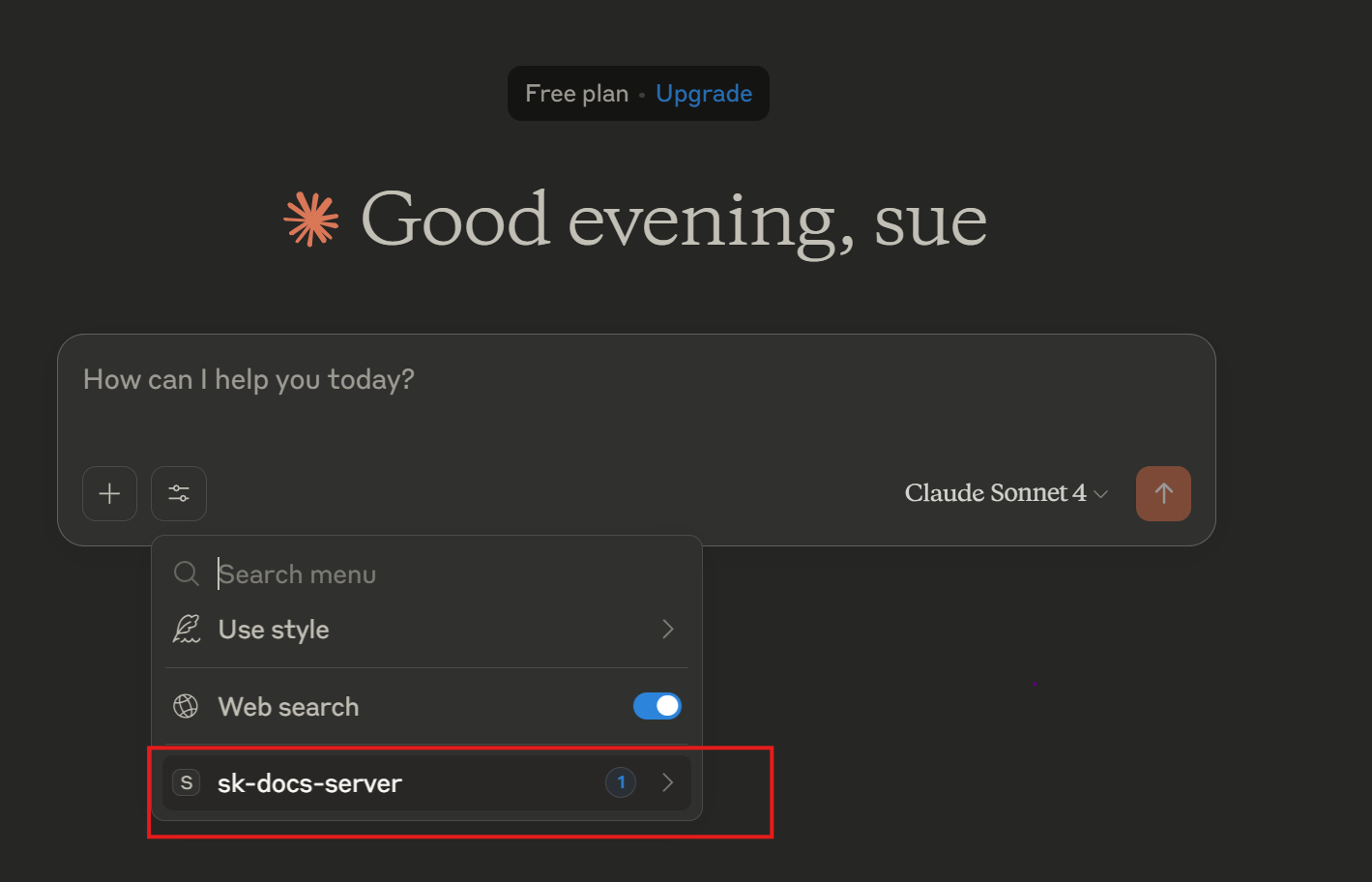
When properly configured, your MCP server (e.g., sk-docs-server) will appear in Claude Desktop which is acting as MCP client. Here’s what to expect:
-
Accessing the Tool:
- Open Claude Desktop.
- Click the settings icon next to the chat input to open the tools/search menu.
-
Selecting the MCP Server:
-
In the search menu, you should see your MCP server listed (e.g.,
sk-docs-server). -
Example:
-
-
Viewing the MCP Tool:
-
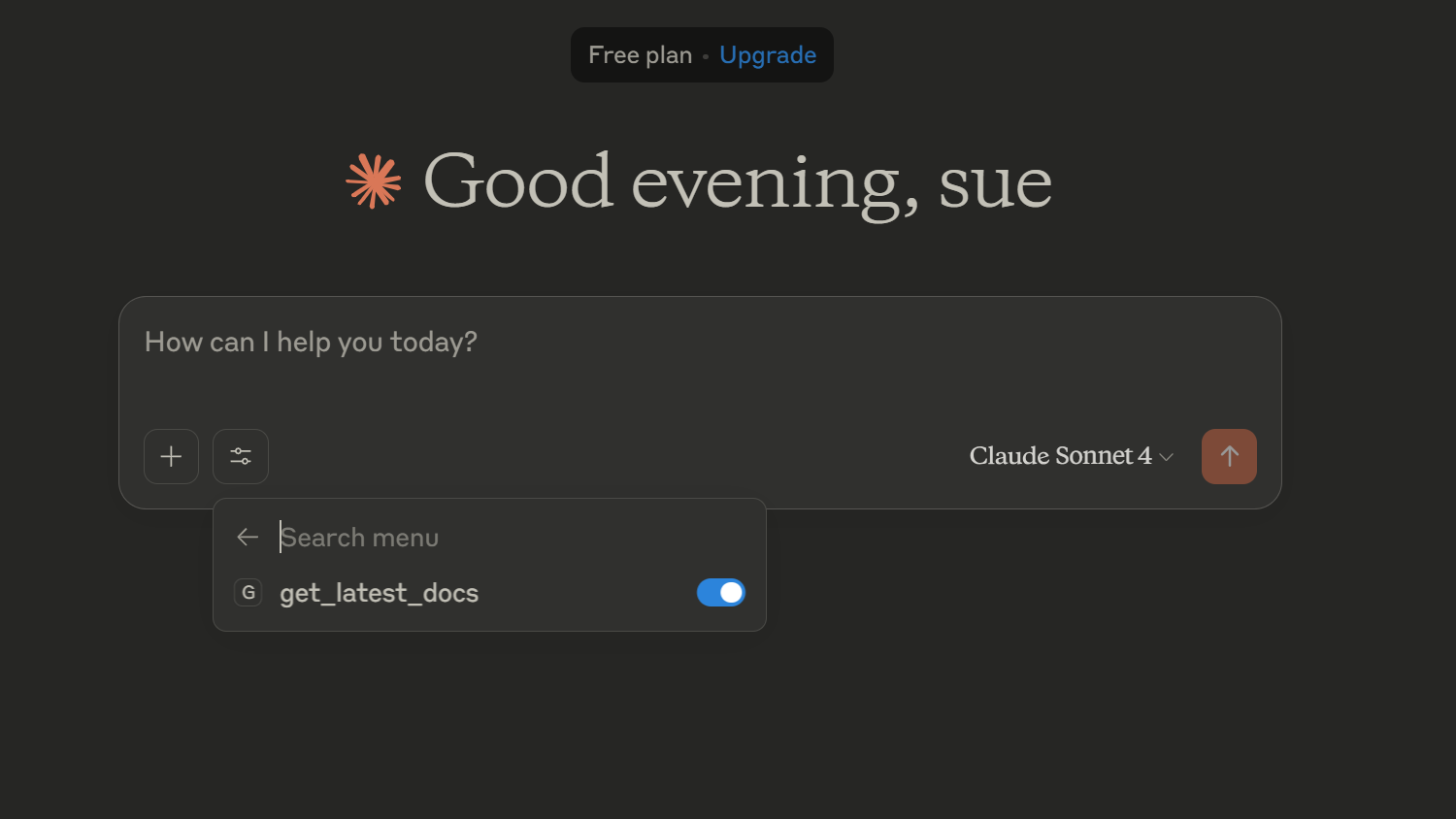
After selecting or enabling the MCP server, the available MCP tool(s) (such as
get_latest_docs) will be accessible. -
Example:
-
-
In-Chat Appearance:
-
When the tool is enabled, it will be available for use in your chat session.
-
Example:

-
You should see your custom tool (like get_latest_docs) listed and ready to use.
Project Structure
main.py- Main server implementationpyproject.toml- Project configuration and dependenciesuv.lock- Lock file for dependency versions
Dependencies
- bs4 >= 0.0.2
- httpx >= 0.28.1
- mcp[cli] >= 1.9.3
Notes
- The project requires Python 3.12 or higher
- All dependencies are managed through UV
- The virtual environment is stored in the
.venvdirectory
How Claude Desktop Uses Your MCP Server
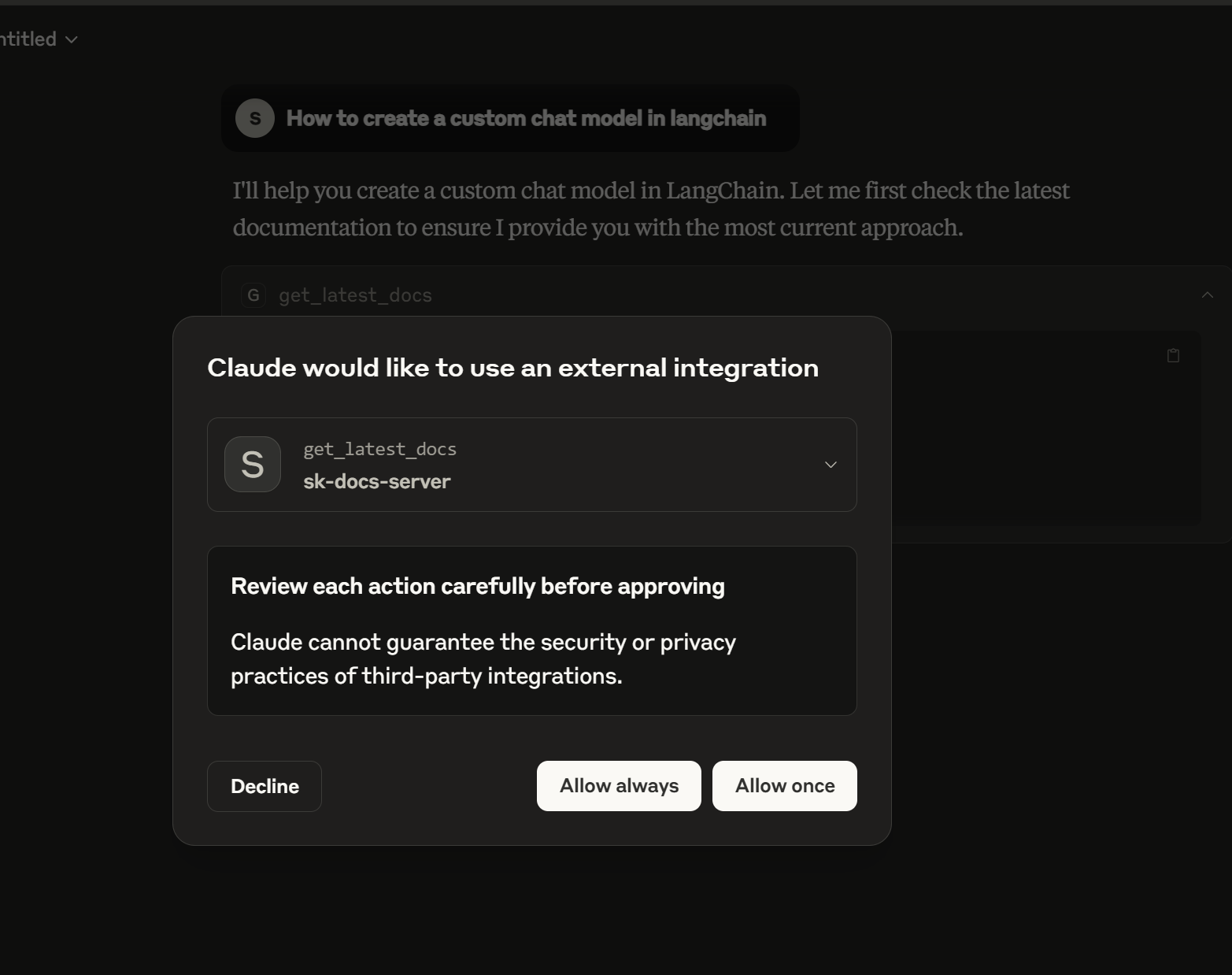
When you ask a question related to LangChain, LlamaIndex, or OpenAI (for example, “How to create a custom chat model in langchain?”), Claude Desktop will use your enabled MCP server to fetch and display the answer.
Below is an example of Claude Desktop using the MCP tool to answer such a question:
Dev Tools Supporting MCP
The following are the main code editors that support the Model Context Protocol. Click the link to visit the official website for more information.







