
Mcp Server
What is Mcp Server
The Model Context Protocol (MCP) is a framework designed for integrating AI capabilities into applications, facilitating seamless communication between software components and AI agents. It enables developers to create applications that can leverage AI functionalities efficiently.
Use cases
MCP is suitable for various applications, including chatbots, virtual assistants, automated decision-making systems, and other AI-driven applications requiring context management and communication. It can be used in customer service, healthcare, finance, and more to enhance user experiences and improve operational efficiency.
How to use
To use MCP with Spring Boot, developers need to build their application into a JAR file using Gradle, set up the Goose AI Agent according to its documentation, and create a shell script to run the application. This script can then be executed in conjunction with Goose sessions to allow the integration of AI functionalities.
Key features
Key features of MCP include contextual awareness, enabling applications to maintain and manage the context throughout interactions. It supports dynamic communication with AI agents and provides a structured way to define interactions, which significantly enhances the usability of AI in applications.
Where to use
MCP can be deployed in any environment where Spring Boot applications are utilized, including cloud platforms, enterprise systems, and local development setups. It is especially beneficial in scenarios that require adaptive AI features and real-time context management.
Clients Supporting MCP
The following are the main client software that supports the Model Context Protocol. Click the link to visit the official website for more information.





Overview
What is Mcp Server
The Model Context Protocol (MCP) is a framework designed for integrating AI capabilities into applications, facilitating seamless communication between software components and AI agents. It enables developers to create applications that can leverage AI functionalities efficiently.
Use cases
MCP is suitable for various applications, including chatbots, virtual assistants, automated decision-making systems, and other AI-driven applications requiring context management and communication. It can be used in customer service, healthcare, finance, and more to enhance user experiences and improve operational efficiency.
How to use
To use MCP with Spring Boot, developers need to build their application into a JAR file using Gradle, set up the Goose AI Agent according to its documentation, and create a shell script to run the application. This script can then be executed in conjunction with Goose sessions to allow the integration of AI functionalities.
Key features
Key features of MCP include contextual awareness, enabling applications to maintain and manage the context throughout interactions. It supports dynamic communication with AI agents and provides a structured way to define interactions, which significantly enhances the usability of AI in applications.
Where to use
MCP can be deployed in any environment where Spring Boot applications are utilized, including cloud platforms, enterprise systems, and local development setups. It is especially beneficial in scenarios that require adaptive AI features and real-time context management.
Clients Supporting MCP
The following are the main client software that supports the Model Context Protocol. Click the link to visit the official website for more information.
Content
Model Context Protocol (MCP) + Spring Boot Integration
🔗 Useful Links
- MCP Introduction: modelcontextprotocol.io/introduction
- Spring AI MCP Documentation: docs.spring.io - MCP Client Boot Starter
- Goose (AI Agent) - Client Setup: block.github.io/goose
How to Run Your Spring Boot Application with Goose
Step 1: Create JAR File
Build your Spring Boot application using:
./gradlew clean build
The JAR will be located in target/.
Step 2: Install and Set Up Goose
Follow the official Goose documentation to install and configure the AI Agent.
Running Goose with WSL (Windows Subsystem for Linux)
If you’re using WSL and face issues running Goose sessions, follow these steps:
1. Create a Shell Script
Inside your WSL terminal, create a file named run-extension.sh:
nano run-extension.sh
Paste the following content:
#!/bin/bash
java -jar "FULL_PATH_OF_JAR_FILE/target/mcp_feature-0.0.1-SNAPSHOT.jar"
Replace
FULL_PATH_OF_JAR_FILEwith the actual path to your JAR file.
2. Ensure Java is Installed in WSL
If you encounter issues related to Java, ensure JDK is installed:
java -version
If not installed, you can install OpenJDK via:
sudo apt update
sudo apt install openjdk-21-jdk
3. Make the Script Executable
chmod +x run-extension.sh
4. Start Goose Session with Your Extension
goose session --with-extension="./run-extension.sh"
You’re now ready to run your Spring Boot application integrated with MCP and the Goose AI Agent! 🧠🚀
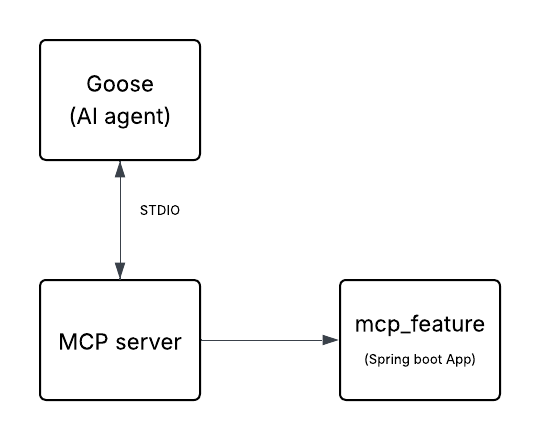
Simple flow diagram :
Dev Tools Supporting MCP
The following are the main code editors that support the Model Context Protocol. Click the link to visit the official website for more information.







