
Mcp Template
What is Mcp Template
mcp_template is a template designed for building MCP servers using Python, specifically tailored for integration with Cursor IDE.
Use cases
Use cases include building custom agents that respond to user queries, creating interactive tools for data processing, and developing applications that require real-time communication with the server.
How to use
To use mcp_template, deploy it via Heroku or set it up using Docker or traditional Python methods. After deployment, configure it in Cursor IDE by adding the MCP server with the provided URL.
Key features
Key features include easy deployment options (Heroku, Docker, traditional setup), support for different transport methods (stdio, SSE), and customizable environment variables for server configuration.
Where to use
mcp_template is primarily used in software development environments, particularly for creating custom tools and integrations within Cursor IDE.
Clients Supporting MCP
The following are the main client software that supports the Model Context Protocol. Click the link to visit the official website for more information.





Overview
What is Mcp Template
mcp_template is a template designed for building MCP servers using Python, specifically tailored for integration with Cursor IDE.
Use cases
Use cases include building custom agents that respond to user queries, creating interactive tools for data processing, and developing applications that require real-time communication with the server.
How to use
To use mcp_template, deploy it via Heroku or set it up using Docker or traditional Python methods. After deployment, configure it in Cursor IDE by adding the MCP server with the provided URL.
Key features
Key features include easy deployment options (Heroku, Docker, traditional setup), support for different transport methods (stdio, SSE), and customizable environment variables for server configuration.
Where to use
mcp_template is primarily used in software development environments, particularly for creating custom tools and integrations within Cursor IDE.
Clients Supporting MCP
The following are the main client software that supports the Model Context Protocol. Click the link to visit the official website for more information.
Content
MCP Server Template for Cursor IDE
A simple template for creating custom tools for Cursor IDE using Model Context Protocol (MCP). Create your own repository from this template, modify the tools, and connect them to your Cursor IDE.
Quick Start
-
Click “Deploy to Heroku” button

-
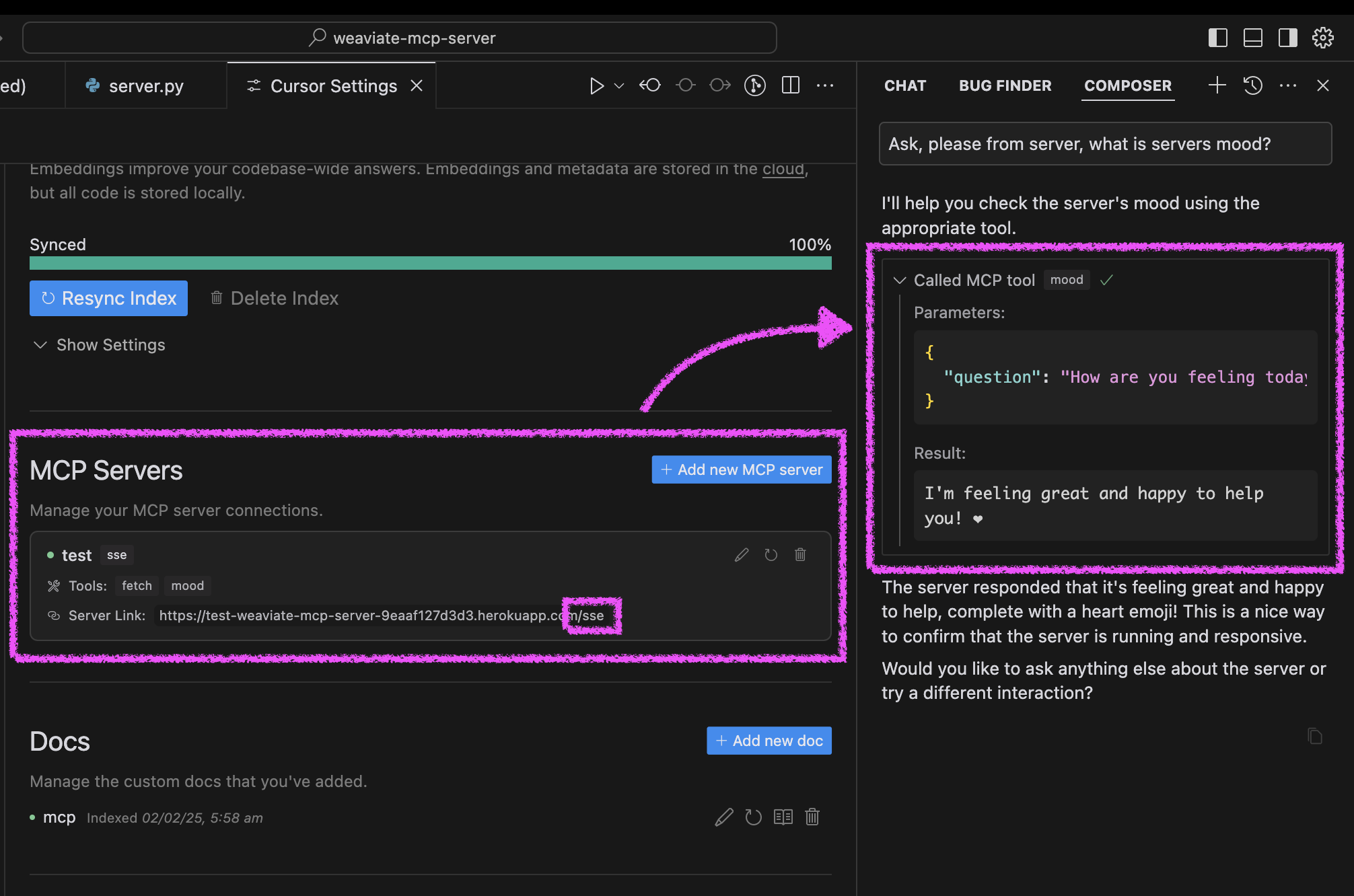
After deployment, configure Cursor:
- Open Cursor Settings → Features
- Add new MCP server
- Use your Heroku URL with
/ssepath (e.g.,https://<your-app-name>.herokuapp.com/sse)
-
Test your agent’s mood in Cursor:
- Ask your agent “Please ask about our server mood and let me know how it is.”
- The server will respond with a cheerful message and a heart ❤️
Alternative Setup Methods
You can run the server in three ways: using Docker, traditional Python setup, or directly in Cursor IDE.
Docker Setup
The project includes Docker support for easy deployment:
- Initial setup:
# Clone the repository
git clone https://github.com/kirill-markin/weaviate-mcp-server.git
cd weaviate-mcp-server

# Create environment file
cp .env.example .env
- Build and run using Docker Compose:
# Build and start the server
docker compose up --build -d

# View logs
docker compose logs -f

# Check server status
docker compose ps

# Stop the server
docker compose down
-
The server will be available at:
- SSE endpoint: http://localhost:8000/sse
-
Quick test:
# Test the server endpoint
curl -i http://localhost:8000/sse
- Connect to Cursor IDE:
- Open Cursor Settings → Features
- Add new MCP server
- Type: Select “sse”
- URL: Enter
http://localhost:8000/sse
Traditional Setup
First, install the uv package manager:
# Install uv on macOS
brew install uv
# Or install via pip (any OS)
pip install uv
Start the server using either stdio (default) or SSE transport:
# Install the package with development dependencies
uv pip install -e ".[dev]"

# Using stdio transport (default)
uv run mcp-simple-tool

# Using SSE transport on custom port
uv run mcp-simple-tool --transport sse --port 8000

# Run tests
uv run pytest -v
After installation, you can connect the server directly to Cursor IDE:
- Right-click on the
cursor-run-mcp-server.shfile in Cursor - Select “Copy Path” to copy the absolute path
- Open Cursor Settings (gear icon)
- Navigate to Features tab
- Scroll down to “MCP Servers”
- Click “Add new MCP server”
- Fill in the form:
- Name: Choose any name (e.g., “my-mcp-server-1”)
- Type: Select “stdio” (not “sse” because we run the server locally)
- Command: Paste the absolute path to
cursor-run-mcp-server.shthat you copied earlier. For example:/Users/kirillmarkin/weaviate-mcp-server/cursor-run-mcp-server.sh
Environment Variables
Available environment variables (can be set in .env):
MCP_SERVER_PORT(default: 8000) - Port to run the server onMCP_SERVER_HOST(default: 0.0.0.0) - Host to bind the server toDEBUG(default: false) - Enable debug modeMCP_USER_AGENT- Custom User-Agent for website fetching
Additional options
Installing via Smithery
To install MCP Server Template for Cursor IDE for Claude Desktop automatically via Smithery:
npx -y @smithery/cli install @kirill-markin/example-mcp-server --client claude
Glama server review
Dev Tools Supporting MCP
The following are the main code editors that support the Model Context Protocol. Click the link to visit the official website for more information.







