
Mcp Vms
What is Mcp Vms
mcp_vms is a Model Context Protocol (MCP) server designed to integrate with a CCTV recording program (VMS) for accessing and controlling video surveillance systems.
Use cases
Use cases include monitoring live video feeds, accessing recorded footage for investigations, controlling camera movements, and integrating with other security systems.
How to use
To use mcp_vms, install the required libraries and configure the server settings in the ‘claude_desktop_config.json’ and ‘mcp_vms_config.py’ files. Then, run the server using the UV Package Manager.
Key features
Key features include retrieving video channel information, fetching recording dates and times, displaying live or recorded images, controlling PTZ cameras, and comprehensive error handling and logging.
Where to use
mcp_vms can be used in various fields such as security surveillance, facility management, and any application requiring video monitoring and control.
Clients Supporting MCP
The following are the main client software that supports the Model Context Protocol. Click the link to visit the official website for more information.





Overview
What is Mcp Vms
mcp_vms is a Model Context Protocol (MCP) server designed to integrate with a CCTV recording program (VMS) for accessing and controlling video surveillance systems.
Use cases
Use cases include monitoring live video feeds, accessing recorded footage for investigations, controlling camera movements, and integrating with other security systems.
How to use
To use mcp_vms, install the required libraries and configure the server settings in the ‘claude_desktop_config.json’ and ‘mcp_vms_config.py’ files. Then, run the server using the UV Package Manager.
Key features
Key features include retrieving video channel information, fetching recording dates and times, displaying live or recorded images, controlling PTZ cameras, and comprehensive error handling and logging.
Where to use
mcp_vms can be used in various fields such as security surveillance, facility management, and any application requiring video monitoring and control.
Clients Supporting MCP
The following are the main client software that supports the Model Context Protocol. Click the link to visit the official website for more information.
Content
MCP Server - VMS Integration
A Model Context Protocol (MCP) server designed to connect to a CCTV recording program (VMS) to retrieve recorded and live video streams. It also provides tools to control the VMS software, such as showing live or playback dialogs for specific channels at specified times.
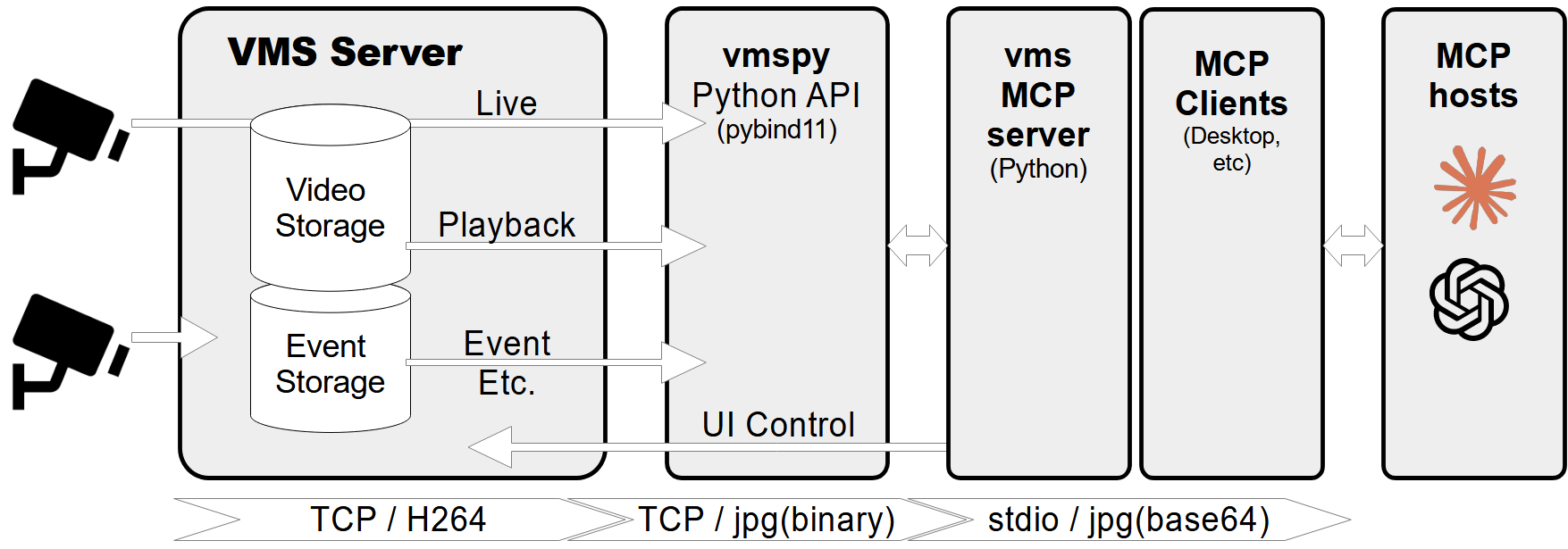
Features
- Retrieve video channel information, including connection and recording status.
- Fetch recording dates and times for specific channels.
- Fetch live or recorded images from video channels.
- Show live video streams or playback dialogs for specific channels and timestamps.
- Control PTZ (Pan-Tilt-Zoom) cameras by moving them to preset positions.
- Comprehensive error handling and logging.
Prerequisites
- Python 3.12+
vmspylibrary (for VMS integration)Pillowlibrary (for image processing)
MCP-server Configuration
If you want to use mcp-vms with Claude desktop, you need to set up the claude_desktop_config.json file as follows:
{
  "mcpServers": {
    "vms": {
      "command": "uv",
      "args": [
        "--directory",
        "X:\\path\\to\\mcp-vms",
        "run",
        "mcp_vms.py"
      ]
    }
  }
}
VMS Connection Configuration
The server uses the following default configuration for connecting to the VMS:
- mcp_vms_config.py
vms_config = {
    'img_width': 320,
    'img_height': 240,
    'pixel_format': 'RGB',
    'url': '127.0.0.1',
    'port': 3300,
    'access_id': 'admin',
    'access_pw': 'admin',
}
Installation
1. Install UV Package Manager
Run the following command in PowerShell to install UV:
powershell -ExecutionPolicy ByPass -c "irm https://astral.sh/uv/install.ps1 | iex"
For alternative installation methods, see the official UV documentation.
2.Install VMS Server
Download and install the VMS server from:
http://surveillance-logic.com/en/download.html
(Required before using this MCP server)
3.Install Python Dependencies
Download the vmspy library:
vmspy1.4-python3.12-x64.zip
Extract the contents into your mcp_vms directory
The mcp-vms directory should look like this:
mcp-vms/
├── .gitignore
├── .python-version
├── LICENSE
├── README.md
├── pyproject.toml
├── uv.lock
├── mcp_vms.py            # Main server implementation
├── mcp_vms_config.py     # VMS connection configuration
├── vmspy.pyd             # VMS Python library
├── avcodec-61.dll        # FFmpeg libraries
├── avutil-59.dll
├── swresample-5.dll
├── swscale-8.dll

Dev Tools Supporting MCP
The following are the main code editors that support the Model Context Protocol. Click the link to visit the official website for more information.







