
Mistral Ocr Mcp
What is Mistral Ocr Mcp
Mistral-ocr-mcp is a Model Context Protocol (MCP) server that showcases how to utilize Mistral’s Optical Character Recognition (OCR) functionality. It enables users to extract text from PDF files and images using Mistral’s OCR API.
Use cases
Use cases for mistral-ocr-mcp include converting handwritten lecture notes into digital text, extracting text from scanned documents for archiving, and facilitating data entry by transforming printed forms into editable text.
How to use
To use mistral-ocr-mcp, connect to the server with an MCP-compatible client such as Cursor or Claude Desktop. Upload your PDF or image files, and the server will process them to extract the text content.
Key features
Key features of mistral-ocr-mcp include the ability to process both images and PDF files, seamless integration with MCP-compatible clients, and the utilization of Mistral’s advanced OCR technology for accurate text extraction.
Where to use
Mistral-ocr-mcp can be used in various fields such as education for digitizing handwritten notes, in business for extracting text from documents, and in research for converting printed materials into editable formats.
Clients Supporting MCP
The following are the main client software that supports the Model Context Protocol. Click the link to visit the official website for more information.





Overview
What is Mistral Ocr Mcp
Mistral-ocr-mcp is a Model Context Protocol (MCP) server that showcases how to utilize Mistral’s Optical Character Recognition (OCR) functionality. It enables users to extract text from PDF files and images using Mistral’s OCR API.
Use cases
Use cases for mistral-ocr-mcp include converting handwritten lecture notes into digital text, extracting text from scanned documents for archiving, and facilitating data entry by transforming printed forms into editable text.
How to use
To use mistral-ocr-mcp, connect to the server with an MCP-compatible client such as Cursor or Claude Desktop. Upload your PDF or image files, and the server will process them to extract the text content.
Key features
Key features of mistral-ocr-mcp include the ability to process both images and PDF files, seamless integration with MCP-compatible clients, and the utilization of Mistral’s advanced OCR technology for accurate text extraction.
Where to use
Mistral-ocr-mcp can be used in various fields such as education for digitizing handwritten notes, in business for extracting text from documents, and in research for converting printed materials into editable formats.
Clients Supporting MCP
The following are the main client software that supports the Model Context Protocol. Click the link to visit the official website for more information.
Content
Mistral OCR MCP Server
A Model Context Protocol (MCP) server that provides OCR (Optical Character Recognition) functionality using Mistral’s OCR API. This server allows you to extract text content from PDF files and images through MCP-compatible clients like Cursor and Claude Desktop.
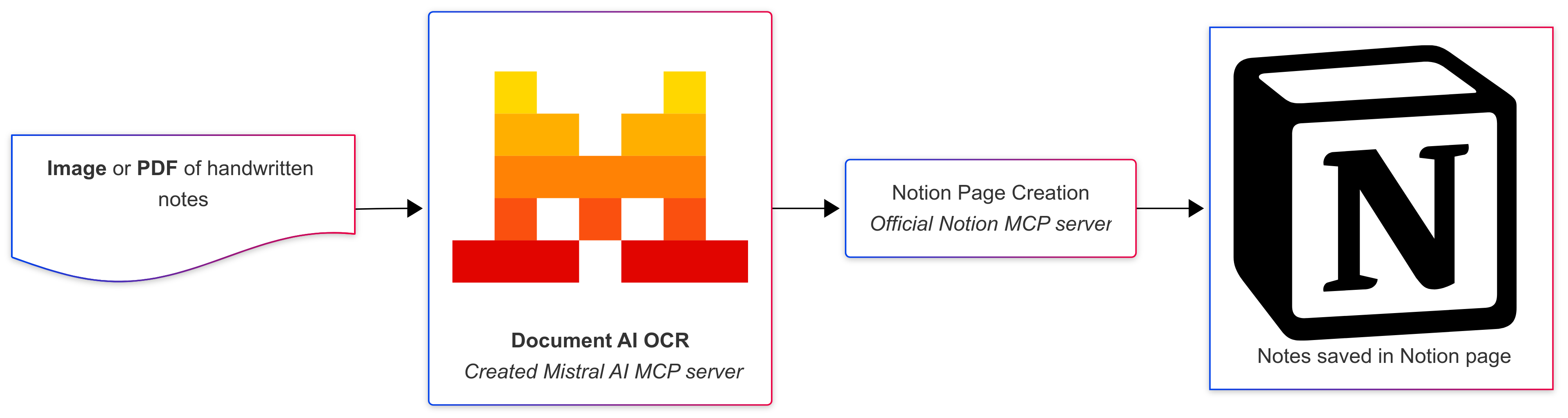
📖 For more context and practical usage examples, read the related article: How I Use Mistral Document AI to Consolidate My Notes
Usage example flowchart
Features
- Extract text from PDF files and images (JPG, JPEG, PNG, TIFF, BMP)
- Returns structured content with page-by-page breakdown
- Integrates seamlessly with MCP clients
- Built with FastMCP for optimal performance
Prerequisites
- uv package manager
- Python 3.10.1 or higher
- Mistral API Key : https://console.mistral.ai/api-keys
Installation
-
Clone the repository:
git clone https://github.com/lemopian/mistral-ocr-mcp.git cd mistral-ocr-mcp -
Install dependencies using uv:
uv sync -
Set up environment variables:
Create a.envfile in the project root:echo "MISTRAL_API_KEY=your_mistral_api_key_here" > .env
Configuration for MCP Clients
Add the following configuration to your MCP client config file:
{
  "mcpServers": {
    "mistral-ocr": {
      "command": "/Users/yourusername/.local/bin/uv",
      "args": [
        "--directory",
        "/path/to/mistral-ocr-mcp",
        "run",
        "main.py"
      ]
    }
  }
}
Important: Replace /path/to/mistral-ocr-mcp with the actual path to your cloned repository.
Usage
Once configured, the server provides the following tool:
extract_file_content
Extracts text content from PDF files and images.
Parameters:
file_path(string): Local path to the PDF or image file
Returns:
- Extracted text content as a string
Supported formats:
- PDF files (
.pdf) - Image files (
.jpg,.jpeg,.png,.tiff,.bmp)
Example usage :
Please extract the text from this document: /path/to/your/document.pdf
Development
Running the server directly
uv run main.py
Project structure
mistral-ocr-mcp/
├── mistral_ocr/          # Package directory
│   ├── __init__.py       # Package initialization
│   └── extractor.py      # Mistral OCR functionality
├── docs/                 # Documentation
│   └── flowchart.png     # Architecture flowchart
├── main.py               # MCP server implementation
├── pyproject.toml        # Project dependencies and configuration
├── uv.lock              # Dependency lock file
├── .env                 # Environment variables (create this)
├── .gitignore           # Git ignore rules
└── README.md            # This file
Environment Variables
MISTRAL_API_KEY: Your Mistral API key (required)
Troubleshooting
-
“MISTRAL_API_KEY must be set” error:
- Ensure you’ve created a
.envfile with your Mistral API key - Verify the API key is valid
- Ensure you’ve created a
-
“File not found” error:
- Check that the file path is correct and accessible
- Ensure the file format is supported
-
MCP connection issues:
- Verify the path to
uvis correct in your MCP configuration - Ensure the repository path is absolute and correct
- Check that all dependencies are installed with
uv sync
- Verify the path to
Dev Tools Supporting MCP
The following are the main code editors that support the Model Context Protocol. Click the link to visit the official website for more information.







