
Okta Mcp Server
What is Okta Mcp Server
Okta MCP Server is a server designed to facilitate interactions with Okta organizations through its API, enabling functionalities such as user management, group management, and application assignments.
Use cases
Use cases include automating user onboarding and offboarding, managing group memberships, assigning applications to users, and querying user or application information within an Okta organization.
How to use
To use Okta MCP Server, set up your environment by creating an Okta API Token and obtaining your Okta Domain. Then, configure your Claude Desktop settings with the necessary command and environment variables. You can interact with the server using natural language commands.
Key features
Key features include listing and managing users, groups, and applications, creating new users and groups, updating user profiles, assigning users and groups to applications, and deactivating or deleting applications.
Where to use
undefined
Clients Supporting MCP
The following are the main client software that supports the Model Context Protocol. Click the link to visit the official website for more information.





Overview
What is Okta Mcp Server
Okta MCP Server is a server designed to facilitate interactions with Okta organizations through its API, enabling functionalities such as user management, group management, and application assignments.
Use cases
Use cases include automating user onboarding and offboarding, managing group memberships, assigning applications to users, and querying user or application information within an Okta organization.
How to use
To use Okta MCP Server, set up your environment by creating an Okta API Token and obtaining your Okta Domain. Then, configure your Claude Desktop settings with the necessary command and environment variables. You can interact with the server using natural language commands.
Key features
Key features include listing and managing users, groups, and applications, creating new users and groups, updating user profiles, assigning users and groups to applications, and deactivating or deleting applications.
Where to use
undefined
Clients Supporting MCP
The following are the main client software that supports the Model Context Protocol. Click the link to visit the official website for more information.
Content
Okta MCP Server
MCP Server for the Okta API, enabling Claude to interact with Okta organizations.
Demo
Tools
-
okta_list_users_make_request- List users in the Okta organization
- Optional inputs:
limit(number, default: 20): Maximum number of users to returnquery(string): Search a user by firstName, lastName, or email
- Returns: List of users with their basic information
-
okta_create_user_make_request- Create a new user in Okta
- Required inputs:
profile(object):firstName(string): User’s first namelastName(string): User’s last nameemail(string): User’s email addresslogin(string): User’s login (usually email)
- Optional inputs:
credentials(object):password(object):value(string): User’s password
- Returns: Created user object with full details
-
okta_get_user_make_request- Get detailed information about a specific user
- Required inputs:
userId(string): User ID or login
- Returns: Full user object with all details
-
okta_update_user_make_request- Update an existing user’s profile
- Required inputs:
userId(string): User ID to updateprofile(object): Profile fields to updatefirstName(string, optional)lastName(string, optional)email(string, optional)login(string, optional)
- Returns: Updated user object
-
okta_delete_user_make_request- Delete a user (automatically handles deactivation first)
- Required inputs:
userId(string): User ID to delete
- Returns: Confirmation message
-
okta_list_groups_make_request- List groups in the Okta organization
- Optional inputs:
limit(number, default: 20): Maximum number of groups to returnsearch(string): Search expression for groups
- Returns: List of groups with their information
-
okta_create_group_make_request- Create a new group
- Required inputs:
profile(object):name(string): Name of the groupdescription(string, optional): Group description
- Returns: Created group object
-
okta_assign_user_to_group_make_request- Add a user to a group
- Required inputs:
groupId(string): ID of the groupuserId(string): ID of the user
- Returns: Confirmation message
-
okta_list_applications_make_request- List applications in the Okta organization
- Optional inputs:
limit(number, default: 20): Maximum number of applications to returnquery(string): Search for apps with name or label properties
- Returns: List of applications with their details
-
okta_assign_user_to_application_make_request- Assign a user to an application
- Required inputs:
appId(string): Application IDuserId(string): User ID
- Optional inputs:
profile(object): Application-specific user profile
- Returns: Application user assignment object
-
okta_assign_group_to_application_make_request- Assign a group to an application
- Required inputs:
appId(string): Application IDgroupId(string): Group ID
- Returns: Application group assignment object
-
okta_deactivate_application_make_request- Deactivate an application
- Required inputs:
appId(string): ID of the application to deactivate
- Returns: Confirmation message
-
okta_delete_application_make_request- Delete an application
- Required inputs:
appId(string): ID of the application to delete
- Returns: Confirmation message
Setup
-
Create an Okta API Token:
- Log in to your Okta organization as an administrator
- Navigate to Security → API → Tokens
- Click “Create Token” and save the token value
-
Get your Okta Domain:
- Your Okta domain typically looks like:
dev-123456.okta.com - You can find this in your Okta dashboard URL
- Your Okta domain typically looks like:
Example Interactions with Claude
Here are some natural ways to interact with the server through Claude:
- Find a user by name
Is there a user named "Joe" in my okta org?
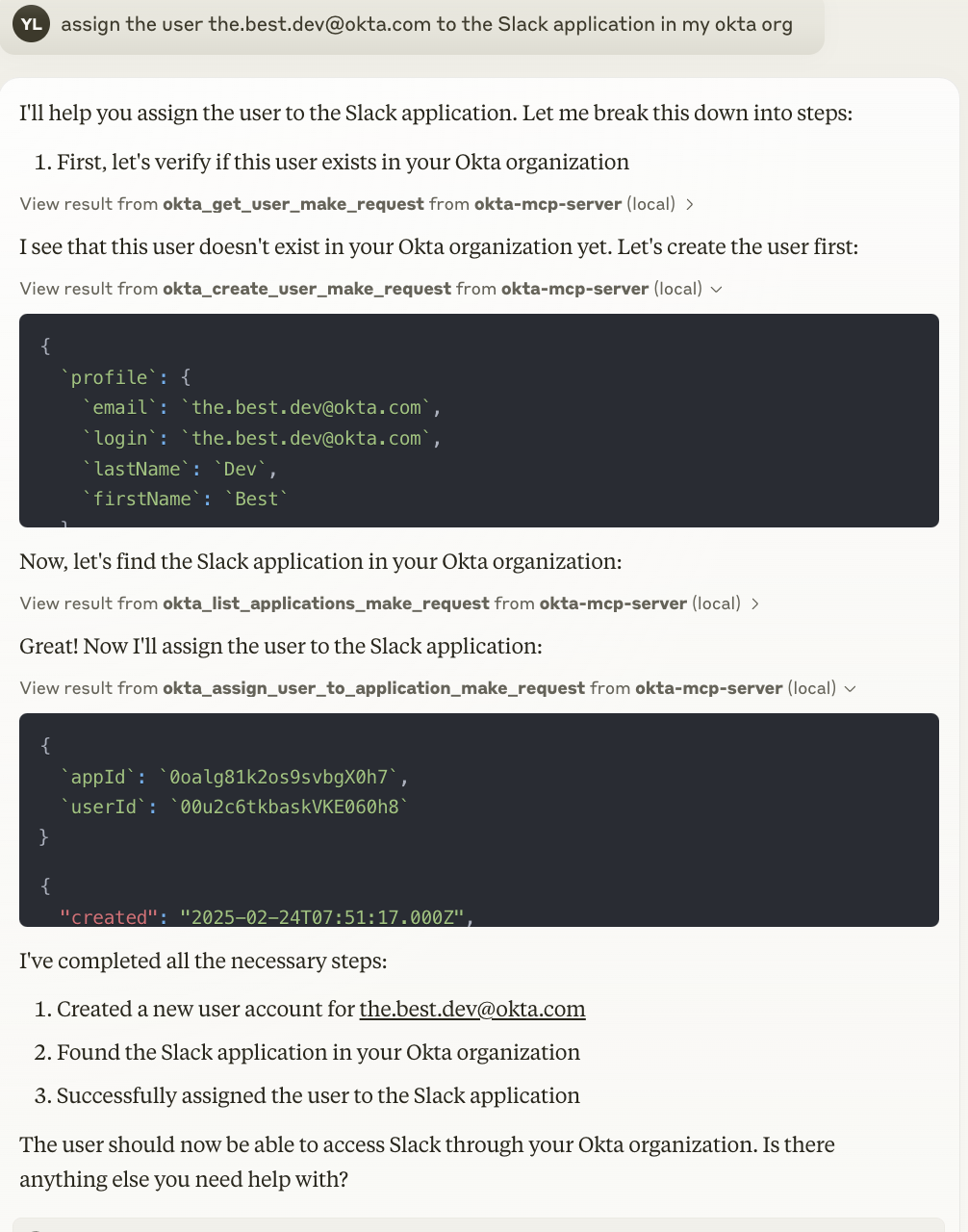
- Assign a user to an application
assign the user [email protected] to the Slack application
Usage with Claude Desktop
Add the following to your claude_desktop_config.json:
{
  "mcpServers": {
    "okta": {
      "command": "npx",
      "args": [
        "-y",
        "@yiyang.1i/okta-mcp-server"
      ],
      "env": {
        "OKTA_DOMAIN": "your-domain.okta.com",
        "API_TOKEN": "your-api-token"
      }
    }
  }
}
Troubleshooting
If you encounter permission errors, verify that:
- Your API token is valid
- The API token has sufficient permissions for the operations you’re trying to perform
- The Okta domain is correctly specified
License
This MCP server is licensed under the MIT License. This means you are free to use, modify, and distribute the software, subject to the terms and conditions of the MIT License.
Dev Tools Supporting MCP
The following are the main code editors that support the Model Context Protocol. Click the link to visit the official website for more information.







