
Openai Mcp Agent Dotnet
What is Openai Mcp Agent Dotnet
openai-mcp-agent-dotnet is a sample project that demonstrates how to create an AI agent using OpenAI models with any MCP server.
Use cases
Use cases include building AI-driven chatbots, automating customer service interactions, and enhancing applications with natural language processing capabilities.
How to use
To use openai-mcp-agent-dotnet, clone the repository, set up the MCP server, configure GitHub PAT and Azure OpenAI API Key, install necessary packages, and run the client application.
Key features
Key features include integration with OpenAI models, support for MCP server, and a demo application to showcase functionality.
Where to use
openai-mcp-agent-dotnet can be used in various fields such as AI development, chatbot creation, and any application requiring intelligent automation.
Clients Supporting MCP
The following are the main client software that supports the Model Context Protocol. Click the link to visit the official website for more information.





Overview
What is Openai Mcp Agent Dotnet
openai-mcp-agent-dotnet is a sample project that demonstrates how to create an AI agent using OpenAI models with any MCP server.
Use cases
Use cases include building AI-driven chatbots, automating customer service interactions, and enhancing applications with natural language processing capabilities.
How to use
To use openai-mcp-agent-dotnet, clone the repository, set up the MCP server, configure GitHub PAT and Azure OpenAI API Key, install necessary packages, and run the client application.
Key features
Key features include integration with OpenAI models, support for MCP server, and a demo application to showcase functionality.
Where to use
openai-mcp-agent-dotnet can be used in various fields such as AI development, chatbot creation, and any application requiring intelligent automation.
Clients Supporting MCP
The following are the main client software that supports the Model Context Protocol. Click the link to visit the official website for more information.
Content
name: .NET OpenAI MCP Agent
description: This is an MCP agent app written in .NET, using OpenAI, with a remote MCP server written in TypeScript.
languages:
- csharp
- bicep
- azdeveloper
products: - azure-openai
- azure-container-apps
- azure
page_type: sample
urlFragment: openai-mcp-agent-dotnet
.NET OpenAI MCP Agent
This is an MCP agent app written in .NET, using Azure OpenAI, with a remote MCP server written in TypeScript.
Features
This app provides features like:
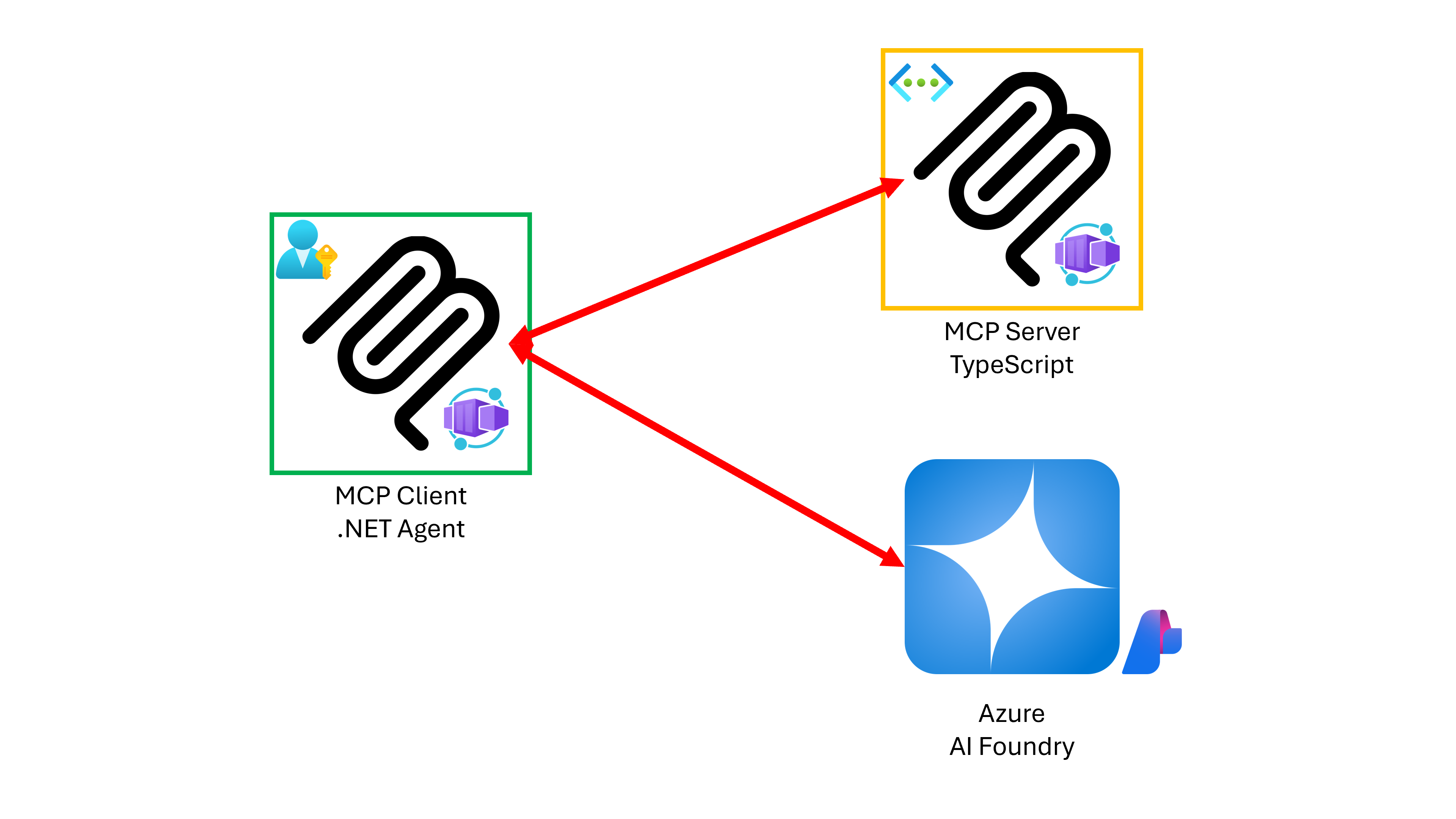
- The MCP host + MCP client app is written in .NET Blazor.
- The MCP client app connects to a to-do MCP server written in TypeScript.
- Both MCP client and server apps are running on Azure Container Apps (ACA).
- The MCP client app is secured by the built-in auth of ACA.
- The MCP server app is only accessible from the MCP client app.
Prerequisites
- .NET 9 SDK
- Visual Studio Code + C# Dev Kit
- node.js LTS
- Docker Desktop or Podman Desktop
- Azure Subscription
Getting Started
You can now use GitHub Codespaces to run this sample app (takes several minutes to open it)! 👉  .
.
Get Azure AI Foundry or GitHub Models
- To run this app, you should have either Azure AI Foundry instance or GitHub Models.
- If you use Azure AI Foundry, make sure you have the GPT-4o models deployed deployed.
- As a default, the deployed model name is
gpt-4o.
Run it on Azure
-
Check that you have the necessary permissions:
- Your Azure account must have the
Microsoft.Authorization/roleAssignments/writepermission, such as Role Based Access Control Administrator, User Access Administrator, or Owner at the subscription level. - Your Azure account must also have the
Microsoft.Resources/deployments/writepermission at the subscription level.
- Your Azure account must have the
-
Login to Azure.
azd auth login -
Create a directory for the app.
# zsh/bash
mkdir -p openai-mcp-agent-dotnet
# PowerShell New-Item -ItemType Directory -Path openai-mcp-agent-dotnet -Force -
Initialize
azd.cd openai-mcp-agent-dotnet azd init -t openai-mcp-agent-dotnetNOTE: You’ll be asked to enter an environment name, which will be the name of your Azure Resource Group.
-
Clone the MCP server.
git clone https://github.com/Azure-Samples/mcp-container-ts.git ./src/McpTodo.ServerApp -
Make sure that your deployed model name is
gpt-4o. If your deployed model is different, updatesrc/McpTodo.ClientApp/appsettings.json.{ "OpenAI": { // Make sure this is the right deployment name. "DeploymentName": "gpt-4o" } } -
Deploy apps to Azure.
azd upNOTE:
-
By default, the MCP client app is protected by the ACA built-in auth feature. You can turn off this feature before running
azd upby setting:azd env set USE_LOGIN false -
During the deployment, you will be asked to enter the Azure Subscription, location and OpenAI connection string. The connection string should be in the format of
Endpoint={{AZURE_OPENAI_ENDPOINT}};Key={{AZURE_OPENAI_API_KEY}}. -
You can add GitHub PAT in the same format above to use GitHub Models like
Endpoint=https://models.inference.ai.azure.com;Key={{GITHUB_PAT}}.
-
-
In the terminal, get the client app URL deployed. It might look like:
https://mcptodo-clientapp.{{some-random-string}}.{{location}}.azurecontainerapps.io/ -
Navigate to the client app URL, log-in to the app and enter prompts like:
Give me list of to do. Set "meeting at 1pm". Give me list of to do. Mark #1 as completed. Delete #1 from the to-do list.NOTE: You might not be asked to login, if you’ve set the
USE_LOGINvalue tofalse.
Run it locally
-
Make sure you’re in the
openai-mcp-agent-dotnetdirectory. -
Add Azure OpenAI API Key.
dotnet user-secrets --project ./src/McpTodo.ClientApp set ConnectionStrings:openai "Endpoint={{AZURE_OPENAI_ENDPOINT}};Key={{AZURE_OPENAI_API_KEY}}"NOTE: You can add GitHub PAT in the same format above to use GitHub Models like
Endpoint=https://models.inference.ai.azure.com;Key={{GITHUB_PAT}}. -
Install npm packages.
pushd ./src/McpTodo.ServerApp npm install popd -
Install NuGet packages.
dotnet restore && dotnet build -
Run the host app.
cd ./src/McpTodo.ServerApp npm start -
Run the client app in another terminal.
dotnet watch run --project ./src/McpTodo.ClientApp -
Navigate to
https://localhost:7256orhttp://localhost:5011and enter prompts like:Give me list of to do. Set "meeting at 1pm". Give me list of to do. Mark #1 as completed. Delete #1 from the to-do list.
Run it in local containers
-
Make sure that you’re running either Docker Desktop or Podman Desktop on your local machine.
-
Make sure you’re in the
openai-mcp-agent-dotnetdirectory. -
Export user secrets to
.env.# bash/zsh dotnet user-secrets list --project src/McpTodo.ClientApp \ | sed 's/ConnectionStrings:openai/ConnectionStrings__openai/' > .env# PowerShell (dotnet user-secrets list --project src/McpTodo.ClientApp) ` -replace "ConnectionStrings:openai", "ConnectionStrings__openai" | Out-File ".env" -Force -
Run both apps in containers.
# Docker
docker compose up --build
# Podman podman compose up --build -
Navigate to
http://localhost:8080and enter prompts like:Give me list of to do. Set "meeting at 1pm". Give me list of to do. Mark #1 as completed. Delete #1 from the to-do list.
Resources
Dev Tools Supporting MCP
The following are the main code editors that support the Model Context Protocol. Click the link to visit the official website for more information.







