
Paprika 3 Mcp
What is Paprika 3 Mcp
paprika-3-mcp is an MCP Server designed to create and edit recipes in Paprika 3 using natural language, allowing integration with large language models (LLMs) like Claude.
Use cases
Use cases include automating recipe management, generating new recipes based on user preferences, and updating existing recipes using natural language commands.
How to use
To use paprika-3-mcp, install it on your system, ensure you have Paprika 3 with cloud sync enabled, and provide your Paprika username and password. Then, connect it with an LLM client that supports MCP tools to create or update recipes.
Key features
Key features include the ability to create new recipes and update existing ones through LLMs, along with support for recipe resources and photos.
Where to use
paprika-3-mcp can be used in culinary applications, recipe management, and any scenario where natural language processing can enhance recipe creation and editing.
Clients Supporting MCP
The following are the main client software that supports the Model Context Protocol. Click the link to visit the official website for more information.





Overview
What is Paprika 3 Mcp
paprika-3-mcp is an MCP Server designed to create and edit recipes in Paprika 3 using natural language, allowing integration with large language models (LLMs) like Claude.
Use cases
Use cases include automating recipe management, generating new recipes based on user preferences, and updating existing recipes using natural language commands.
How to use
To use paprika-3-mcp, install it on your system, ensure you have Paprika 3 with cloud sync enabled, and provide your Paprika username and password. Then, connect it with an LLM client that supports MCP tools to create or update recipes.
Key features
Key features include the ability to create new recipes and update existing ones through LLMs, along with support for recipe resources and photos.
Where to use
paprika-3-mcp can be used in culinary applications, recipe management, and any scenario where natural language processing can enhance recipe creation and editing.
Clients Supporting MCP
The following are the main client software that supports the Model Context Protocol. Click the link to visit the official website for more information.
Content
paprika-3-mcp
A Model Context Protocol (MCP) server that exposes your Paprika 3 recipes as LLM-readable resources — and lets an LLM like Claude create or update recipes in your Paprika app.
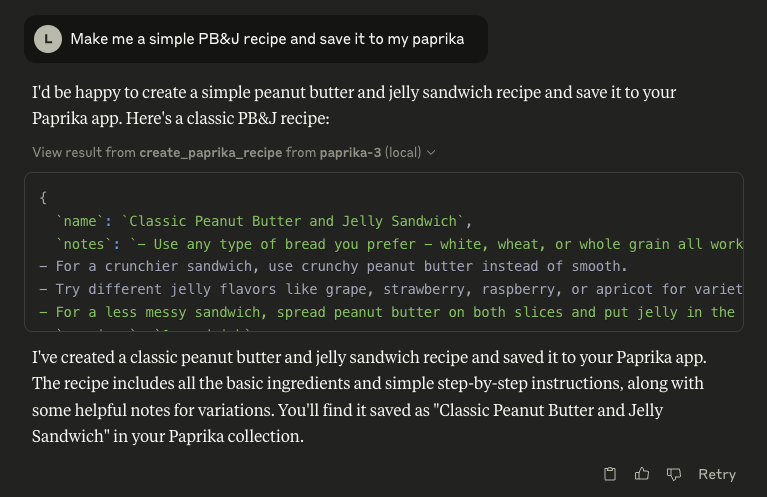
🖼️ Example: Claude using the Paprika MCP server
🚀 Features
See anything missing? Open an issue on this repo to request a feature!
📄 Resources
- Recipes ✅
- Recipe Photos 🚧
🛠 Tools
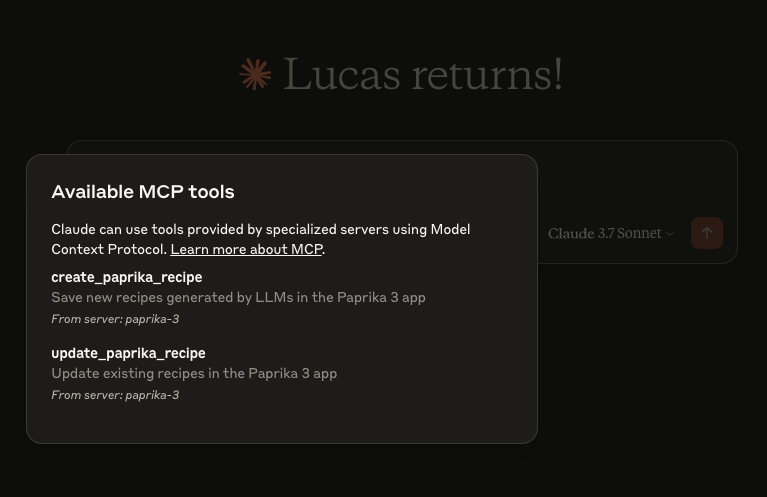
create_paprika_recipe
Allows Claude to save a new recipe to your Paprika appupdate_paprika_recipe
Allows Claude to modify an existing recipe
⚙️ Prerequisites
- ✅ A Mac, Linux, or Windows system
- ✅ Paprika 3 installed with cloud sync enabled
- ✅ Your Paprika 3 username and password
- ✅ Claude or any LLM client with MCP tool support enabled
🛠 Installation
You can download a prebuilt binary from the Releases page.
🍎 macOS (via Homebrew)
If you’re on macOS, the easiest way to install is with Homebrew:
brew tap soggycactus/tap
brew install paprika-3-mcp
🐧 Linux / 🪟 Windows
-
Go to the latest release.
-
Download the appropriate archive for your operating system and architecture:
paprika-3-mcp_<version>_linux_amd64.zipfor Linuxpaprika-3-mcp_<version>_windows_amd64.zipfor Windows
-
Extract the zip archive:
- Linux:
unzip paprika-3-mcp_<version>_<os>_<arch>.zip - Windows:
- Right-click the
.zipfile and select Extract All, or use a tool like 7-Zip.
- Right-click the
- Linux:
-
Move the binary to a directory in your system’s
$PATH:-
Linux:
sudo mv paprika-3-mcp /usr/local/bin/ -
Windows:
- Move
paprika-3-mcp.exeto any folder in yourPATH(e.g.,%USERPROFILE%\bin)
- Move
-
✅ Test the installation
You can verify the server is installed by checking:
paprika-3-mcp --version
You should see:
paprika-3-mcp version v0.1.0
🤖 Setting up Claude
If you haven’t setup MCP before, first read more about how to install Claude Desktop client & configure an MCP server.
To add paprika-3-mcp to Claude, all you need to do is create another entry in the mcpServers section of your claude_desktop_config.json file:
{
  "mcpServers": {
    "paprika-3": {
      "command": "paprika-3-mcp",
      "args": [
        "--username",
        "<your paprika 3 username (usually email)>",
        "--password",
        "<your paprika 3 password>"
      ]
    }
  }
}
Restart Claude and you should see the MCP server tools after clicking on the hammerhead icon:
📄 License
This project is open source under the MIT License © 2025 Lucas Stephens.
🗂 Miscellaneous
📄 Where can I see the server logs?
The MCP server writes structured logs using Go’s slog with rotation via lumberjack. Log files are automatically created based on your operating system:
| Operating System | Log File Path |
|---|---|
| macOS | ~/Library/Logs/paprika-3-mcp/server.log |
| Linux | /var/log/paprika-3-mcp/server.log |
| Windows | %APPDATA%\paprika-3-mcp\server.log |
| Other / Unknown | /tmp/paprika-3-mcp/server.log |
💡 Logs are rotated automatically at 100MB, with only 5 backup files kept. Logs are also wiped after 10 days.
Dev Tools Supporting MCP
The following are the main code editors that support the Model Context Protocol. Click the link to visit the official website for more information.







