
Personal Assistant Mcp
What is Personal Assistant Mcp
personal-assistant-mcp is a powerful personal assistant server that integrates with various services such as Google Calendar, Obsidian Vault, Trello, and web page parsing capabilities, providing a unified interface for managing your digital life.
Use cases
Use cases include scheduling and managing calendar events, organizing notes and documents, managing Trello boards and tasks, and extracting information from web pages for research or personal use.
How to use
To use personal-assistant-mcp, clone the repository, install dependencies using Poetry, set up Google Calendar and Trello API credentials, and run the initial setup to authenticate with Google Calendar. Finally, start the server to begin managing your tasks and notes.
Key features
Key features include Google Calendar integration for managing events, Obsidian Vault management for handling notes, Trello integration for board and card management, and web page parsing to extract and clean HTML content from URLs.
Where to use
personal-assistant-mcp can be used in various fields such as personal productivity, project management, note-taking, and web content management.
Clients Supporting MCP
The following are the main client software that supports the Model Context Protocol. Click the link to visit the official website for more information.





Overview
What is Personal Assistant Mcp
personal-assistant-mcp is a powerful personal assistant server that integrates with various services such as Google Calendar, Obsidian Vault, Trello, and web page parsing capabilities, providing a unified interface for managing your digital life.
Use cases
Use cases include scheduling and managing calendar events, organizing notes and documents, managing Trello boards and tasks, and extracting information from web pages for research or personal use.
How to use
To use personal-assistant-mcp, clone the repository, install dependencies using Poetry, set up Google Calendar and Trello API credentials, and run the initial setup to authenticate with Google Calendar. Finally, start the server to begin managing your tasks and notes.
Key features
Key features include Google Calendar integration for managing events, Obsidian Vault management for handling notes, Trello integration for board and card management, and web page parsing to extract and clean HTML content from URLs.
Where to use
personal-assistant-mcp can be used in various fields such as personal productivity, project management, note-taking, and web content management.
Clients Supporting MCP
The following are the main client software that supports the Model Context Protocol. Click the link to visit the official website for more information.
Content
Nexus MCP
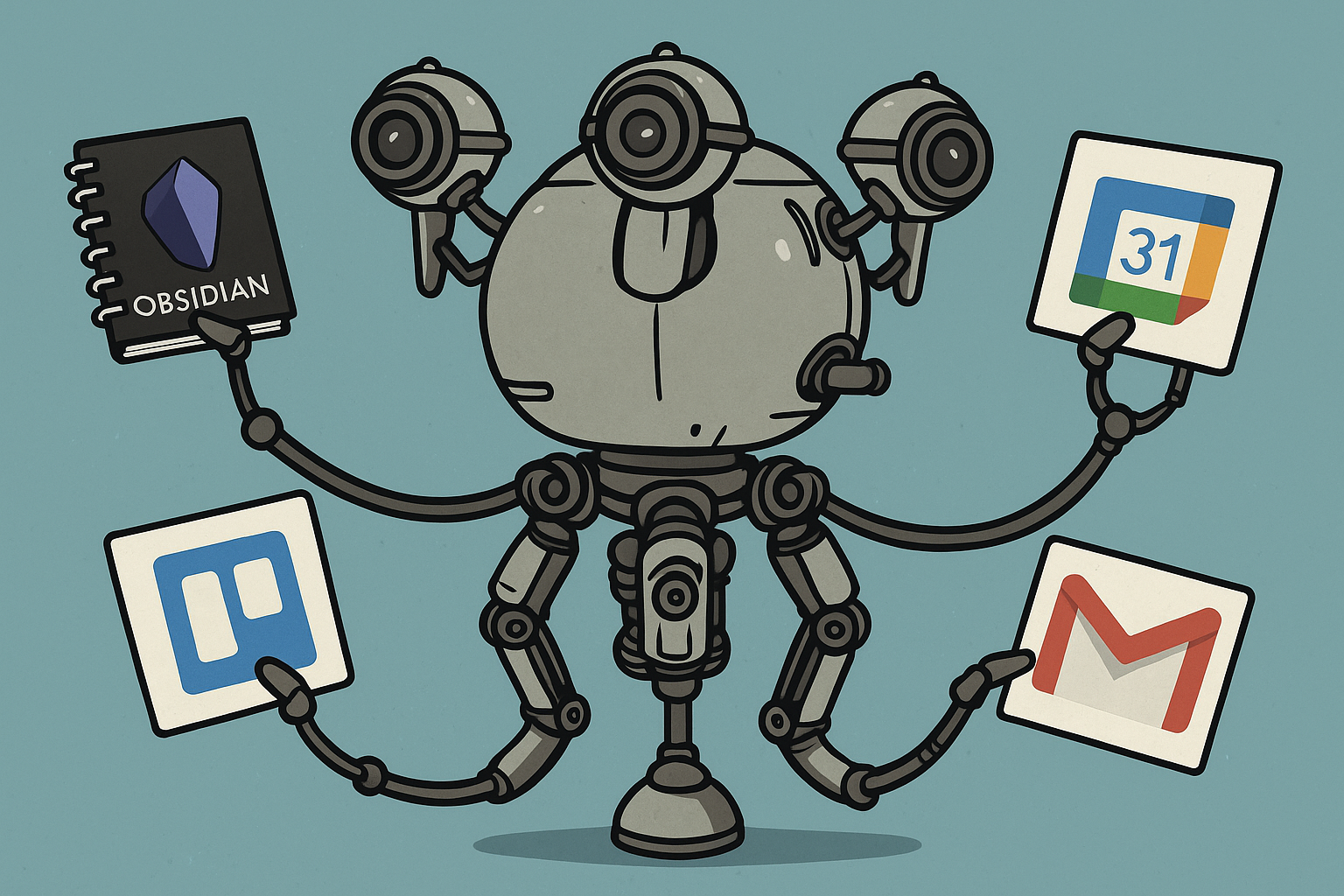
Features
-
Google Calendar Integration
- Create, read, update, and delete calendar events
- List upcoming events
-
Obsidian Vault Management
- Create, read, update, and delete notes
- Full-text search in notes
- Folder management (create, delete, search, list)
-
Trello Integration
- Board, list, and card management
- Create, update, and delete cards
- Search cards by text query
-
Web Page Parsing
- Extract and clean HTML content from any URL
-
Google News Search
- Search for recent news articles on a given topic
Prerequisites
- Python 3.10 or higher
- Poetry (Python package manager)
- Google Calendar API credentials
- Trello API credentials (if using Trello features)
- Obsidian Vault (if using Obsidian features)
Installation
-
Clone the repository:
git clone https://github.com/yourusername/nexus-mcp.git cd nexus-mcp -
Install dependencies using Poetry:
poetry install -
Set up Google Calendar API:
- Go to the Google Cloud Console
- Create a new project or select an existing one
- Enable the Google Calendar API
- Create OAuth 2.0 credentials
- Download the credentials and save them as
credentials.jsonin the project root
-
Set up Trello API (optional):
- Go to Trello Developer Portal
- Get your API key and token
- Add them to your environment variables or config file
Configuration
- Run the initial setup to authenticate with Google Calendar:
poetry run python main.py- This will open a browser window for Google authentication
- Follow the prompts to authorize the application
Usage
-
Start the server:
poetry run python main.py -
The server will start and be ready to accept MCP-compatible client connections.
-
Use any MCP-compatible client to interact with the server. The server provides the following tools:
- Calendar management
- Obsidian vault operations
- Trello board management
- Web page parsing
Anthropic Claude Desktop Configuration
To use this server with Anthropic Claude Desktop, add the following configuration to your Claude Desktop settings:
{
  "mcpServers": {
    "personal-assistant": {
      "command": "/path/to/your/venv/bin/python",
      "args": [
        "/path/to/your/project/main.py"
      ],
      "env": {
        "GOOGLE_CREDENTIALS_PATH": "/path/to/your/credentials.json",
        "GOOGLE_TOKEN_PATH": "/path/to/your/token.json",
        "GOOGLE_API_KEY": "your_google_api_key",
        "GOOGLE_CX_ID": "your_google_cx_id",
        "OBSIDIAN_VAULT_PATH": "/path/to/your/obsidian/vault",
        "OBSIDIAN_DEFAULT_FOLDER": "your_default_folder",
        "TRELLO_API_KEY": "your_trello_api_key",
        "TRELLO_TOKEN": "your_trello_token",
        "LOG_PATH": "/path/to/log.txt",
        "ENABLE_OBSIDIAN_TOOLS": "True/False",
        "ENABLE_TRELLO_TOOLS": "True/False",
        "ENABLE_CALENDAR_TOOLS": "True/False",
        "ENABLE_NEWS_SEARCH": "True/False",
        "ENABLE_WEB_PARSER": "True/False",
        "SEMANTIC_SEARCH_ENABLED": "True/False",
        "EMBEDDINGS_PATH": "/path/to/embeddings.json"
      }
    }
  }
}
Replace the paths and credentials with your actual values:
command: Path to your Python virtual environment’s Python executableargs: Path to your project’smain.pyfileENABLE_OBSIDIAN_TOOLS: Set toTrueto enable Obsidian toolsENABLE_TRELLO_TOOLS: Set toTrueto enable Trello toolsENABLE_CALENDAR_TOOLS: Set toTrueto enable Google Calendar toolsENABLE_NEWS_SEARCH: Set toTrueto enable Google News searchENABLE_WEB_PARSER: Set toTrueto enable the web parser toolGOOGLE_CREDENTIALS_PATH: Path to your Google Calendar credentials file (credentials.json)GOOGLE_TOKEN_PATH: Path to your Google Calendar token file (token.json)GOOGLE_API_KEY: Your Google API Key (for Custom Search API)GOOGLE_CX_ID: Your Google Programmable Search Engine ID (CX ID for Custom Search API)OBSIDIAN_VAULT_PATH: Path to your Obsidian vaultOBSIDIAN_DEFAULT_FOLDER: Optional path to default folder in your vault where new notes will be createdTRELLO_API_KEY: Your Trello API keyTRELLO_TOKEN: Your Trello API tokenLOG_PATH: Path to the log fileSEMANTIC_SEARCH_ENABLED: Set toTrueto enable semantic search for Obsidian VaultSIMILARITY_TRESHOLD: Default value is 0.5, this is the treshold for the semantic searchEMBEDDINGS_PATH: Optional path to the embeddings json file generated by the Obsidian Vector Search plugin (defaults to.obsidian/plugins/vector-search/data.jsonrelative toOBSIDIAN_VAULT_PATHif not set)MODEL_TOKEN_LIMIT: Limit for the AI model to understand when to chunk the notesCHUNK_SIZE_TOKENS: Chunk size
To enable semantic search capabilities, you’ll need to install the Vector Search plugin for Obsidian.

After the reindexing process is complete, the plugin will generate a JSON file containing vector embeddings at the following location:
.obsidian/plugins/vector-search/data.json
This file will be used as the embedding source for semantic search queries.
Recommended clients:
Development
- The project uses Poetry for dependency management
- All tools are registered in
main.py - Service-specific implementations are in the
services/directory - Follow PEP 8 style guidelines for Python code
Contributing
- Fork the repository
- Create your feature branch (
git checkout -b feature/amazing-feature) - Commit your changes (
git commit -m 'Add some amazing feature') - Push to the branch (
git push origin feature/amazing-feature) - Open a Pull Request
Dev Tools Supporting MCP
The following are the main code editors that support the Model Context Protocol. Click the link to visit the official website for more information.







