
Pocket Mcp
What is Pocket Mcp
Pocket MCP is a flexible and user-friendly management system designed for Model Context Protocol (MCP) servers, enabling users to manage multiple MCP servers through a central interface.
Use cases
Use cases include managing multiple AI models, simplifying API key management for AI tools, and providing a centralized interface for developers to interact with different MCP servers.
How to use
To use Pocket MCP, clone the repository, install the dependencies, and configure your MCP servers in the client settings. You can then manage and connect to multiple MCP servers using a single API key.
Key features
Key features include a central management UI for multiple MCP servers, selective server launching, API key generation, and a unified MCP interface for routing requests to backend servers.
Where to use
Pocket MCP can be used in various fields such as AI development, server management, and any application that requires handling multiple MCP servers efficiently.
Clients Supporting MCP
The following are the main client software that supports the Model Context Protocol. Click the link to visit the official website for more information.





Overview
What is Pocket Mcp
Pocket MCP is a flexible and user-friendly management system designed for Model Context Protocol (MCP) servers, enabling users to manage multiple MCP servers through a central interface.
Use cases
Use cases include managing multiple AI models, simplifying API key management for AI tools, and providing a centralized interface for developers to interact with different MCP servers.
How to use
To use Pocket MCP, clone the repository, install the dependencies, and configure your MCP servers in the client settings. You can then manage and connect to multiple MCP servers using a single API key.
Key features
Key features include a central management UI for multiple MCP servers, selective server launching, API key generation, and a unified MCP interface for routing requests to backend servers.
Where to use
Pocket MCP can be used in various fields such as AI development, server management, and any application that requires handling multiple MCP servers efficiently.
Clients Supporting MCP
The following are the main client software that supports the Model Context Protocol. Click the link to visit the official website for more information.
Content
Pocket MCP Manager
A flexible and user-friendly management system for Model Context Protocol (MCP) servers, consisting of a client-server architecture that simplifies handling multiple MCP servers through a central interface.
Overview
The Pocket MCP Manager streamlines the process of working with multiple MCP servers by allowing you to:
- Add all your MCP servers to a central management UI
- Selectively launch specific servers through an intuitive interface
- Generate API keys linked to these running servers
- Connect to them through a single proxy MCP server in clients like Claude or Cursor
This approach means you only need to update a single API key in your AI tools when changing which MCP servers you want to use, rather than reconfiguring multiple connection settings.
Server Component
The server component is an MCP proxy server that:
- Accepts an API key from the client
- Connects to the already running MCP servers authorized by that key
- Exposes all connected servers’ capabilities through a unified MCP interface
- Routes requests to the appropriate backend servers
Server Installation
# Clone the repository
git clone [email protected]:dailydaniel/pocket-mcp.git
cd pocket-mcp/server

# Install dependencies
npm install

# The build step runs automatically during installation
Connecting to Claude Desktop / Cursor
Add the following configuration to your Claude Desktop settings:
{
  "mcpServers": {
    "mcp-proxy": {
      "command": "node",
      "args": [
        "/full/path/to/pocket-mcp/server/build/index.js"
      ],
      "env": {
        "MCP_API_KEY": "api_key_from_client",
        "CLIENT_API_URL": "http://localhost:<port>/api"
      }
    }
  }
}
Replace:
/full/path/to/pocket-mcp/server/build/index.jswith the absolute path to your server’s build/index.js fileapi_key_from_clientwith the API key generated from the client UI<port>with the port shown in the API server logs (typically 8000)
Client Component
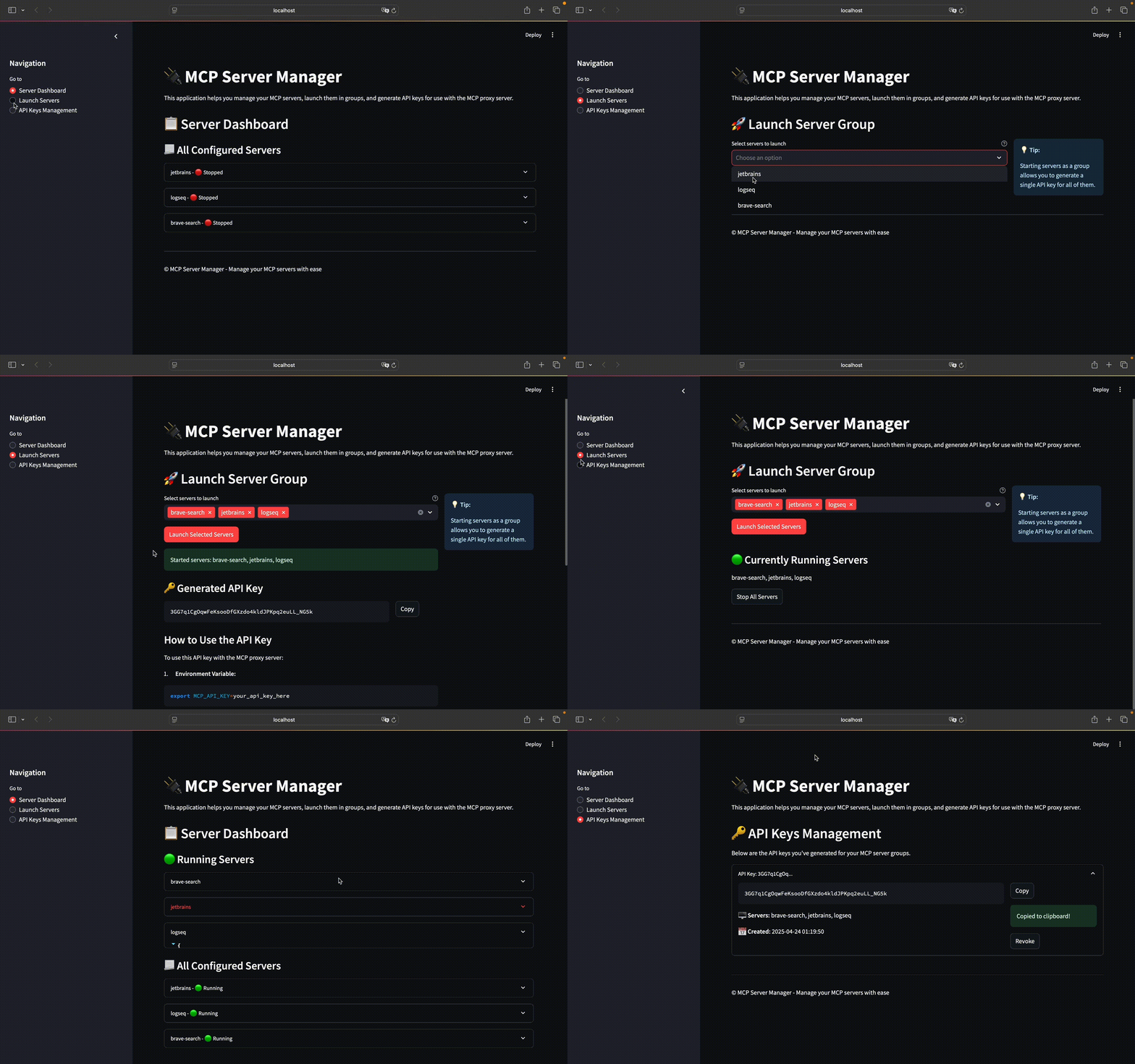
The client provides a web-based UI built with Streamlit for:
- Viewing all configured MCP servers
- Launching selected servers as a group
- Generating API keys for launched servers
- Managing existing API keys
Client Setup
# Navigate to the client directory
cd pocket-mcp/client

# Create and activate a virtual environment
python -m venv .venv --prompt "mcp-venv"
source .venv/bin/activate

# Install requirements
pip install -r requirements.txt

# Copy the example config
cp servers_config_example.json servers_config.json

# Edit the configuration with your MCP servers
vim servers_config.json

# Run the client
streamlit run app.py
Server Configuration Example
Create a servers_config.json file in the client directory with your MCP servers:
{
  "mcpServers": {
    "jetbrains": {
      "command": "npx",
      "args": [
        "-y",
        "@jetbrains/mcp-proxy"
      ]
    },
    "logseq": {
      "command": "uvx",
      "args": [
        "mcp-server-logseq"
      ],
      "env": {
        "LOGSEQ_API_TOKEN": "API_KEY",
        "LOGSEQ_API_URL": "http://127.0.0.1:<port>"
      }
    },
    "brave-search": {
      "command": "npx",
      "args": [
        "-y",
        "@modelcontextprotocol/server-brave-search"
      ],
      "env": {
        "BRAVE_API_KEY": "API_KEY"
      }
    }
  }
}
Replace API_KEY and <port> with your actual values.
Client Demo
Example LLM MCP Client
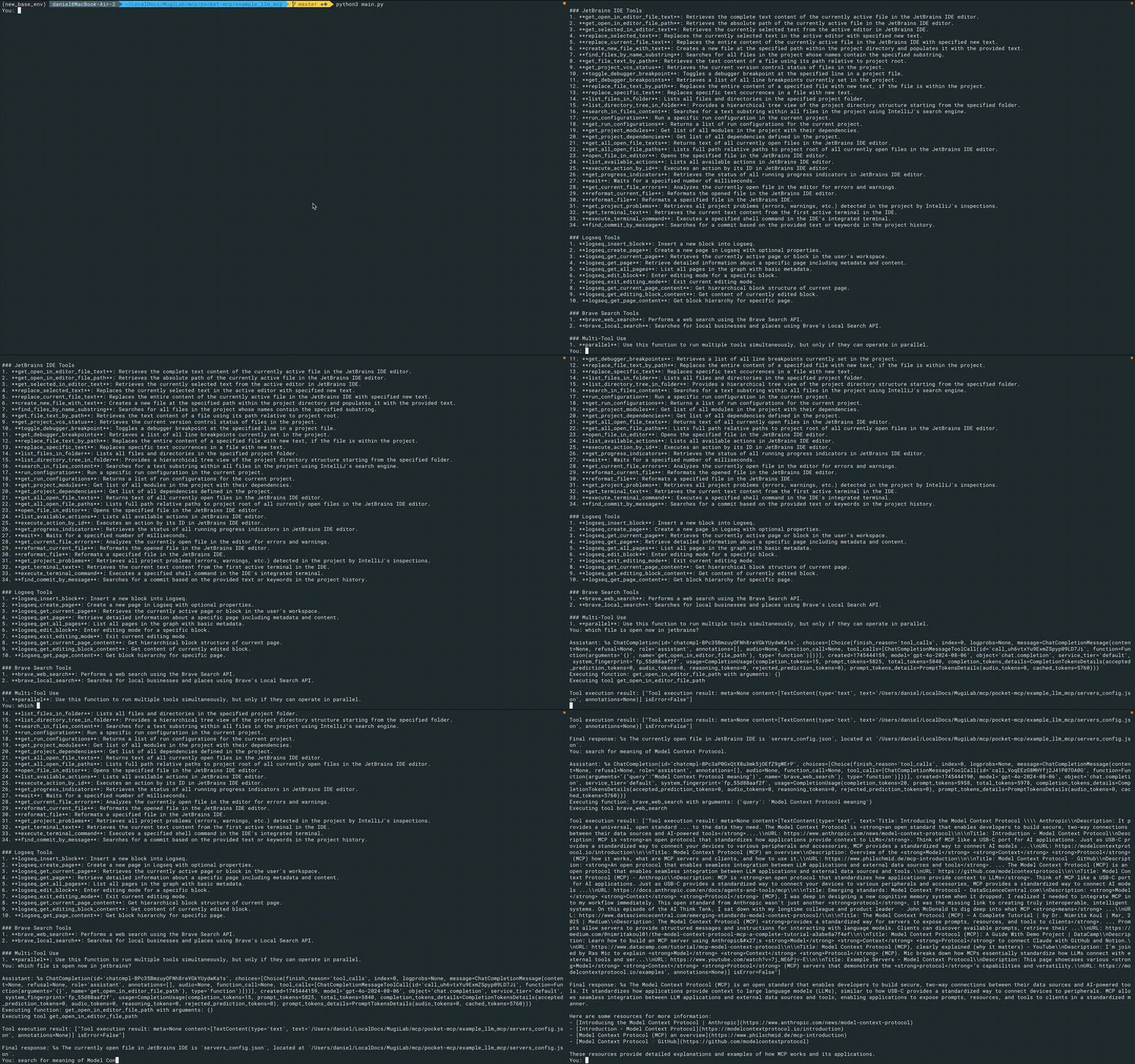
The repository includes an example client for chatting with LLMs using OpenAI API and MCP servers.
Setup and Usage
# Navigate to the example client directory
cd pocket-mcp/example_llm_mcp

# Copy the example environment file
cp .env.example .env

# Edit the .env file and add your OpenAI API key
vim .env

# Add server configurations to the servers_config.json file
cp servers_config_example.json servers_config.json

# Add API key from the client
vim servers_config.json

# If not already in a virtual environment
# May use the same virtual environment as for the client
source ../client/.venv/bin/activate

# Install requirements
pip install -r requirements.txt

# Run the client
python3 main.py
The example client will connect to your running MCP servers and allow you to chat with an LLM while utilizing MCP capabilities.
Chat Demo
Acknowledgments
- Server component based on mcp-proxy-server
- SSE implementation with mcp-proxy
TODO
- Add additional functionality to the client component
- Convert the server into a standalone npm module that can be installed with npx
- Delete cringe copyright notice from streamlit app :)
Dev Tools Supporting MCP
The following are the main code editors that support the Model Context Protocol. Click the link to visit the official website for more information.







