
Schedulia Mcp
What is Schedulia Mcp
Schedulia-mcp is a Meeting Scheduling Assistant that helps users manage and organize their meeting schedules efficiently using an API-driven approach.
Use cases
Use cases include checking meeting schedules for a specific date, integrating with desktop applications for seamless scheduling, and managing meetings across different teams and departments.
How to use
To use schedulia-mcp, first obtain your API key from schedulia.org. Then, clone the repository, run the server with your API key, and configure the MCP server on your host. You can interact with the server using commands to view meeting schedules.
Key features
Key features include the ability to view scheduled meetings for specific dates, integration options for different platforms, and a straightforward setup process.
Where to use
Schedulia-mcp can be used in various fields such as corporate environments, educational institutions, and any organization that requires efficient meeting management.
Clients Supporting MCP
The following are the main client software that supports the Model Context Protocol. Click the link to visit the official website for more information.





Overview
What is Schedulia Mcp
Schedulia-mcp is a Meeting Scheduling Assistant that helps users manage and organize their meeting schedules efficiently using an API-driven approach.
Use cases
Use cases include checking meeting schedules for a specific date, integrating with desktop applications for seamless scheduling, and managing meetings across different teams and departments.
How to use
To use schedulia-mcp, first obtain your API key from schedulia.org. Then, clone the repository, run the server with your API key, and configure the MCP server on your host. You can interact with the server using commands to view meeting schedules.
Key features
Key features include the ability to view scheduled meetings for specific dates, integration options for different platforms, and a straightforward setup process.
Where to use
Schedulia-mcp can be used in various fields such as corporate environments, educational institutions, and any organization that requires efficient meeting management.
Clients Supporting MCP
The following are the main client software that supports the Model Context Protocol. Click the link to visit the official website for more information.
Content
📅 Schedulia MCP - Meeting Scheduling Assistant
🚀 Getting Started
Prerequisites
✅ Git
✅ Python
✅ UV (Python Package Manager) - UV Installation Guide
⚙️ Setup Instructions
-
Get Your API Key
- Get your API key from schedulia.org 🔑
-
Clone Repository
git clone https://github.com/watanka/schedulia-mcp.git cd schedulia-mcp -
Run Server
uv run server.py --api-key={your-api-key} # Replace with your API key! -
Configure MCP Server
{ "mcpServers": { "schedulia-mcp": { "command": "uv", "args": [ "--directory", "/path/to/mcp/server", "run", "server.py", "--api-key", "{your-api-key}" ] } } } -
Register MCP Server on your host(Claude Desktop, Cursor)
🔧 Integration Options
For Claude Desktop users: Configuration Guide
For Cursor users: Configuration Guide
🛠️ Available Tools
📊 View Meeting Schedules
view_meeting_schedules(date): Check all scheduled meetings for a specific date
How to Use
Ask to see your meetings using the view_meeting_schedules tool. You can specify a date or view all schedules.
Prompt Examples:
- “Please show me my meeting schedules”
- “Can you check my meetings for today using view_meeting_schedules?”
- “Use view_meeting_schedules to show my upcoming meetings”
Example Response:
{
  "id": 1,
  "host": {
    "name": "John Doe",
    "email": "[email protected]"
  },
  "participants": [
    {
      "name": "Alice Smith",
      "email": "[email protected]"
    }
  ],
  "time": {
    "start_time": "2024-03-20T14:00:00",
    "end_time": "2024-03-20T15:00:00"
  },
  "title": "Project Review",
  "description": "Weekly sync meeting"
}
📬 View Meeting Requests
view_meeting_requests(): Check all incoming meeting requests
How to Use
Use the view_meeting_requests tool to check any pending meeting invitations.
Prompt Examples:
- “Use view_meeting_requests to show my pending invitations”
- “Check my meeting requests using view_meeting_requests tool”
- “Show me all meeting requests in the system”
Example Response:
{
  "request_id": 1,
  "sender": {
    "name": "Alice Smith",
    "email": "[email protected]"
  },
  "receiver_email": "[email protected]",
  "available_times": [
    {
      "start_time": "2024-03-21T15:00:00",
      "end_time": "2024-03-21T16:00:00"
    }
  ],
  "status": "PENDING",
  "title": "Product Discussion"
}
✅ Respond to Meeting Request
respond_to_meeting_request(request_id, accept, selected_time): Accept or decline meeting requests
How to Use
This is a two-step process using both view_meeting_requests and respond_to_meeting_request tools.
Step 1 - View Requests:
- “First, use view_meeting_requests to show me pending invitations”
- “Let me check the meeting requests using view_meeting_requests tool”
Step 2 - Respond:
- “Use respond_to_meeting_request to accept request ID 1 with the proposed time slot”
- “Please use respond_to_meeting_request to decline meeting request #2”
Example Conversation:
User: "First, show me my meeting requests using view_meeting_requests"
Assistant: "Here are your pending meeting requests: [shows requests]"
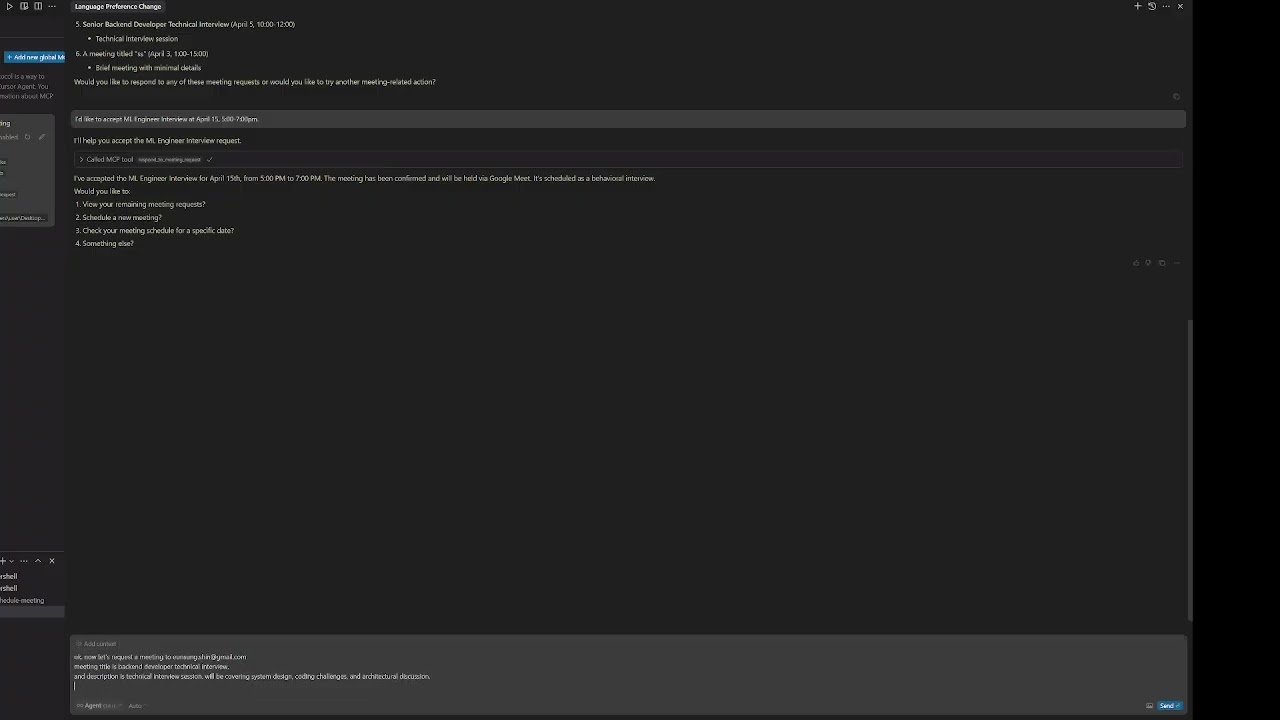
User: "Great, I want to accept request ID 1 using respond_to_meeting_request for the March 21st 15:00-16:00 slot"
📨 Send Meeting Request
request_meeting(receiver_email, available_times, title, description): Create and send new meeting requests
How to Use
Use the request_meeting tool to create new meeting requests. You’ll need to provide receiver’s email, available times, title, and description.
Prompt Examples:
- “Use request_meeting to schedule a meeting with [email protected]”
- “I need to send a meeting request using request_meeting tool for tomorrow”
- “Create a new meeting request with request_meeting for the team sync”
Example Request:
"Please use request_meeting to set up a meeting with following details:
- Receiver: [email protected]
- Title: Project Kickoff
- Description: Initial project planning meeting
- Available times:
  - March 25th, 2024 14:00-15:00
  - March 26th, 2024 11:00-12:00"
Example Response:
{
  "request_id": 3,
  "sender": {
    "name": "John Doe",
    "email": "[email protected]"
  },
  "receiver_email": "[email protected]",
  "available_times": [
    {
      "start_time": "2024-03-25T14:00:00",
      "end_time": "2024-03-25T15:00:00"
    },
    {
      "start_time": "2024-03-26T11:00:00",
      "end_time": "2024-03-26T12:00:00"
    }
  ],
  "status": "PENDING",
  "title": "Project Kickoff",
  "description": "Initial project planning meeting"
}
Demo
- Need help? Check out demo videos! 🎥
Dev Tools Supporting MCP
The following are the main code editors that support the Model Context Protocol. Click the link to visit the official website for more information.







