
Simple Mcp Client
What is Simple Mcp Client
simple_mcp_client is a command-line client designed for testing MCP (Model Context Protocol) servers using Python. It allows users to interact with various LLM (Large Language Model) providers and connect to multiple MCP servers.
Use cases
Use cases include testing different LLM providers, developing applications that require real-time interaction with LLMs, and executing commands in an interactive chat mode with integrated tools.
How to use
To use simple_mcp_client, install it via UV, pip with requirements.txt, or directly with pip. After installation, start the client by running ‘simple-mcp-client’ or ‘python -m simple_mcp_client.main’. Use commands like ‘connect <server_name>’ to connect to an MCP server.
Key features
Key features include the ability to connect to multiple MCP servers using SSE and stdio protocols, integration with various LLM providers (such as Ollama, DeepSeek, OpenAI, OpenRouter), an interactive command-line interface with auto-completion, command-based tool execution, chat mode with LLM-driven tool execution, and configurable JSON settings.
Where to use
simple_mcp_client can be used in fields such as software development, AI research, and any application requiring interaction with LLMs and MCP servers for testing and development purposes.
Clients Supporting MCP
The following are the main client software that supports the Model Context Protocol. Click the link to visit the official website for more information.





Overview
What is Simple Mcp Client
simple_mcp_client is a command-line client designed for testing MCP (Model Context Protocol) servers using Python. It allows users to interact with various LLM (Large Language Model) providers and connect to multiple MCP servers.
Use cases
Use cases include testing different LLM providers, developing applications that require real-time interaction with LLMs, and executing commands in an interactive chat mode with integrated tools.
How to use
To use simple_mcp_client, install it via UV, pip with requirements.txt, or directly with pip. After installation, start the client by running ‘simple-mcp-client’ or ‘python -m simple_mcp_client.main’. Use commands like ‘connect <server_name>’ to connect to an MCP server.
Key features
Key features include the ability to connect to multiple MCP servers using SSE and stdio protocols, integration with various LLM providers (such as Ollama, DeepSeek, OpenAI, OpenRouter), an interactive command-line interface with auto-completion, command-based tool execution, chat mode with LLM-driven tool execution, and configurable JSON settings.
Where to use
simple_mcp_client can be used in fields such as software development, AI research, and any application requiring interaction with LLMs and MCP servers for testing and development purposes.
Clients Supporting MCP
The following are the main client software that supports the Model Context Protocol. Click the link to visit the official website for more information.
Content


Simple MCP Client
A simple command-line MCP (Model Context Protocol) client for testing MCP servers using Python. It supports chatting with various LLM providers and connecting to multiple MCP servers.
Features
- Connect to multiple MCP servers (SSE and stdio protocols)
- Integrate with different LLM providers (Ollama, DeepSeek, OpenAI, OpenRouter)
- Interactive command-line interface with auto-completion
- Command-based tool execution
- Chat mode with LLM-driven tool execution
- Configurable via JSON configuration files
Notice:
This client now supports multiple LLM providers including OpenAI, Ollama, DeepSeek, OpenRouter, and LiteLLM. With the addition of LiteLLM, you can access various models from providers like Anthropic, Google, Azure, and more through a unified interface.
For example, to use Zhipu AI’s GLM-4-Flash model:
  "llm": {
    "provider": "openai",
    "model": "GLM-4-Flash",
    "api_url": "https://open.bigmodel.cn/api/paas/v4",
    "api_key": "",
    "other_params": {
      "temperature": 0.7,
      "max_tokens": 4096
    }
  }
Or to use Anthropic’s Claude model via LiteLLM:
  "llm": {
    "provider": "litellm",
    "model": "anthropic/claude-3-opus-20240229",
    "api_key": "",
    "other_params": {
      "temperature": 0.7,
      "max_tokens": 4096
    }
  }
Example
Ex 1:
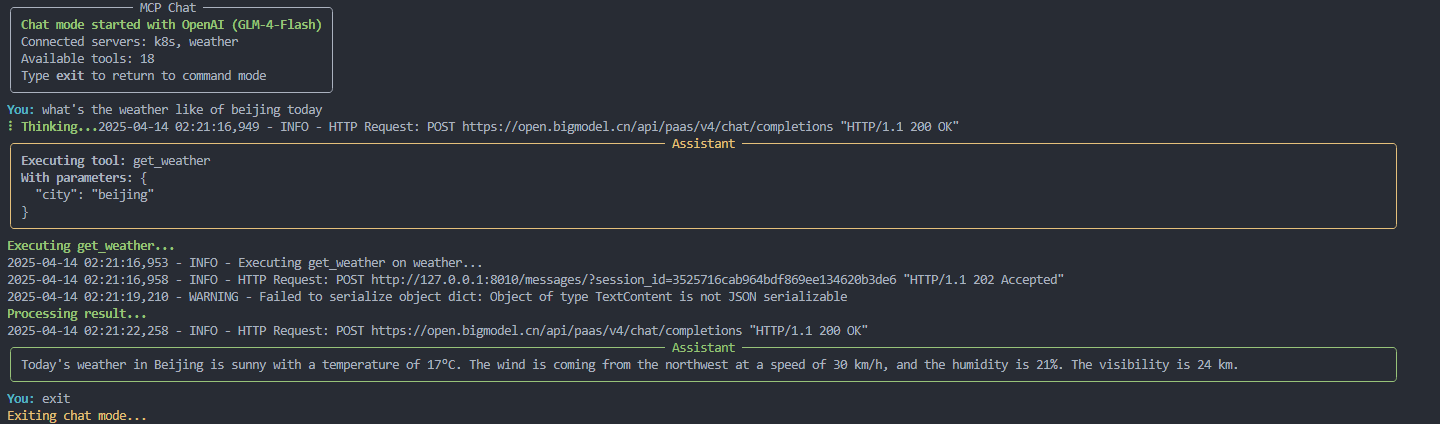
Ex 2:
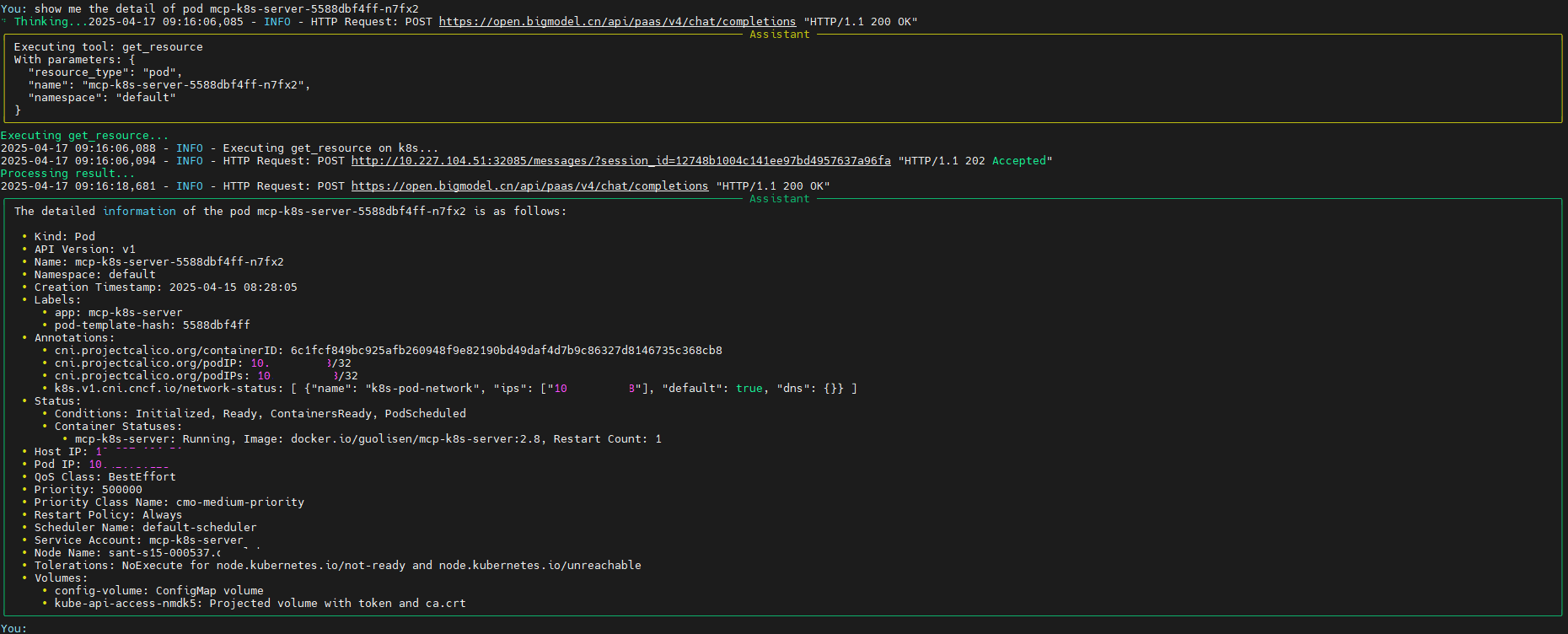
Installation
There are several ways to install the client:
Using UV (recommended)
Install UV
curl -LsSf https://astral.sh/uv/install.sh | sh
uv venv
source .venv/bin/activate
python -m build
Using pip with requirements.txt
python -m venv .venv
source .venv/bin/activate
pip install -r requirements.txt
pip install -e .
Using pip directly
pip install -e .
Using pip with pyproject.toml
pip install .
Configuration
The client uses a configuration file to define LLM providers and MCP servers. By default, it looks for config.json in the current directory, or it creates one with default values.
Example configuration:
{
  "llm": {
    "provider": "openai",
    "model": "claude-3-7-sonnet-20250219",
    "api_url": "https://api.gptoai.top/v1",
    "api_key": "",
    "other_params": {
      "temperature": 0.7,
      "max_tokens": 4096
    }
  },
  "mcpServers": {
    "k8s": {
      "type": "sse",
      "url": "http://192.168.182.128:8000/sse",
      "command": null,
      "args": [],
      "env": {}
    }
  },
  "default_server": "k8s"
}
Usage
Start the client:
simple-mcp-client
Or run it directly:
python -m simple_mcp_client.main
Available Commands
help: Show help messageconnect <server_name>: Connect to an MCP serverdisconnect <server_name>: Disconnect from an MCP serverservers: List available MCP serverstools [server_name]: List available tools, optionally from a specific serverresources [server_name]: List available resources, optionally from a specific serverprompts [server_name]: List available prompts, optionally from a specific serverformats [server_name]: List available prompt formats, optionally from a specific serverexecute <server_name> <tool_name> [arg1=val1 ...]: Execute a specific tool with argumentsget-resource [server_name] <resource_uri>: Get a resource from an MCP serverget-prompt [server_name] <prompt_name> [format=<format_name>] [arg1=val1 ...]: Get a prompt from an MCP serverchat: Start a chat session with the configured LLM and active MCP toolsconfig show: Show current configurationconfig llm <provider> [model=<model>] [api_url=<url>] [api_key=<key>] [param=value ...]: Configure LLM providerreload: Reload configuration from fileexit: Exit the program
Command Examples
Resources Command
The resources command lists available resources and resource templates from connected MCP servers.
List all resources from all connected servers:
resources
List resources from a specific server:
resources k8s
Output example:
             Resources from k8s - Direct Resources
┏━━━━━━━━━━━━━━━━━━┳━━━━━━━━━━━━━━━━━━━━━━━┳━━━━━━━━━━━━━━━━━━┓
┃ URI              ┃ Name                  ┃ MIME Type        ┃
┡━━━━━━━━━━━━━━━━━━╇━━━━━━━━━━━━━━━━━━━━━━━╇━━━━━━━━━━━━━━━━━━┩
│ k8s://namespaces │ Kubernetes Namespaces │ application/json │
│ k8s://resources  │ Kubernetes Resources  │ application/json │
└──────────────────┴───────────────────────┴──────────────────┘
                           Resources from k8s - Resource Templates
┏━━━━━━━━━━━━━━━━━━━━━━━━━━━━━━━━━━━━━━━━━━┳━━━━━━━━━━━━━━━━━━━━━━━━━━━━━━━━┳━━━━━━━━━━━━━━━┓
┃ URI Template                             ┃ Name                           ┃ MIME Type     ┃
┡━━━━━━━━━━━━━━━━━━━━━━━━━━━━━━━━━━━━━━━━━━╇━━━━━━━━━━━━━━━━━━━━━━━━━━━━━━━━╇━━━━━━━━━━━━━━━┩
│ k8s:///{namespace}                       │ Namespace Overview             │ Not specified │
│ k8s:///{resource_type}                   │ Cluster-Scoped Resources       │ Not specified │
│ k8s:///{resource_type}/{name}            │ Cluster-Scoped Resource        │ Not specified │
│ k8s://{namespace}/{resource_type}        │ Resources by Type in Namespace │ Not specified │
│ k8s://{namespace}/{resource_type}/{name} │ Namespaced Resource            │ Not specified │
└──────────────────────────────────────────┴────────────────────────────────┴───────────────┘
Prompts Command
The prompts command lists available prompts from connected MCP servers.
List all prompts from all connected servers:
prompts
List prompts from a specific server:
prompts k8s
Output example:
┏━━━━━━━━━━━━━━━━━━━━━━━━━━━━━━━━━━━━━━━━━━━━━━━━━━━━━━┓
┃                All Available Prompts                 ┃
┡━━━━━━━━━━━━━━━━━━━━━━━━━━━━━━━━━━━━━━━━━━━━━━━━━━━━━━┩
│ Name               │ Description                     │
│ k8s-describe       │ Describe Kubernetes resources   │
│ k8s-troubleshoot   │ Troubleshoot Kubernetes issues  │
└────────────────────┴─────────────────────────────────┘
Get-Resource Command
The get-resource command retrieves a resource from an MCP server.
Get a resource from any server that has it:
get-resource k8s://pods/default
Get a resource from a specific server:
get-resource k8s k8s://pods/default
Get-Prompt Command
The get-prompt command retrieves a prompt from an MCP server, with optional formatting and arguments.
Get a prompt from any server that has it:
get-prompt k8s-describe
Get a prompt from a specific server:
get-prompt k8s k8s-describe
Get a prompt with a specific format:
get-prompt k8s-describe format=markdown
Get a prompt with arguments:
get-prompt k8s k8s-describe namespace=default resource=pod name=my-pod
Environment Variables
MCP_LOG_LEVEL: Set logging level (default: INFO)OPENAI_API_KEY: OpenAI API key (for OpenAI provider or LiteLLM with OpenAI models)DEEPSEEK_API_KEY: DeepSeek API key (for DeepSeek provider)OPENROUTER_API_KEY: OpenRouter API key (for OpenRouter provider)ANTHROPIC_API_KEY: Anthropic API key (for LiteLLM with Anthropic models)GOOGLE_API_KEY: Google API key (for LiteLLM with Google models)MISTRAL_API_KEY: Mistral API key (for LiteLLM with Mistral models)COHERE_API_KEY: Cohere API key (for LiteLLM with Cohere models)AZURE_API_KEY: Azure API key (for LiteLLM with Azure models)
LLM Providers
The client supports the following LLM providers:
- Ollama: Local LLM provider for running open-source models locally
- OpenAI: API-based LLM provider for accessing OpenAI’s models
- DeepSeek: API-based LLM provider for accessing DeepSeek’s models
- OpenRouter: API-based LLM provider that routes requests to multiple LLM backends, providing access to a wide range of models from different providers through a unified API
- LiteLLM: A unified API for various LLM providers (OpenAI, Anthropic, Google, Azure, etc.) with support for fallback models, load balancing, and more
Provider-Specific Configuration
DeepSeek
DeepSeek requires an API key which can be provided either in the configuration file or as an environment variable (DEEPSEEK_API_KEY). The default API URL is https://api.deepseek.com/v1.
OpenRouter
OpenRouter requires an API key which can be provided either in the configuration file or as an environment variable (OPENROUTER_API_KEY). The default API URL is https://openrouter.ai/api/v1.
OpenRouter supports additional parameters such as:
http_referer: The HTTP referer to use when making requests (default: “https://github.com/simple_mcp_client”)app_name: The name of the application to use when making requests (default: “Simple MCP Client”)
LiteLLM
LiteLLM provides a unified interface to many different LLM providers. It supports models from OpenAI, Anthropic, Google, Azure, Mistral, Cohere, and more. The model name should be specified using the provider’s format, optionally with a provider prefix.
Example configurations:
{
  "llm": {
    "provider": "litellm",
    "model": "anthropic/claude-3-opus-20240229",
    "api_key": "YOUR_ANTHROPIC_API_KEY",
    "other_params": {
      "temperature": 0.7,
      "max_tokens": 4096,
      "request_timeout": 60
    }
  }
}
For OpenAI models:
{
  "llm": {
    "provider": "litellm",
    "model": "gpt-4-turbo",
    "api_key": "YOUR_OPENAI_API_KEY",
    "other_params": {
      "temperature": 0.7
    }
  }
}
LiteLLM will automatically look for the appropriate API key in environment variables based on the provider specified in the model name:
OPENAI_API_KEY: For OpenAI modelsANTHROPIC_API_KEY: For Anthropic modelsGOOGLE_API_KEY: For Google modelsMISTRAL_API_KEY: For Mistral modelsCOHERE_API_KEY: For Cohere modelsAZURE_API_KEY: For Azure models
You can also provide the API key directly in the configuration.
LiteLLM supports additional parameters such as:
request_timeout: Timeout for API requests in secondsfallbacks: List of fallback models to try if the primary model failscache: Enable response caching
License
MIT
Dev Tools Supporting MCP
The following are the main code editors that support the Model Context Protocol. Click the link to visit the official website for more information.







