
Tecton Mcp
What is Tecton Mcp
Tecton MCP is a Mission Control Protocol server developed by Anthropic for managing and interacting with Tecton clusters. It provides tools for feature store management and executing Tecton CLI commands.
Use cases
Use cases include managing feature stores, executing Tecton CLI commands for workspace management, retrieving configurations for feature views, and integrating with machine learning pipelines.
How to use
To use Tecton MCP, first ensure that Tecton is configured and logged in. Then, start the server with the command ‘python tecton.py’. You can interact with the server using various MCP tools to manage workspaces, feature views, and execute commands.
Key features
Key features include CLI tools for command execution, management of feature stores (like listing workspaces, feature views, and data sources), and configuration tools for retrieving detailed configurations of feature services and views.
Where to use
Tecton MCP can be used in data engineering, machine learning operations, and feature management within data science workflows, particularly in environments that utilize Tecton for feature engineering.
Clients Supporting MCP
The following are the main client software that supports the Model Context Protocol. Click the link to visit the official website for more information.





Overview
What is Tecton Mcp
Tecton MCP is a Mission Control Protocol server developed by Anthropic for managing and interacting with Tecton clusters. It provides tools for feature store management and executing Tecton CLI commands.
Use cases
Use cases include managing feature stores, executing Tecton CLI commands for workspace management, retrieving configurations for feature views, and integrating with machine learning pipelines.
How to use
To use Tecton MCP, first ensure that Tecton is configured and logged in. Then, start the server with the command ‘python tecton.py’. You can interact with the server using various MCP tools to manage workspaces, feature views, and execute commands.
Key features
Key features include CLI tools for command execution, management of feature stores (like listing workspaces, feature views, and data sources), and configuration tools for retrieving detailed configurations of feature services and views.
Where to use
Tecton MCP can be used in data engineering, machine learning operations, and feature management within data science workflows, particularly in environments that utilize Tecton for feature engineering.
Clients Supporting MCP
The following are the main client software that supports the Model Context Protocol. Click the link to visit the official website for more information.
Content
Tecton MCP Server & Cursor Rules
Tecton’s Co-Pilot consists of an MCP Server and Cursor rules.
Read this blog to learn much more.
ℹ️ Info: This guide will walk you through setting up the Tecton MCP server with this repository and configuring your feature repository to use it while developing features with Tecton.
Table of Contents
- Quick Start
- Tecton MCP Tools
- Architecture
- Setup Tecton with Cursor
- How to Use Specific Tecton SDK Version
- Troubleshooting
- Resources
Quick Start
-
Clone this repository to your local machine:
git clone https://github.com/tecton-ai/tecton-mcp.git
cd tecton-mcp
pwd
Note: The path to the directory where you just cloned the repository will be referred to as
<path-to-your-local-clone>in the following steps. Thepwdcommand in the end will tell you what the full path is. -
Install the uv package manager:
brew install uv -
Verify your installation by running the following command. Replace
<path-to-your-local-clone>with the path where you cloned the repository in step 1:MCP_SMOKE_TEST=1 uv --directory <path-to-your-local-clone> run mcp run src/tecton_mcp/mcp_server/server.pyThe command should exit without any errors and print a message similar to
MCP_SMOKE_TEST is set. Exiting after initialization.. This confirms that your local setup works correctly—Cursor will automatically spawn the MCP server as a subprocess when needed. -
Configure Cursor (or any other MCP client) with the MCP server (see below)
-
Log into your Tecton cluster:
tecton login yourcluster.tecton.ai -
Launch Cursor and start developing features with Tecton’s Co-Pilot in Cursor!
Tecton MCP Tools
The Tecton MCP server exposes the following tools that can be used by an MCP client (like Cursor):
| Tool Name | Description |
|---|---|
query_example_code_snippet_index_tool |
Finds relevant Tecton code examples using a vector database. Helpful for finding usage patterns before writing new Tecton code. |
query_documentation_index_tool |
Retrieves Tecton documentation snippets based on a query. Provides context directly from Tecton’s official documentation. |
get_full_tecton_sdk_reference_tool |
Fetches the complete Tecton SDK reference, including all available classes and functions. Use when a broad overview of the SDK is needed. |
query_tecton_sdk_reference_tool |
Fetches the Tecton SDK reference for a specified list of classes or functions. Ideal for targeted information on specific SDK components. |
ℹ️ Feature Services: If the MCP server is configured with a
TECTON_API_KEYenvironment variable, the MCP server will register Tecton Feature Services as tools. This makes it possible for agents to query online feature services for fresh features from batch, streaming and real-time data sources.
Architecture
The Tecton MCP integrates with LLM-powered editors like Cursor to provide tool-based context and assistance for feature engineering:
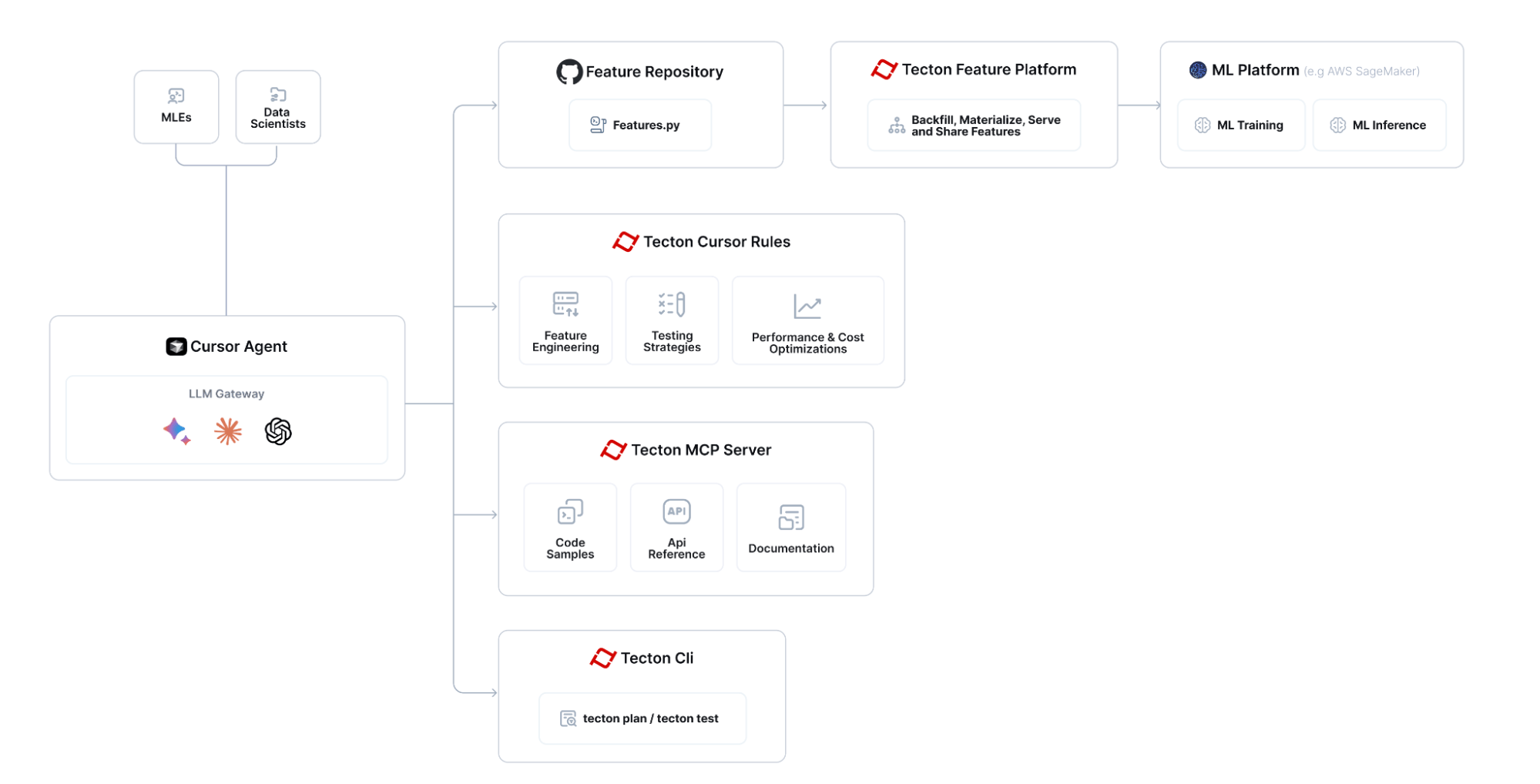
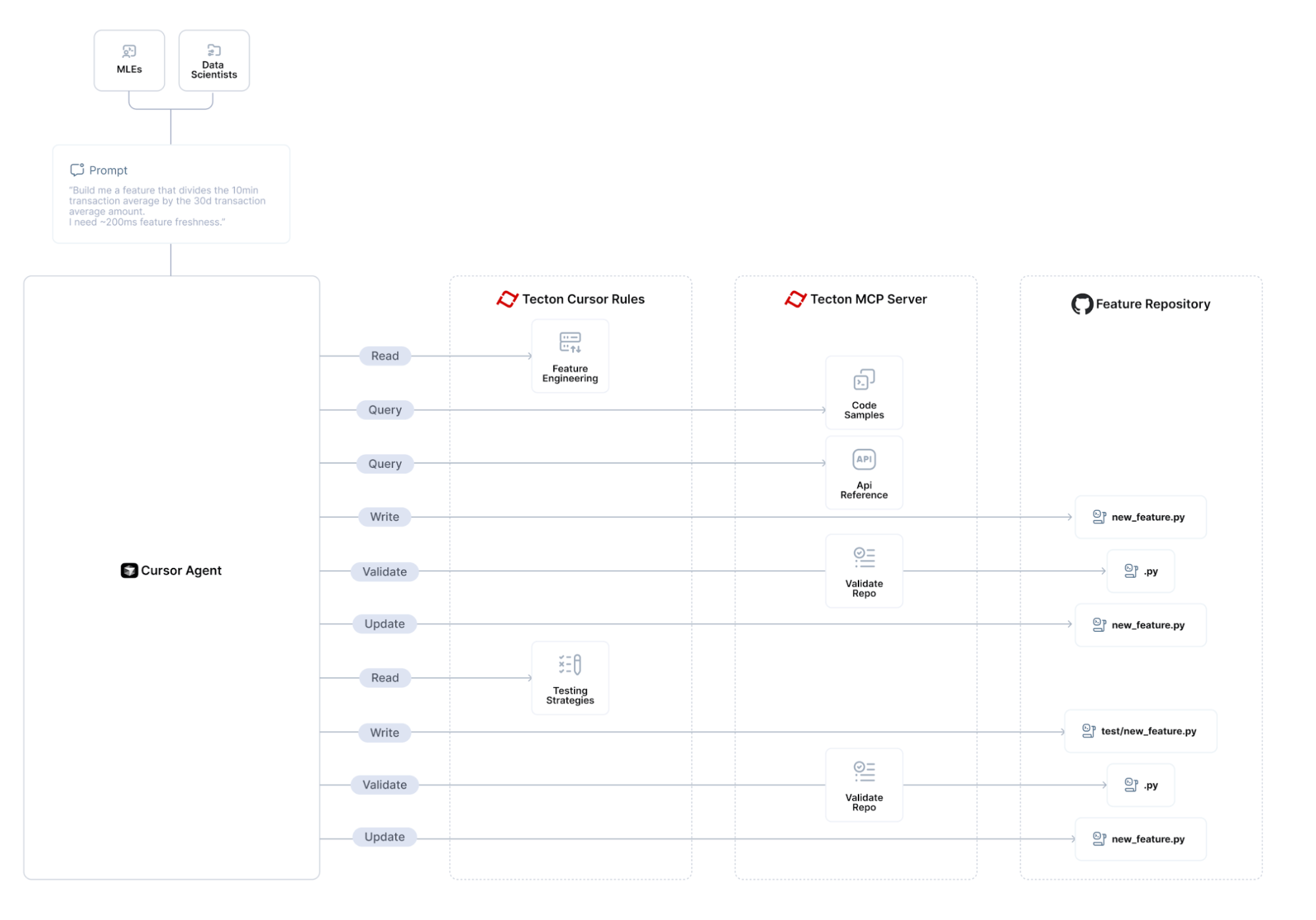
The overall flow for building features with Tecton MCP looks like:
Setup Tecton with Cursor
The following is tested with Cursor 0.48 and above
Configure the Tecton MCP Server in Cursor
Navigate to Cursor Settings -> MCP and click the “Add new global MCP server” button, which will edit Cursor’s mcp.json file.
Add Tecton as an MCP server. You can use the following config as a starting point - make sure you modify the path <path-to-your-local-clone> to match the directory where you cloned the repository:
{
  "mcpServers": {
    "tecton": {
      "command": "uv",
      "args": [
        "--directory",
        "<path-to-your-local-clone>",
        "run",
        "mcp",
        "run",
        "src/tecton_mcp/mcp_server/server.py"
      ]
    }
  }
}
Add Cursor rules
Symlink the cursorrules from this repository’s [. cursor/rules folder](https://github.com/tecton-ai/
tecton-mcp/tree/main/.cursor/rules) into your feature repository. Using symlinks ensures that any updates to the original rules will automatically be picked up in your feature repository:
# Symlink the entire .cursor directory in your feature repo
ln -s <path-to-your-local-clone>/.cursor <path-to-your-feature-repo>/.cursor
Tecton Login
Log into your Tecton cluster:
tecton login yourcluster.tecton.ai
Recommended LLM
As of June 2025, the following is the stack ranked list of best performing Tecton feature engineering LLMs in Cursor; this list may evolve over time as new models are released:
- Claude Sonnet 4
- OpenAI o3
- Gemini 2.5 pro exp (03-25)
Verify that the Cursor <> Tecton MCP Integration is working as expected
To make sure that your integration works as expected, ask the Cursor Agent a question like the following and make sure it’s properly invoking your Tecton MCP tools:
Query Tecton’s Examples Index and tell me something about BatchFeatureViews and how they differ from StreamFeatureViews. Also look at the SDK Reference.
If no calls are made to Tecton MCP tools, you may need to restart Cursor or reload your Cursor window to ensure new tools are properly registered.
Start AI-Assisted Feature Engineering :-)
Now you can go to your Feature Repository in Cursor and start using Tecton’s Co-Pilot - directly integrated in Cursor.
View this Loom to see how you can use the integration to build new features: https://www.loom.com/share/3658f665668a41d2b0ea2355b433c616
How to Use Specific Tecton SDK Version
By default, this tool provides guidance for the latest pre-release of the Tecton SDK. If you need the tools to align with a specific released version of Tecton (for example 1.0.34 or 1.1.10), follow these steps:
- Pin the version in
pyproject.toml. Openpyproject.tomland replace the existing dependency line
dependencies = [
  # ... other dependencies ...
  "tecton>=0.8.0a0"
]
with the exact version you want, e.g.
dependencies = [
  # ... other dependencies ...
  "tecton==1.1.10"
]
- Remove the existing lock-file. Because
uv.lockrecords the dependency graph, you must delete it so thatuvcan resolve the new Tecton version:
cd <path-to-your-local-clone>
rm uv.lock
-
Re-generate the lock-file by re-running Step 3 (the
MCP_SMOKE_TEST=1 uv --directorycommand) of the Quick Start section. (This will download the pinned version into an isolated environment for MCP and re-createuv.lock.) -
Restart Cursor so that the new Tecton version is loaded into the MCP virtual environment.
Supported versions: The tools currently support Tecton ≥ 1.0.0. Code examples are not versioned yet – they always use the latest stable SDK – however the documentation and SDK reference indices will now match the version you’ve pinned.
Troubleshooting
Cursor <-> Tecton MCP Server integration
Make sure that Cursor shows “tecton” as an “Enabled” MCP server in “Cursor Settings -> MCP”. If you don’t see a “green dot”, run the MCP server in Diagnostics mode (see below)
Run MCP in Diagnostics Mode
To debug the Tecton MCP Server you can run the following command. Replace <path-to-your-local-clone> with the actual path where you cloned the repository:
uv --directory <path-to-your-local-clone> run mcp dev src/tecton_mcp/mcp_server/server.py
Note: Launching Tecton’s MCP Server will take a few seconds because it’s loading an embedding model into memory that it uses to search for relevant code snippets.
Wait a few seconds until the stdout tells you that the MCP Inspector is up and running and then access it at the printed URL (something like http://localhost:5173)
Click “Connect” and then list tools. You should see the Tecton MCP Server tools and be able to query them.
Resources
License
This project is licensed under the MIT License.
Dev Tools Supporting MCP
The following are the main code editors that support the Model Context Protocol. Click the link to visit the official website for more information.







