
Threejs Mcp
What is Threejs Mcp
threejs-mcp is a web application that utilizes Three.js to allow users to add 3D objects by pressing buttons. It also provides an HTTP API for external management of 3D objects, with persistent data storage in a JSON file, ensuring data retention even after server restarts. Real-time updates are facilitated through WebSocket.
Use cases
Use cases include creating 3D models based on natural language instructions in applications like Claude Desktop, designing interactive 3D environments for games, and developing educational tools that allow students to visualize complex concepts in 3D.
How to use
To use threejs-mcp, install the required packages using ‘npm install express cors body-parser ws’, then start the server with ‘node server.js’. Access the application via ‘http://localhost:3000/index.html’ and use the ‘Add Object’ button to insert 3D shapes into the scene. You can also export objects as STL files.
Key features
Key features include the ability to add 3D objects via button clicks, manipulate the camera view with mouse controls, manage objects through an HTTP API, persistent storage of object data in a JSON file, real-time updates via WebSocket, and the option to export scene objects as STL files.
Where to use
threejs-mcp can be used in various fields such as education for teaching 3D modeling, game development for prototyping, virtual reality applications, and any web-based projects requiring interactive 3D visualizations.
Clients Supporting MCP
The following are the main client software that supports the Model Context Protocol. Click the link to visit the official website for more information.





Overview
What is Threejs Mcp
threejs-mcp is a web application that utilizes Three.js to allow users to add 3D objects by pressing buttons. It also provides an HTTP API for external management of 3D objects, with persistent data storage in a JSON file, ensuring data retention even after server restarts. Real-time updates are facilitated through WebSocket.
Use cases
Use cases include creating 3D models based on natural language instructions in applications like Claude Desktop, designing interactive 3D environments for games, and developing educational tools that allow students to visualize complex concepts in 3D.
How to use
To use threejs-mcp, install the required packages using ‘npm install express cors body-parser ws’, then start the server with ‘node server.js’. Access the application via ‘http://localhost:3000/index.html’ and use the ‘Add Object’ button to insert 3D shapes into the scene. You can also export objects as STL files.
Key features
Key features include the ability to add 3D objects via button clicks, manipulate the camera view with mouse controls, manage objects through an HTTP API, persistent storage of object data in a JSON file, real-time updates via WebSocket, and the option to export scene objects as STL files.
Where to use
threejs-mcp can be used in various fields such as education for teaching 3D modeling, game development for prototyping, virtual reality applications, and any web-based projects requiring interactive 3D visualizations.
Clients Supporting MCP
The following are the main client software that supports the Model Context Protocol. Click the link to visit the official website for more information.
Content
Three.js MCP サーバー
このプロジェクトは、Three.jsを使用して、ボタンを押すと立体オブジェクトが追加されるウェブアプリケーションです。また、HTTP APIを通じて外部からも立体を追加・管理できます。追加されたオブジェクトの情報はJSONファイルに永続化されるため、サーバーを再起動しても保持されます。WebSocketを使用してリアルタイムに変更が反映されます。さらに、MCPサーバーを通じて立体の取得や追加を行うことができます。
機能
- ボタンをクリックすると、シーンに立体が追加されます
- マウスでカメラを操作して、3Dシーンを自由に見ることができます
- HTTP APIを使用して、外部から立体を追加・管理できます
- 追加されたオブジェクトの情報はJSONファイルに永続化されます
- WebSocketを使用してリアルタイムに変更が反映されます
- MCPサーバーを通じて立体の取得や追加を行うことができます
- シーン内のオブジェクトをSTLファイルとしてエクスポートできます
Claude Desktopでの使用例
このMCPサーバーをClaude Desktopで使用すると、自然言語で3Dオブジェクトを作成できます。
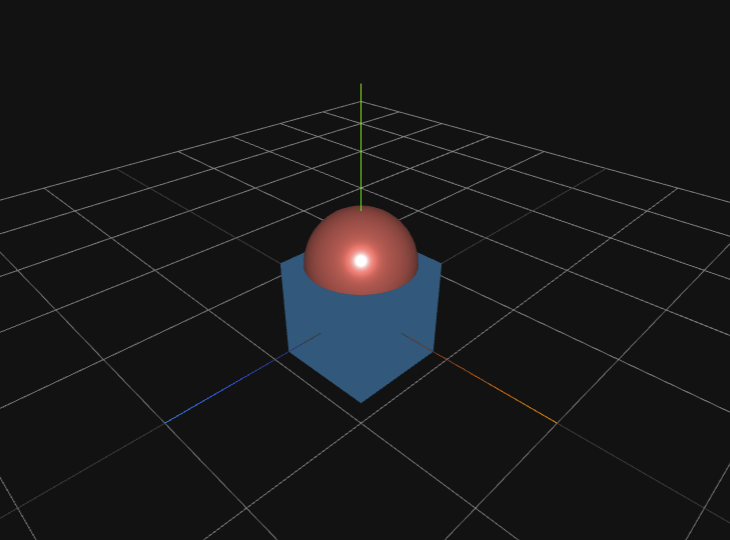
例1: 直方体の上に球体の上半分が乗った立体
「直方体の上に球体の上半分が乗った立体をつくってください。」という指示で作成された立体:
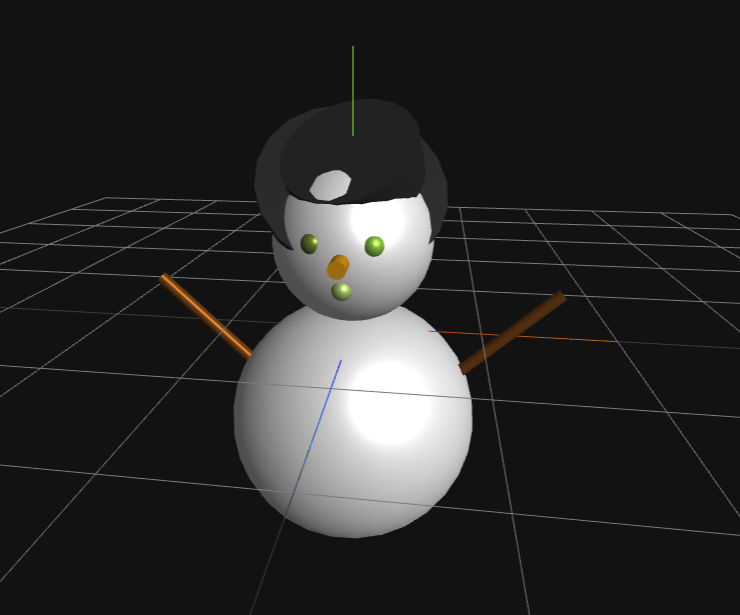
例2: 雪だるま
「雪だるまを作ってください。」という指示で作成された立体:
使用技術
- Three.js - 3Dグラフィックスライブラリ
- Node.js - サーバーサイドJavaScript
- Express - Webアプリケーションフレームワーク
- WebSocket - リアルタイム通信
- HTML/CSS/JavaScript
- ファイルシステム - データの永続化
- MCP (Model Context Protocol) - AIとの連携
セットアップ
-
必要なパッケージをインストールします
npm install express cors body-parser ws -
サーバーを起動します
node server.js -
ブラウザで
http://localhost:3000/index.htmlにアクセスします -
APIテストページは
http://localhost:3000/test.htmlでアクセス可能
使い方
- 「立体を追加」ボタンをクリックして、シーンに立体を追加します
- マウスでドラッグして視点を変更できます
- 「STLにエクスポート」ボタンをクリックして、シーン内のオブジェクトをSTLファイルとしてエクスポートできます
データの永続化
このアプリケーションでは、追加された立体のデータはdata.jsonファイルに保存されます。これにより、サーバーを再起動しても立体のデータが保持されます。データファイルは自動的に作成・更新されるため、特別な設定は必要ありません。
リアルタイム更新
このアプリケーションでは、WebSocketを使用してリアルタイムに変更を反映します。立体が追加・削除されると、接続されているすべてのクライアントに通知が送信され、自動的に画面が更新されます。これにより、複数のクライアントから同時にアクセスしても、すべてのクライアントで同じ立体が表示されます。
MCP ツール
このアプリケーションは、MCPサーバーを通じて立体の管理を行うためのツールを提供しています。
立体の取得
get-boxes
すべての立体の情報を取得します。
直方体の追加
add-box
新しい直方体をシーンに追加します。以下のパラメータを指定できます:
width: 直方体の幅(デフォルト: 10)height: 直方体の高さ(デフォルト: 10)depth: 直方体の奨行き(デフォルト: 10)color: 直方体の色(デフォルト: ランダム)- 10進数形式: 例
16711680(赤色) - RGB形式: 例
{ "r": 255, "g": 0, "b": 0 }(赤色)
- 10進数形式: 例
position: 直方体の位置(デフォルト: ランダム)x: X座標y: Y座標z: Z座標
rotation: 直方体の回転(ラジアン単位、デフォルト: ランダム)x: X軸周りの回転y: Y軸周りの回転z: Z軸周りの回転
例(個別の寸法を指定):
{
  "width": 20,
  "height": 10,
  "depth": 15,
  "color": 16711680,
  "position": {
    "x": 0,
    "y": 10,
    "z": 0
  },
  "rotation": {
    "x": 0,
    "y": 0,
    "z": 0
  }
}
例(RGB形式での色指定):
{
  "width": 10,
  "height": 20,
  "depth": 10,
  "color": {
    "r": 255,
    "g": 0,
    "b": 0
  },
  "position": {
    "x": 0,
    "y": 10,
    "z": 0
  },
  "rotation": {
    "x": 0,
    "y": 0,
    "z": 0
  }
}
立体の削除
remove-box
指定したIDの立体をシーンから削除します。以下のパラメータを指定する必要があります:
id: 削除する立体のID
例:
{
  "id": 1618456789012
}
正n角柱の追加
add-prism
新しい正n角柱をシーンに追加します。以下のパラメータを指定できます:
radius: 底面の半径(デフォルト: 5)height: 高さ(デフォルト: 10)segments: 底面の角の数(最小: 3、デフォルト: 6)color: 正n角柱の色(デフォルト: ランダム)- 10進数形式: 例
16711680(赤色) - RGB形式: 例
{ "r": 255, "g": 0, "b": 0 }(赤色)
- 10進数形式: 例
position: 正n角柱の位置(デフォルト: ランダム)x: X座標y: Y座標z: Z座標
rotation: 正n角柱の回転(ラジアン単位、デフォルト: ランダム)x: X軸周りの回転y: Y軸周りの回転z: Z軸周りの回転
例(RGB形式での色指定):
{
  "radius": 5,
  "height": 15,
  "segments": 8,
  "color": {
    "r": 0,
    "g": 255,
    "b": 0
  },
  "position": {
    "x": 10,
    "y": 5,
    "z": 10
  },
  "rotation": {
    "x": 0,
    "y": 0.5,
    "z": 0
  }
}
球体の追加
add-sphere
新しい球体をシーンに追加します。以下のパラメータを指定できます:
radius: 球体の半径(デフォルト: 5)widthSegments: 横方向の分割数(デフォルト: 32)heightSegments: 縦方向の分割数(デフォルト: 16)color: 球体の色(デフォルト: ランダム)- 10進数形式: 例
255(青色) - RGB形式: 例
{ "r": 0, "g": 0, "b": 255 }(青色)
- 10進数形式: 例
position: 球体の位置(デフォルト: ランダム)x: X座標y: Y座標z: Z座標
rotation: 球体の回転(ラジアン単位、デフォルト: ランダム)x: X軸周りの回転y: Y軸周りの回転z: Z軸周りの回転
正n角錐の追加
add-pyramid
新しい正n角錐をシーンに追加します。以下のパラメータを指定できます:
radius: 底面の半径(デフォルト: 5)height: 高さ(デフォルト: 10)segments: 底面の角の数(最小: 3、デフォルト: 4)color: 正n角錐の色(デフォルト: ランダム)- 10進数形式: 例
16711680(赤色) - RGB形式: 例
{ "r": 255, "g": 0, "b": 0 }(赤色)
- 10進数形式: 例
position: 正n角錐の位置(デフォルト: ランダム)x: X座標y: Y座標z: Z座標
rotation: 正n角錐の回転(ラジアン単位、デフォルト: ランダム)x: X軸周りの回転y: Y軸周りの回転z: Z軸周りの回転
例(RGB形式での色指定):
{
  "radius": 6,
  "height": 12,
  "segments": 5,
  "color": {
    "r": 255,
    "g": 128,
    "b": 0
  },
  "position": {
    "x": -5,
    "y": 6,
    "z": 0
  },
  "rotation": {
    "x": 0,
    "y": 0.5,
    "z": 0
  }
}
立体の減算(くり抜き)
subtract-objects
2つの立体を減算処理(くり抜き)します。以下のパラメータを指定する必要があります:
targetId: くり抜かれる立体のIDsubtractId: くり抜く立体のID
例:
{
  "targetId": 1618456789012,
  "subtractId": 1618456789013
}
すべての立体の削除
remove-all-boxes
シーン内のすべての立体を削除します。パラメータは必要ありません。
Claude での設定方法
このMCPサーバーをClaudeで使用するには、以下の設定をClaudeの設定ファイルに追加してください。
{
  "mcpServers": {
    "threejs-mcp": {
      "command": "<nodeのフルパス>",
      "args": [
        "<threejs-mcp のパス>/mcp.js"
      ]
    }
  }
}<nodeのフルパス>: Nodeのインストールパスを指定します(例:/usr/local/bin/node)<threejs-mcp のパス>: このリポジトリをクローンしたディレクトリのパスを指定します
設定後、Claudeを再起動すると、Three.js MCPサーバーを通じて3Dオブジェクトの操作が可能になります。
HTTP API
このアプリケーションは、外部からアクセスできるHTTP APIを提供しています。すべてのAPI操作はデータファイルに永続化され、WebSocketを通じてリアルタイムに通知されます。
直方体の追加
POST /api/boxes
curlコマンド例:
curl -X POST http://localhost:3000/api/boxes \
  -H "Content-Type: application/json" \
  -d '{
    "width": 20,
    "height": 10,
    "depth": 15,
    "color": 16711680,
    "position": { "x": 0, "y": 10, "z": 0 },
    "rotation": { "x": 0, "y": 0, "z": 0 }
  }'
リクエスト例:
{
  "width": 20,
  "height": 10,
  "depth": 15,
  "color": 16711680,
  "position": {
    "x": 0,
    "y": 10,
    "z": 0
  },
  "rotation": {
    "x": 0,
    "y": 0,
    "z": 0
  }
}
レスポンス例:
{
  "id": 1618456789012,
  "type": "box",
  "width": 20,
  "height": 10,
  "depth": 15,
  "color": 16711680,
  "position": {
    "x": 0,
    "y": 10,
    "z": 0
  },
  "rotation": {
    "x": 0,
    "y": 0,
    "z": 0
  }
}
すべての立体を取得
GET /api/boxes
curlコマンド例:
curl -X GET http://localhost:3000/api/boxes
レスポンス例:
[
  {
    "id": 1618456789012,
    "type": "box",
    "width": 20,
    "height": 10,
    "depth": 15,
    "color": 16711680,
    "position": {
      "x": 0,
      "y": 10,
      "z": 0
    },
    "rotation": {
      "x": 0,
      "y": 0,
      "z": 0
    }
  },
  {
    "id": 1618456789013,
    "type": "sphere",
    "radius": 8,
    "color": 65280,
    "position": {
      "x": 10,
      "y": 5,
      "z": -5
    },
    "rotation": {
      "x": 0.5,
      "y": 0.3,
      "z": 0.1
    }
  }
]
特定の立体を取得
GET /api/boxes/:id
curlコマンド例:
curl -X GET http://localhost:3000/api/boxes/1618456789012
レスポンス例:
{
  "id": 1618456789012,
  "type": "box",
  "width": 20,
  "height": 10,
  "depth": 15,
  "color": 16711680,
  "position": {
    "x": 0,
    "y": 10,
    "z": 0
  },
  "rotation": {
    "x": 0,
    "y": 0,
    "z": 0
  }
}
特定の立体を削除
DELETE /api/boxes/:id
curlコマンド例:
curl -X DELETE http://localhost:3000/api/boxes/1618456789012
レスポンス例:
{
  "message": "立体が削除されました"
}
正n角柱の追加
POST /api/prisms
curlコマンド例:
curl -X POST http://localhost:3000/api/prisms \
  -H "Content-Type: application/json" \
  -d '{
    "radius": 5,
    "height": 15,
    "segments": 8,
    "color": 65280,
    "position": { "x": 10, "y": 5, "z": 10 },
    "rotation": { "x": 0, "y": 0.5, "z": 0 }
  }'
リクエスト例:
{
  "radius": 5,
  "height": 15,
  "segments": 8,
  "color": 65280,
  "position": {
    "x": 10,
    "y": 5,
    "z": 10
  },
  "rotation": {
    "x": 0,
    "y": 0.5,
    "z": 0
  }
}
レスポンス例:
{
  "id": 1618456789014,
  "type": "prism",
  "radius": 5,
  "height": 15,
  "segments": 8,
  "color": 65280,
  "position": {
    "x": 10,
    "y": 5,
    "z": 10
  },
  "rotation": {
    "x": 0,
    "y": 0.5,
    "z": 0
  }
}
球体の追加
POST /api/spheres
新しい球体をシーンに追加します。以下のパラメータを指定できます:
radius: 球体の半径(デフォルト: 5)widthSegments: 横方向の分割数(デフォルト: 32)heightSegments: 縦方向の分割数(デフォルト: 16)color: 球体の色(デフォルト: ランダム)- 10進数形式: 例
255(青色) - RGB形式: 例
{ "r": 0, "g": 0, "b": 255 }(青色)
- 10進数形式: 例
position: 球体の位置(デフォルト: ランダム)x: X座標y: Y座標z: Z座標
rotation: 球体の回転(ラジアン単位、デフォルト: ランダム)x: X軸周りの回転y: Y軸周りの回転z: Z軸周りの回転
例(RGB形式での色指定):
{
  "radius": 8,
  "widthSegments": 32,
  "heightSegments": 16,
  "color": {
    "r": 0,
    "g": 0,
    "b": 255
  },
  "position": {
    "x": -10,
    "y": 8,
    "z": 5
  },
  "rotation": {
    "x": 0,
    "y": 0,
    "z": 0
  }
}
正n角錐の追加
POST /api/pyramids
curlコマンド例:
curl -X POST http://localhost:3000/api/pyramids \
  -H "Content-Type: application/json" \
  -d '{
    "radius": 6,
    "height": 12,
    "segments": 5,
    "color": 16744448,
    "position": { "x": -5, "y": 6, "z": 0 },
    "rotation": { "x": 0, "y": 0.5, "z": 0 }
  }'
リクエスト例:
{
  "radius": 6,
  "height": 12,
  "segments": 5,
  "color": 16744448,
  "position": {
    "x": -5,
    "y": 6,
    "z": 0
  },
  "rotation": {
    "x": 0,
    "y": 0.5,
    "z": 0
  }
}
レスポンス例:
{
  "id": 1618456789015,
  "type": "pyramid",
  "radius": 6,
  "height": 12,
  "segments": 5,
  "color": 16744448,
  "position": {
    "x": -5,
    "y": 6,
    "z": 0
  },
  "rotation": {
    "x": 0,
    "y": 0.5,
    "z": 0
  }
}
立体の減算(くり抜き)
POST /api/subtract
2つの立体を減算処理(くり抜き)します。
curlコマンド例:
curl -X POST http://localhost:3000/api/subtract \
  -H "Content-Type: application/json" \
  -d '{
    "fromId": 1618456789012,
    "subtractId": 1618456789013
  }'
リクエスト例:
{
  "fromId": 1618456789012,
  "subtractId": 1618456789013
}
レスポンス例:
すべての立体の削除
DELETE /api/boxes
シーン内のすべての立体を削除します。パラメータは必要ありません。
Dev Tools Supporting MCP
The following are the main code editors that support the Model Context Protocol. Click the link to visit the official website for more information.







