
Vlc Mcp Server
What is Vlc Mcp Server
vlc-mcp-server is an MCP (Model Context Protocol) Server designed to play and control movies using VLC media player. It allows users to send signal messages to control movie playback from a connected device.
Use cases
Use cases for vlc-mcp-server include playing movies from a laptop connected to a projector, controlling video playback during presentations, and automating video summaries for content management.
How to use
To use vlc-mcp-server, install VLC and mediainfo on a Linux system (preferably Ubuntu or Raspberry Pi OS). Start the VLC HTTP server with specific configurations, then add the server details to the MCP config file of your client application.
Key features
Key features of vlc-mcp-server include integration with VLC for media playback, the ability to control playback remotely via signal messages, and the use of the Anthropic API for summarizing video content in the specified folder.
Where to use
vlc-mcp-server can be used in various fields such as home entertainment systems, educational environments for video presentations, and any scenario where remote media control is beneficial.
Clients Supporting MCP
The following are the main client software that supports the Model Context Protocol. Click the link to visit the official website for more information.





Overview
What is Vlc Mcp Server
vlc-mcp-server is an MCP (Model Context Protocol) Server designed to play and control movies using VLC media player. It allows users to send signal messages to control movie playback from a connected device.
Use cases
Use cases for vlc-mcp-server include playing movies from a laptop connected to a projector, controlling video playback during presentations, and automating video summaries for content management.
How to use
To use vlc-mcp-server, install VLC and mediainfo on a Linux system (preferably Ubuntu or Raspberry Pi OS). Start the VLC HTTP server with specific configurations, then add the server details to the MCP config file of your client application.
Key features
Key features of vlc-mcp-server include integration with VLC for media playback, the ability to control playback remotely via signal messages, and the use of the Anthropic API for summarizing video content in the specified folder.
Where to use
vlc-mcp-server can be used in various fields such as home entertainment systems, educational environments for video presentations, and any scenario where remote media control is beneficial.
Clients Supporting MCP
The following are the main client software that supports the Model Context Protocol. Click the link to visit the official website for more information.
Content
VLC MCP Server
An MCP (Model Context Protocol) Server to play and control movies using the VLC media player.
Use any MCP client to control play videos remotely (e.g. awesome-mcp-clients)
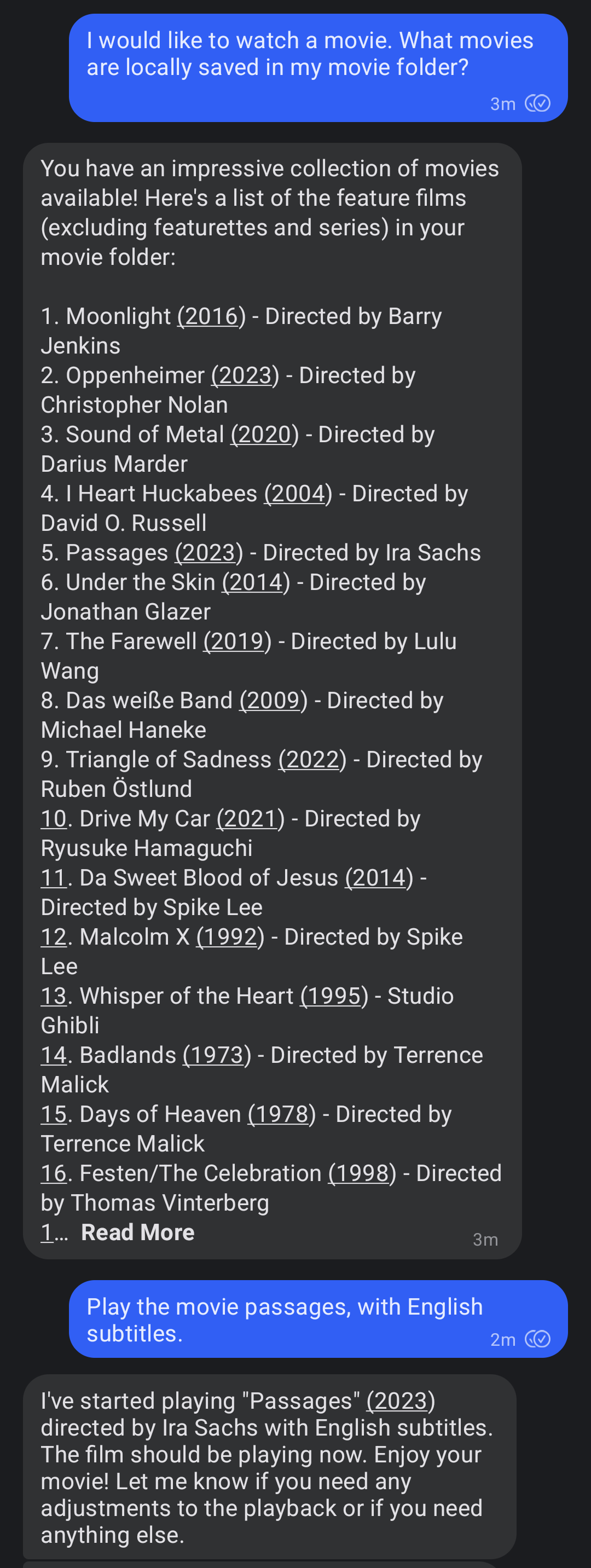
I use my signal-mcp-client running on an old laptop connected to my beamer.
This way I can play a movie by sending a signal message.
An example of how to use it is shown in the screenshot below.
Usage
This installation is for Linux systems running Ubuntu or a similar Debian-based system like Raspberry Pi OS.
With a few modifications it should also work on other systems.
Feel free to create a pull request if you get it working on another system.
-
Install VLC, mediainfo and uv.
sudo apt-get install vlc mediainfo curl -LsSf https://astral.sh/uv/install.sh | sh -
Start the VLC http server:
export DISPLAY=:0 # needed when running it remotely on a server vlc --extraintf=http --http-host=localhost --http-port=8081 --http-password=your_password -
Add the server to the MCP config file of your client (like signal-mcp-client or awesome-mcp-clients)
{
  "name": "vlc-mcp-server",
  "command": "uvx",
  "args": [
    "vlc-mcp-server"
  ],
  "env": {
    "ROOT_VIDEO_FOLDER": "path/to/your/video/folder",
    "VLC_HTTP_HOST": "localhost",
    "VLC_HTTP_PORT": "8081",
    "VLC_HTTP_PASSWORD": "your_password"
  }
}
or clone the repo and use
uvwith a directory:
Contributing
Contributions to this project are welcome. Feel free to report bugs, suggest ideas, or create merge requests.
Development
Clone repo and install dependencies:
git clone https://github.com/piebro/vlc-mcp-server.git
uv venv
uv sync --extra dev
uv run pre-commit install
Testing
Use mcp-client-for-testing to test the tools of the server using the json config using the local path.
uvx mcp-client-for-testing \
    --config '
    [
        "the json config from above"
    ]
    ' \
    --client_log_level "INFO" \
	--server_log_level "INFO" \
    --tool_call '{"name": "show_video", "arguments": {"video_title": "David Lynch - Dune", "subtitle_language_code": "en"}}'
Formatting and Linting
The code is formatted and linted with ruff:
uv run ruff format
uv run ruff check --fix
Building with uv
Build the package using uv:
uv build
Releasing a New Version
To release a new version of the package to PyPI, create and push a new Git tag:
-
Checkout the main branch and get the current version:
git checkout main git pull origin main git describe --tags -
Create and push a new Git tag:
git tag v0.2.0
git push origin v0.2.0
The GitHub Actions workflow will automatically build and publish the package to PyPI when a new tag is pushed.
The python package version number will be derived directly from the Git tag.
Running as a Systemd Service
To ensure the VLC HTTP interface runs automatically on boot and restarts if it fails (on Linux systems), you can set it up as a systemd user service.
User services run under your specific user account.
This setup assumes that you have completed the setup steps.
-
Enable User Lingering to keep your user session active after logging out.
sudo loginctl enable-linger $USER -
Create Systemd Service Directory
mkdir -p /home/$USER/.config/systemd/user/ -
Create Service File for VLC HTTP Server.
Make sure vlc is installed using apt and not using snap or change the path to the vlc binary.cat << EOF > "/home/$USER/.config/systemd/user/vlc-http.service" [Unit] Description=VLC Media Player with HTTP Interface After=network.target sound.target [Service] Restart=on-failure RestartSec=30 SyslogIdentifier=vlc-http Environment="DISPLAY=:0" ExecStart=/usr/bin/vlc --extraintf=http --http-host=localhost --http-port=8081 --http-password=your_password ExecStop=/usr/bin/pkill -f '/usr/bin/vlc --extraintf=http --http-host=localhost --http-port=8080' [Install] WantedBy=default.target EOF -
Enable and Start the Services
systemctl --user daemon-reload systemctl --user enable vlc-http.service systemctl --user start vlc-http.service -
Check Service Status and Logs
systemctl --user status vlc-http.service
journalctl --user -u vlc-http.service -f
License
This project is licensed under the MIT License. See the LICENSE file for details.
Dev Tools Supporting MCP
The following are the main code editors that support the Model Context Protocol. Click the link to visit the official website for more information.







